Zone Rules + Custom Shipping Fee Configuration by Rule
I. Definition
Overseas warehouses, upon obtaining logistics accounts, establish zone rules based on country, city, and postal code. By combining these zone rules with weight brackets, they configure logistics billing to achieve precise calculation of shipping costs.
II. Operating Procedures
Step 1: Easily Set Up "Postal Code Zones"
The core of logistics zoning is the "postal code range."
Method 1: Postal Code Range Provided by the Logistics Provider
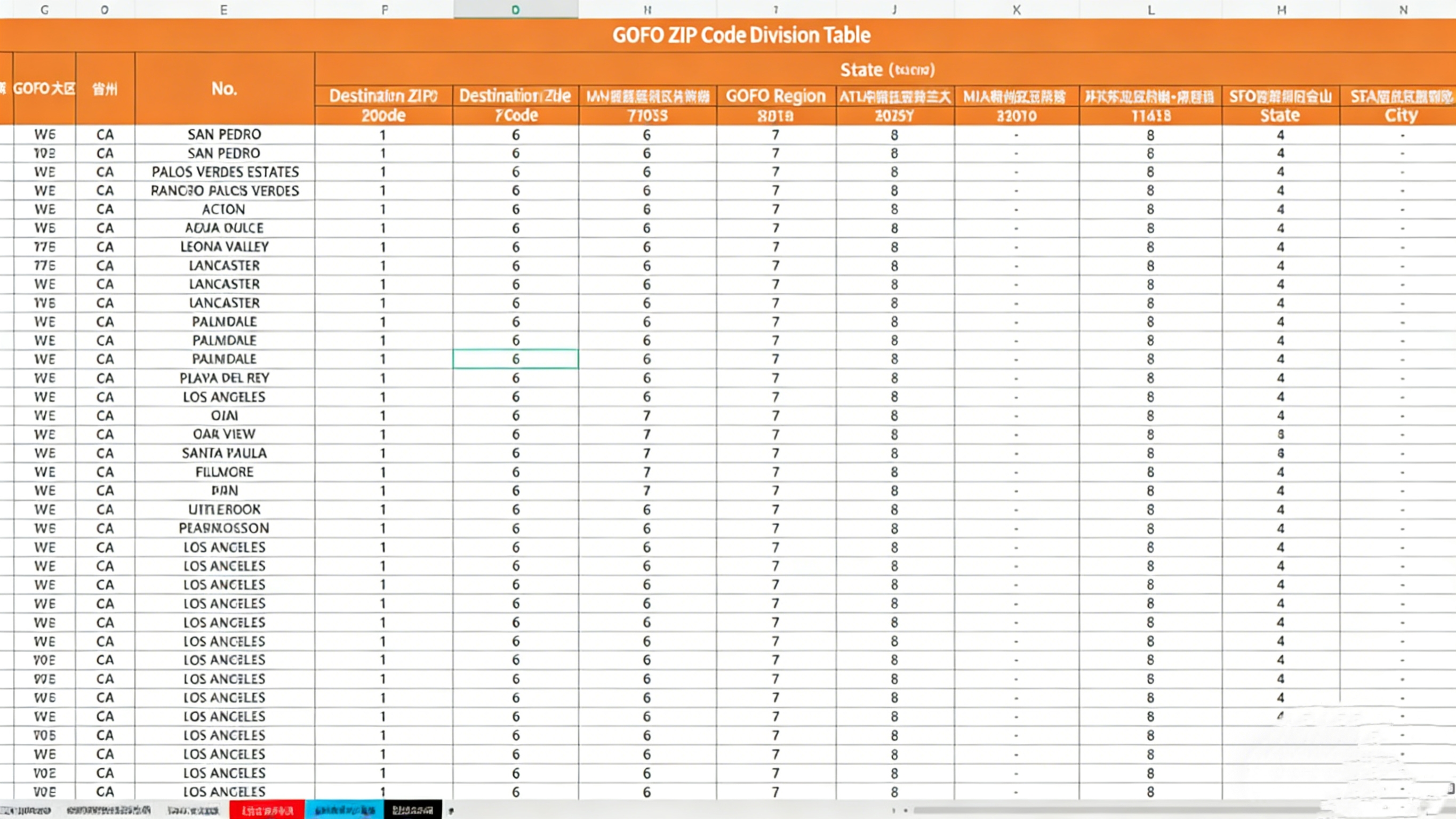
Most logistics providers (especially those with dedicated business service personnel) provide quotation sheets that include detailed zone rules (specifying which postal codes belong to which zone). These can be used directly.
Method 2: Obtain Postal Codes from Official Logistics Providers
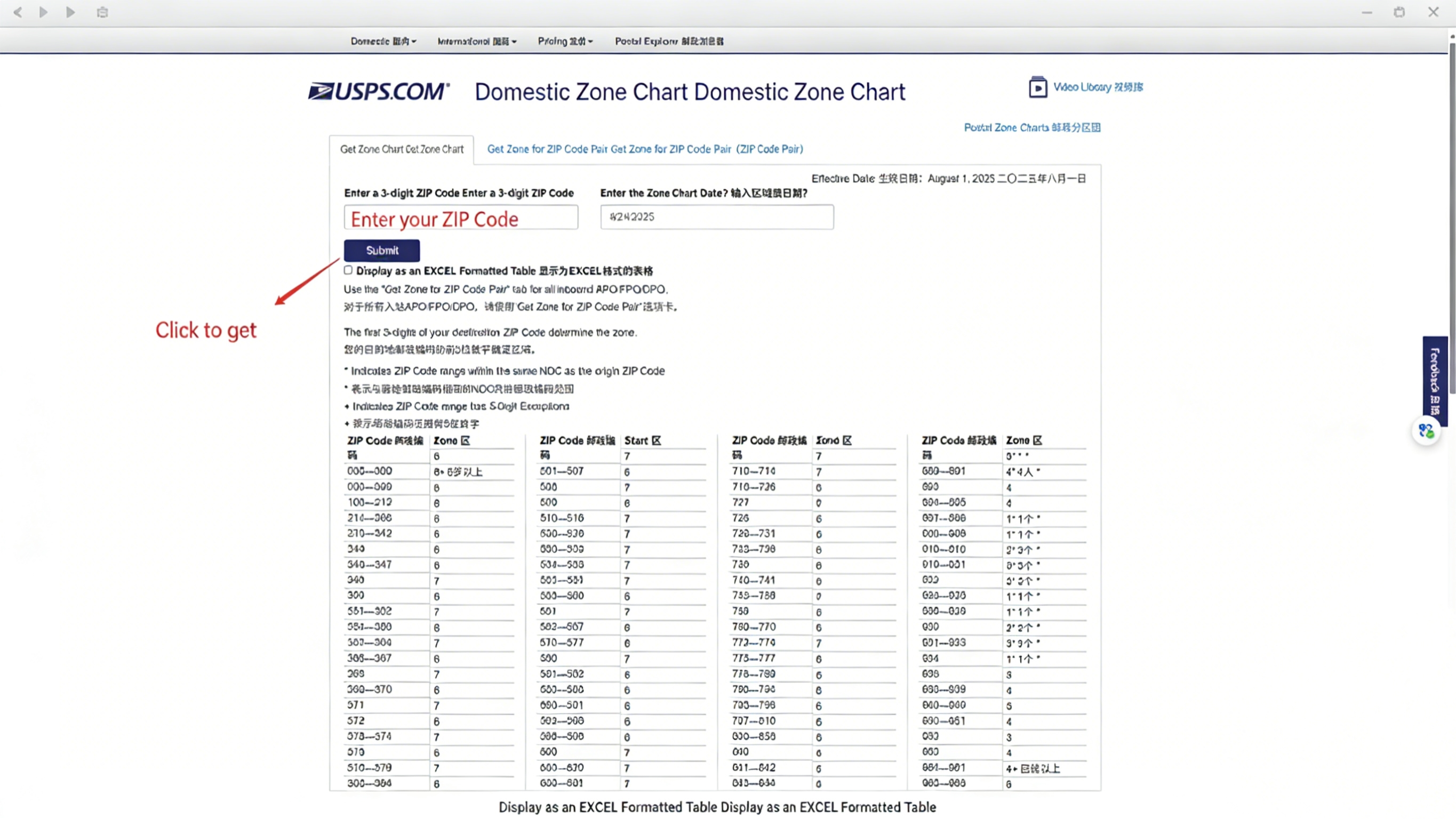
For official carriers like USPS, you can directly visit their official website: https://postcalc.usps.com/DomesticZoneChart. Enter the sender's 3-digit ZIP code to retrieve the corresponding zone and postal code range for the area—this method is both precise and authoritative.
Step 2: Organize the Zone Rules Table for "Seamless Integration" with the System
Once you have the zone data, you can use the system's "Bulk Import" feature for zone rules instead of manually entering them one by one. This saves time and helps avoid errors in entering postal code ranges.
Open the Jifeng Overseas Warehouse Management System, navigate to "Logistics - Zone Rules", and click "Create New".
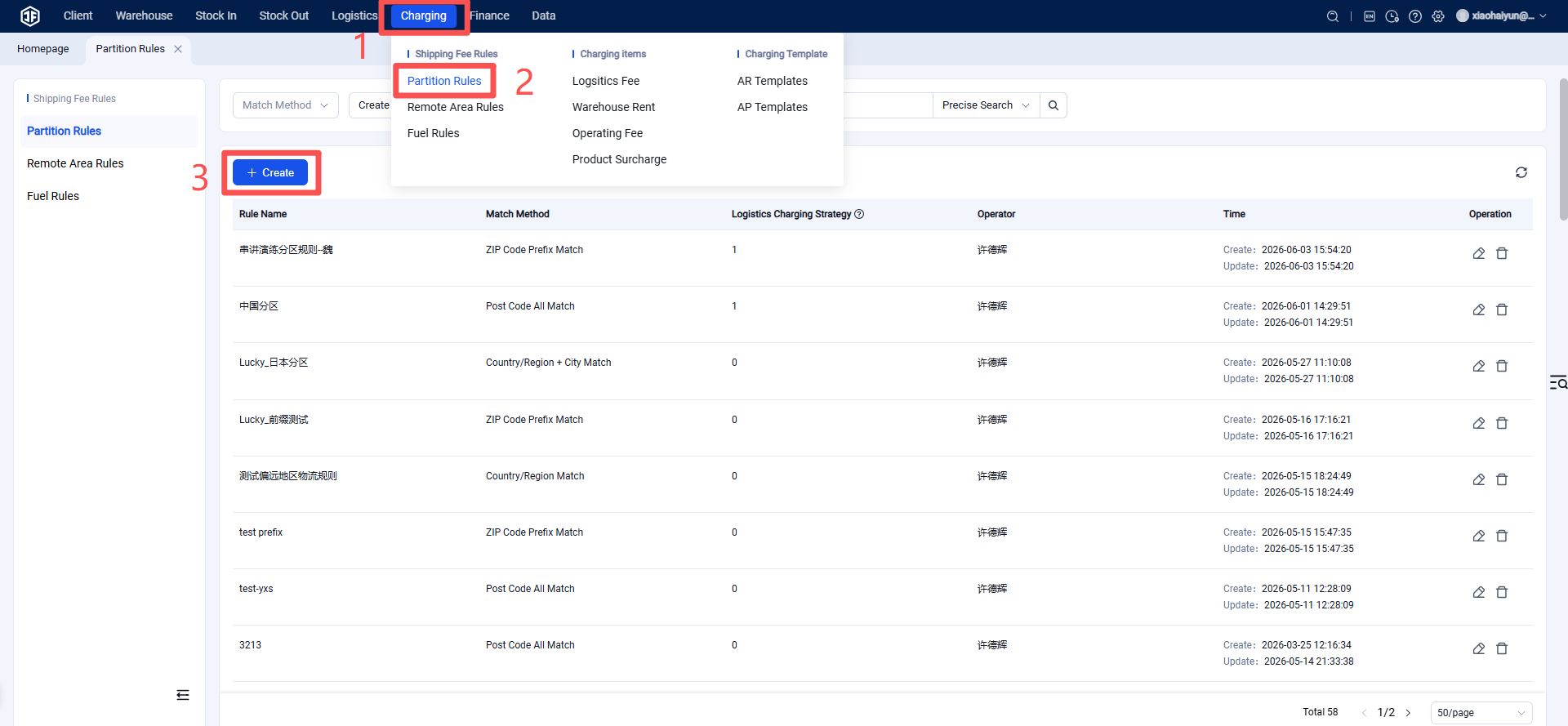
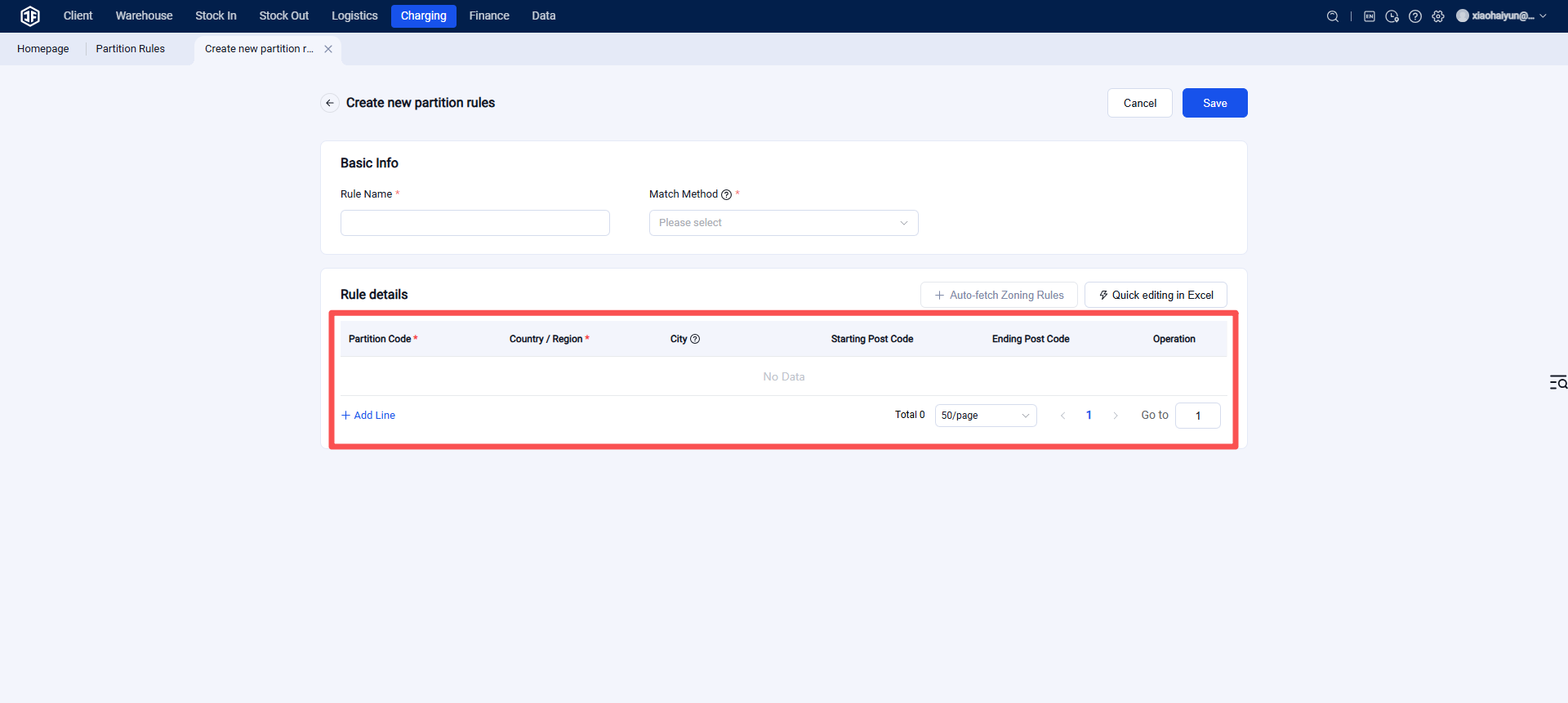
Customize Zone Rules and Matching Method
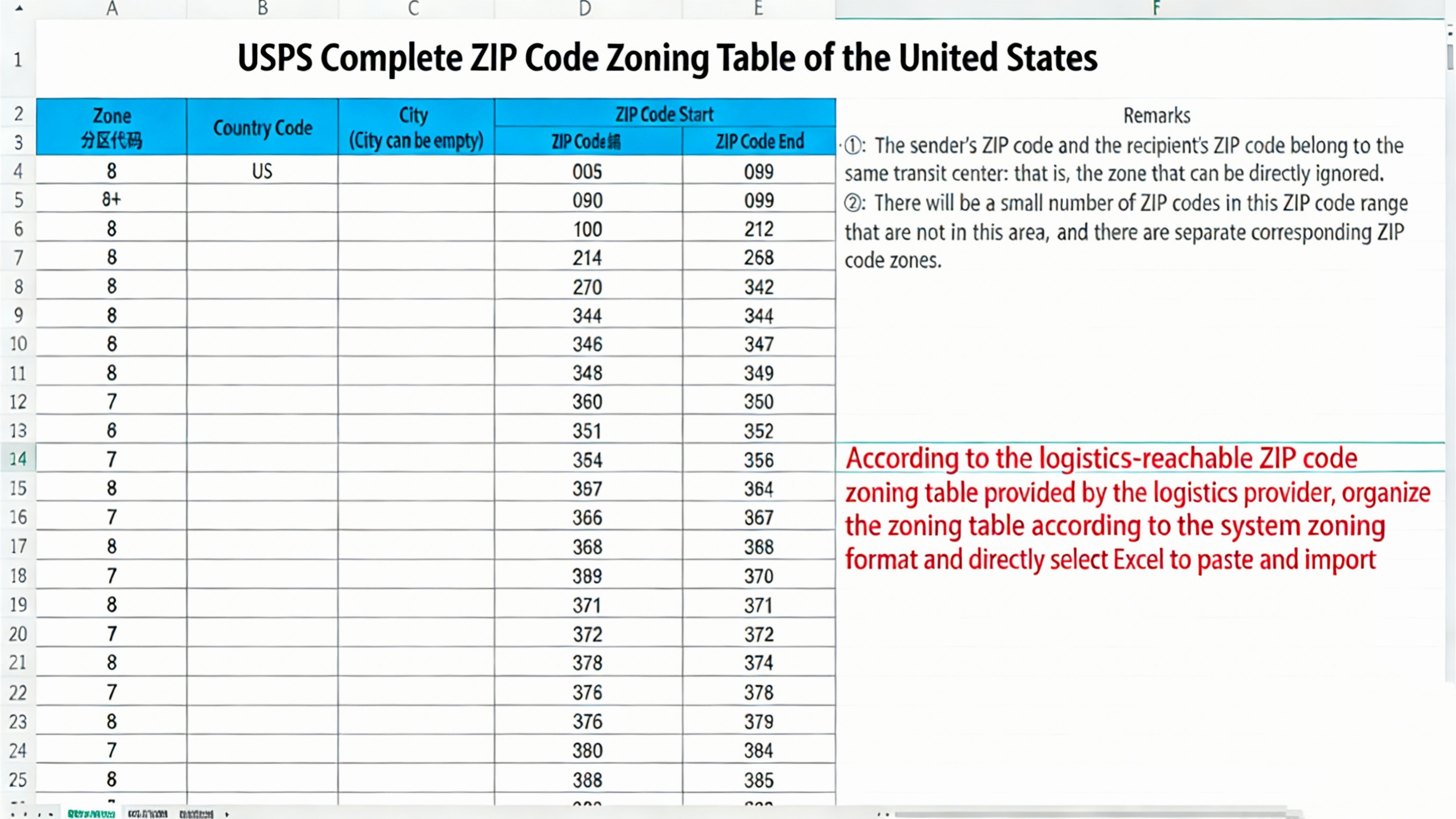
The system will display the required fields to fill in (e.g., Zone Code, Country/Region, City, Start Postal Code, End Postal Code). Organize your zone table according to this format (for example: "Zone1 USA Los Angeles 90001 90099").
Open the logistics provider's reachable zone postal code table, reformat it according to the system's zone rules template, and organize it into a system-compatible zone rules table. Once organized, simply copy and paste it directly into the system! This eliminates the hassle of manual entry and helps avoid errors in postal code ranges.
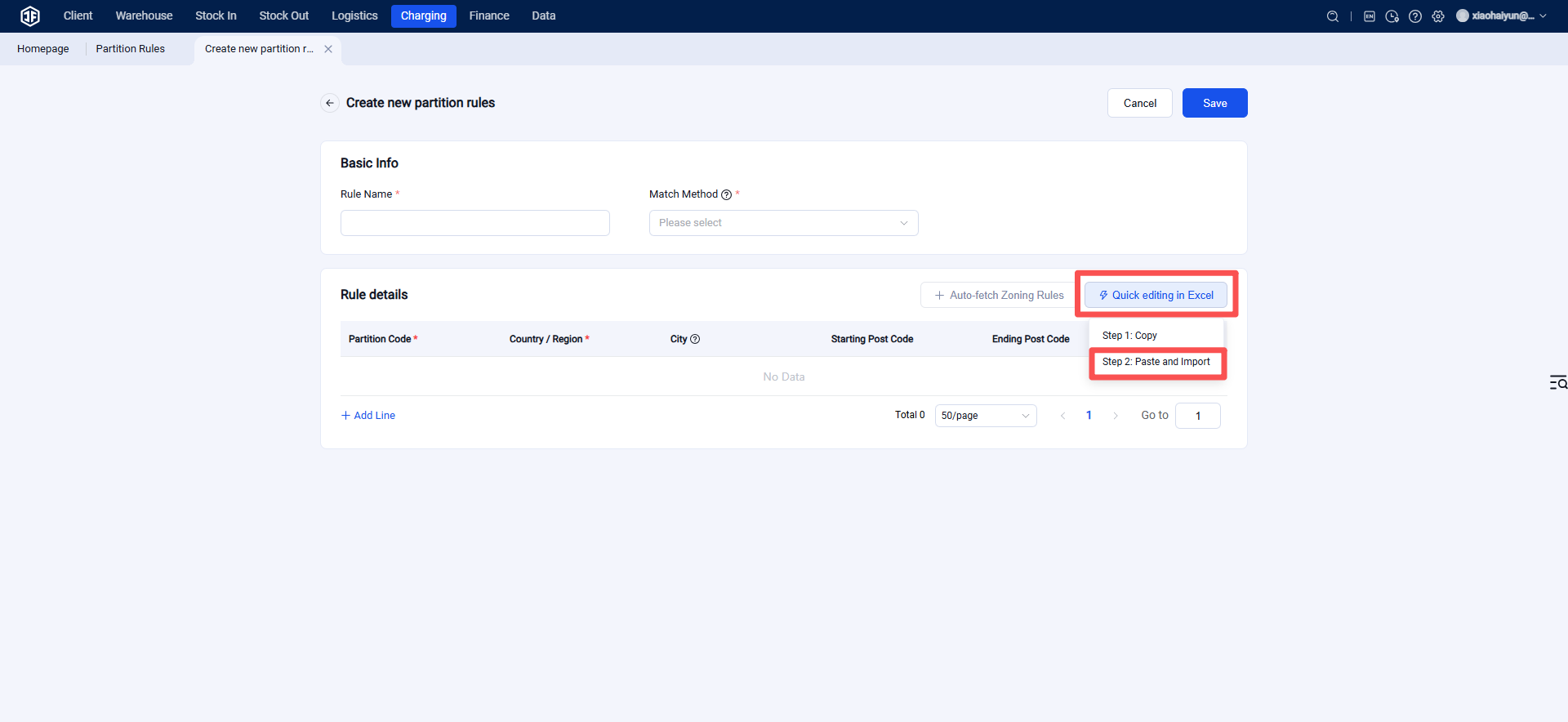
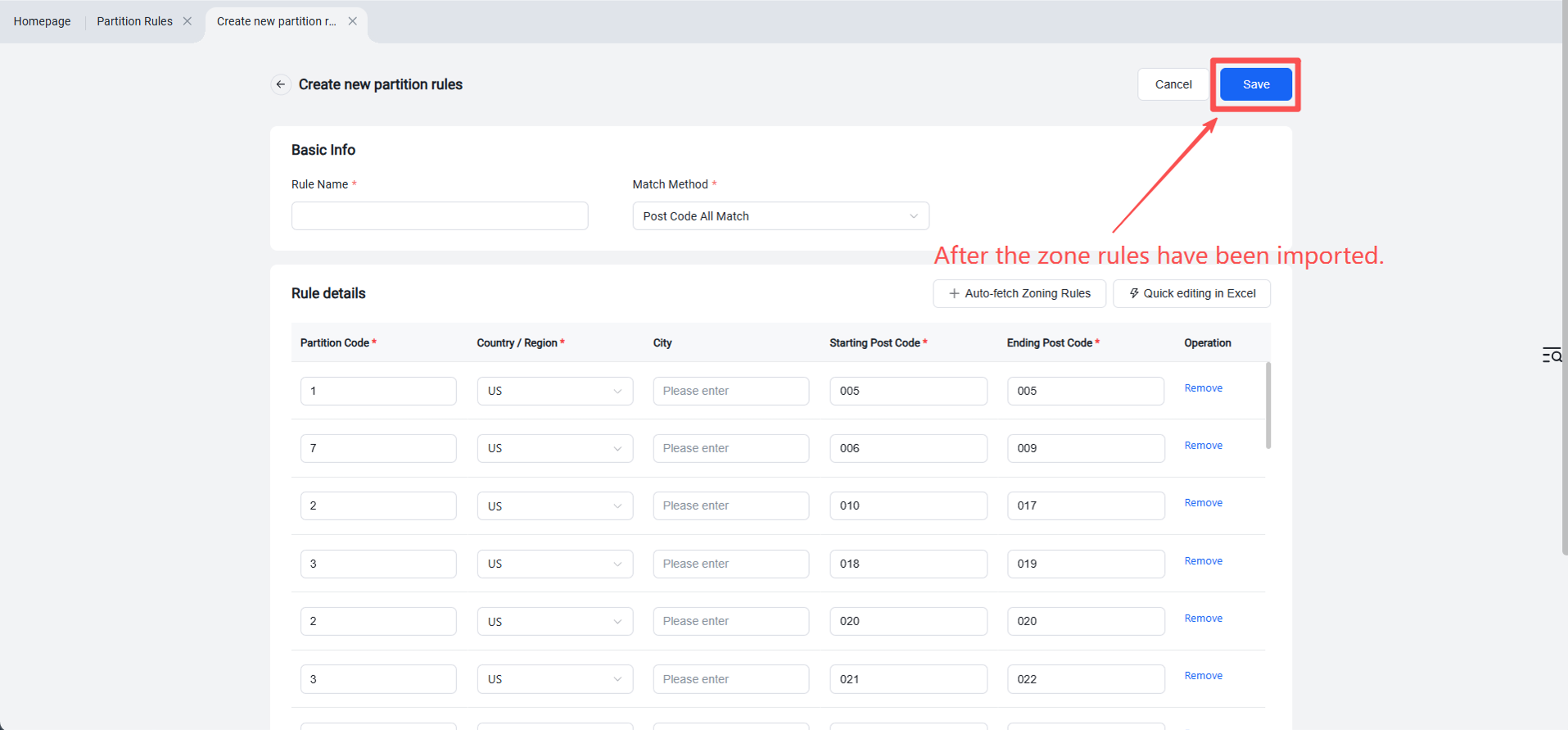
Step 3: Customize Billing Plan for Accurate Charges Based on "Zone + Weight"
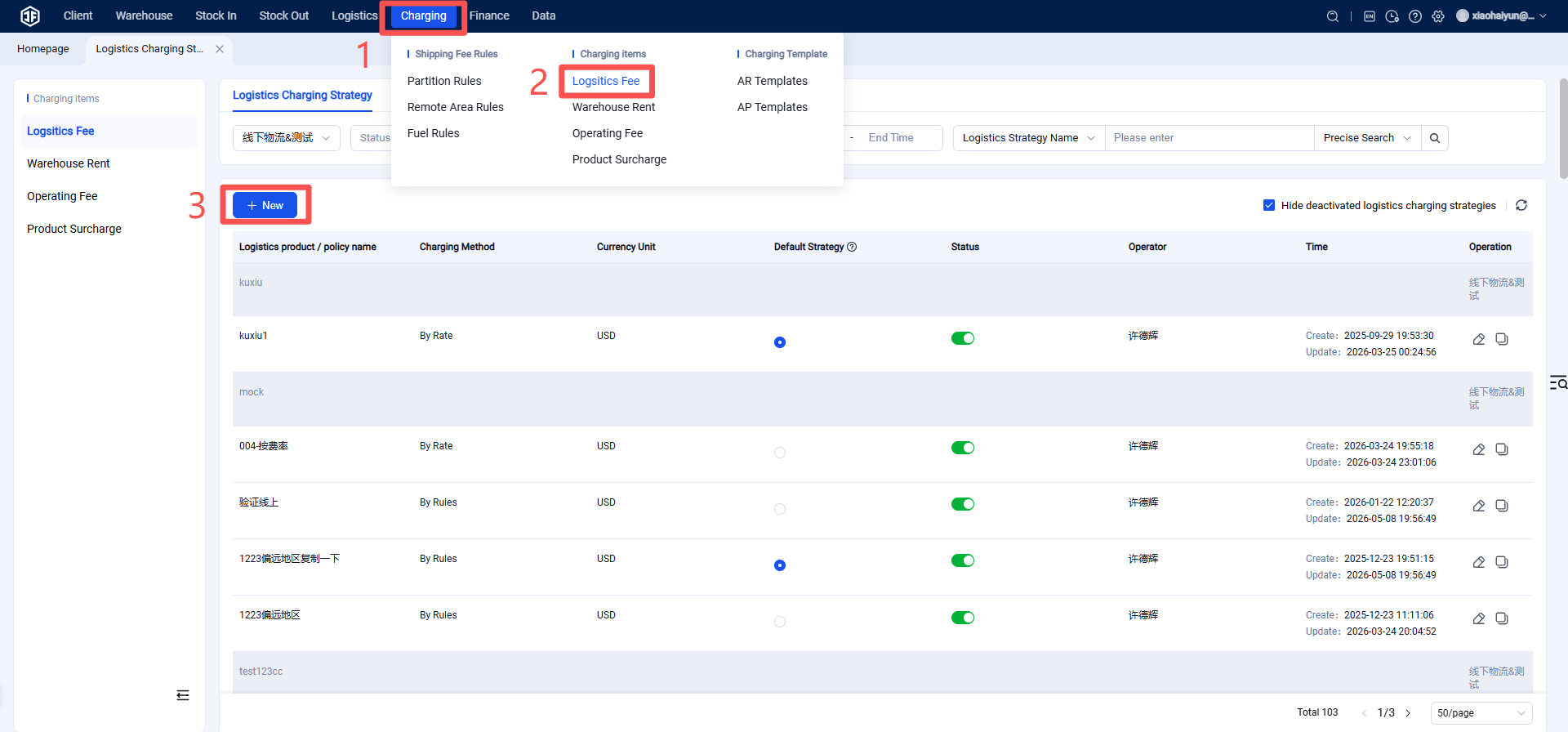
After the zone rules are set up, you can configure billing strategies according to your business needs—charge exactly as required. Navigate to "Logistics - Logistics Billing Strategy" and click "Create New".
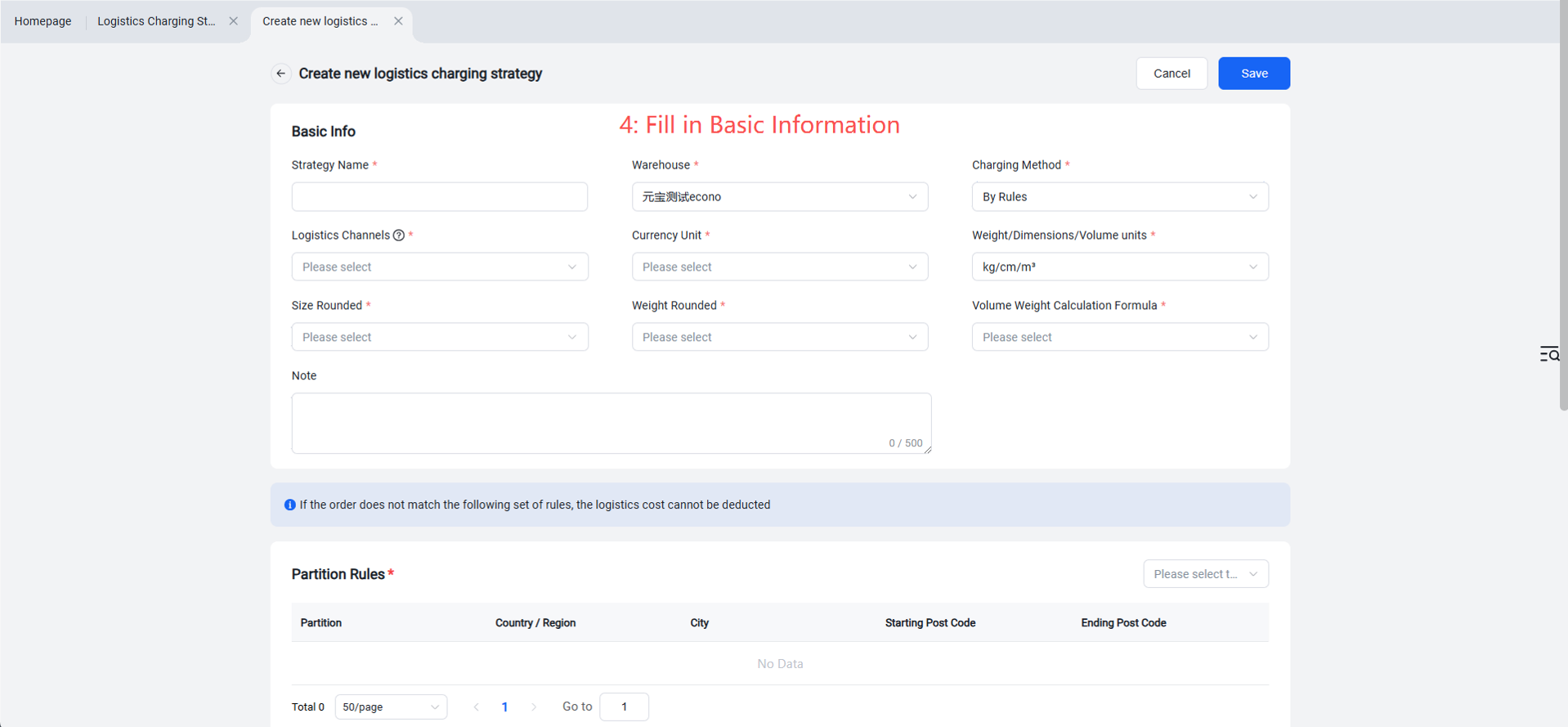
Customize Strategy Name (e.g., "USPS US Special Line Billing"), select warehouse, logistics channel, billing currency (USD, EUR, etc.); choose billing method as "Billing by Rules", select USPS logistics channel, select currency unit, and choose volumetric weight calculation method.
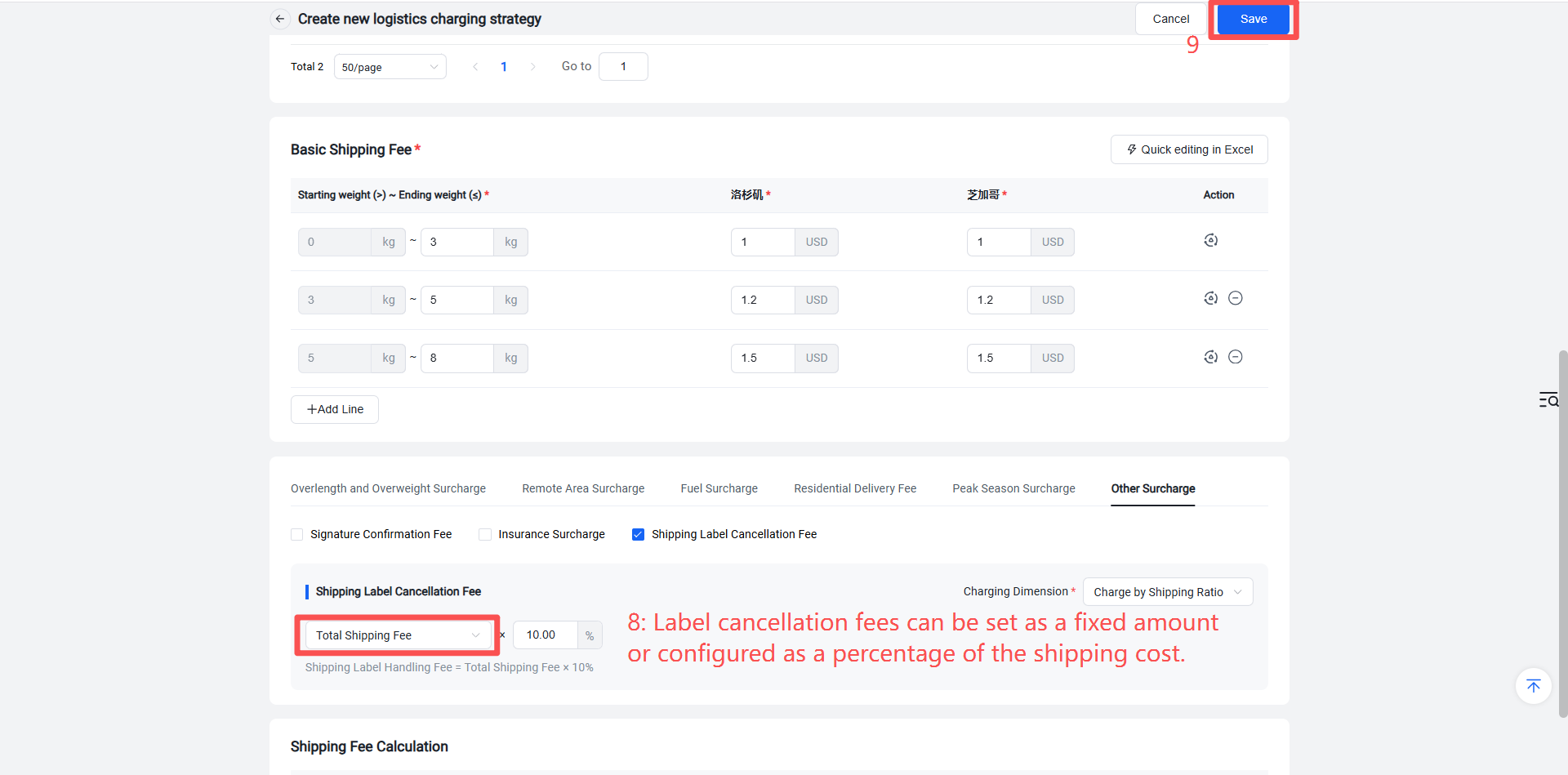
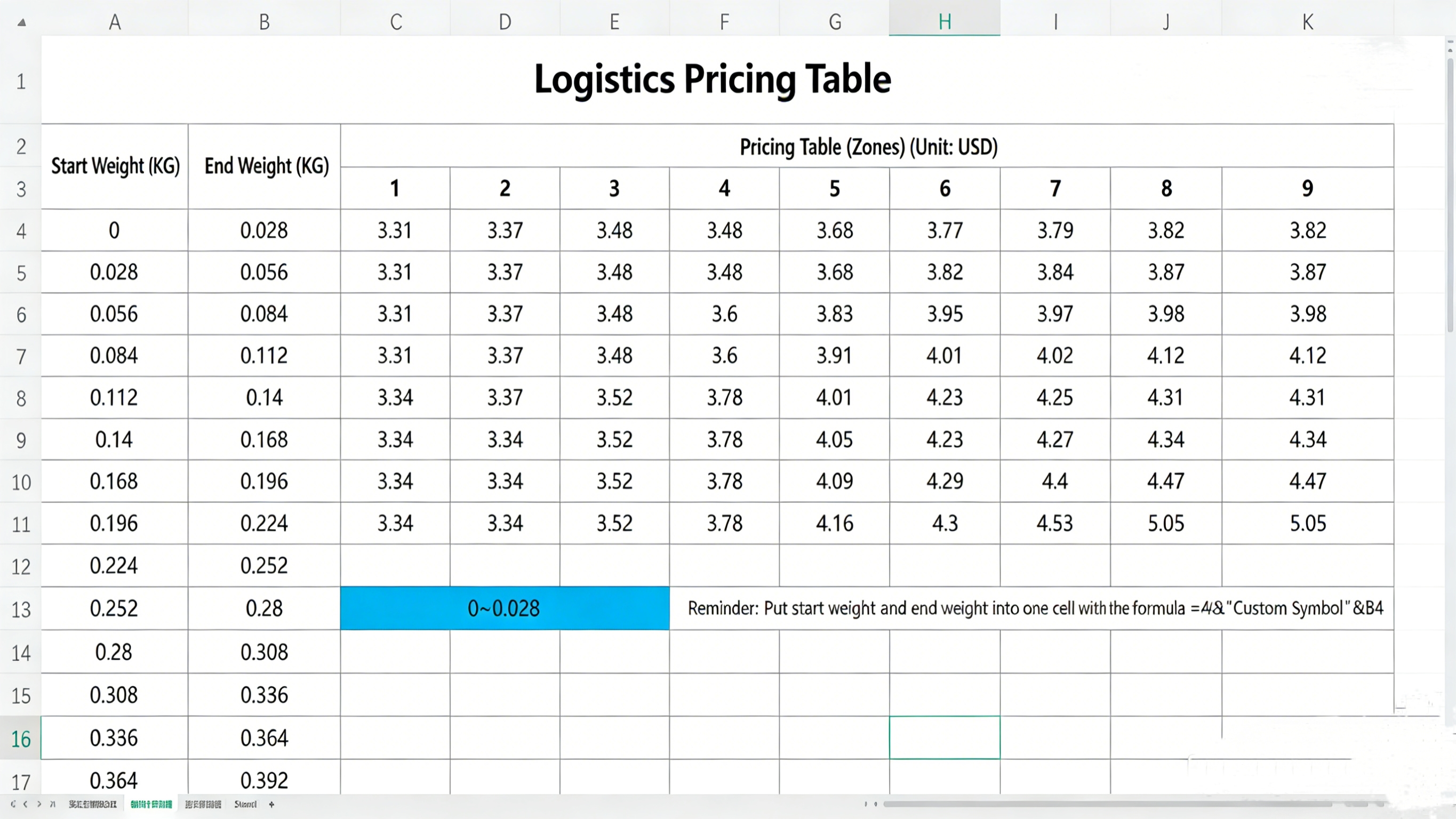
First, locate your zone pricing table. Then, select the zone rules and fill in the prices according to "Zone + Weight Bracket".
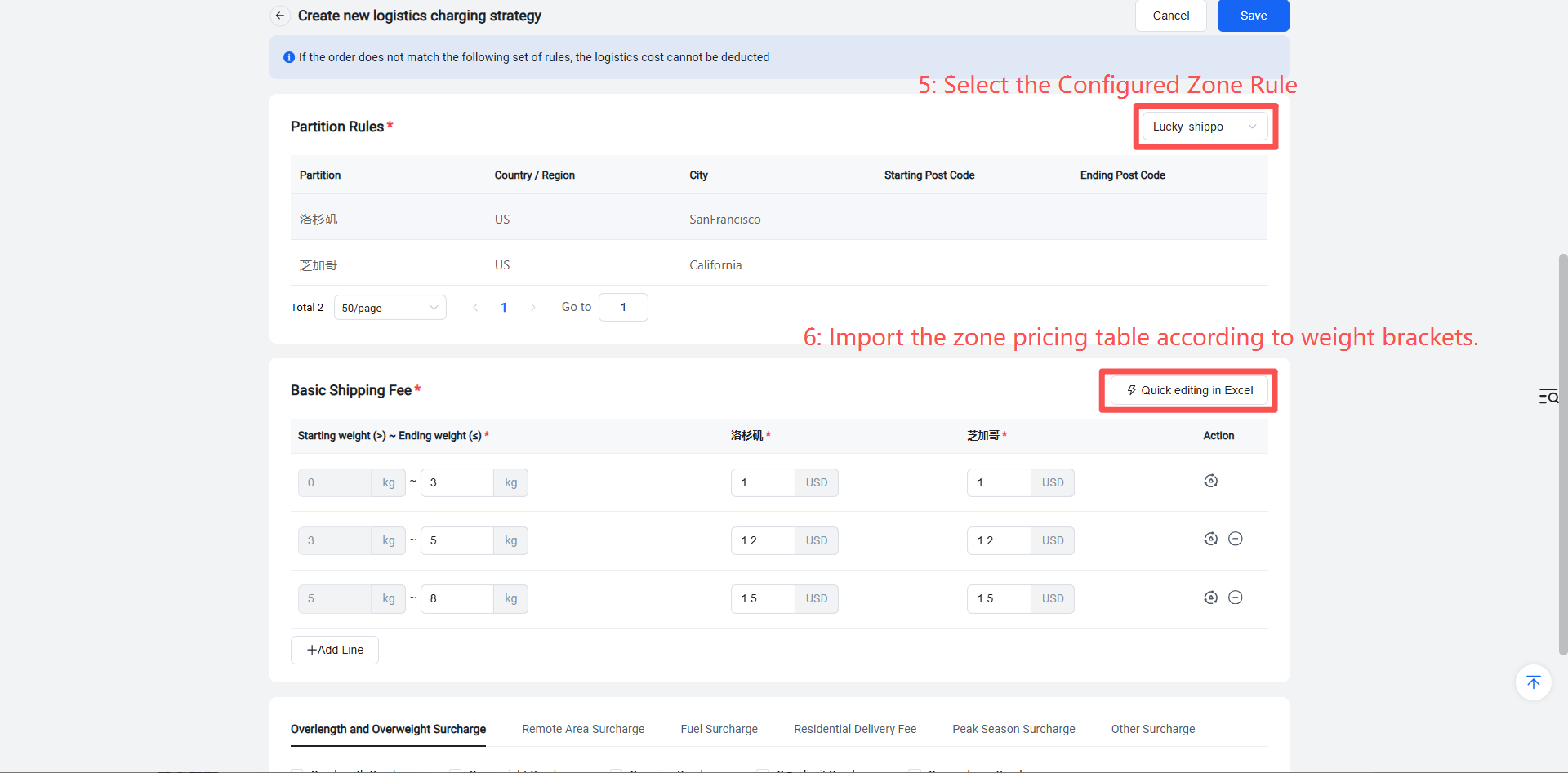
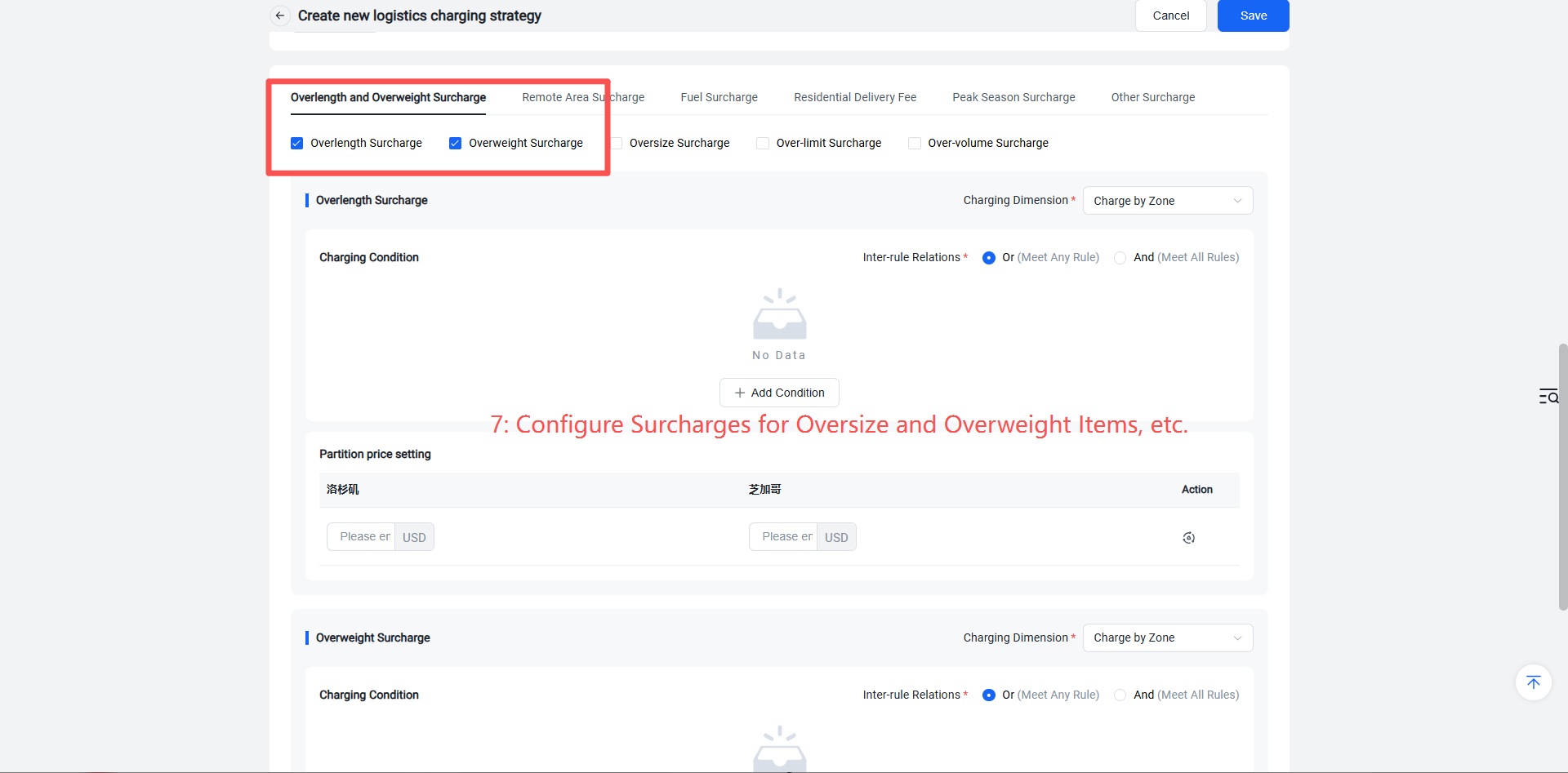
Additional charges for oversized/overweight items or remote areas can also be added, and label cancellation fees can be configured. The system will automatically calculate and apply these surcharges accordingly.