OMS Batch Import of Manual Orders with Seller's Own Shipping Labels
I. Definition
In scenarios where orders cannot be pushed via ERP and the seller already has their own shipping labels, sellers can batch import manual orders in OMS, upload the logistics labels, and finally submit them to WMS for warehouse outbound processing.
II. Operational Procedure
Step 1: Log in to OMS, navigate to Outbound > All Orders > Batch Import.
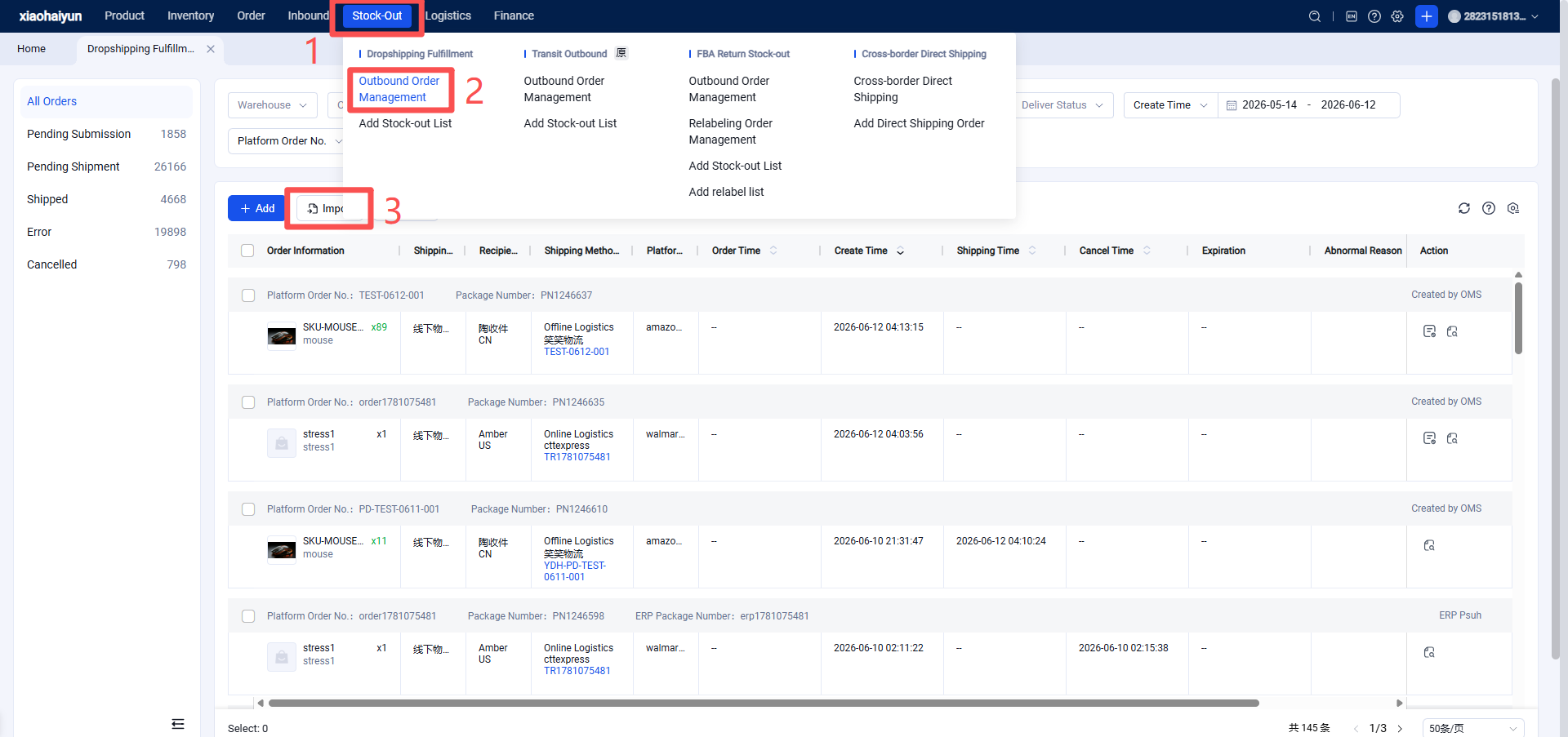
Step 2: Click "Import" to open the import order pop-up window, then click "Download Template" .
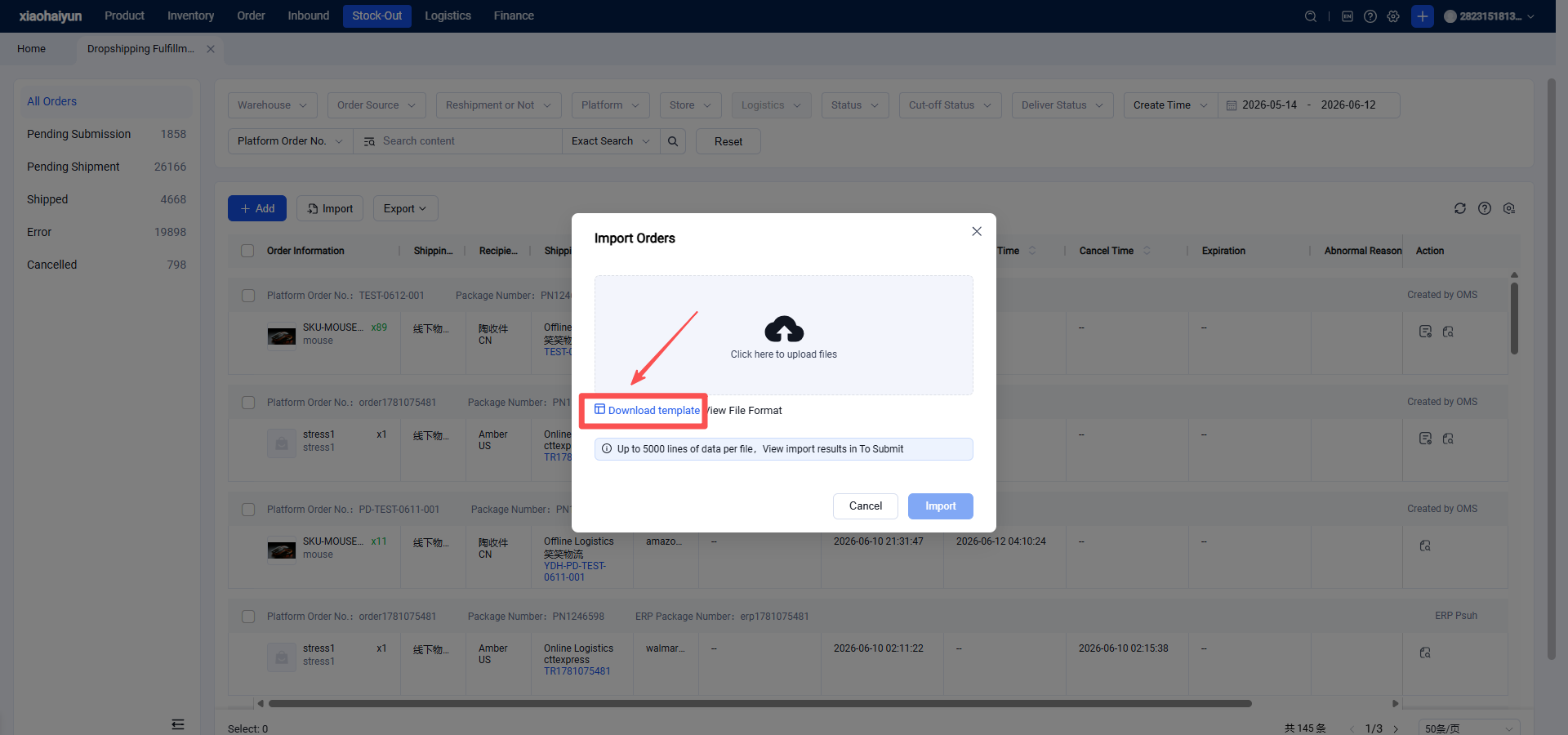
When "Label Type" is set to "Own Label", the following fields are required for import:
(1) Order Number: Enter the order number. Duplicate order numbers are not allowed.
(2) Platform: Select the order's platform from the dropdown menu.
(3) Shipping Warehouse: Enter the name of the shipping warehouse.
(4) Label Type: Select "Own Label" from the dropdown menu.
(5) Logistics: Enter the name of the logistics provider used for shipment. (You can query online logistics names in the Logistics module of OMS. If unavailable, contact the warehouse to enable online logistics.)
(6) Tracking Number: Enter the tracking number.
(7) Product SKU: Enter the SKU. If an order contains multiple SKUs, each SKU and its corresponding quantity should be entered on a separate row, with all other order information identical (see example).
(8) Quantity: Enter the quantity corresponding to the SKU. If an order contains multiple SKUs, each SKU and its corresponding quantity should be entered on a separate row, with all other order information identical (see example).
(9) Recipient: Enter the recipient's name.
(10) Country/Region: Enter the recipient's country/region.
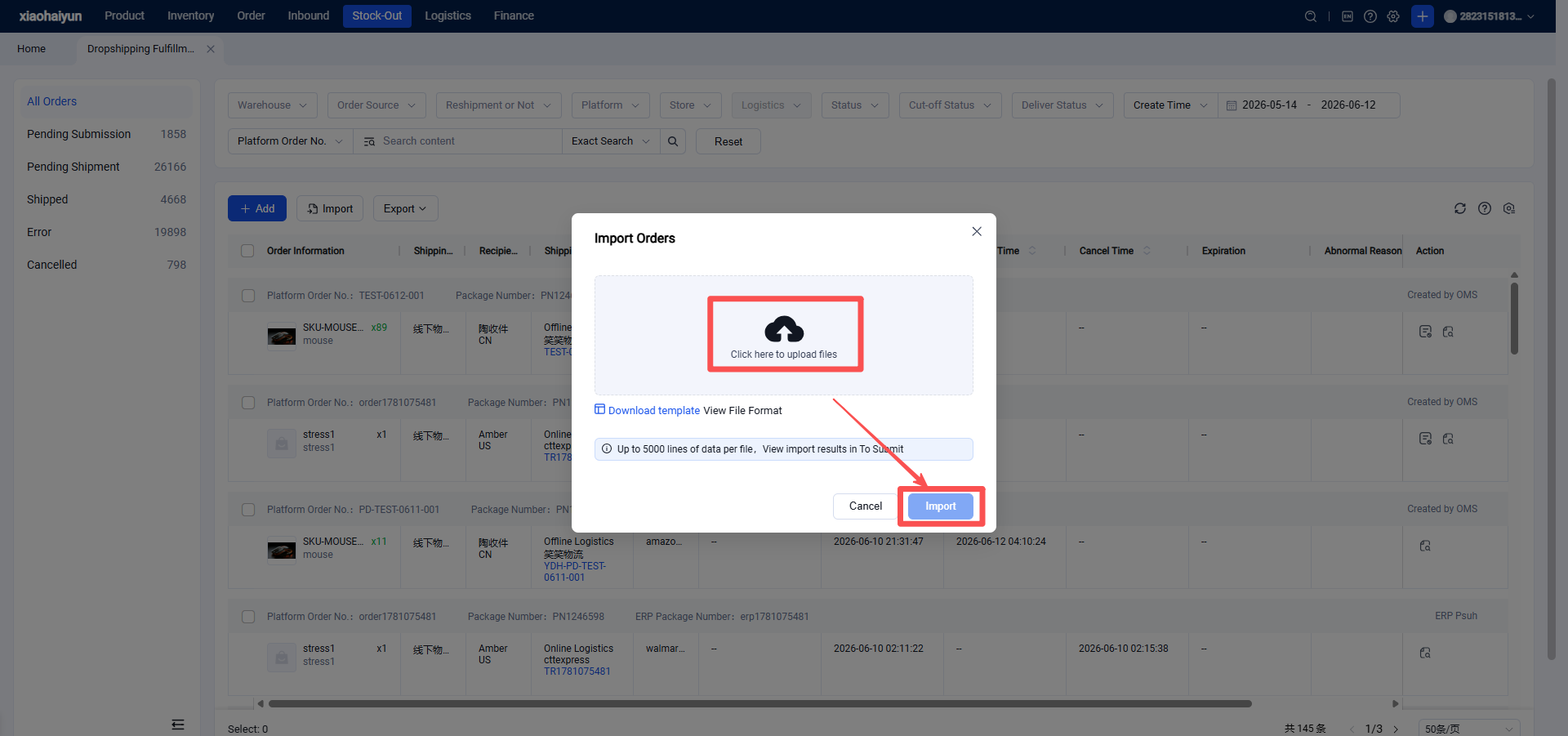
Step 3: Click "Import" to open the import order pop-up window. Select the file and click "Import" .
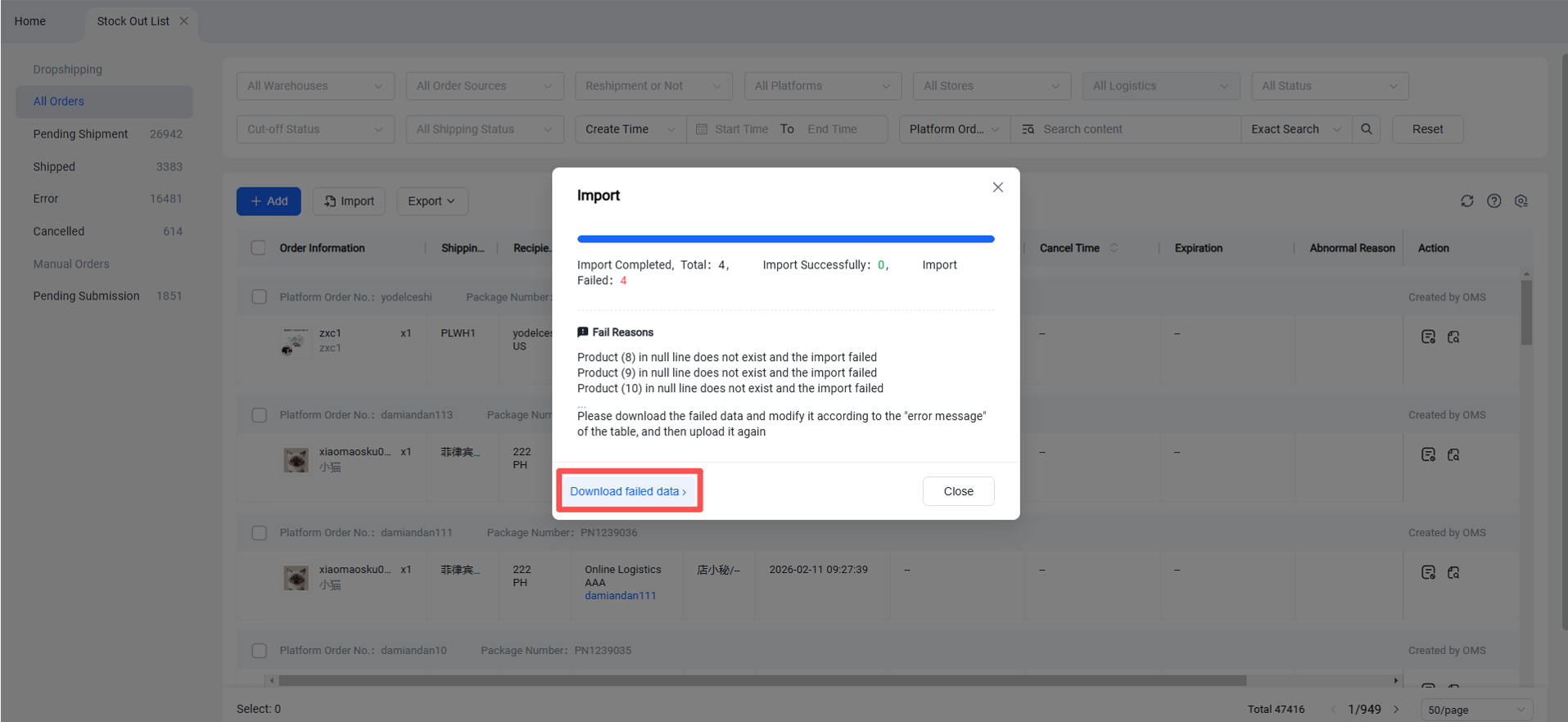
Step 4: If any failures occur during import, you can download the failure report file to view the reasons. Make corrections and re-import.
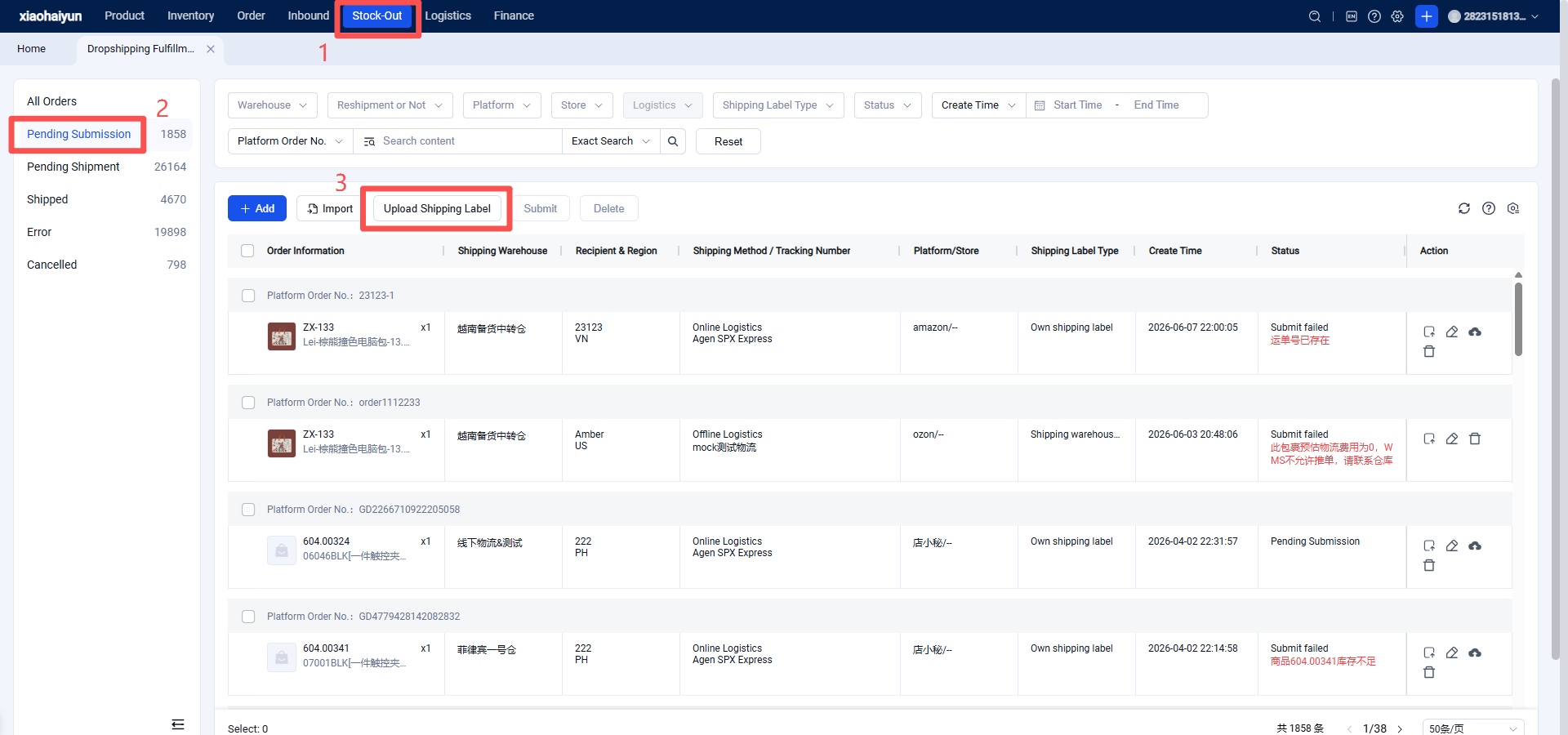
Step 5: After successful import, you can upload shipping label PDF files for orders individually or import labels in batch.
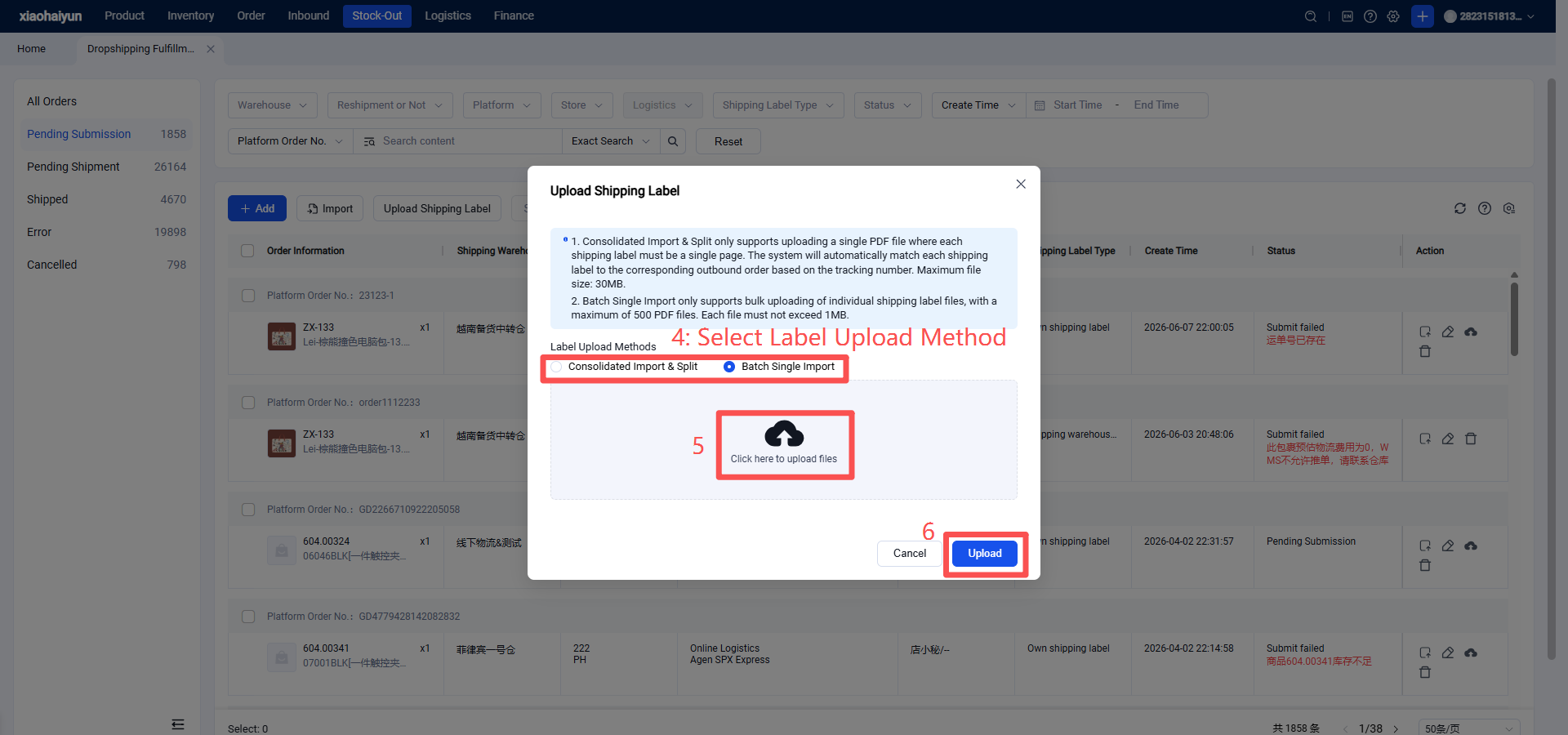
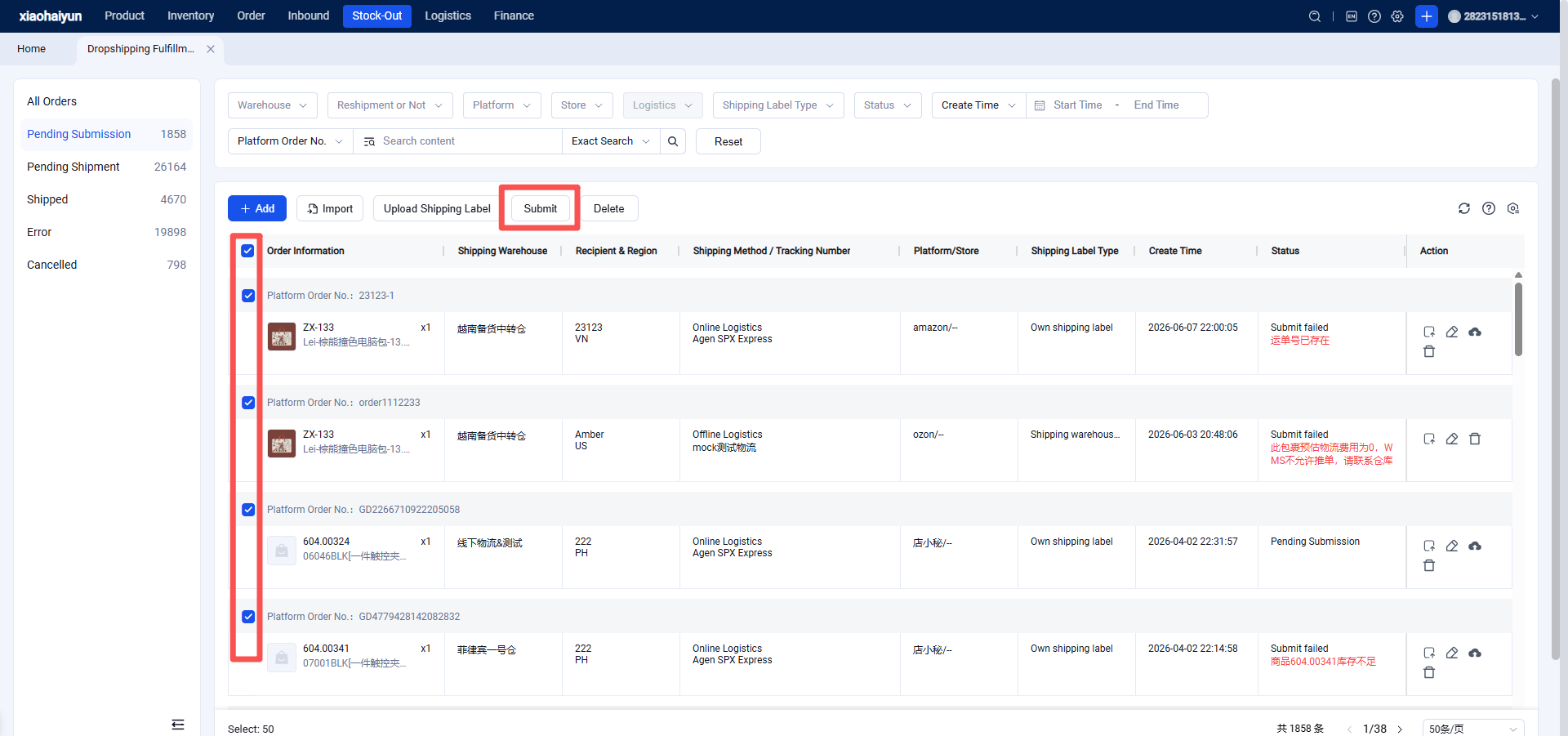
Step 6: After uploading the shipping labels, you can submit orders individually or submit them in batch.
Step 7: Once the shipping labels are uploaded, the overseas warehouse will receive the orders and can proceed with picking, packing, and shipping within the WMS outbound module.