How 4Seller Users Can Integrate with OMS to Achieve the Complete Drop-shipping Workflow
I. Definition
Sellers authorize stores, process orders, and push products to the overseas warehouse via the 4seller ERP.
II. Operational Procedure
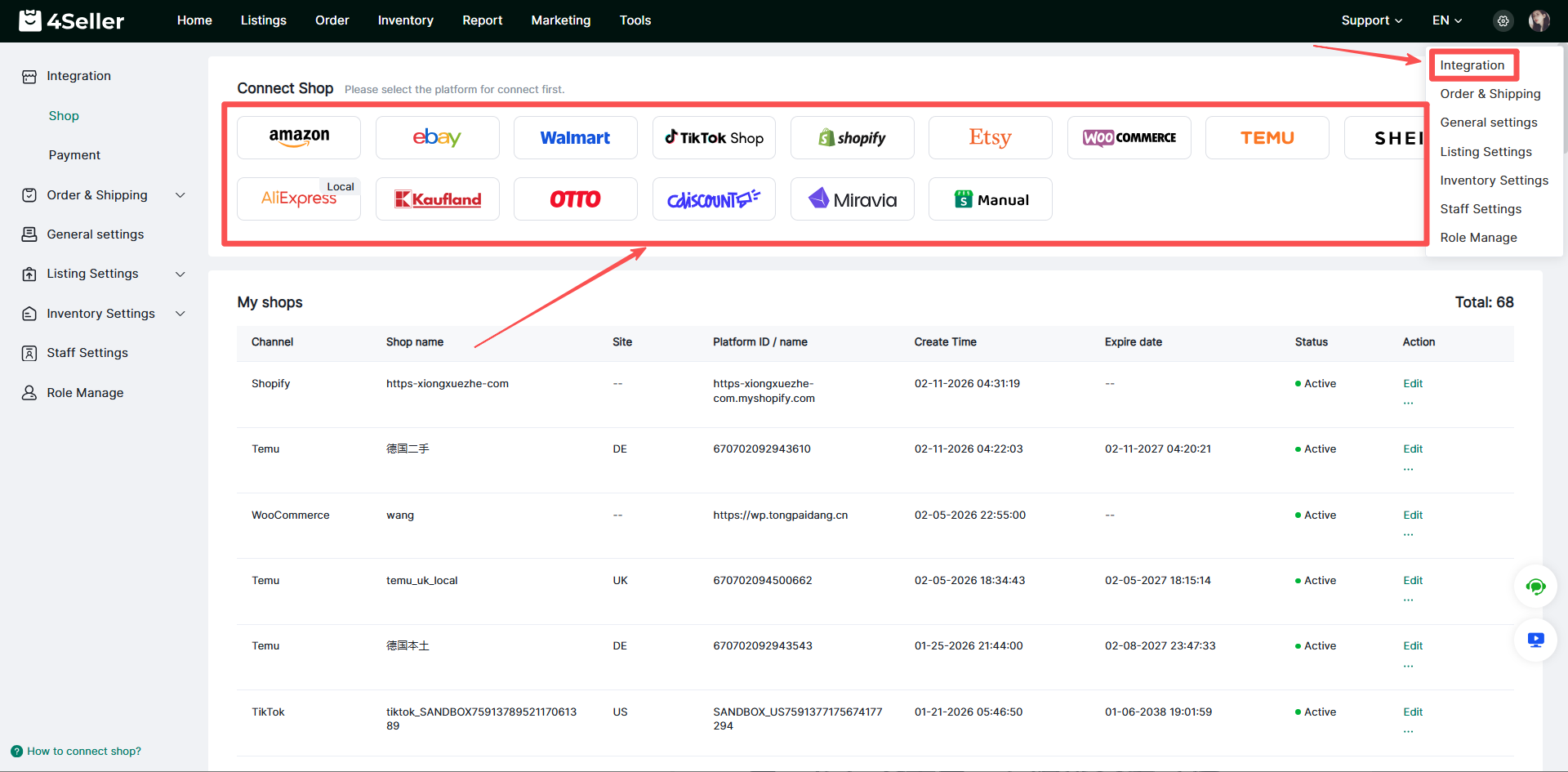
Step 1: Authorize Store in 4seller (Please ensure the authorization is completed under the store's network IP environment).
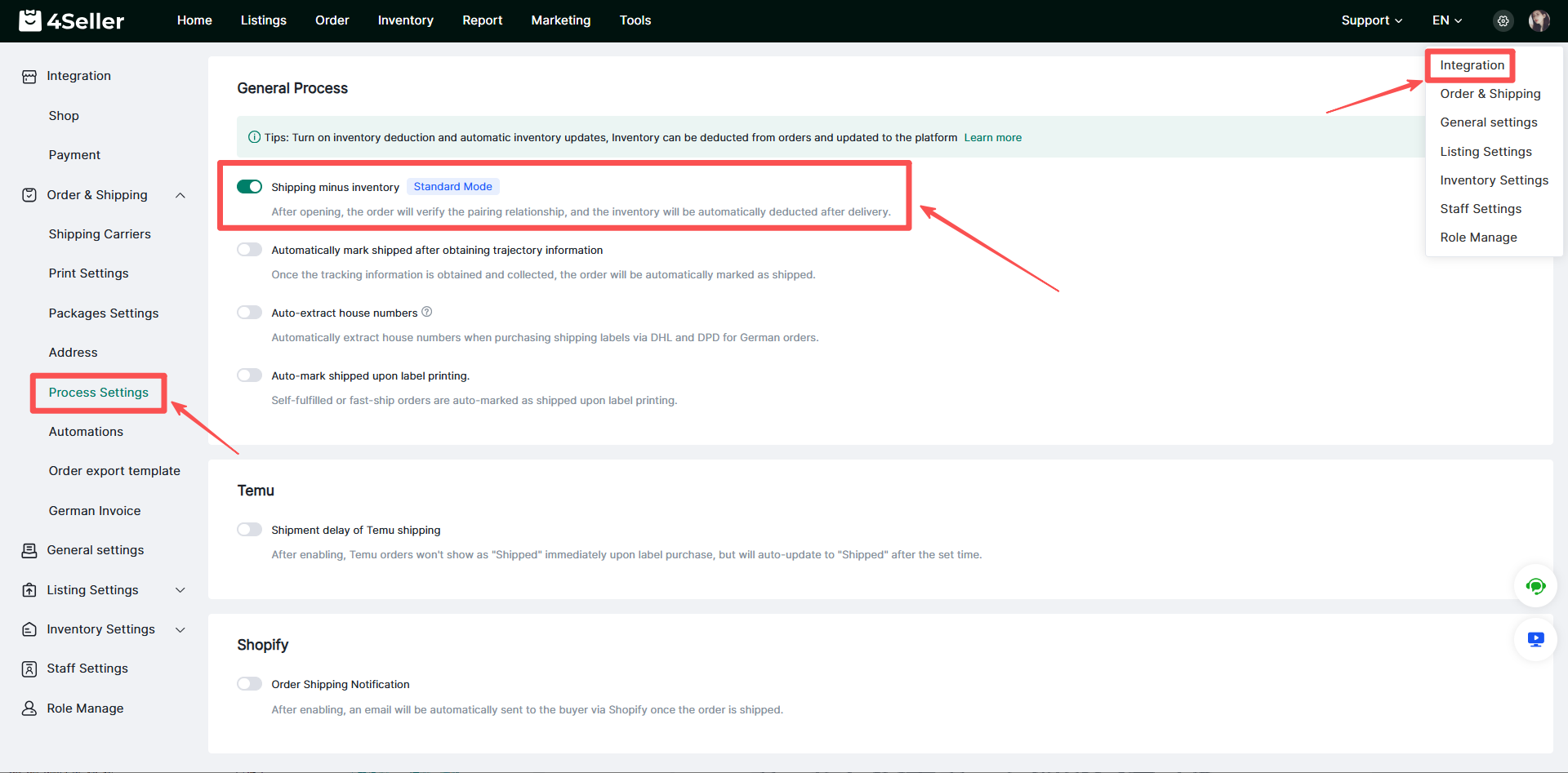
Step 2: Enable Inventory Deduction in 4seller
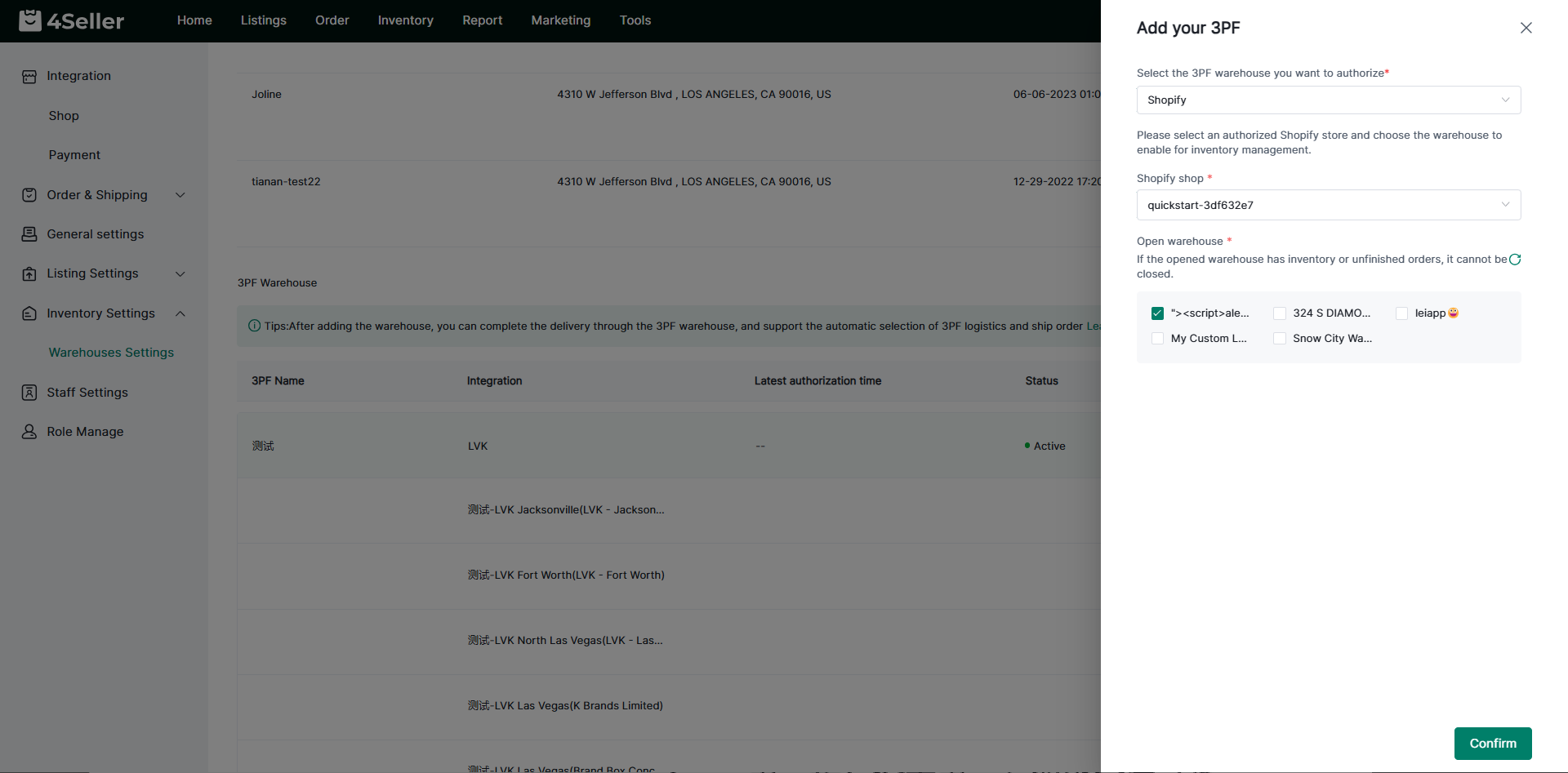
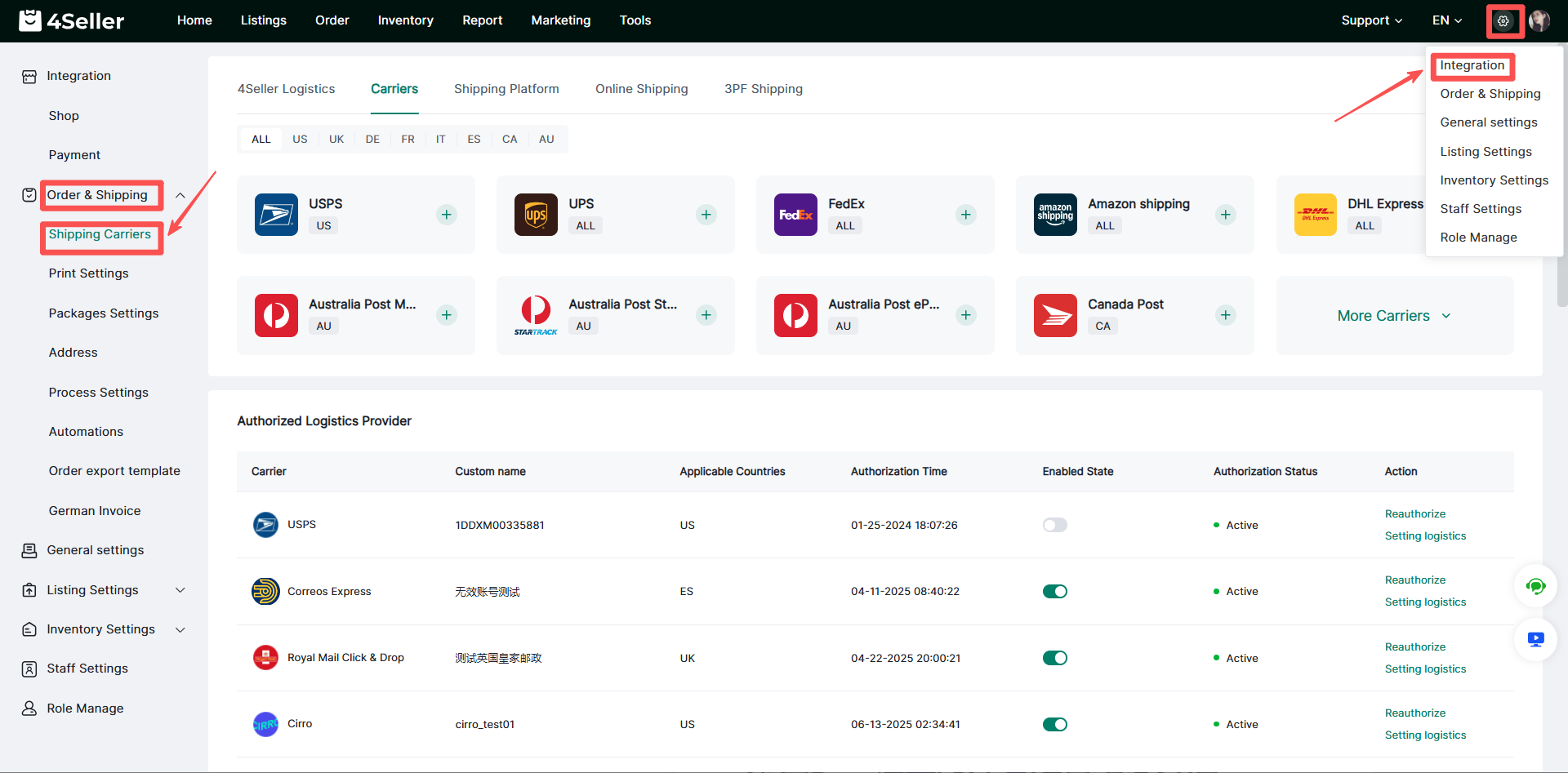
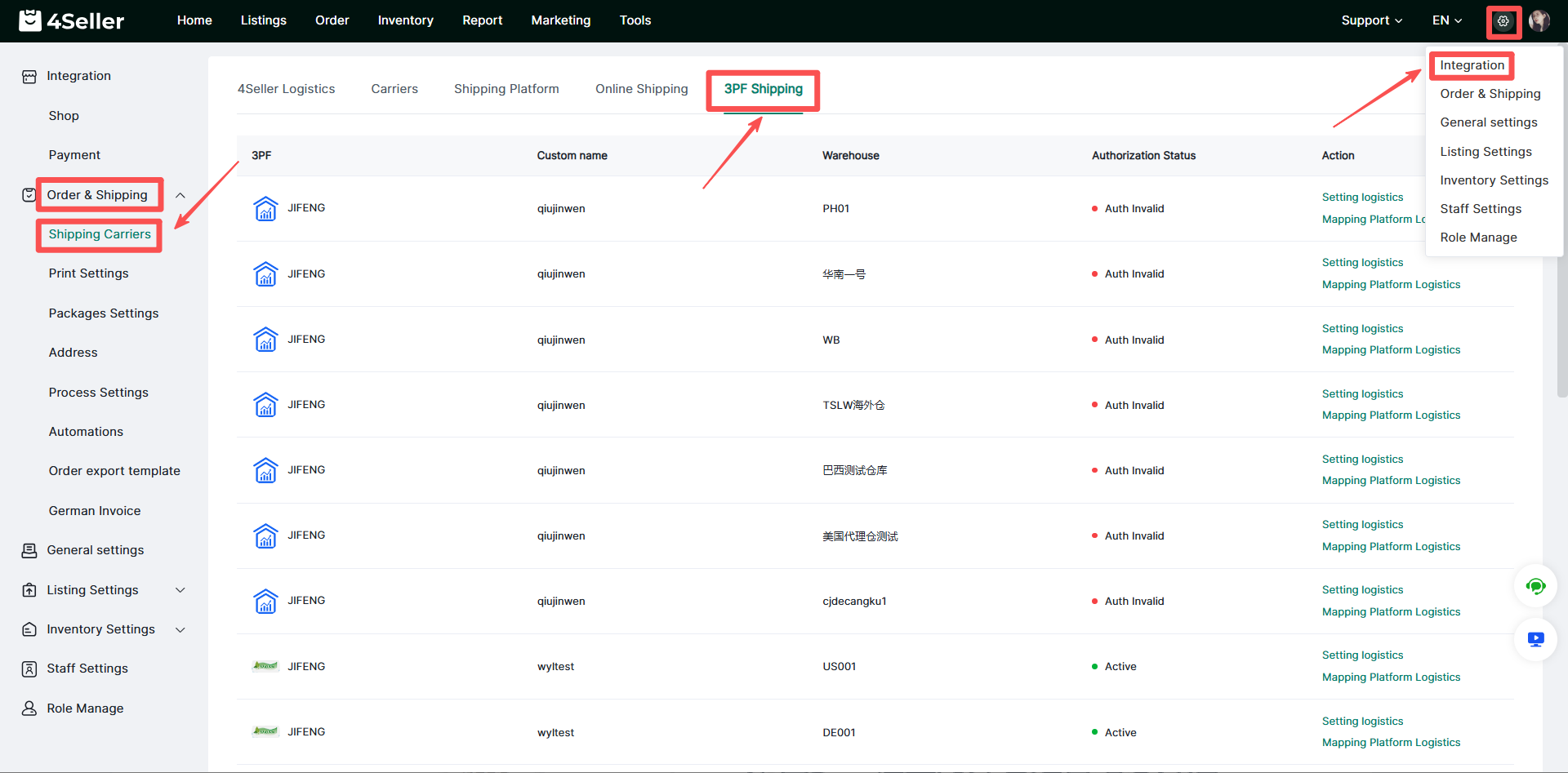
Step 3: Set Up Third-Party Overseas Warehouse (Locate the overseas warehouse you intend to use and complete the configuration).
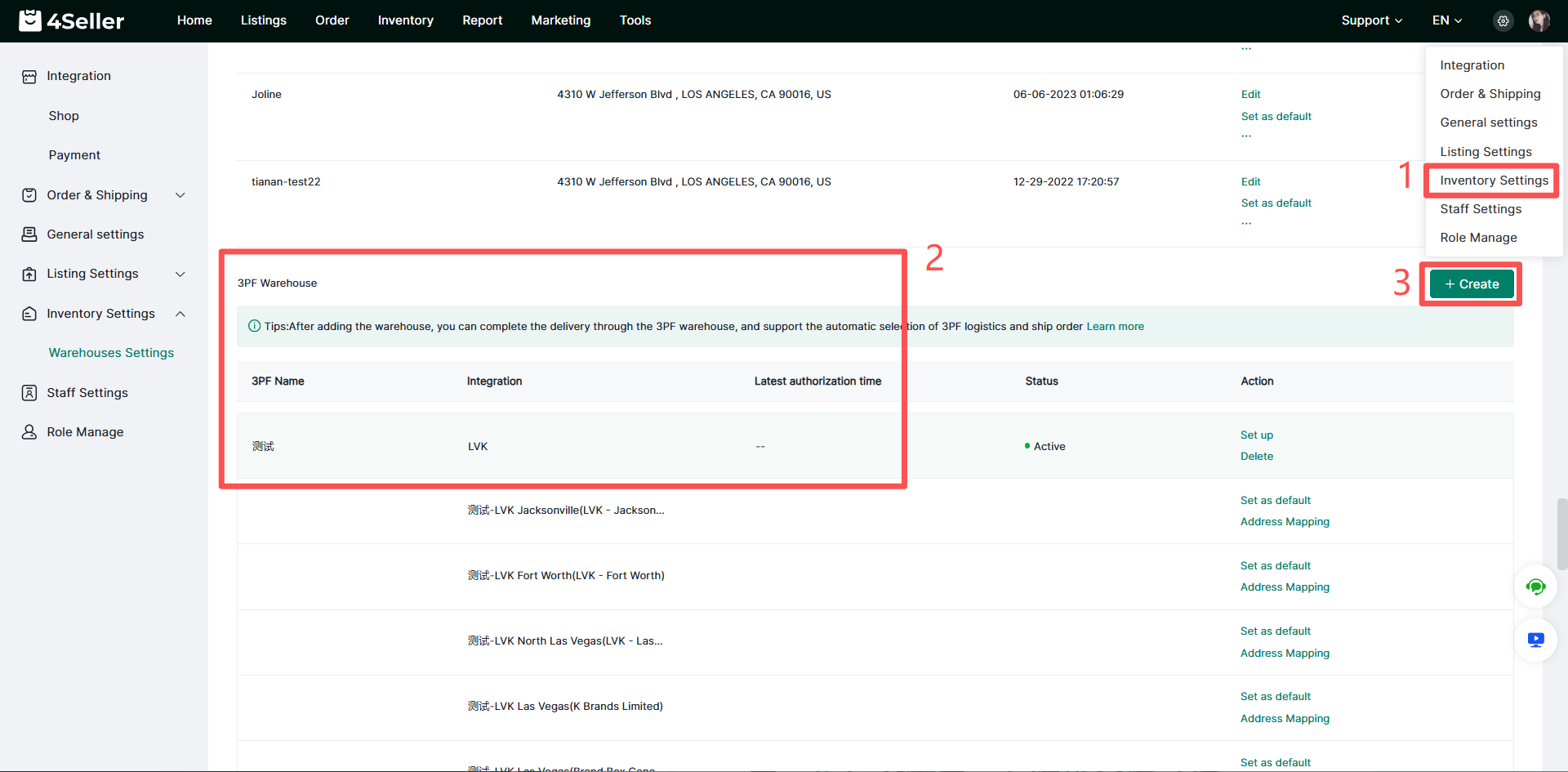
After clicking Create, a pop-up window will appear. Complete the information as shown in the image and click Confirm.
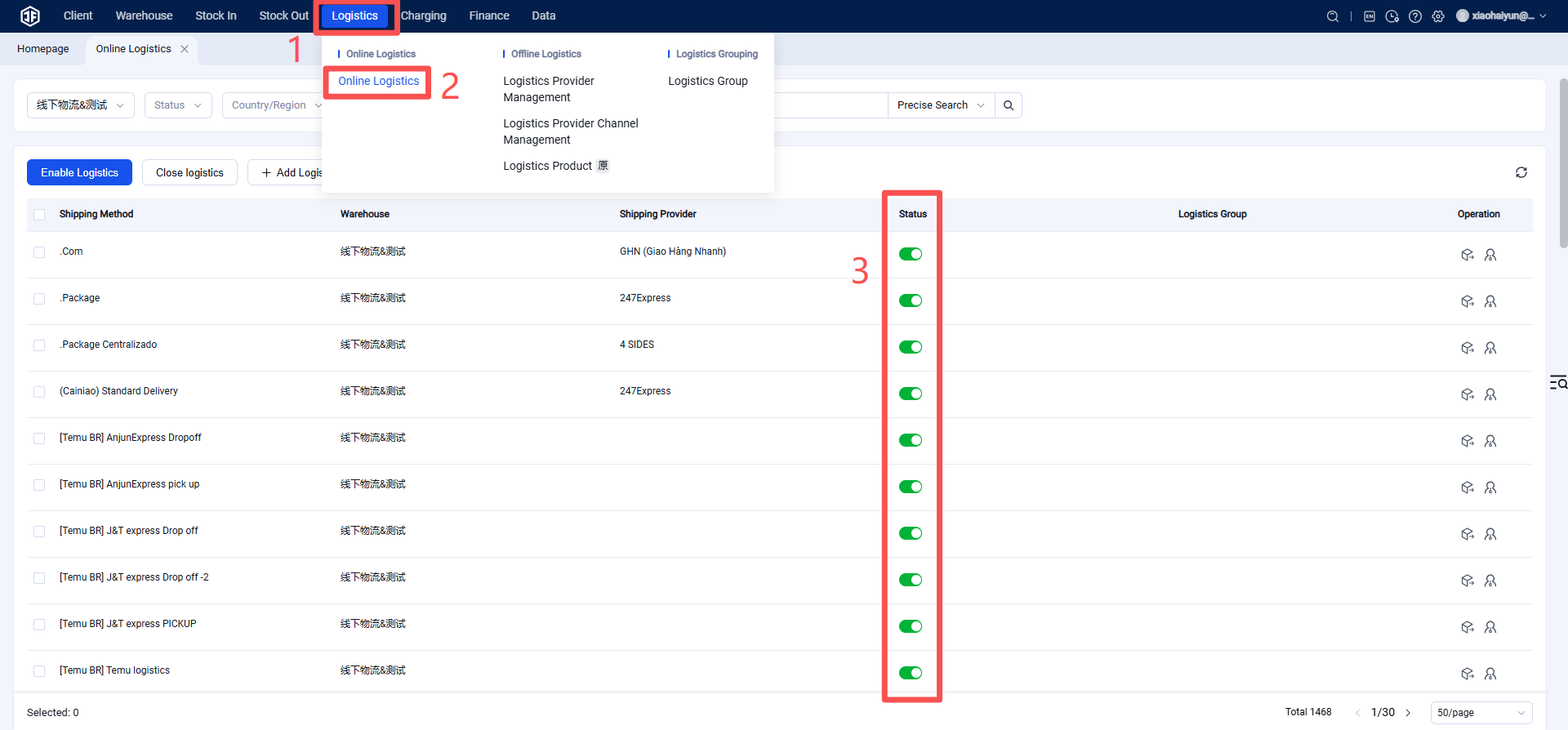
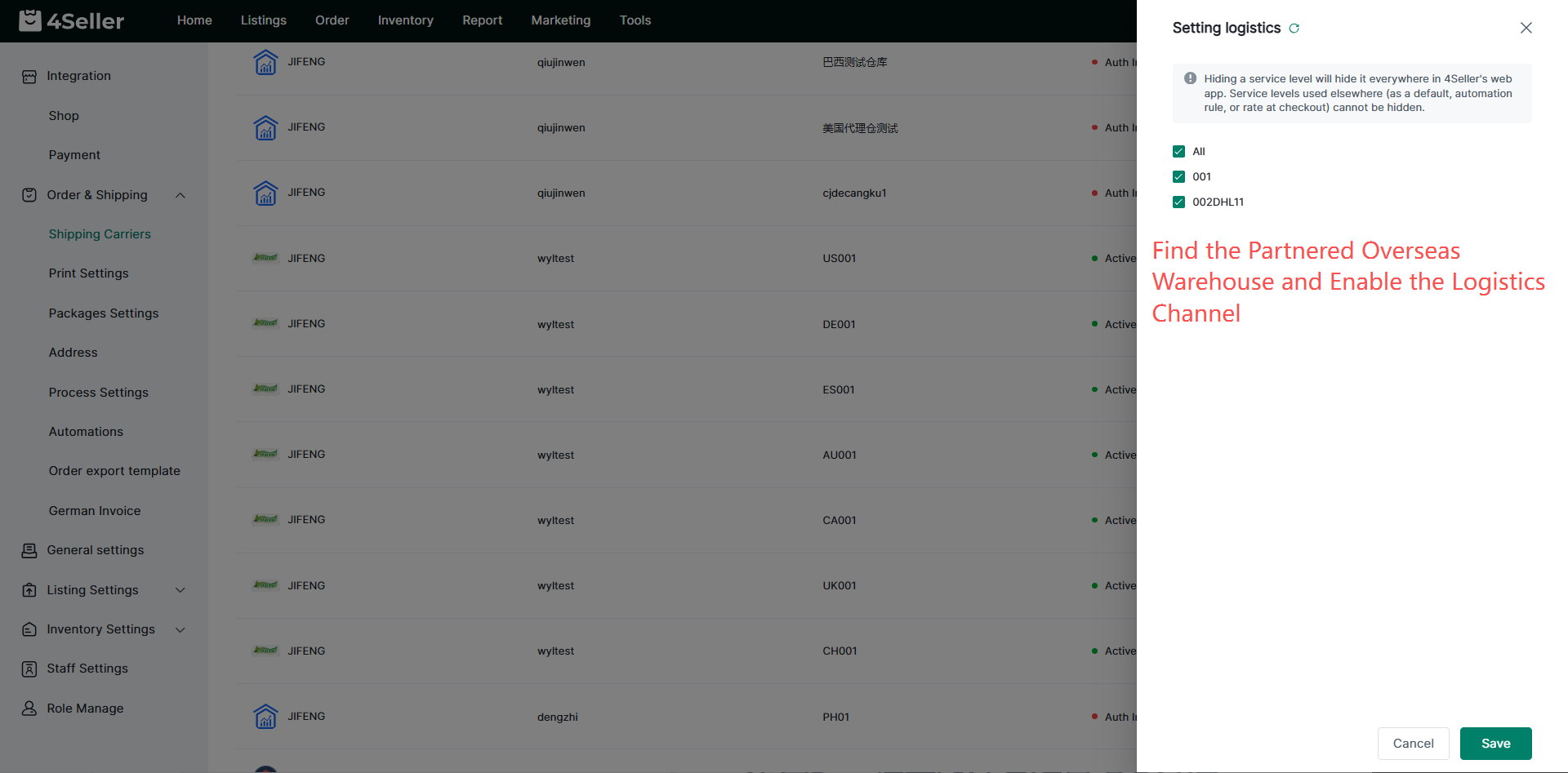
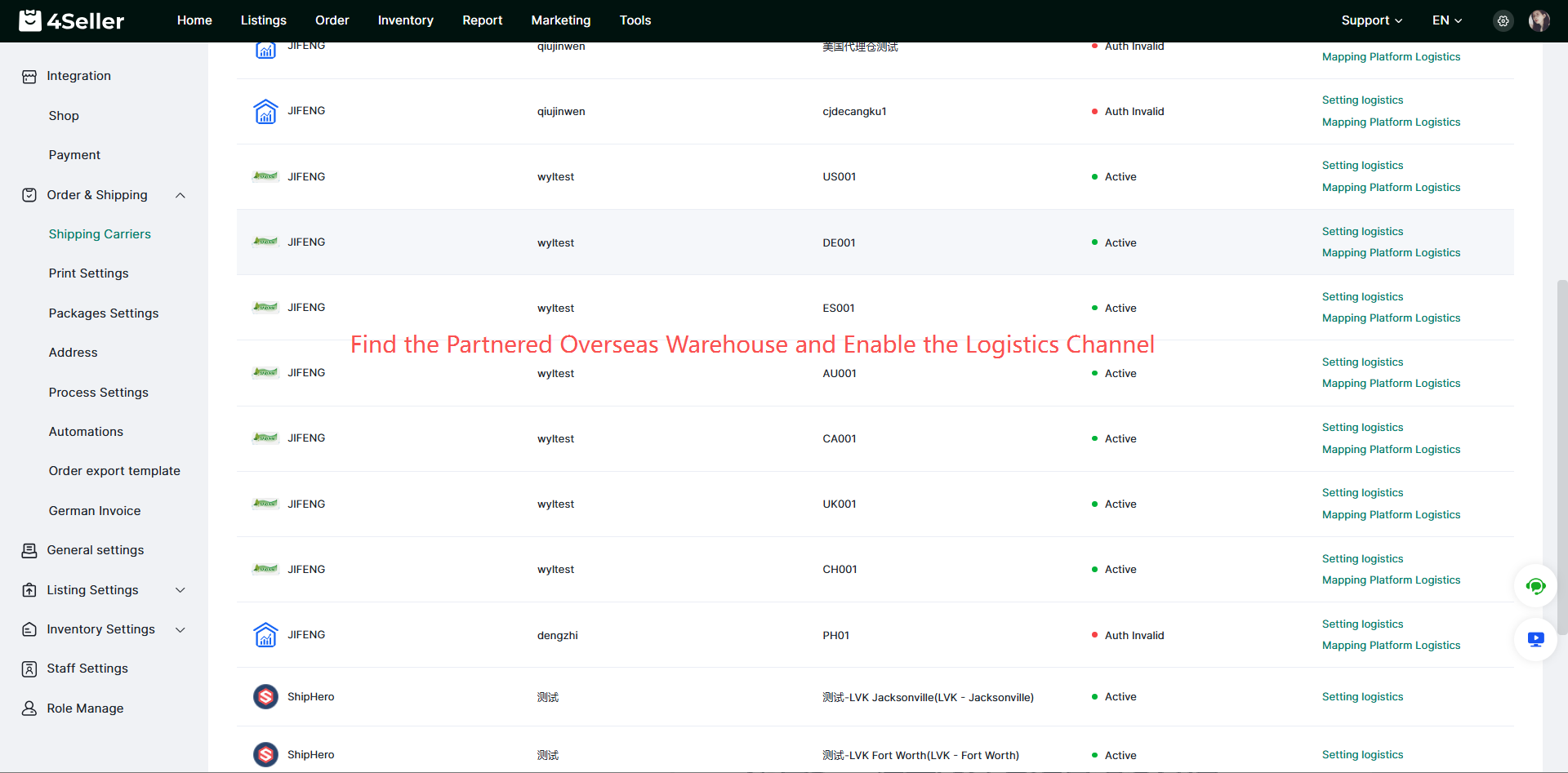
Step 4: Verify Whether the Overseas Warehouse Has Enabled the Client Logistics Channel for You
If you are using platform shipping labels, remind the overseas warehouse to enable the dedicated line for online logistics in the WMS.
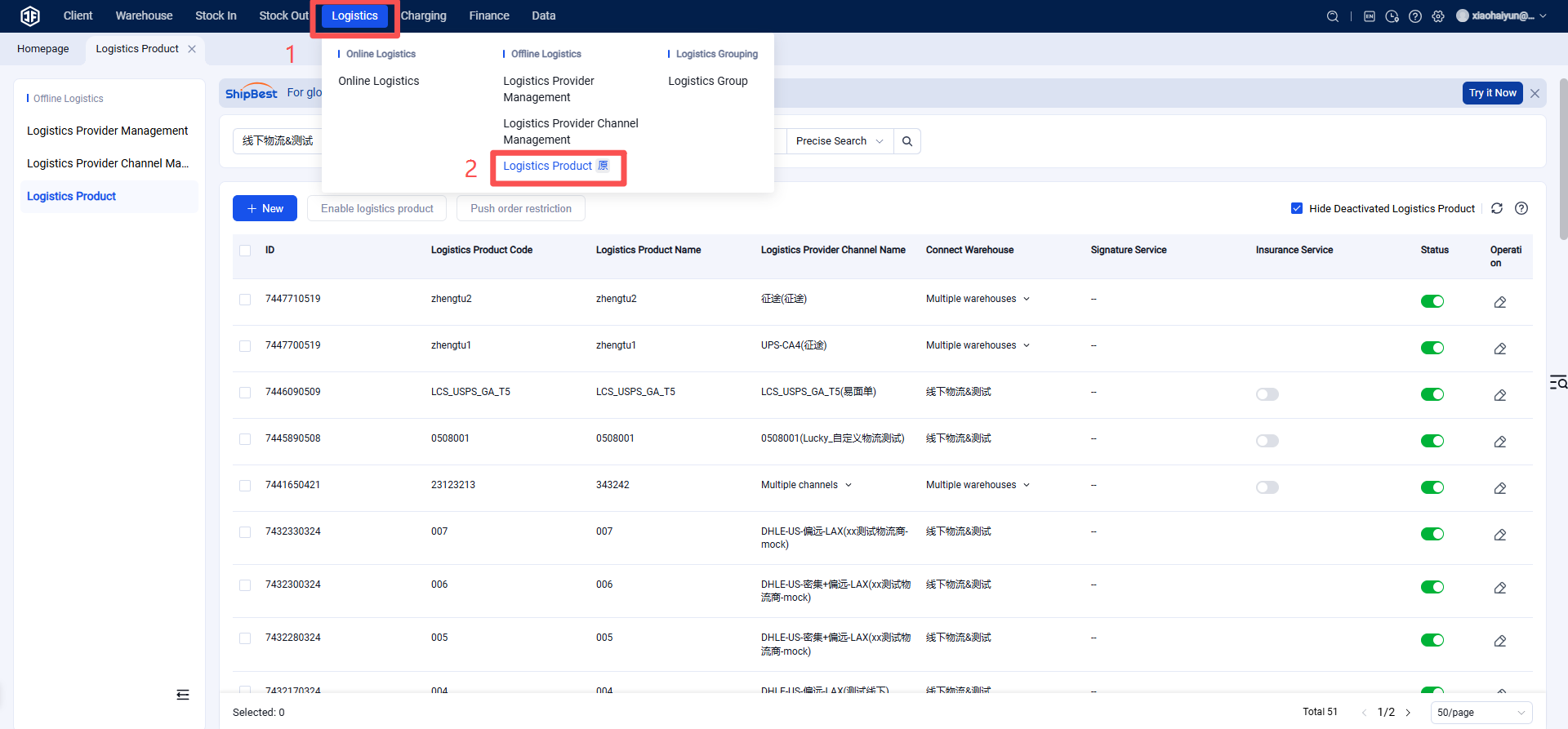
If you are using offline logistics, the warehouse WMS needs to set up the offline logistics channels in advance.
Step 5: Push Products to the WMS Overseas Warehouse System
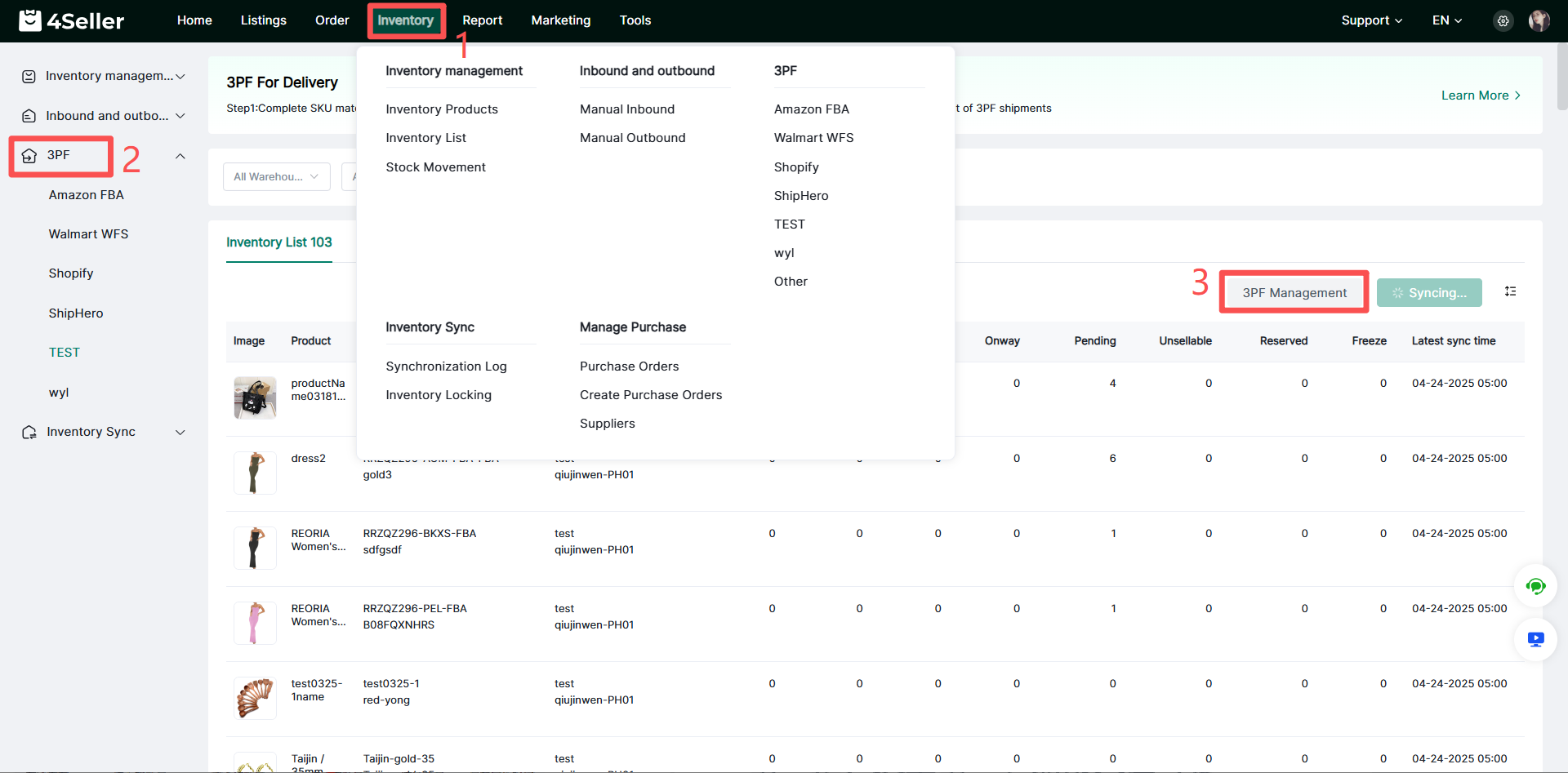
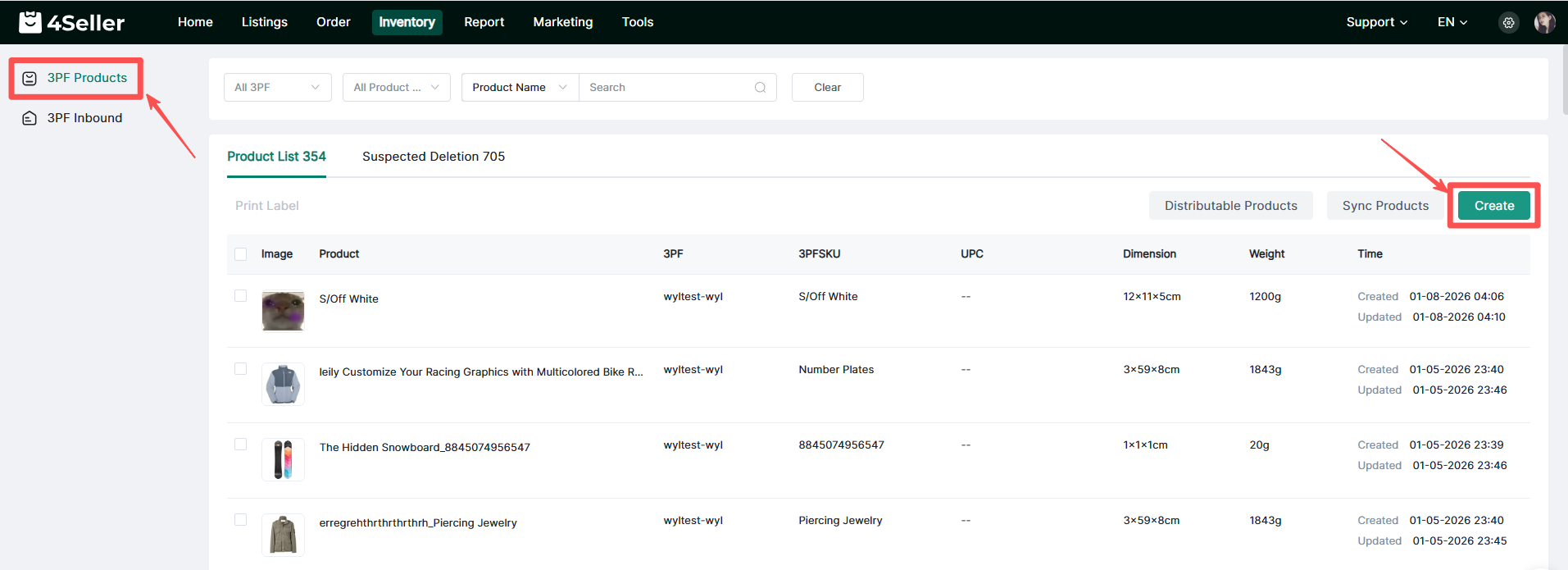
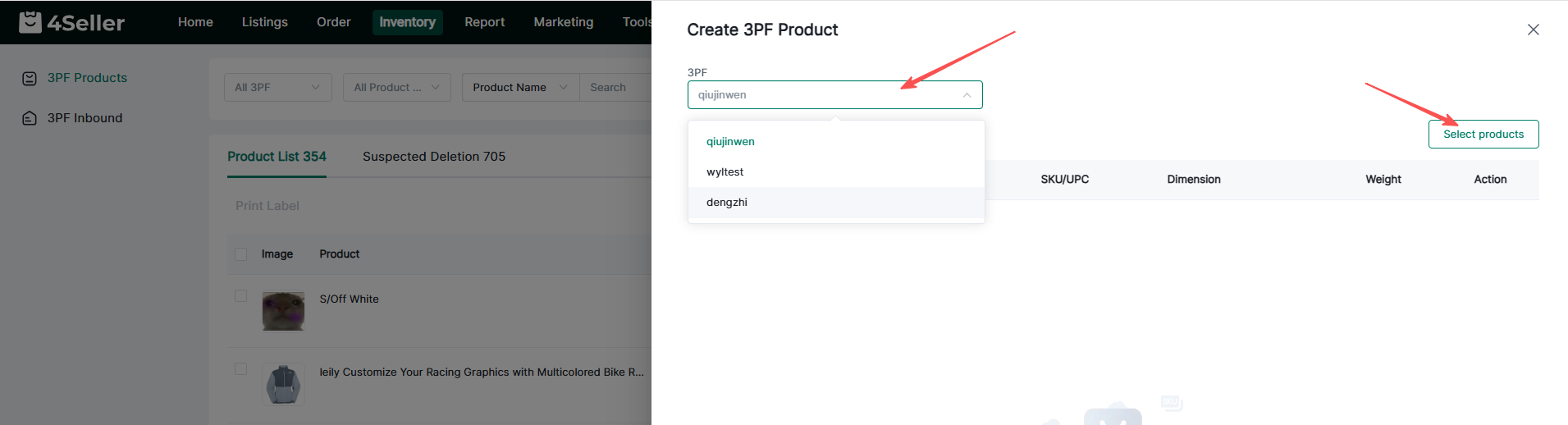
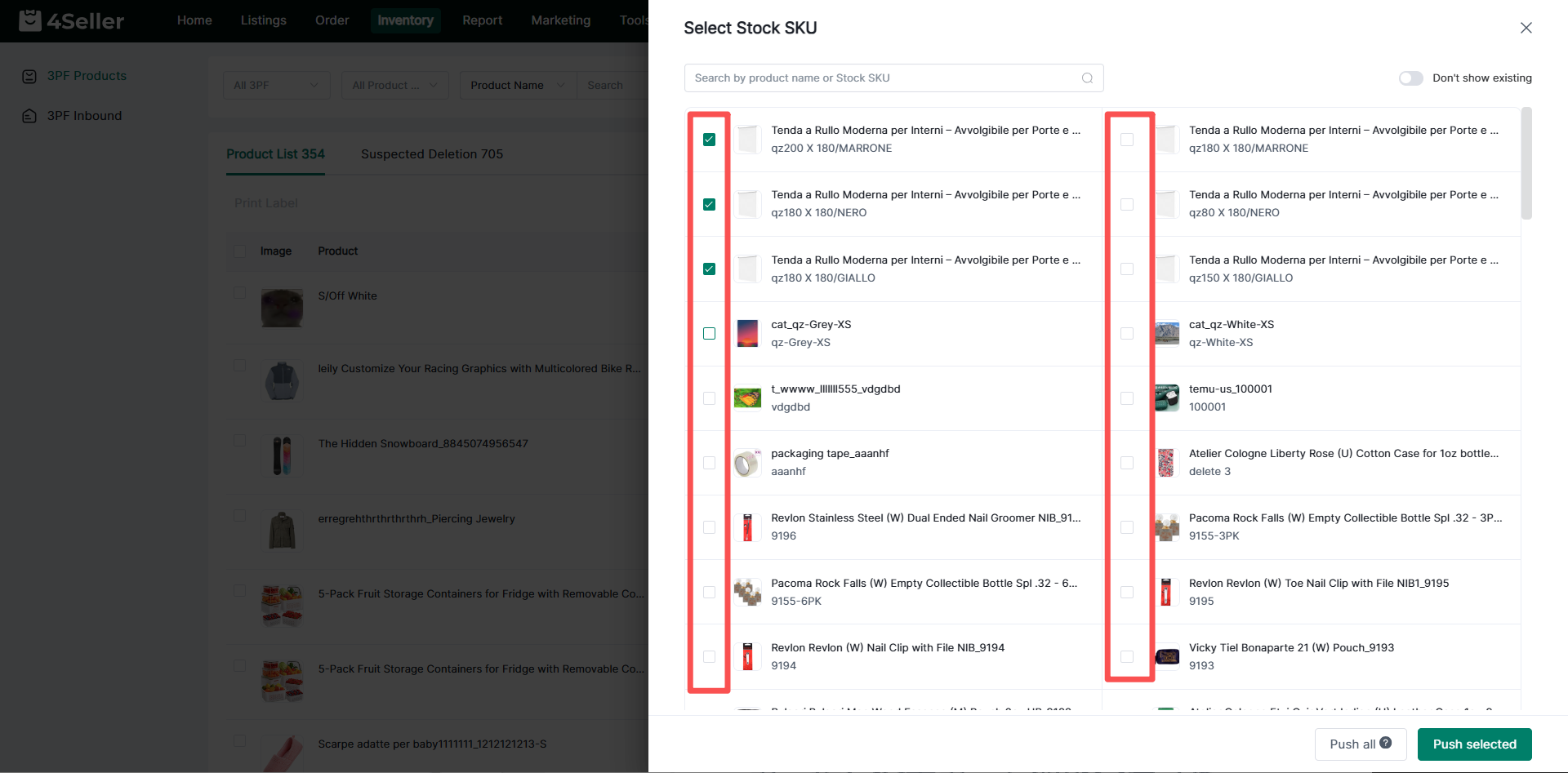
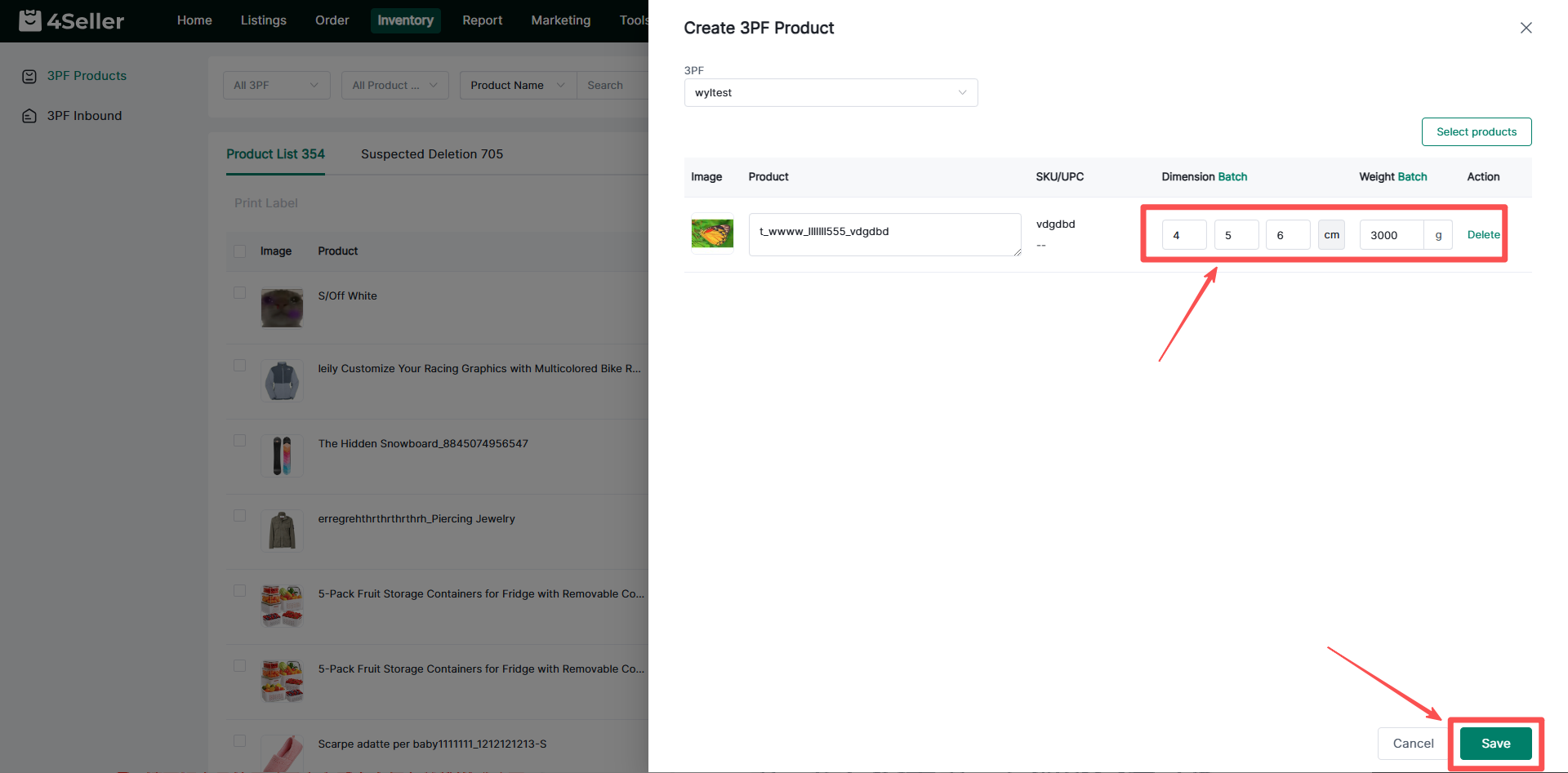
Tips: What if I can't find the product when selecting 3PF products?
You need to go to the corresponding platform's published products, re-edit the item, and then synchronize the product. The operation is as follows:
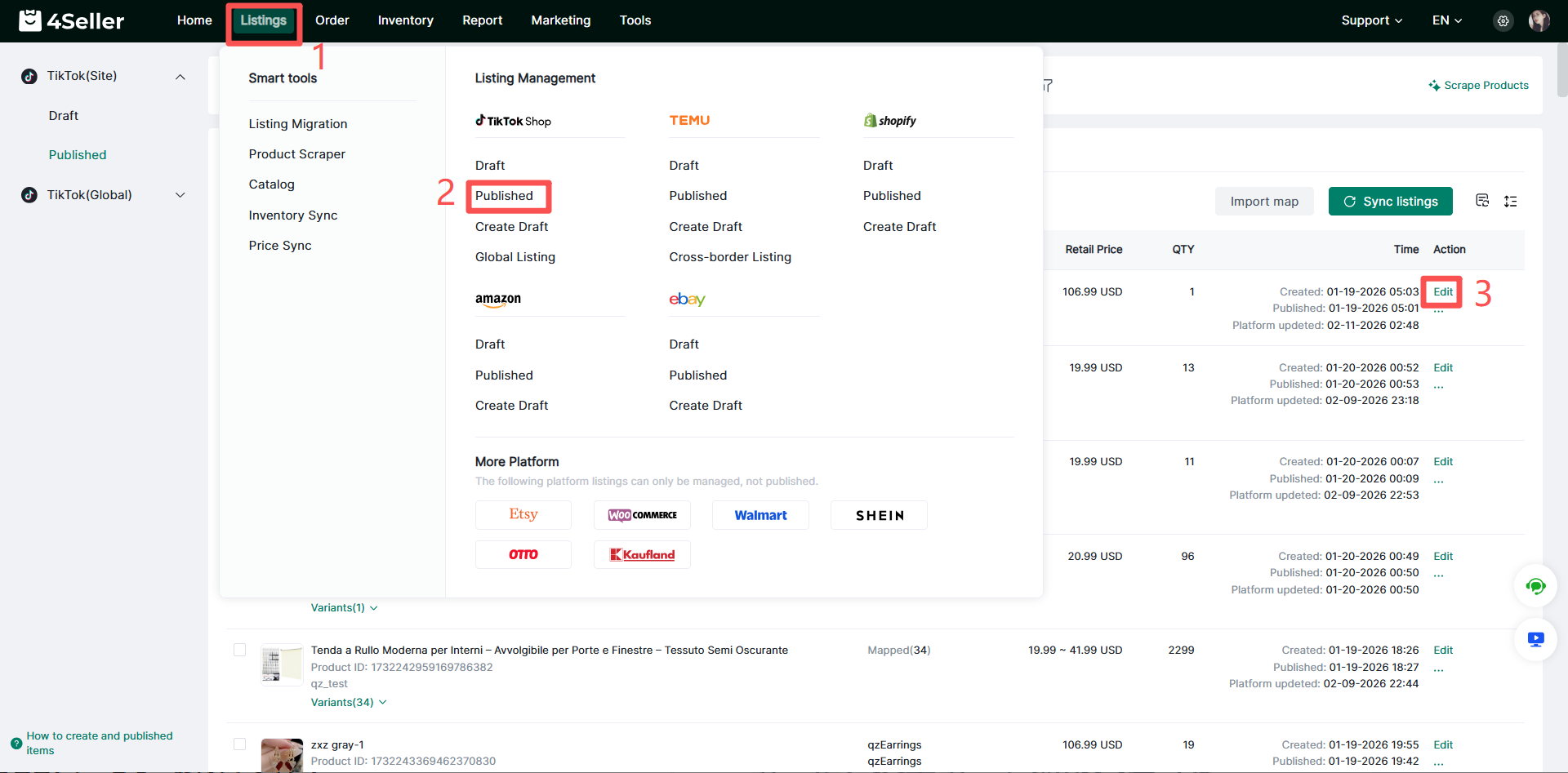
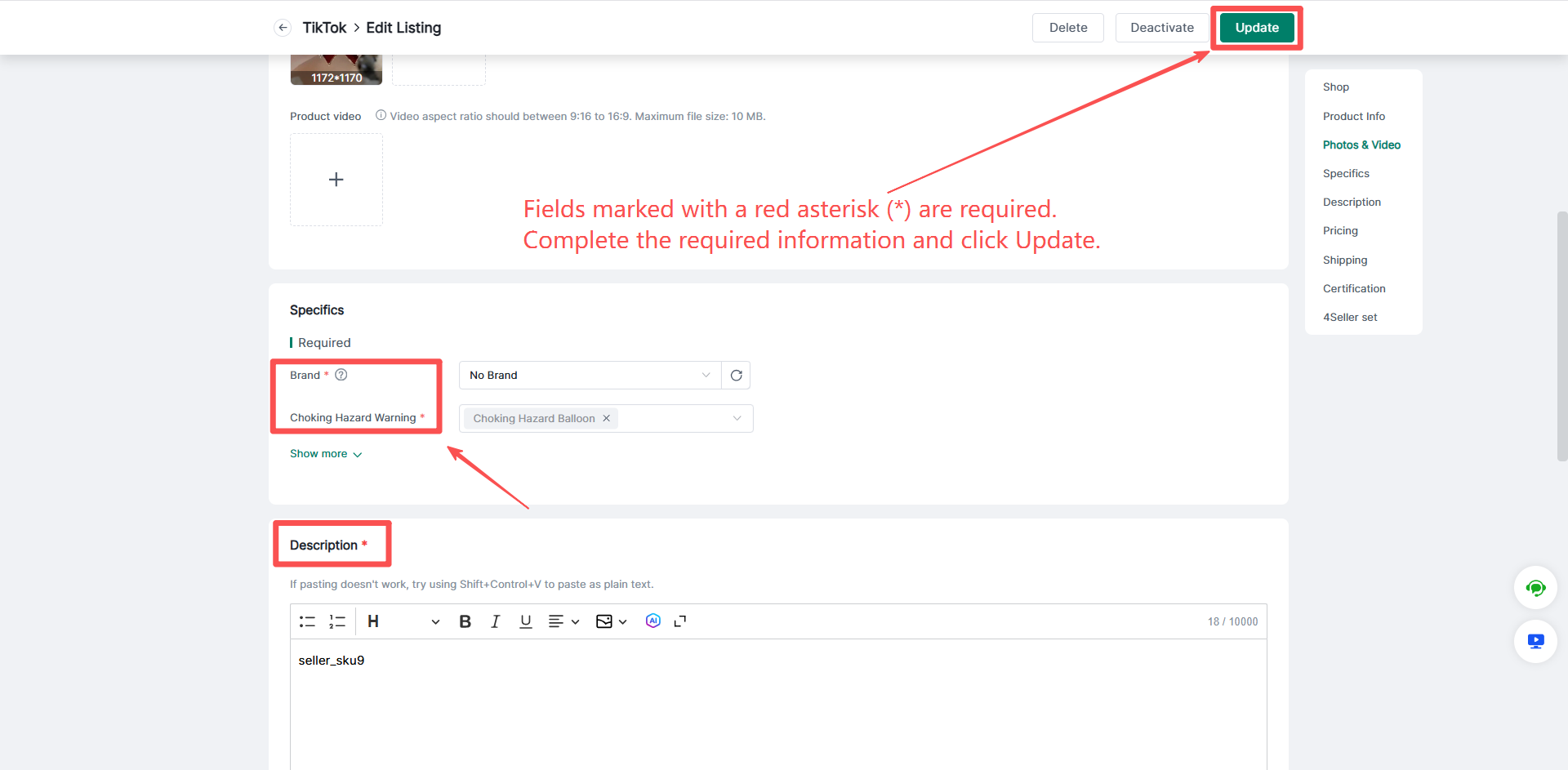
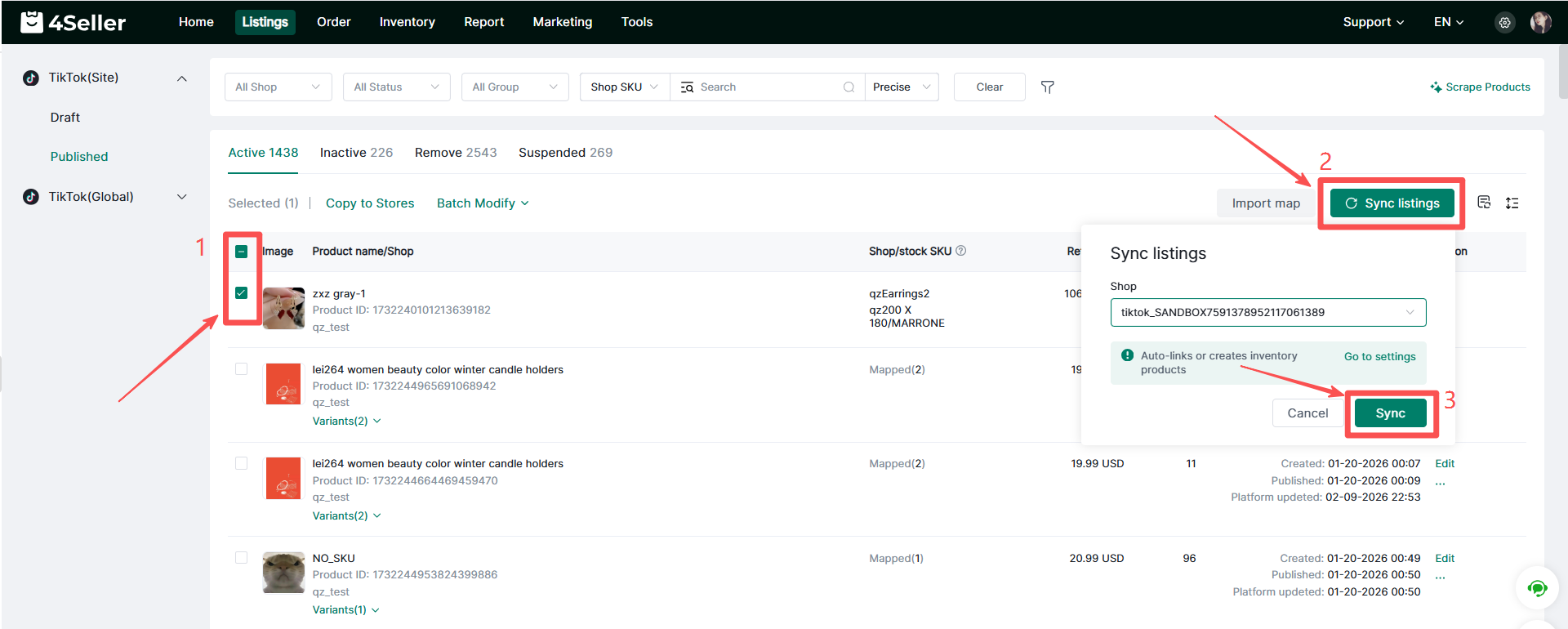
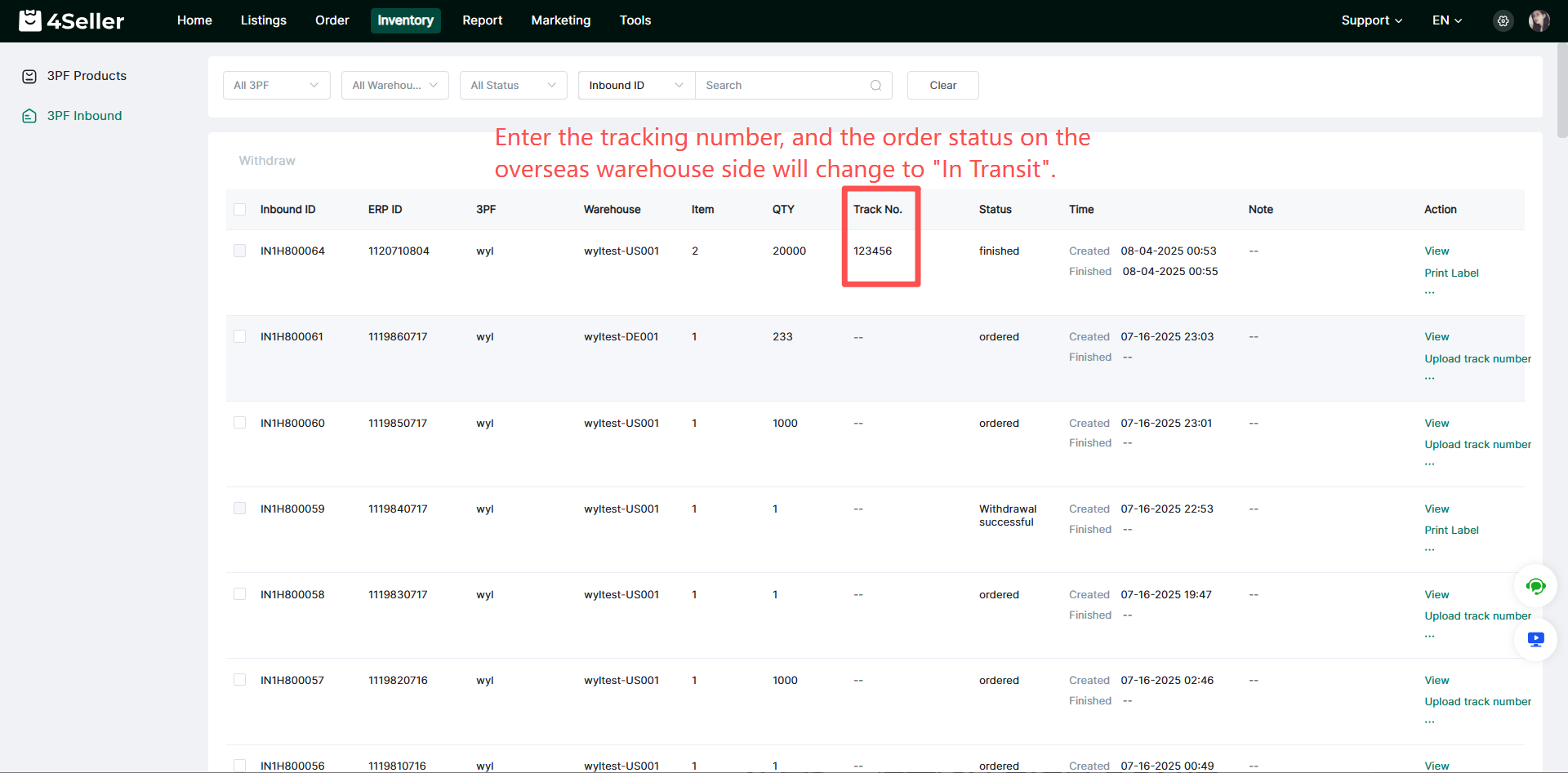
Step 6: Push Stock Replenishment Order (Inbound Order) to WMS Overseas Warehouse (Before performing this step, ensure your OMS account has sufficient balance to push inbound orders).
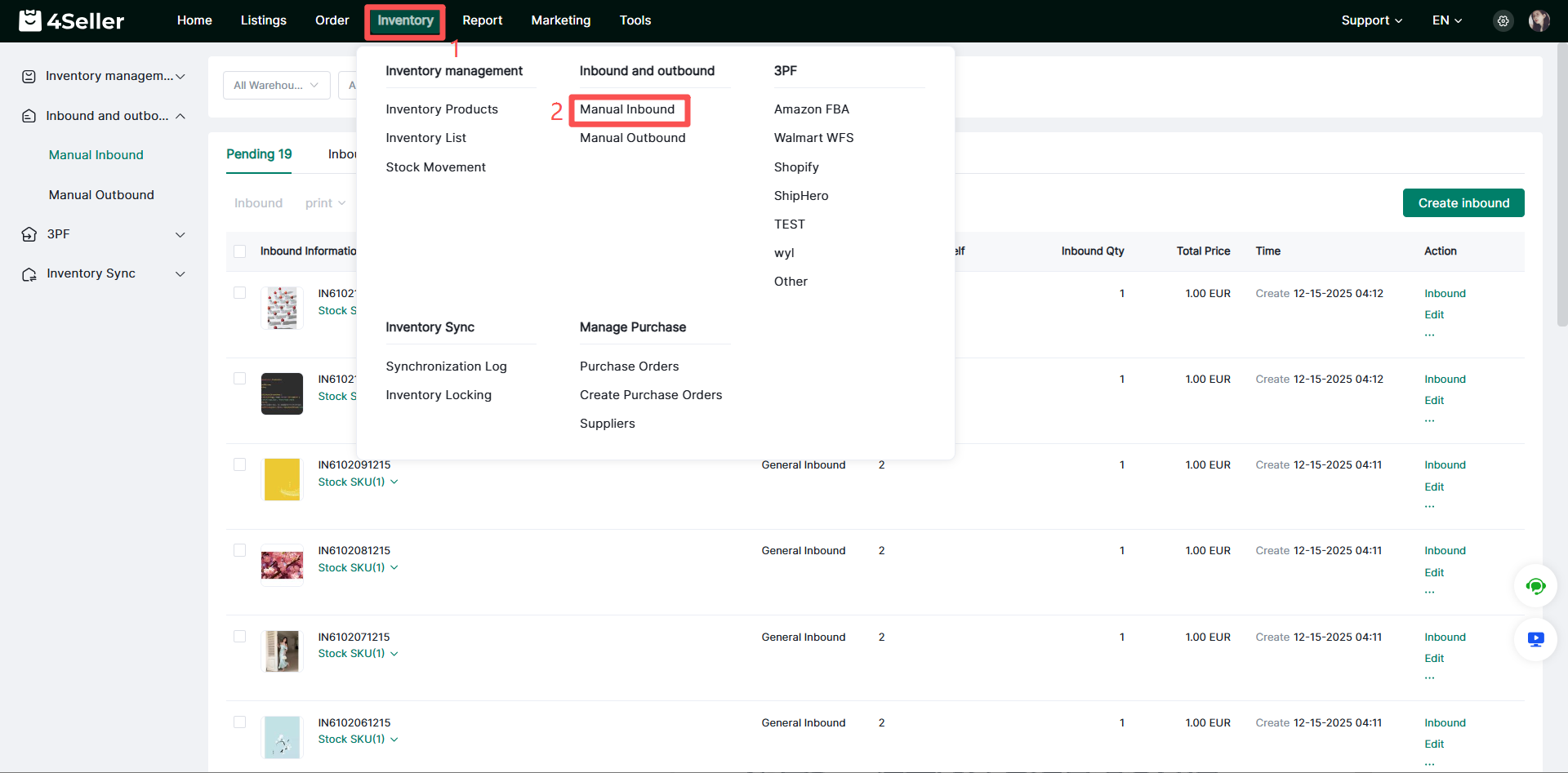
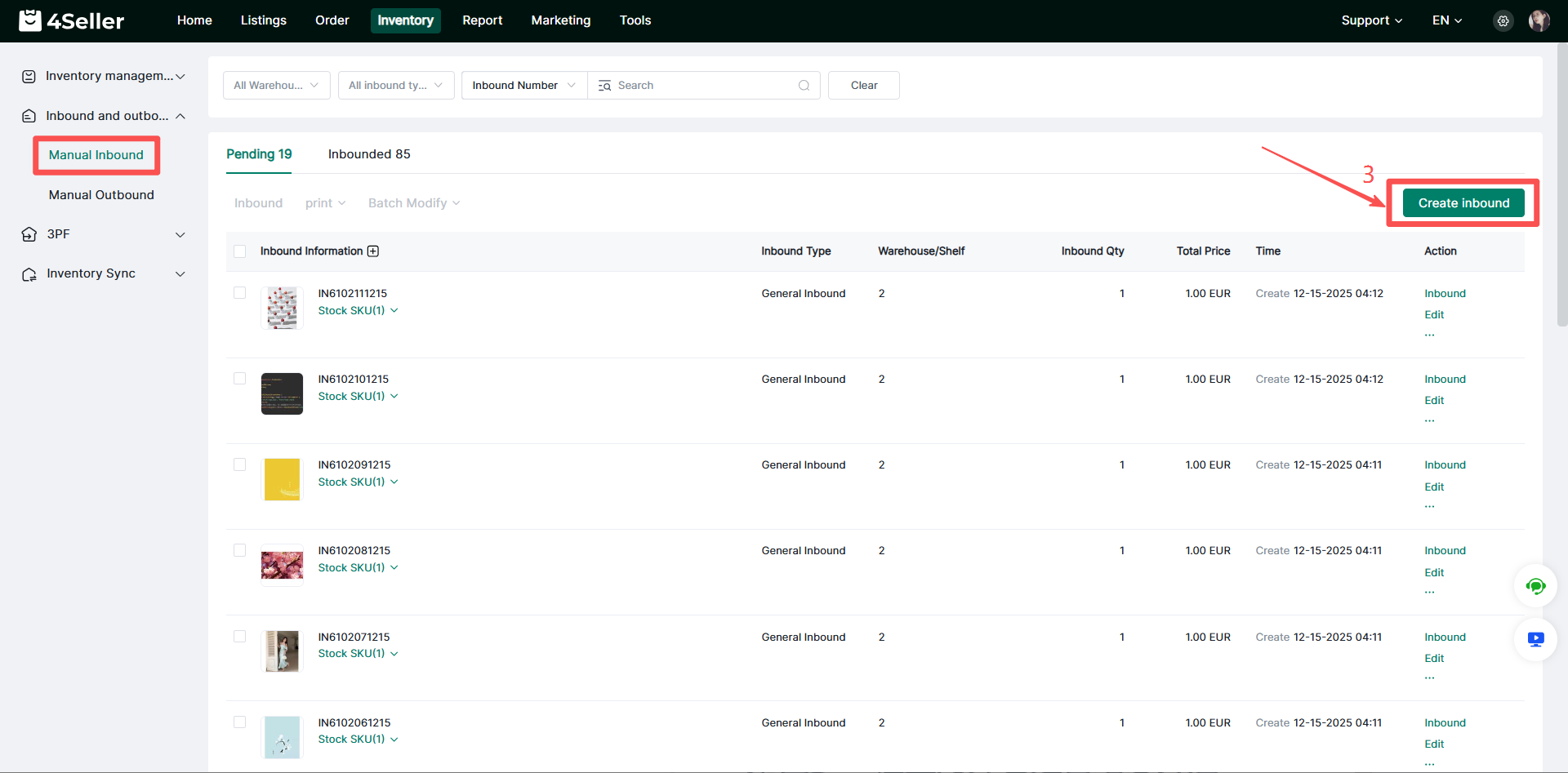
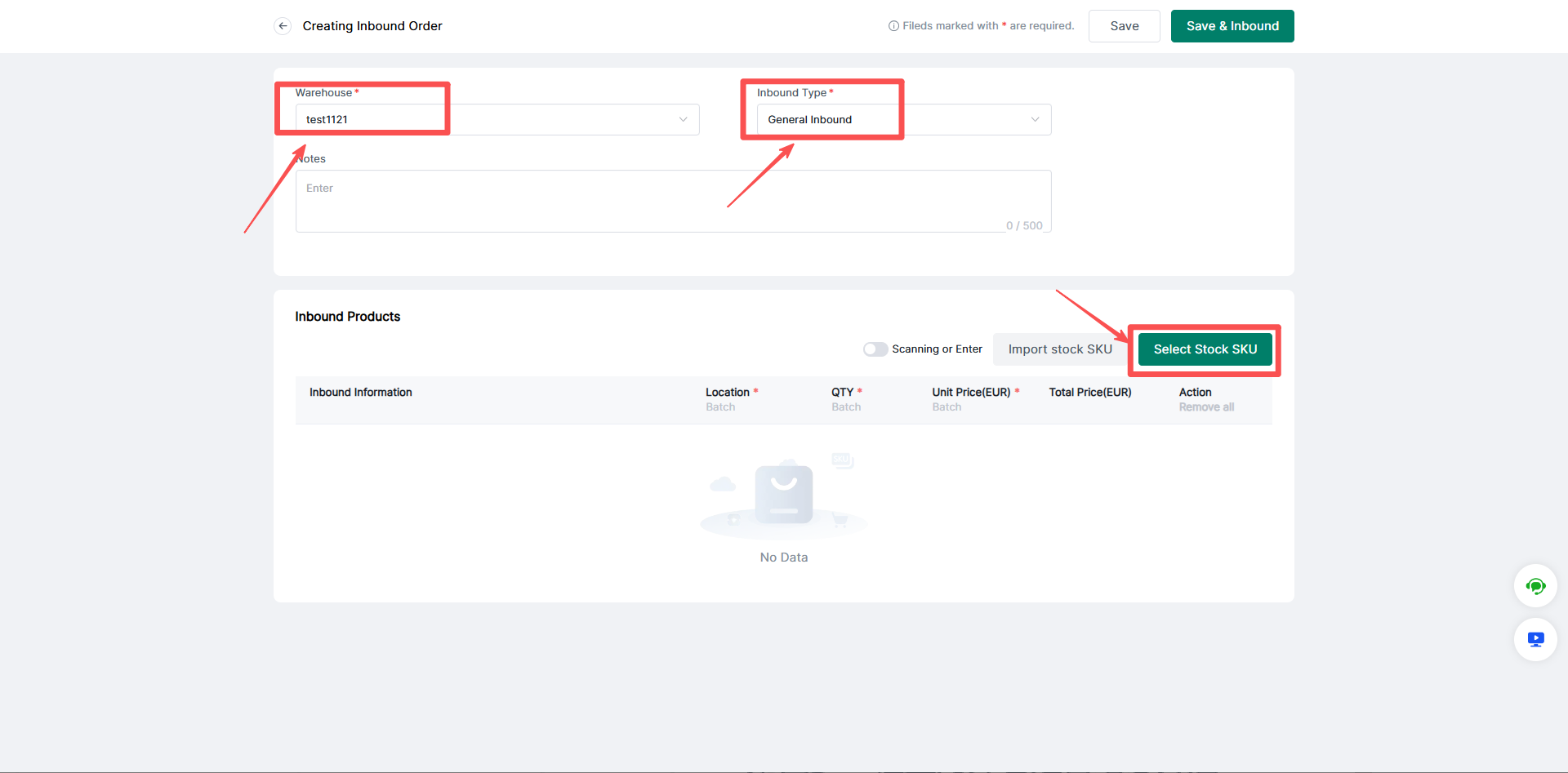
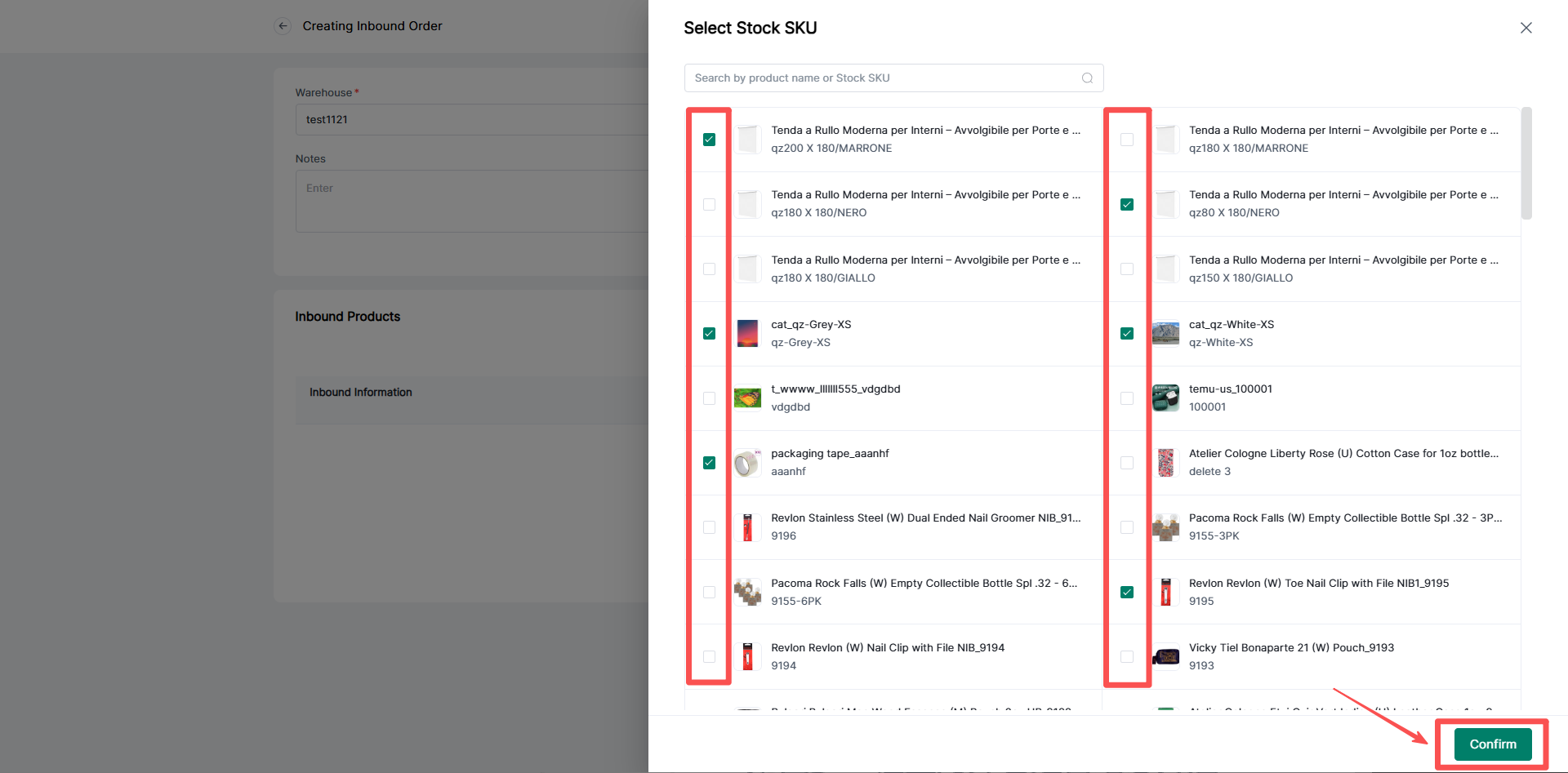
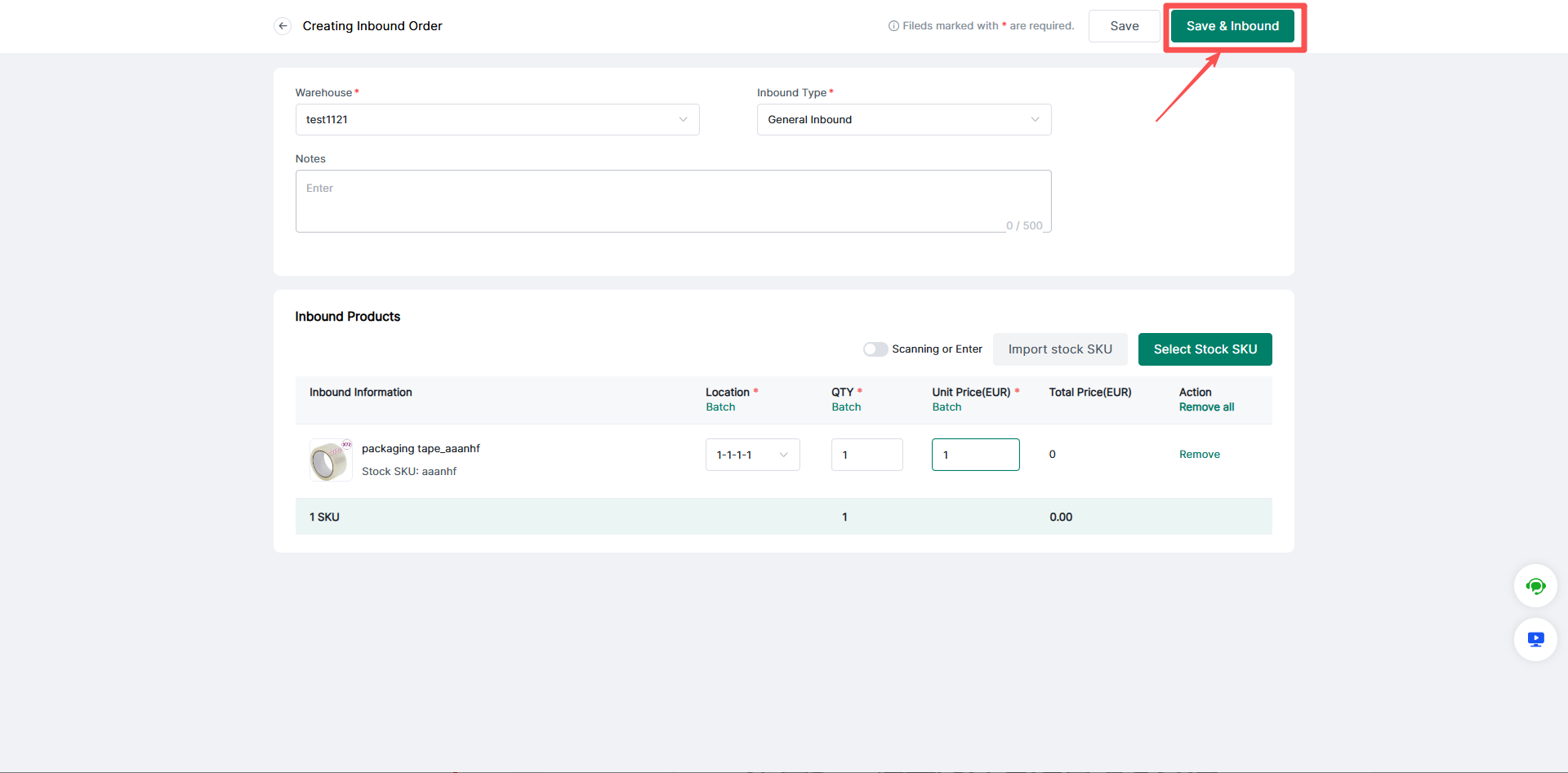
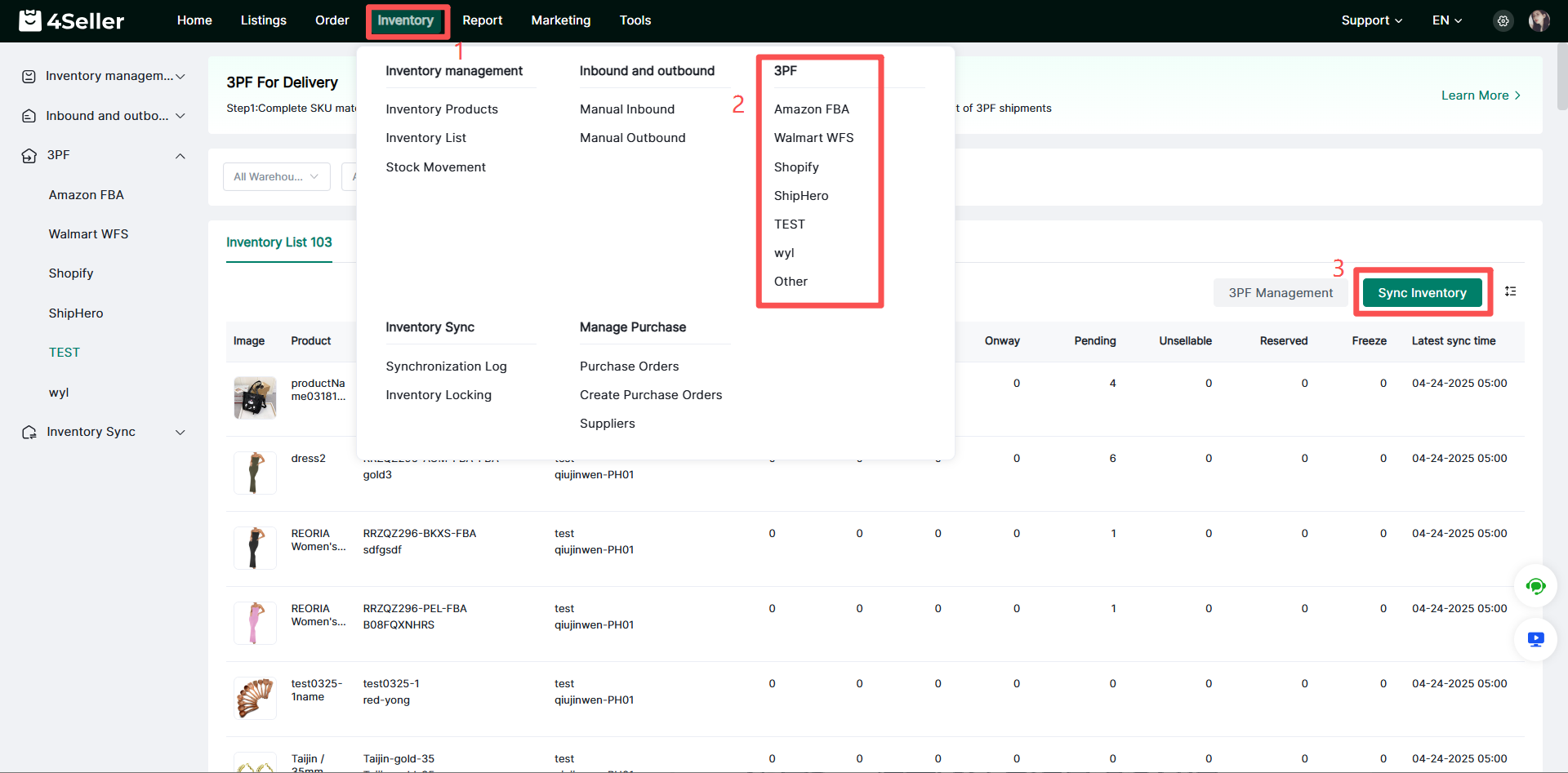
Step 7: Synchronize Inventory with the Third-Party Overseas Warehouse WMS
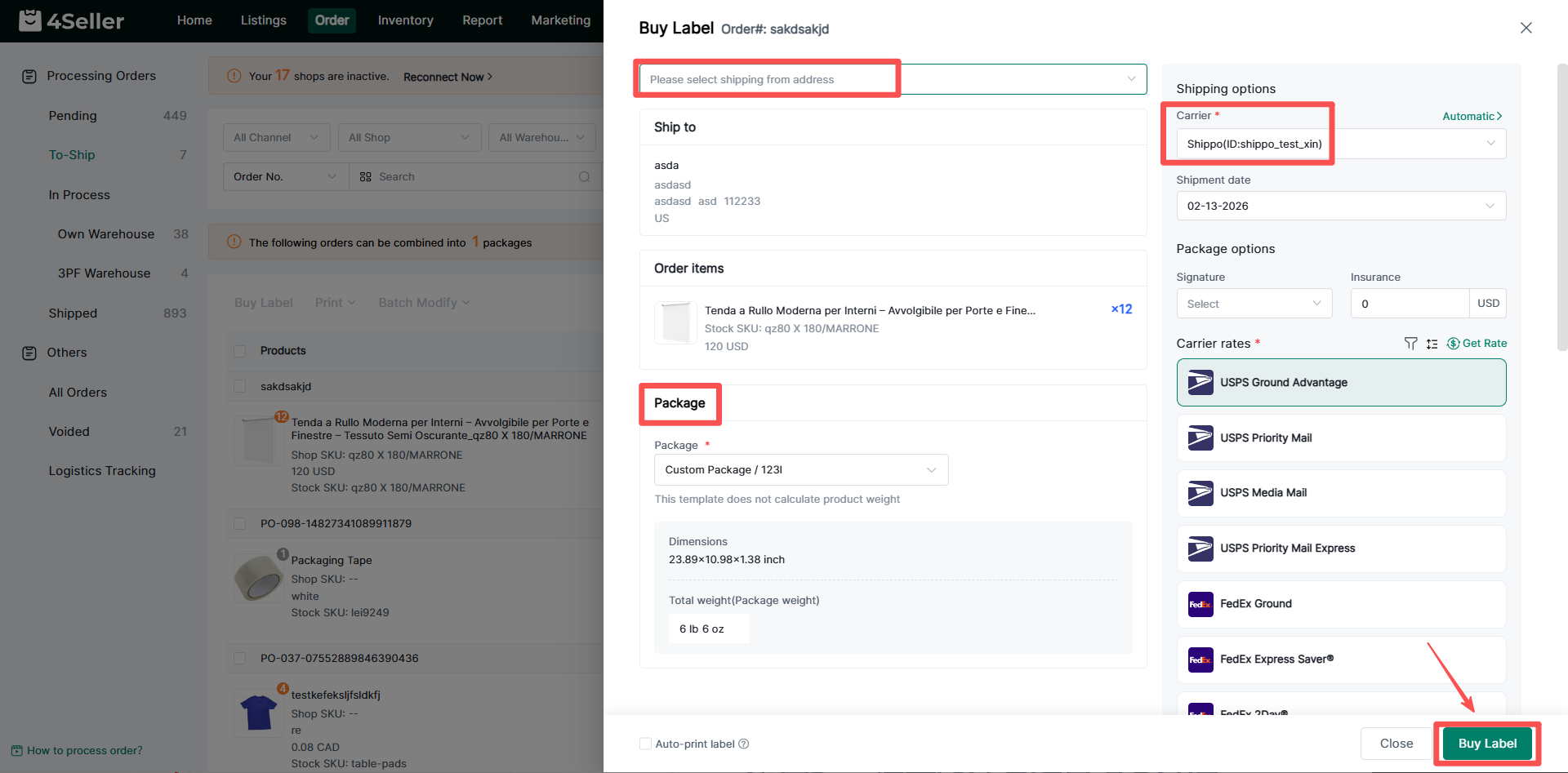
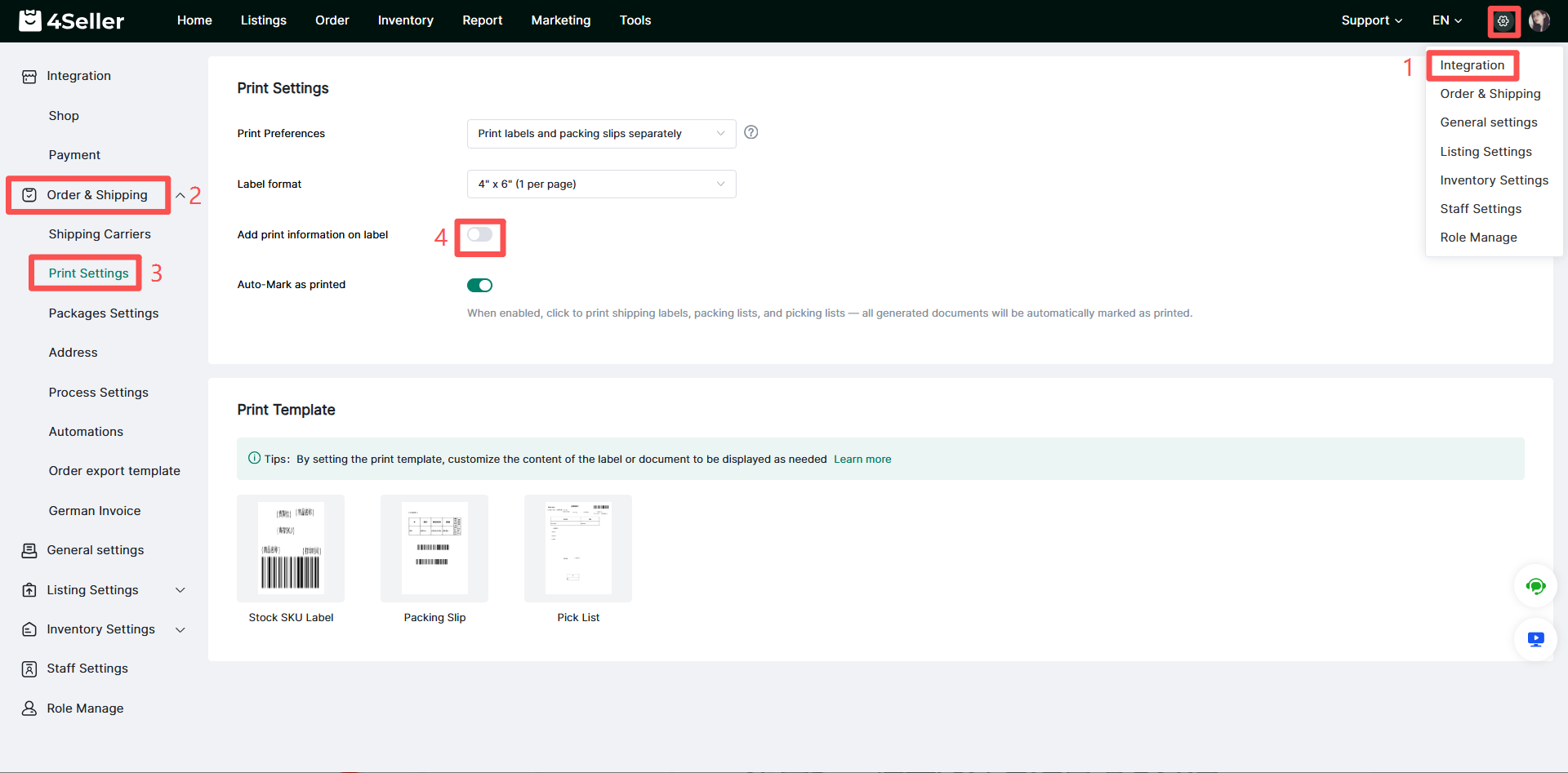
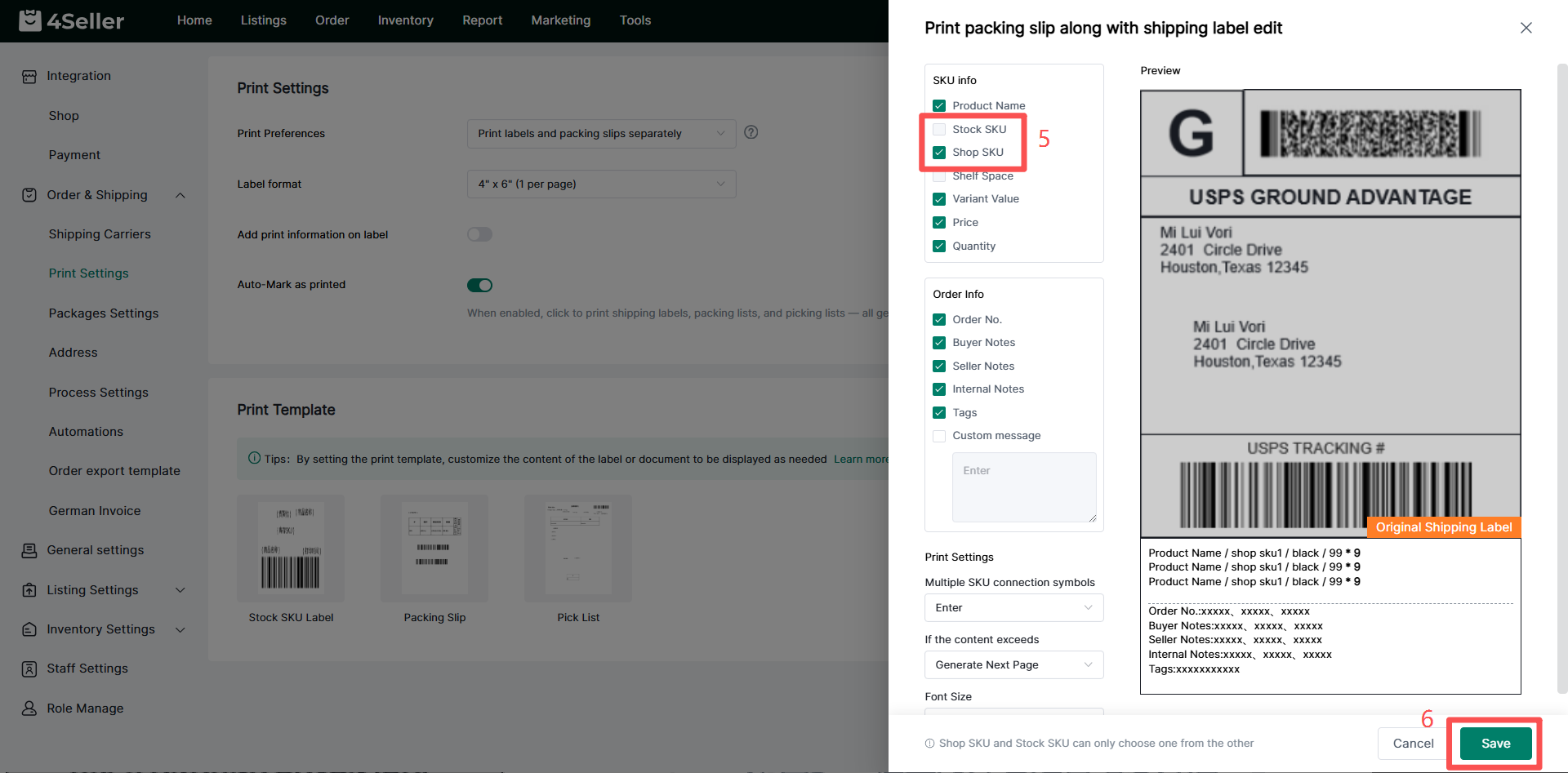
Step 8: Configure SKU Overprinting on Shipping Labels in 4Seller and Push Orders to Jifeng WMS (This feature only supports orders using official platform logistics.)
Step 9: Push Orders to the WMS Overseas Warehouse System
1.Order Processing – Pending Review
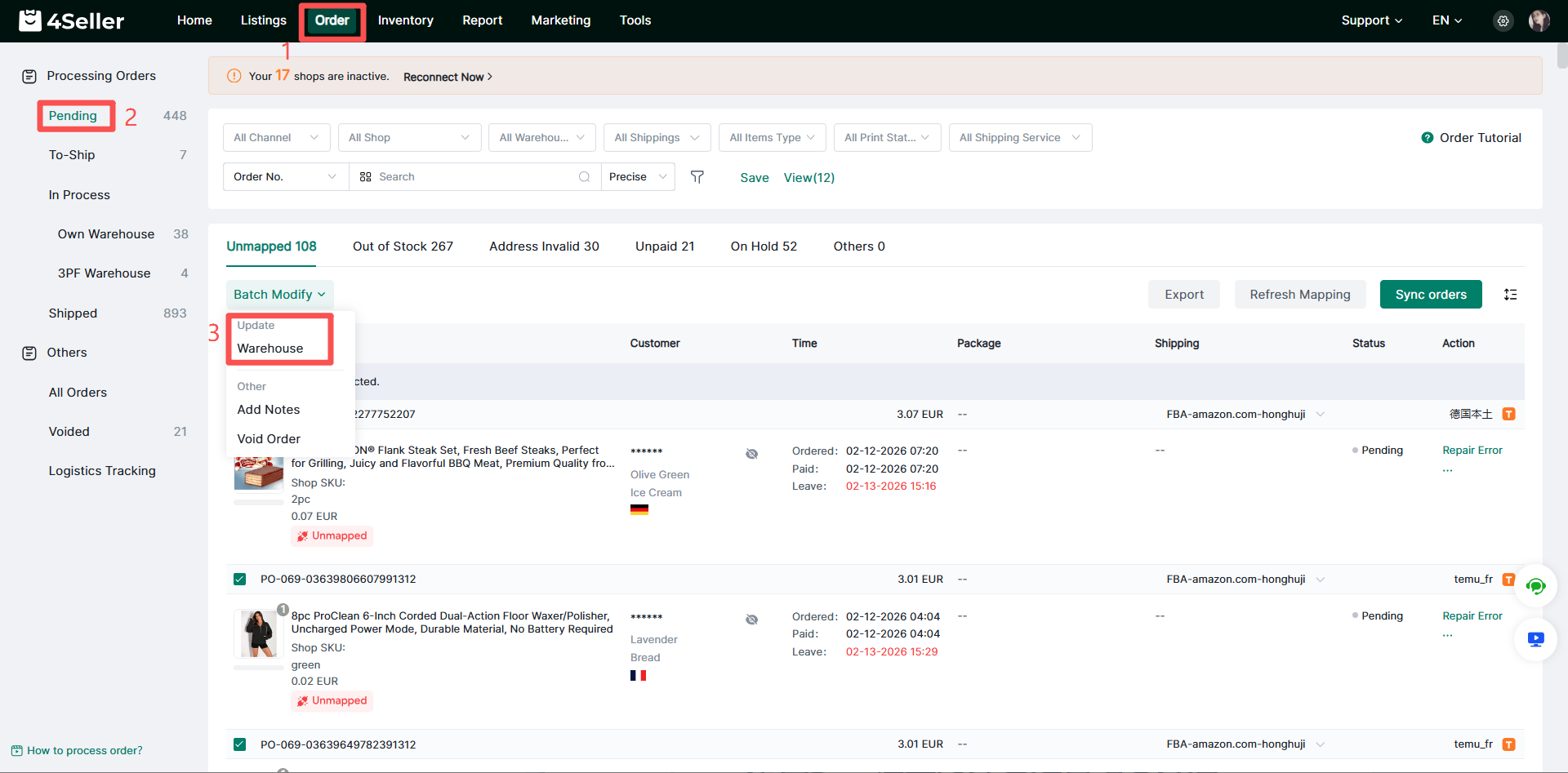
Click the Orders module and enter the Pending Review page. You can select orders and click Warehouse under Batch Modify to batch update the shipping warehouse.
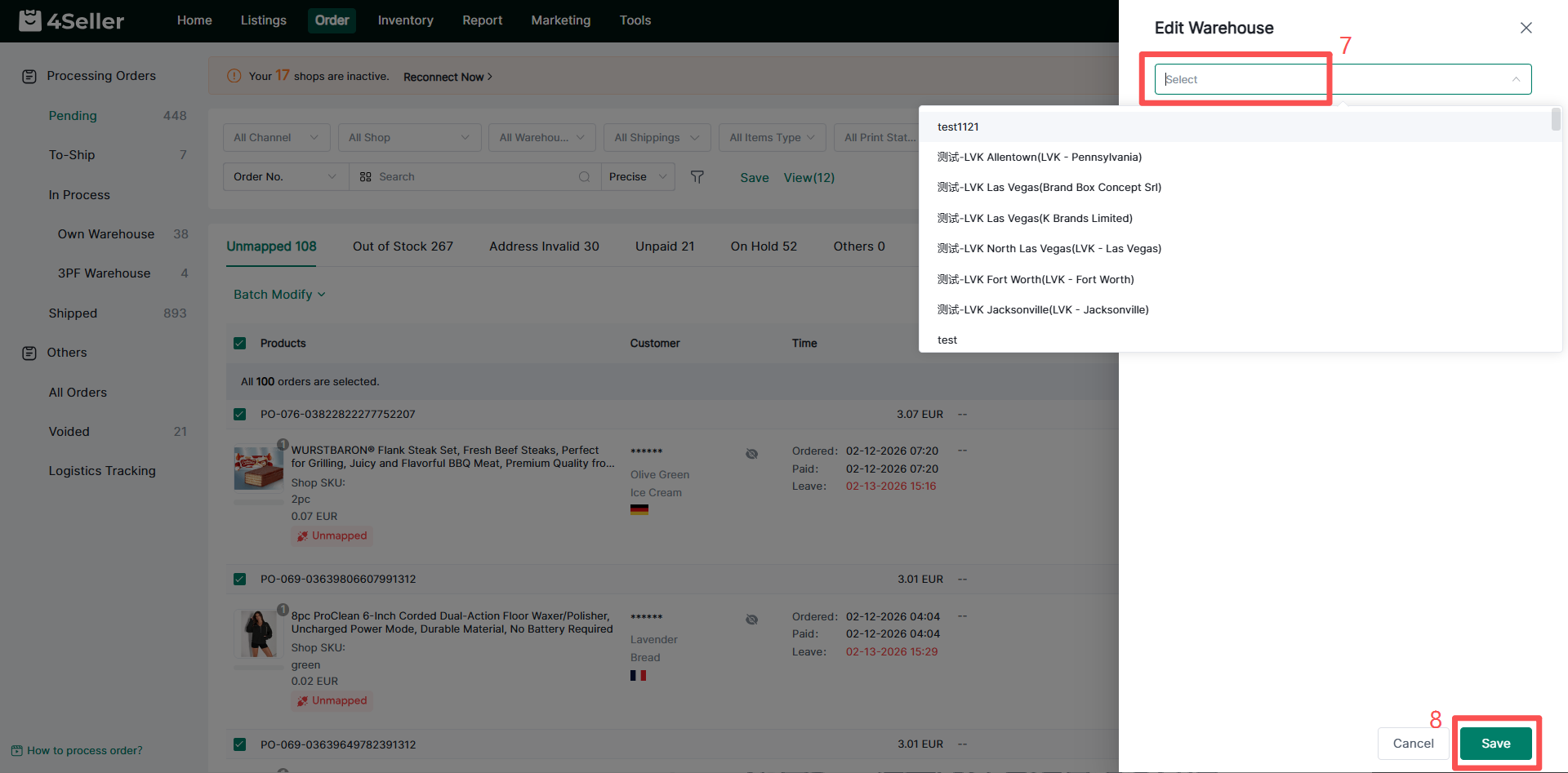
Select the corresponding Jifeng WMS warehouse, then click Save to batch update the shipping warehouse for the orders to the Jifeng WMS warehouse.
2.Order Processing – Pending Processing
When the order's SKU has been matched and the available inventory is sufficient, the order will automatically move to the Pending Processing workflow.
1)Individual Operation
Click Purchase Order for an individual TikTok Shipping order to enter the shipping label purchase page.
On the Order Purchase Shipping Label page, the following operations can be performed:
1.Change the shipping warehouse Note: For "Platform Shipping" orders, the warehouse selected here is only used for inventory deduction. The label address is based on the warehouse address selected when the product was created.
2.Enter package information, including package weight and dimensions.
3.Confirm the carrier is set to TikTok.
4.Select the logistics billing service provided by TikTok.
Finally, click Purchase Shipping Label to push the order to the selected Jifeng WMS warehouse and purchase the shipping label.
Note: When batch processing TikTok Shipping orders, you must first filter for TikTok Shipping orders in the buyer-specified filter column.
Filter Orders
2)Batch Operation
Update Package Information
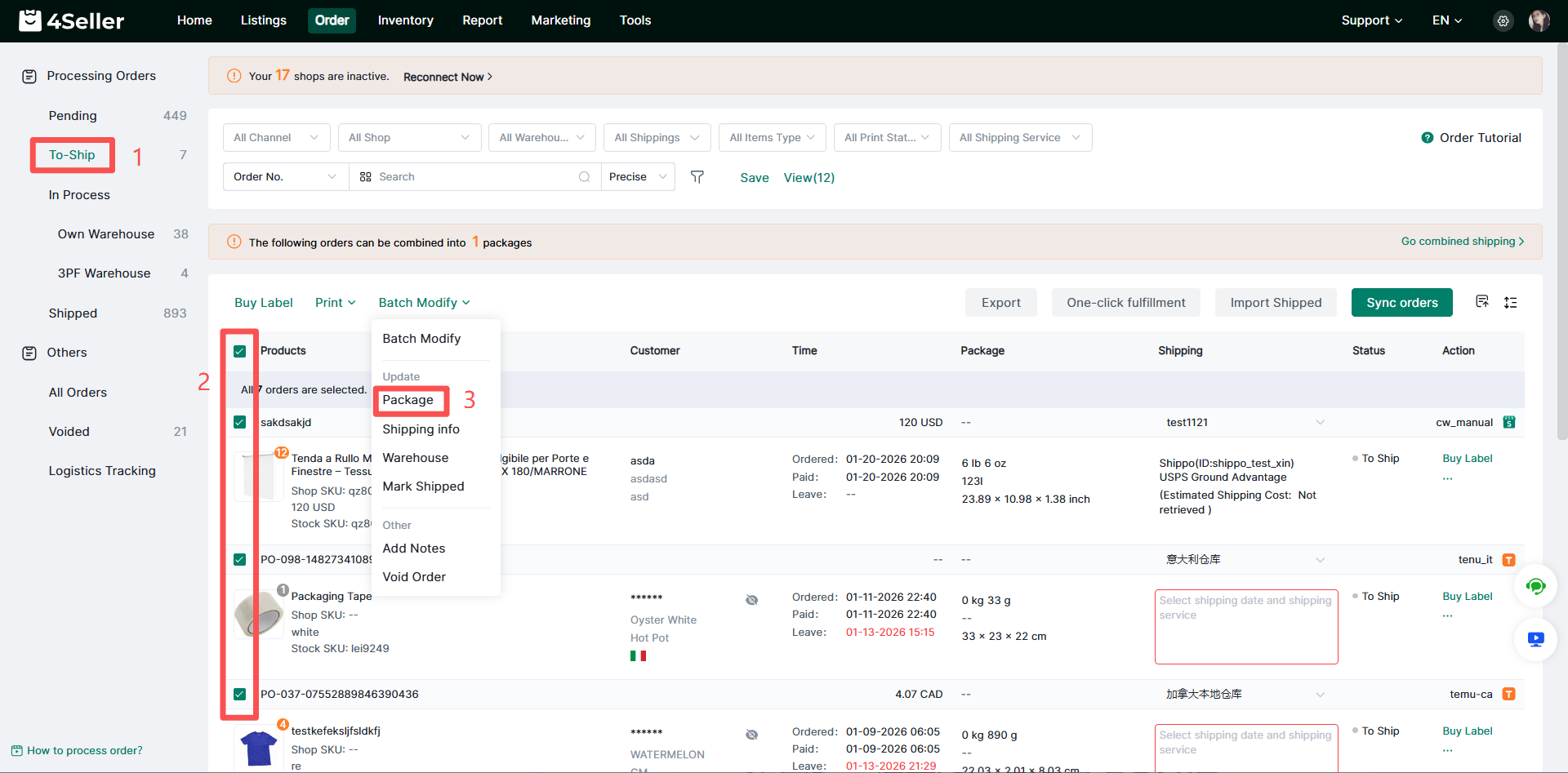
You can batch select orders, click Package under Batch Modify, and then batch edit the package information.
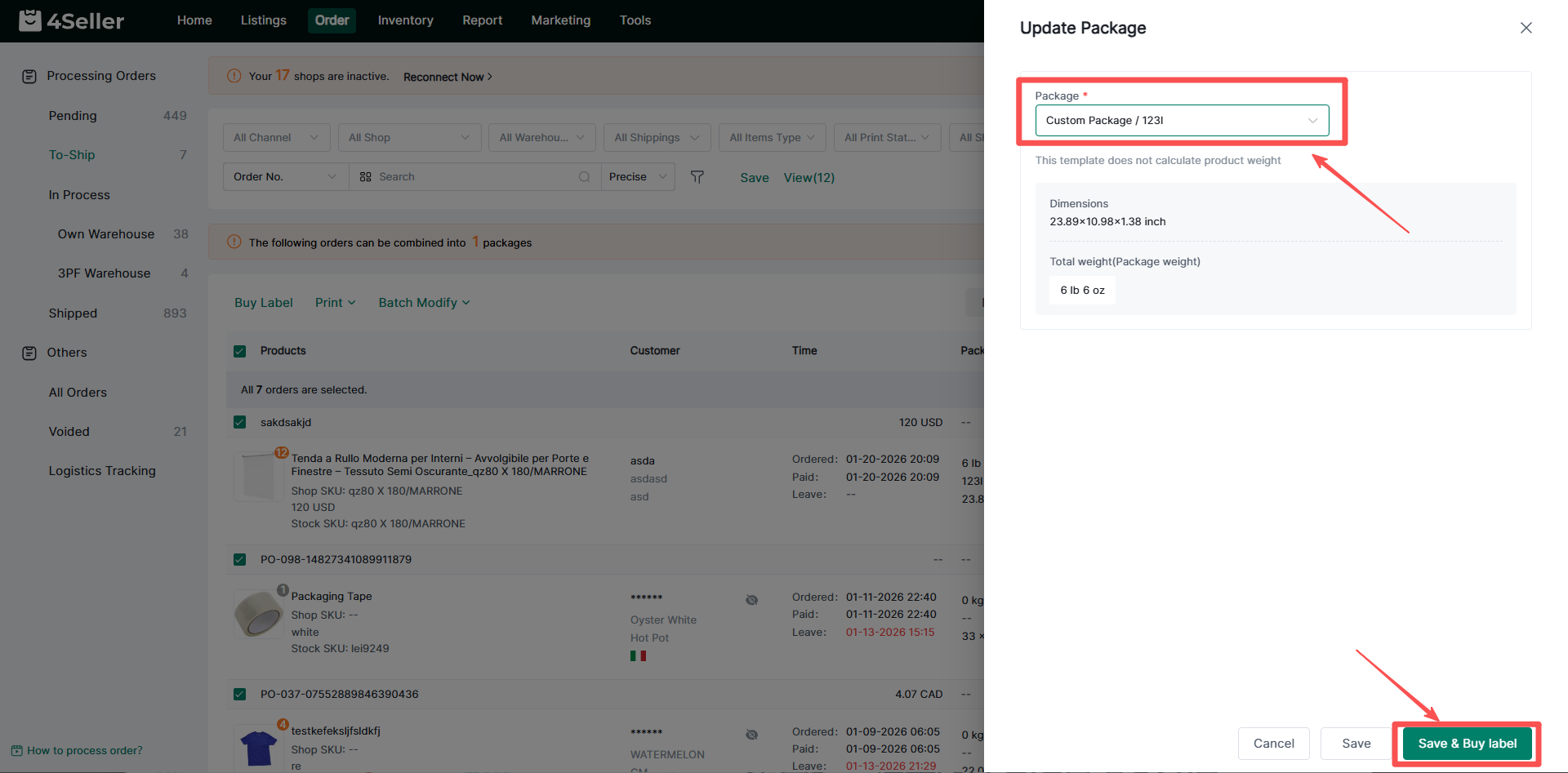
On the Edit Package Information page, you can enter the package weight, select the corresponding size template or manually enter dimensions, and finally click Save to batch update the package information for the selected orders.
Update Logistics Information
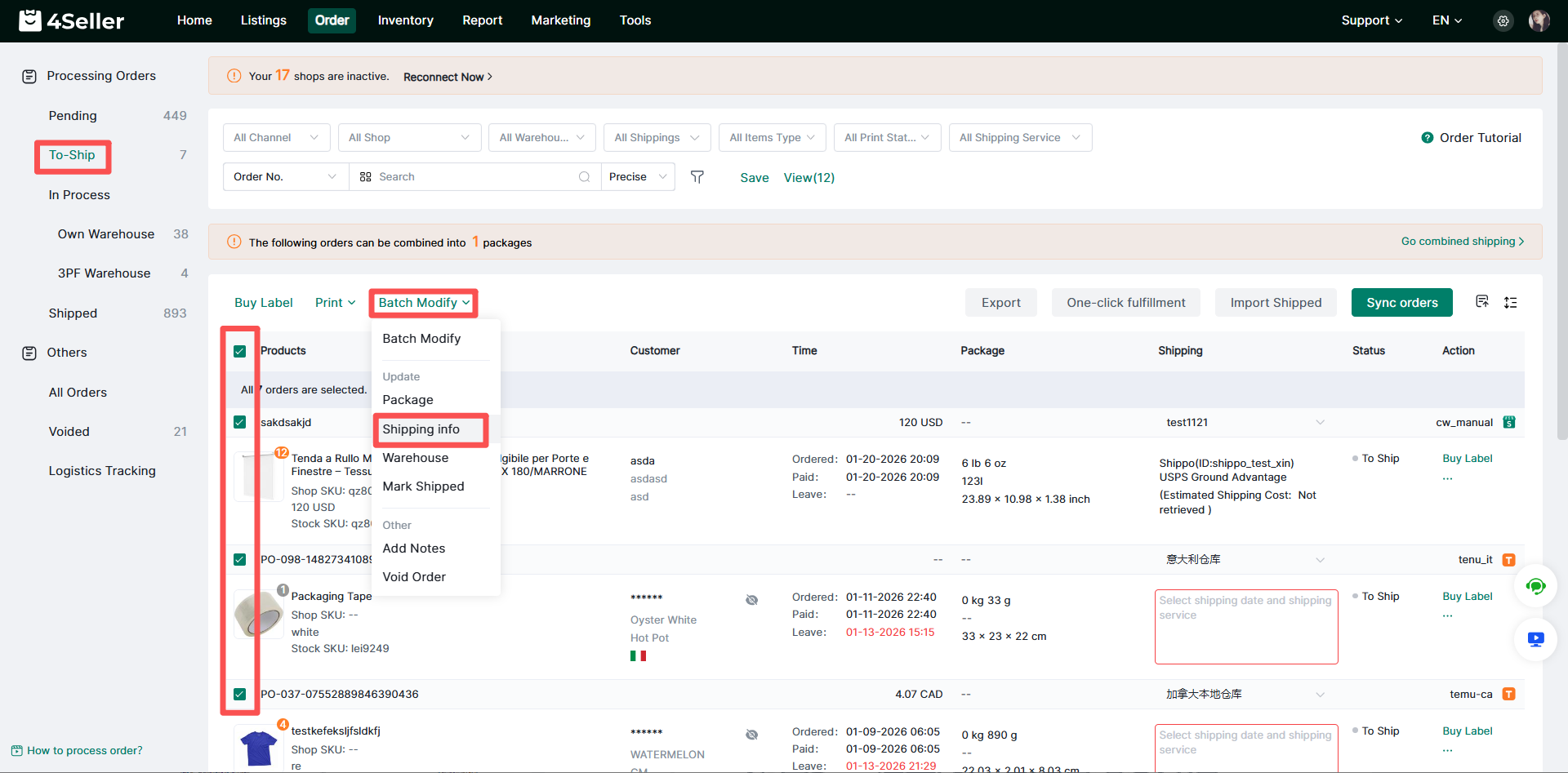
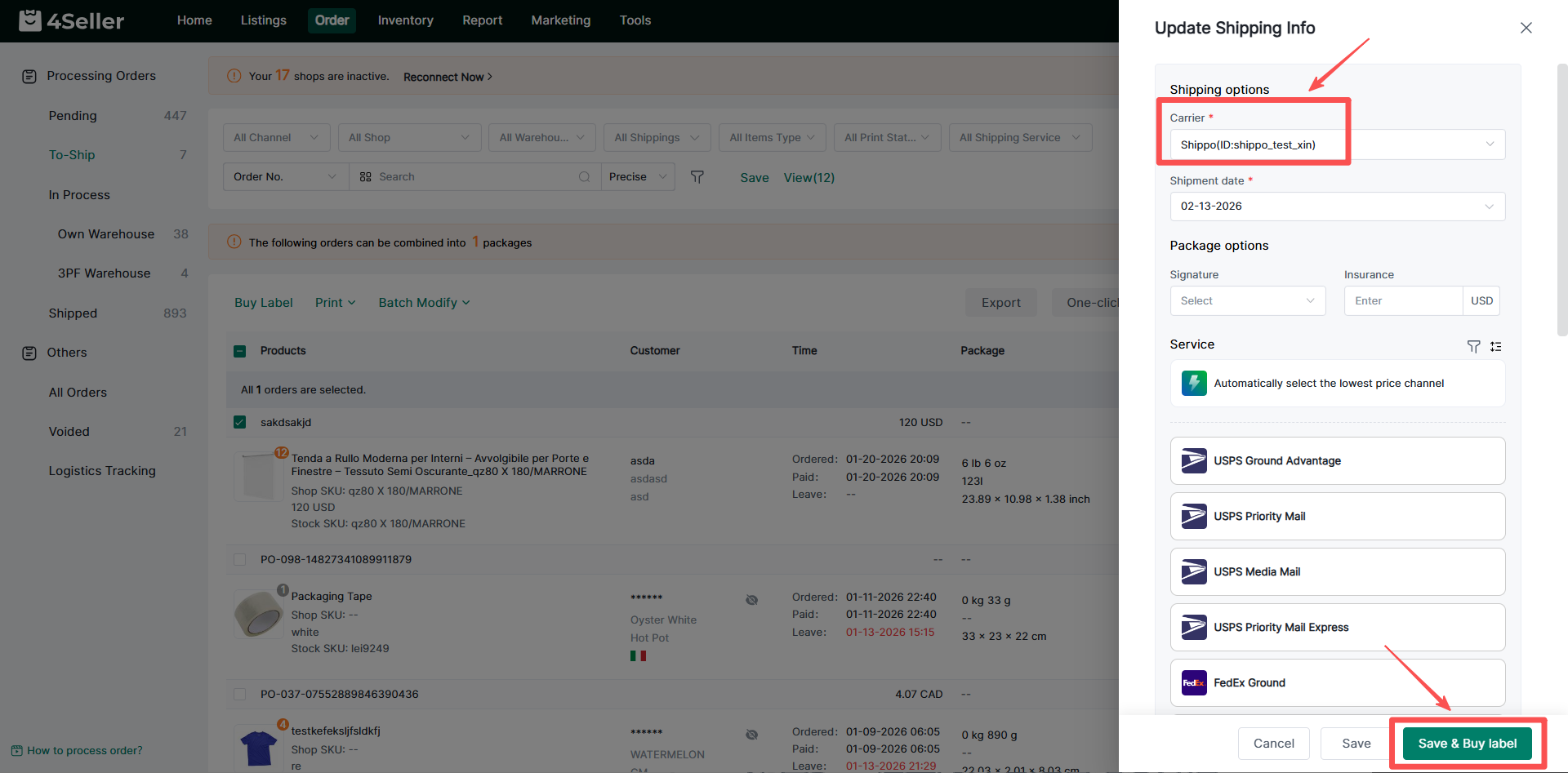
After selecting the orders, click Logistics Information under Batch Modify to batch update the logistics information.
On the Edit Logistics Information page, confirm the carrier is set to TikTok, select a logistics service, and finally click Save to batch update the logistics information for the selected orders.
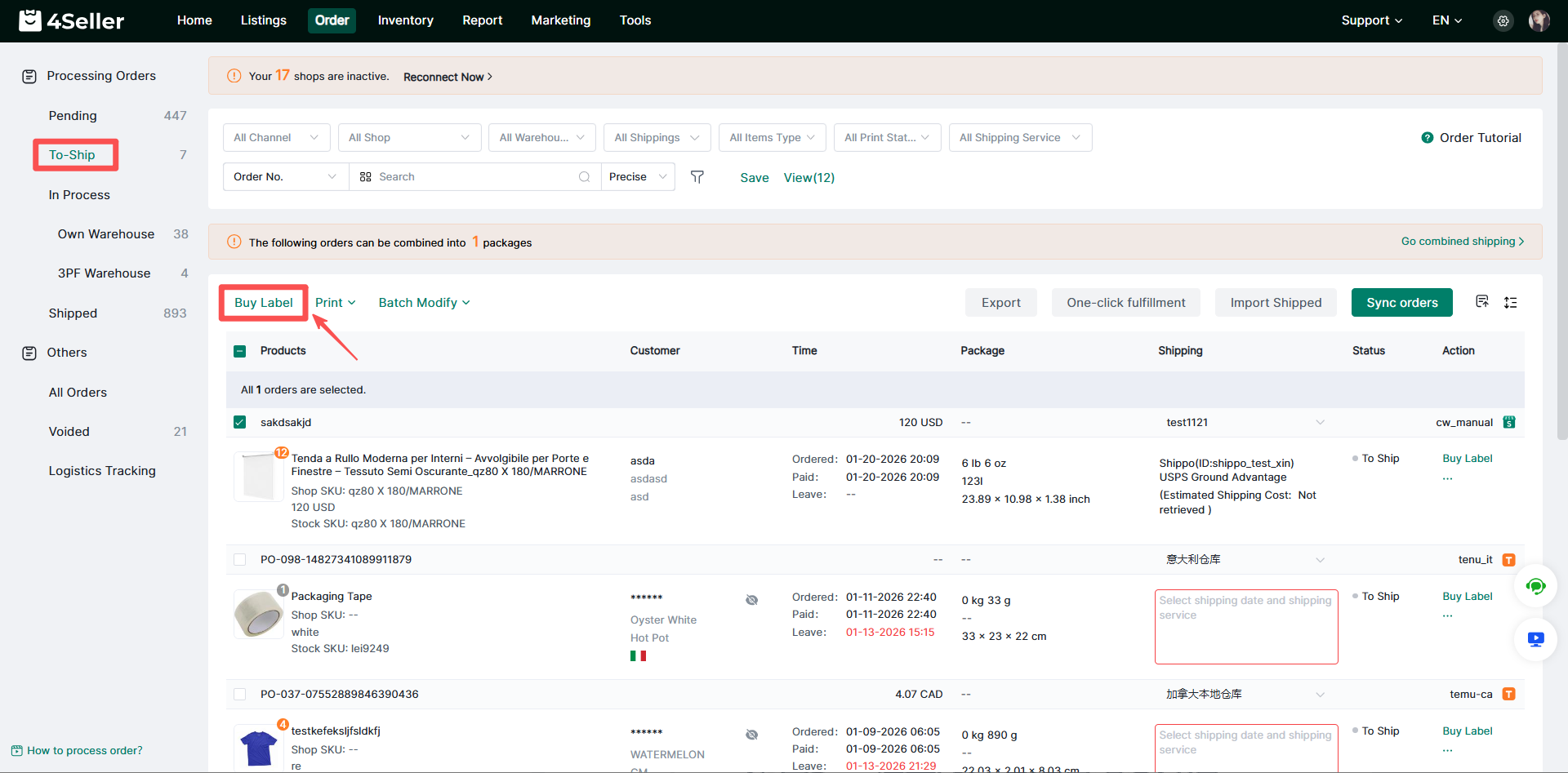
After updating the package and logistics information, click Purchase Shipping Label at the top to push the selected orders to Jifeng WMS and purchase shipping labels for them in batch.
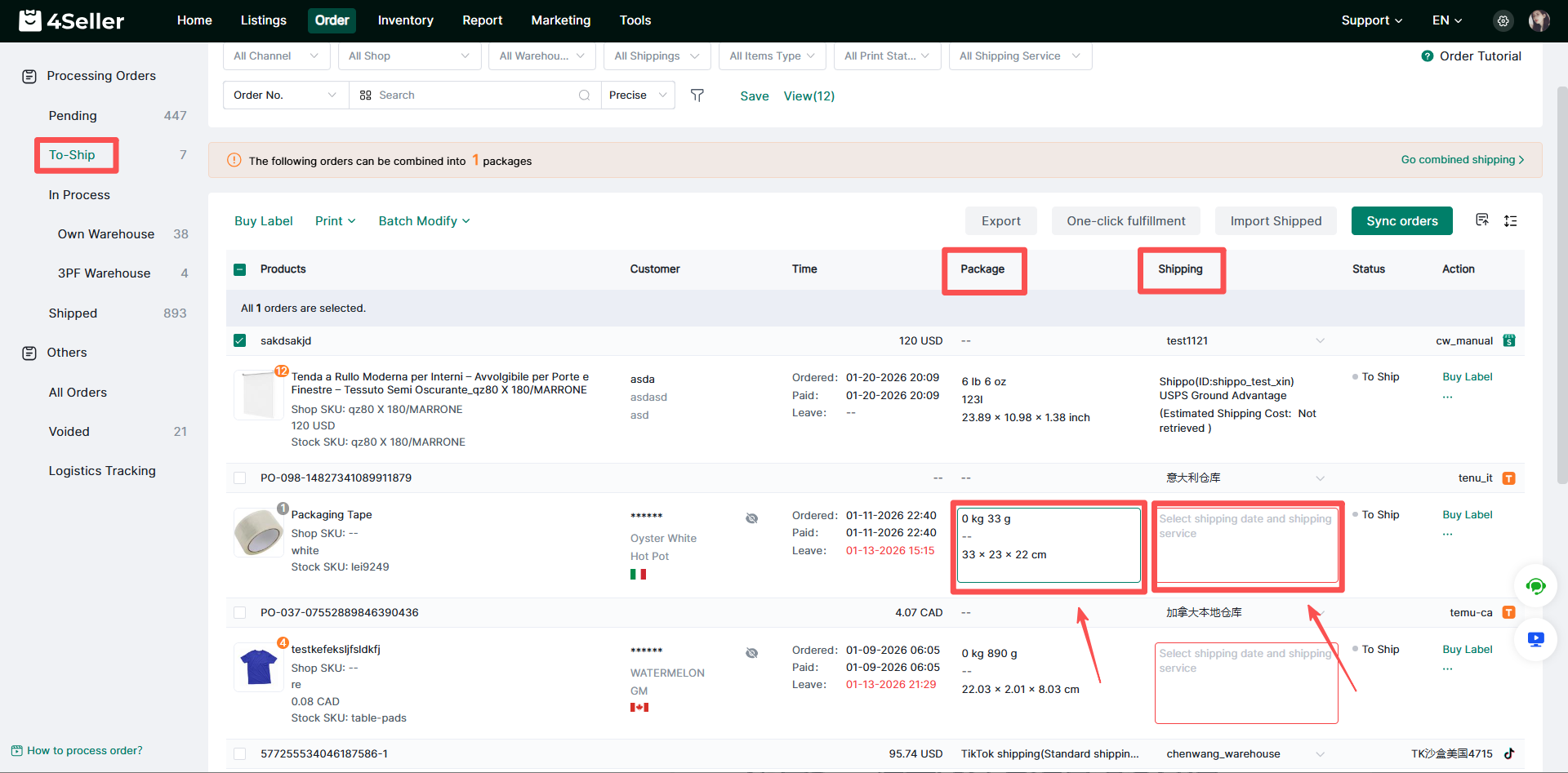
3)Quick Operation
Click the input fields under the Package and Logistics columns to quickly enter the package weight, dimensions, and select the logistics service.
3.Order Processing – Processing – 3PF Warehouse
Orders with purchased shipping labels will move to the Processing workflow under 3PF Warehouse. Orders may have three statuses:
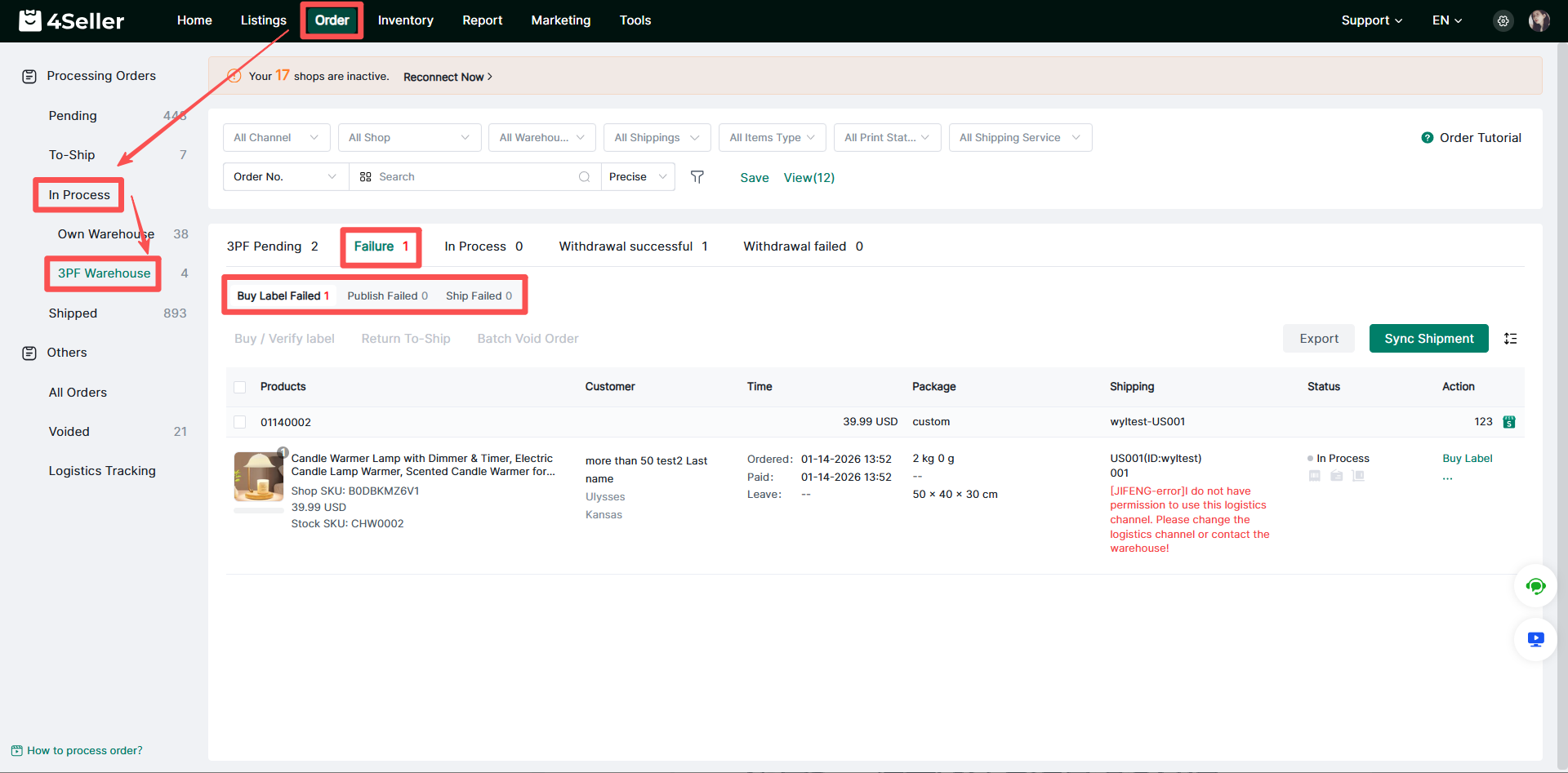
① Failed:
Label Purchase Failed: The system failed to purchase a shipping label for the order.
Push to 3PF Failed: The order failed to be pushed to Jifeng WMS.
Shipment Failed: Failed to push the tracking number to the order's platform for shipment confirmation.
Note: Orders in the Failed status can be reprocessed.
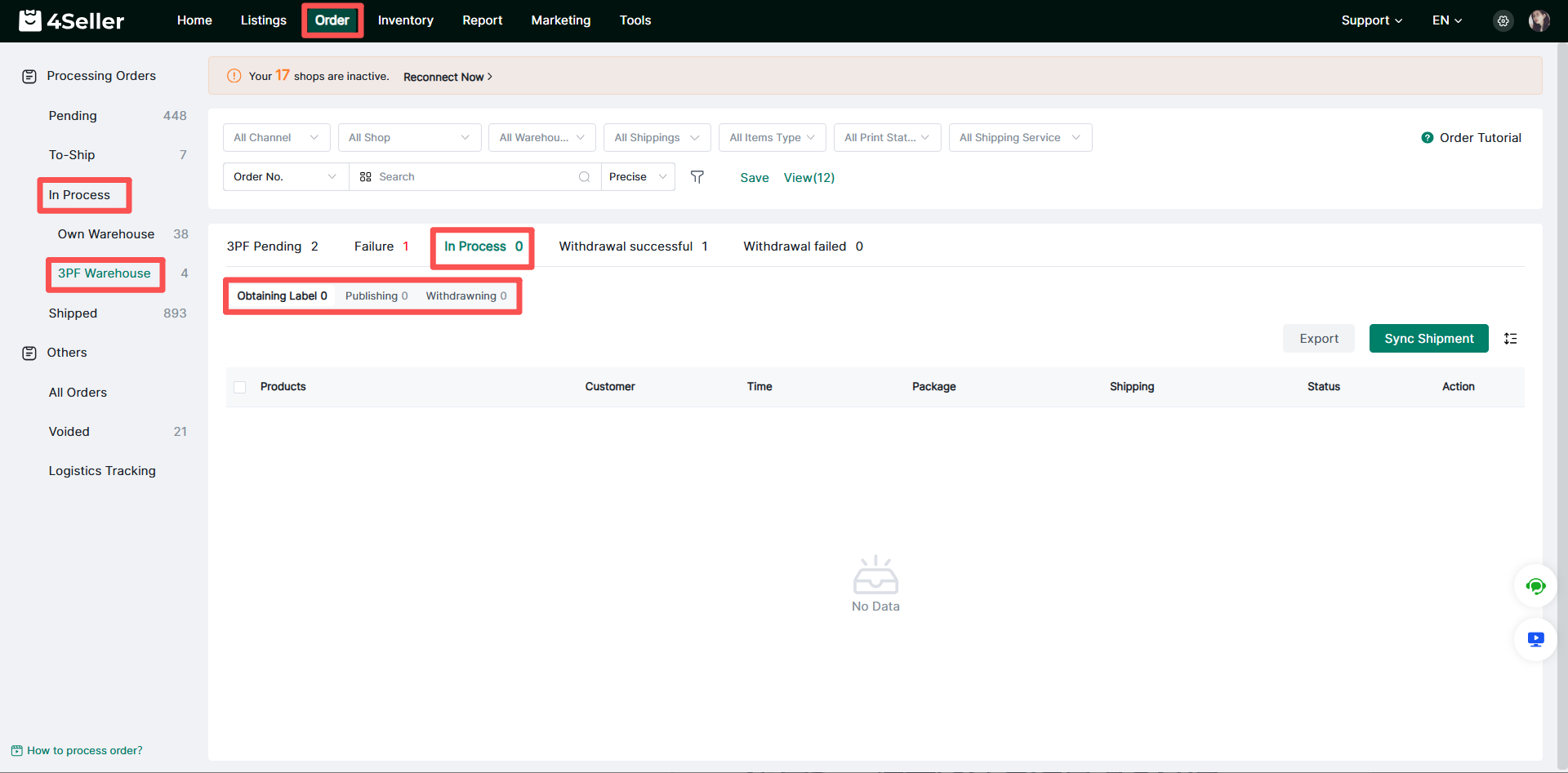
② Processing:
Purchasing Label: The system is currently purchasing a shipping label for the order.
Pushing Order: The order is currently being pushed to Jifeng WMS.
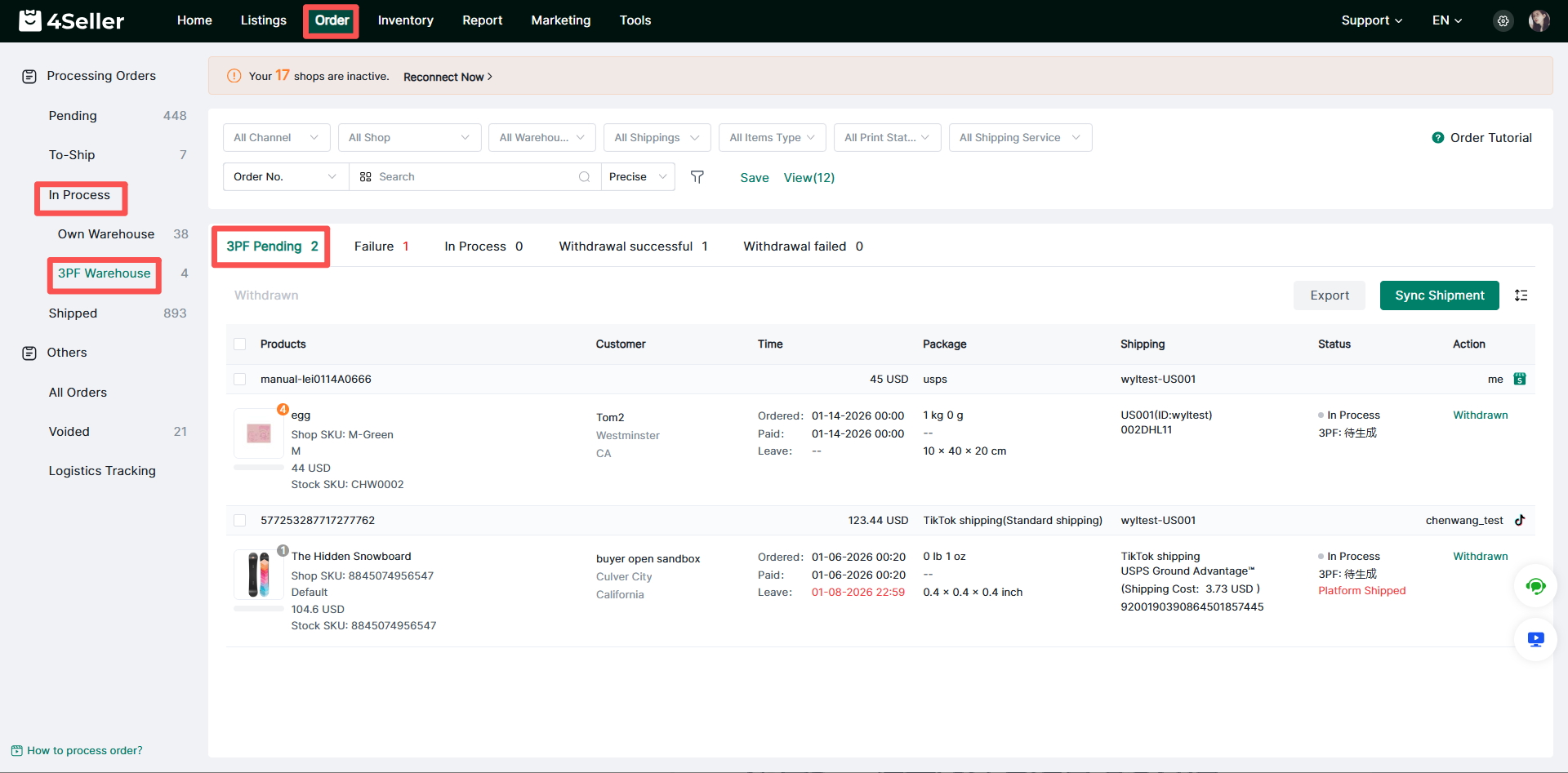
③ Processing by Third-Party Warehouse: The shipping label has been successfully purchased, but the tracking number has not yet been returned.
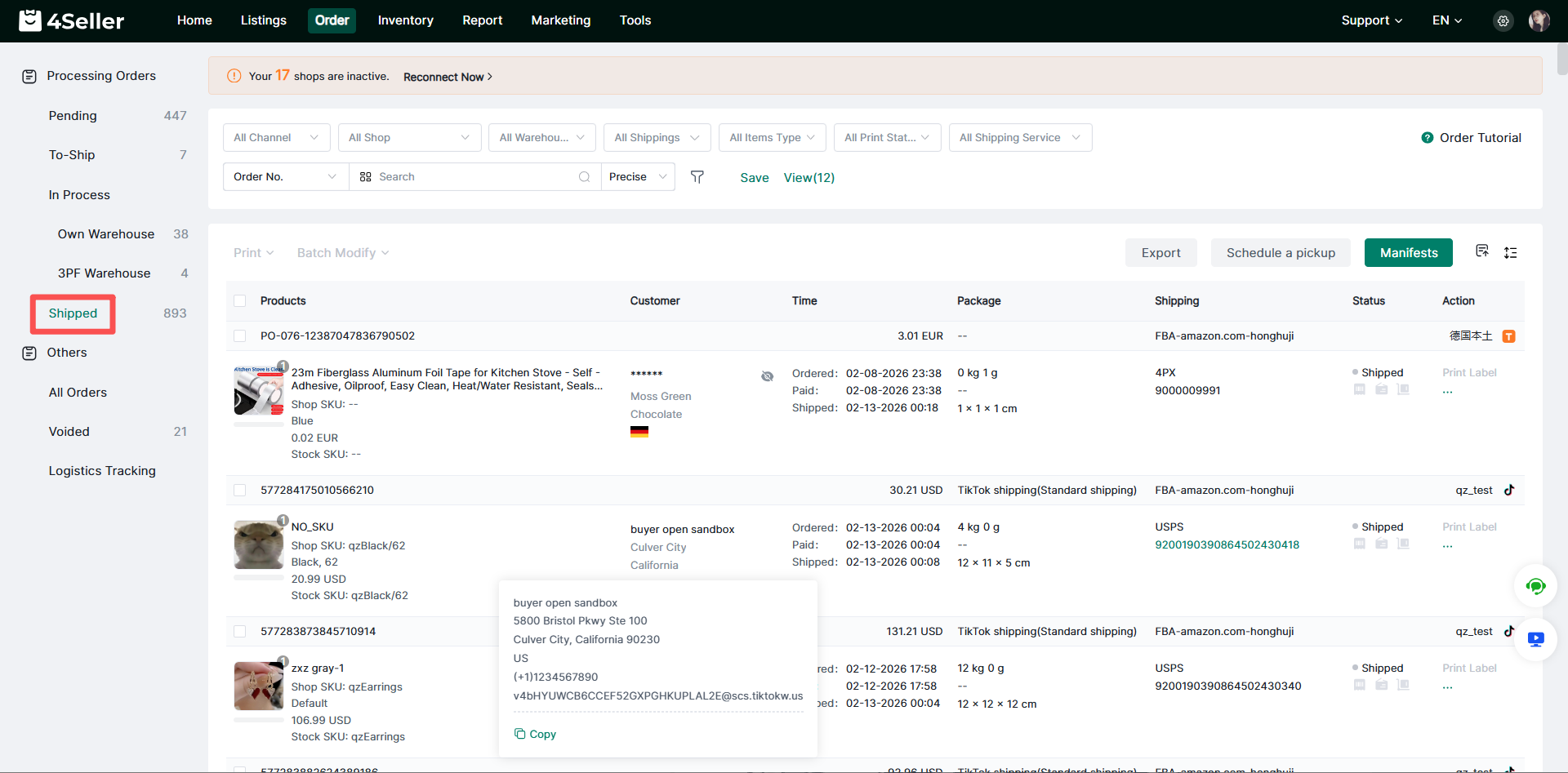
When the tracking number is successfully obtained for the order and successfully submitted to the order's platform, the order will automatically enter the Shipped status, indicating successful shipment.
Step 10: How to Push Offline Orders (Orders Requiring Labels Provided by the Warehouse) to the WMS Overseas Warehouse System?
1.In 4seller, enable the offline logistics channels that have been configured by the warehouse.
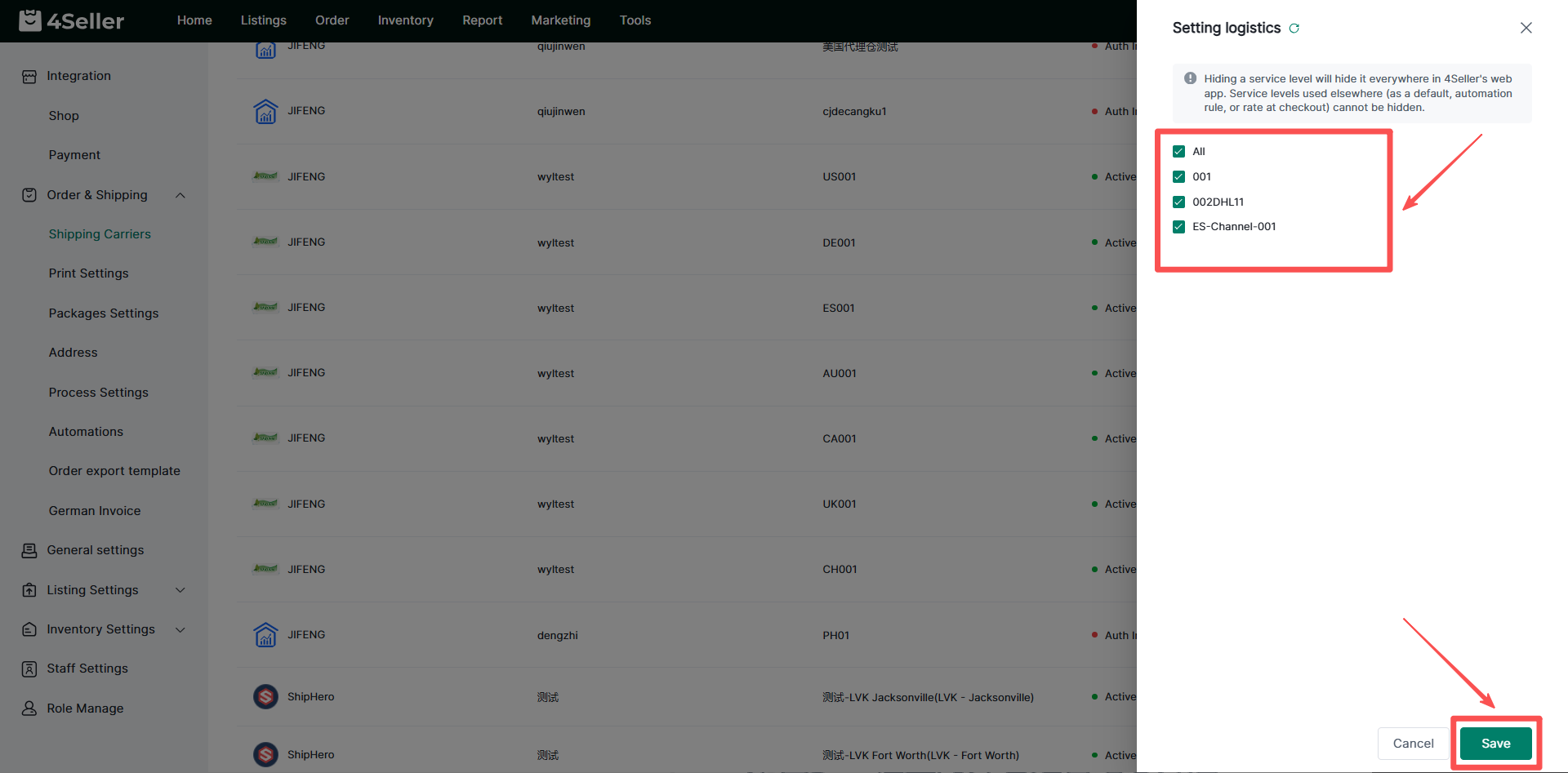
2.Proceed to the order processing stage for operation (using a single order push as an example; the steps are the same as for online order push, simply verify the carrier).