Seller-Side B2B Outbound
I. Definition
Sellers engaged in offline overseas wholesale or using platform fulfillment warehouses, who have already shipped goods in bulk to overseas warehouses for temporary storage as transit inventory, need to create B2B outbound orders when agents, distributors require shipments, or platform warehouses (e.g., FBA) need replenishment. The warehouse will then pick, pack, and ship the goods to the specified destination based on the outbound order.
II. Operational Path
Log in to Seller OMS > Outbound > B2B Outbound > Create New > Fill in shipping warehouse, destination, delivery type, logistics service, expected delivery time, recipient information, shipping quantity, SKUs, etc. (If relabeling is required, upload new SKU labels) > Save and Submit.
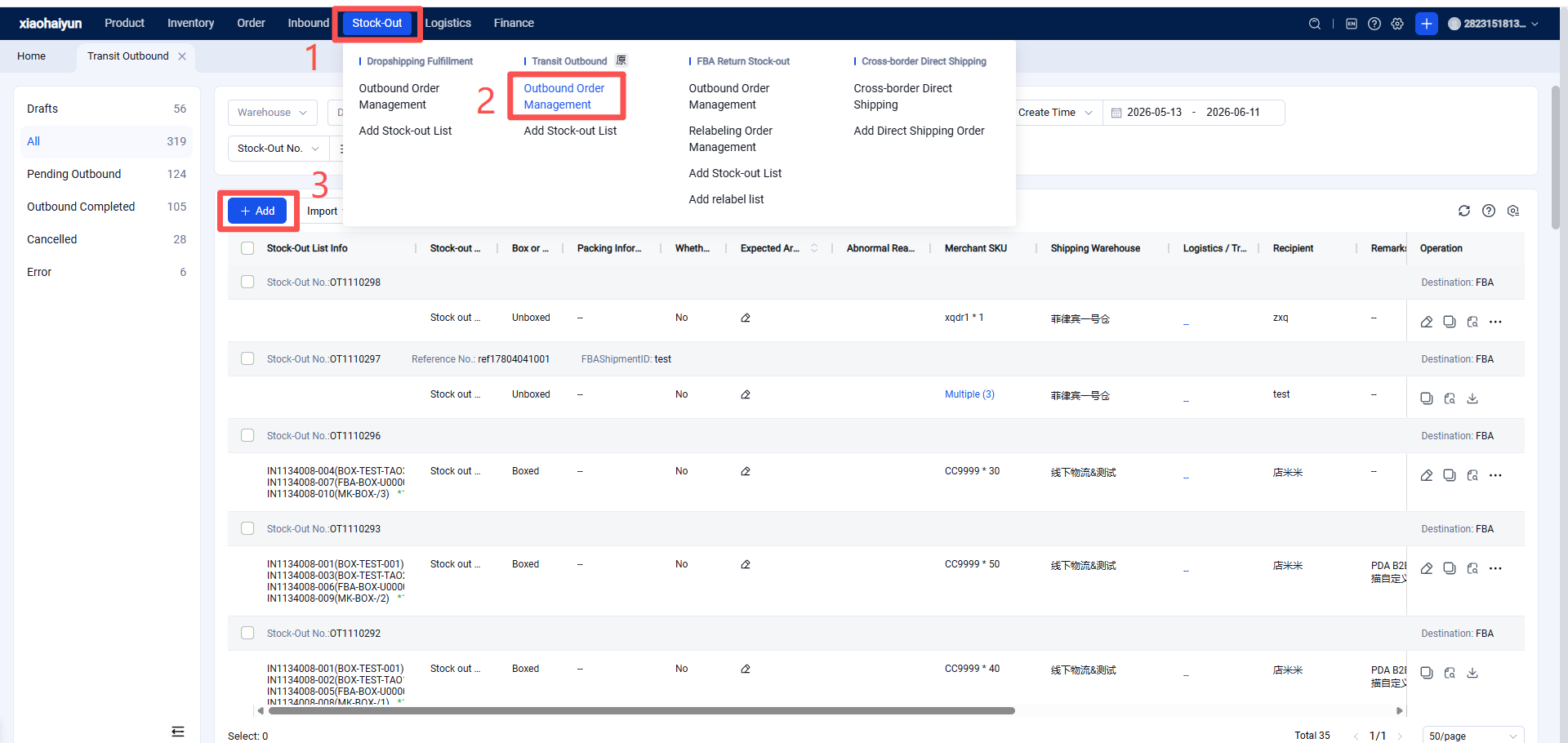
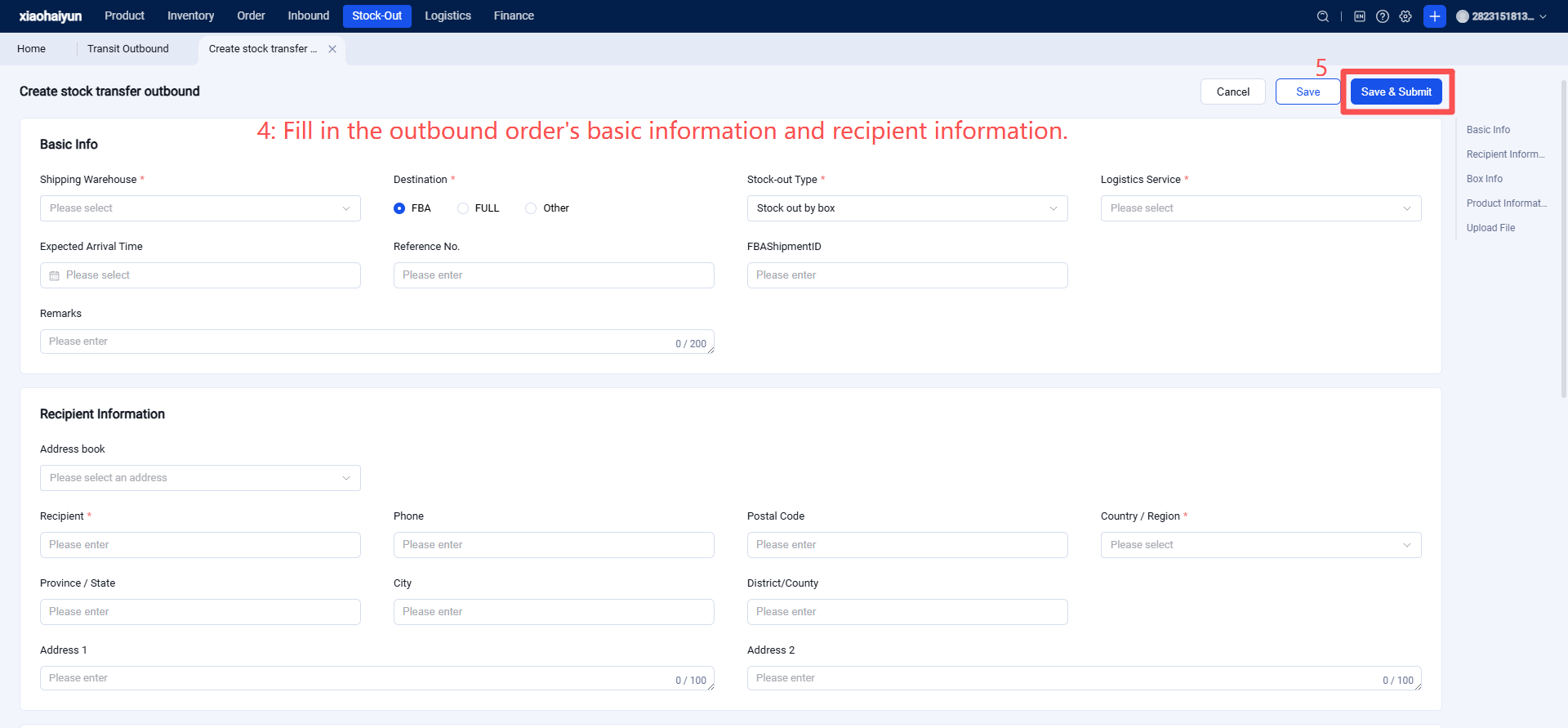
Click "Create New" and fill in the information.
1.1 Basic Information
(1) Shipping Warehouse: (Required)
(2) Destination: (Required) Select the destination for shipment.
(3) Logistics Service: (Required) Options include Amazon Logistics, Private Logistics, or Warehouse Logistics.
(4) Tracking Number: (Required when selecting Amazon Logistics/Private Logistics)
1.2 Recipient Information
(1) When selecting Amazon Logistics/Private Logistics: Only the recipient name and country/region are required.
(2) When selecting Warehouse Logistics: All recipient information fields are required.
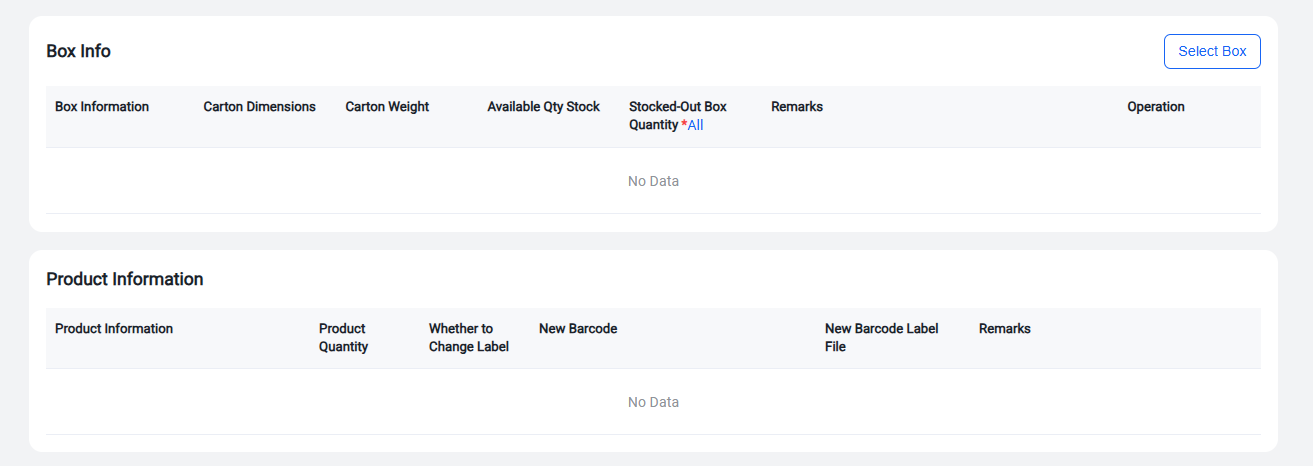
1.3 Box & Product Information
(1) Select Boxes: Choose the boxes to be shipped.
(2) Number of Outbound Boxes: (Required) Enter the quantity of boxes to be shipped out.
(3) Relabeling: If warehouse relabeling is needed, enable this option. Then, enter the new barcode and upload the new barcode label file.
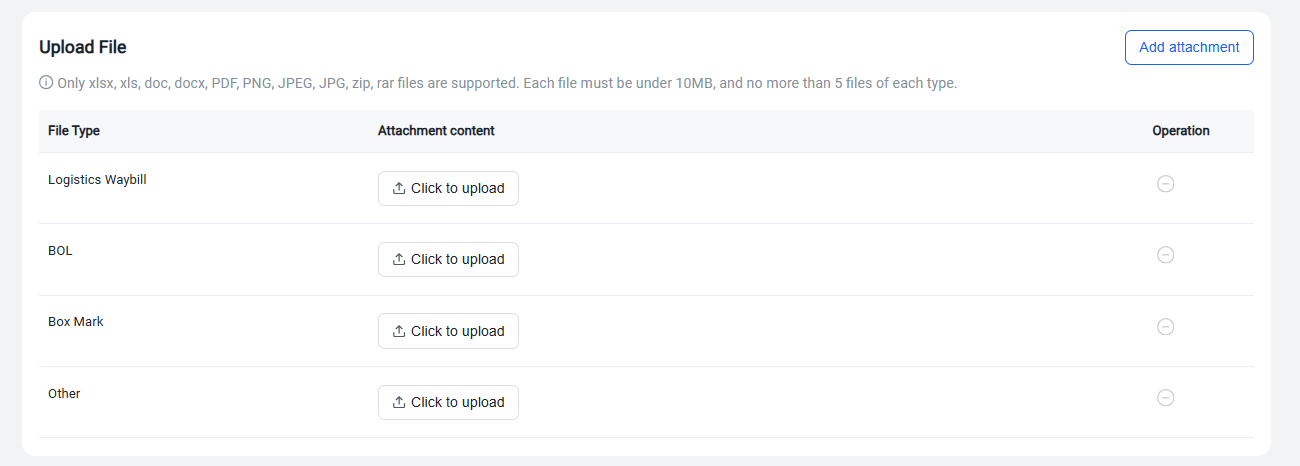
1.4 Attachment Upload
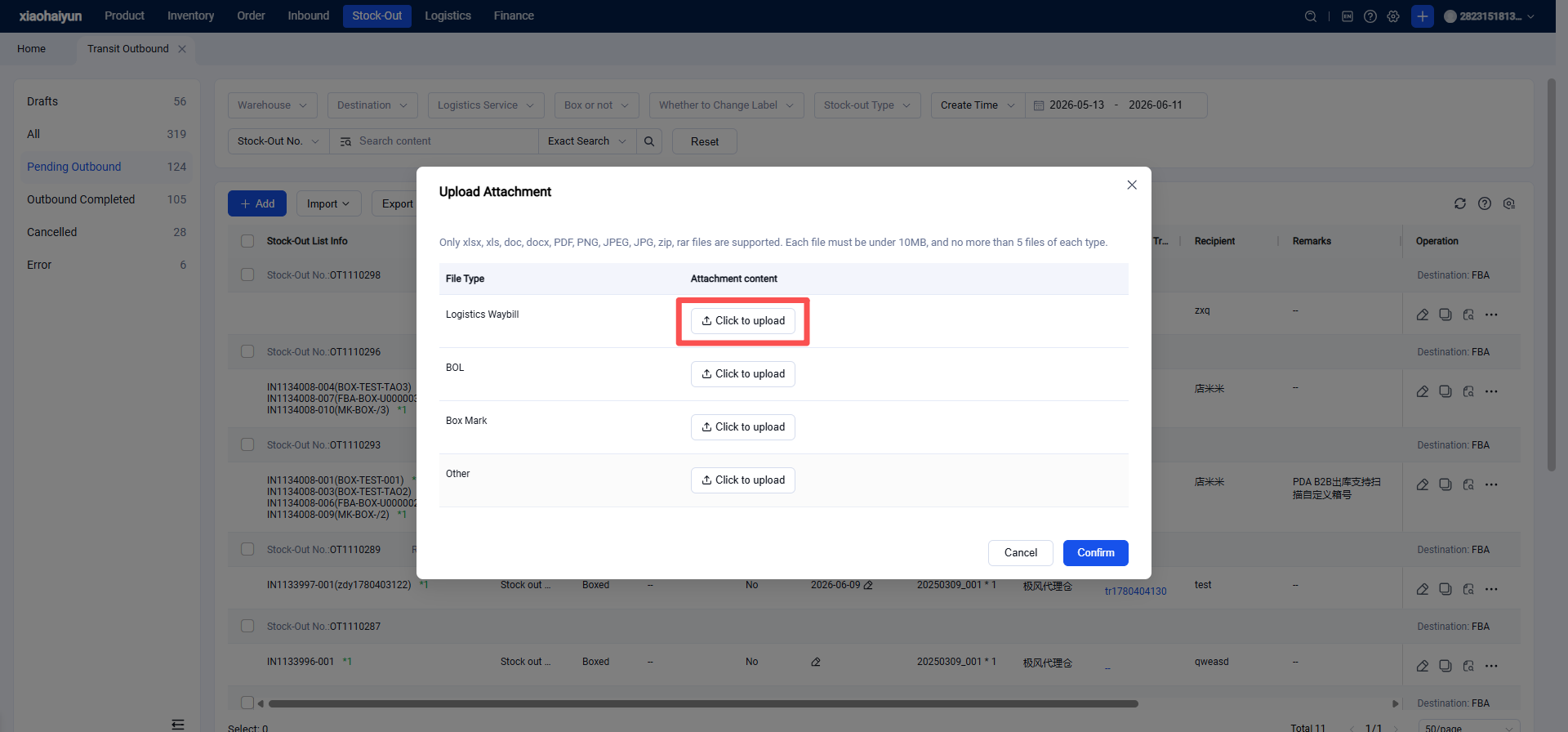
(1) Shipping Label: (Mandatory when selecting Amazon Logistics/Private Logistics) The shipping label must be uploaded.
(2) BOL, Carton Labels, Other Files: These can be optionally uploaded.
(3) Attachment Limit: Each attachment type cannot exceed 5 files.
Click Save or Save and Submit
(1) Clicking Save returns you to the draft box list, from where you can submit the order later.
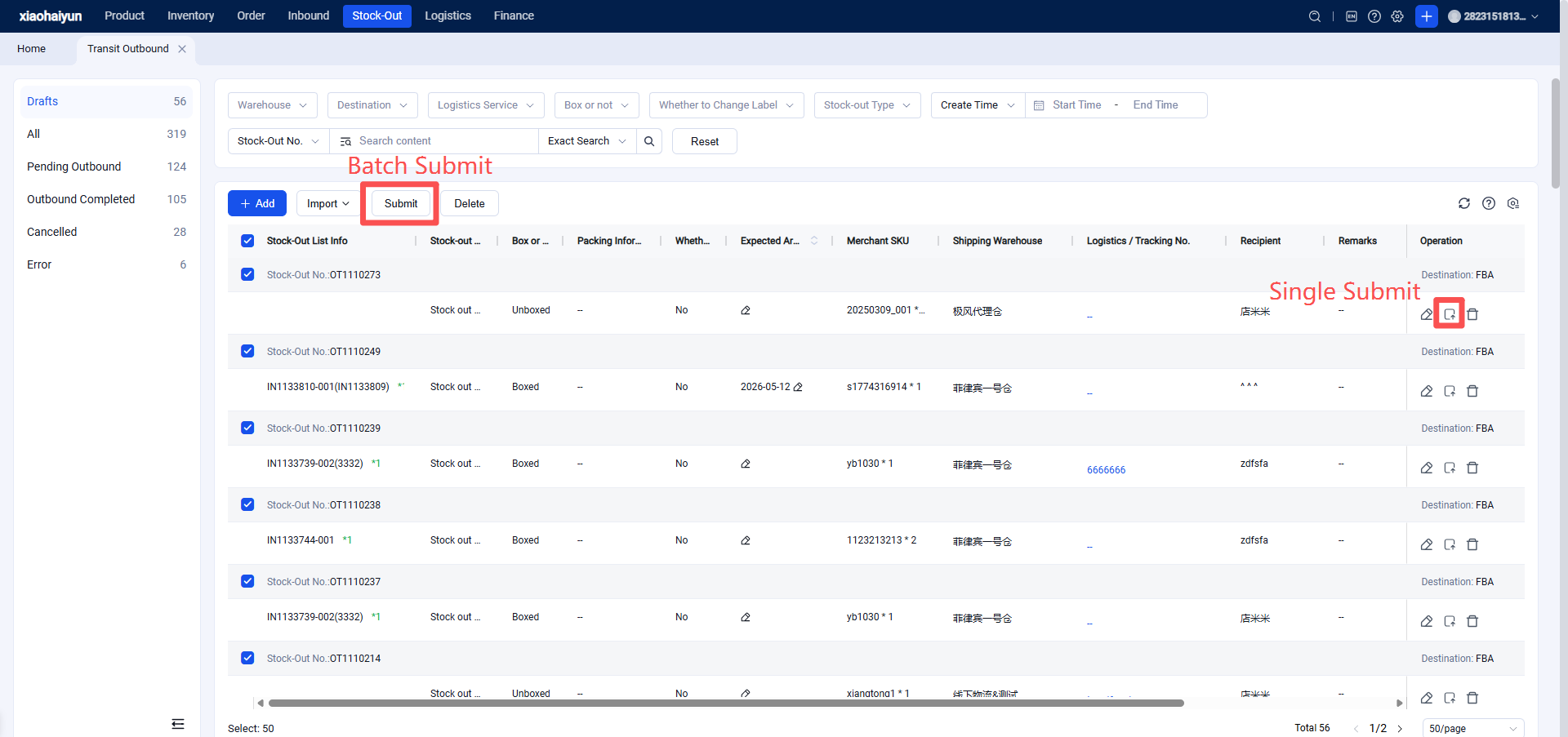
(2) If you click "Save and Submit", you will be returned to the Pending Outbound list, where you can search and view the order.
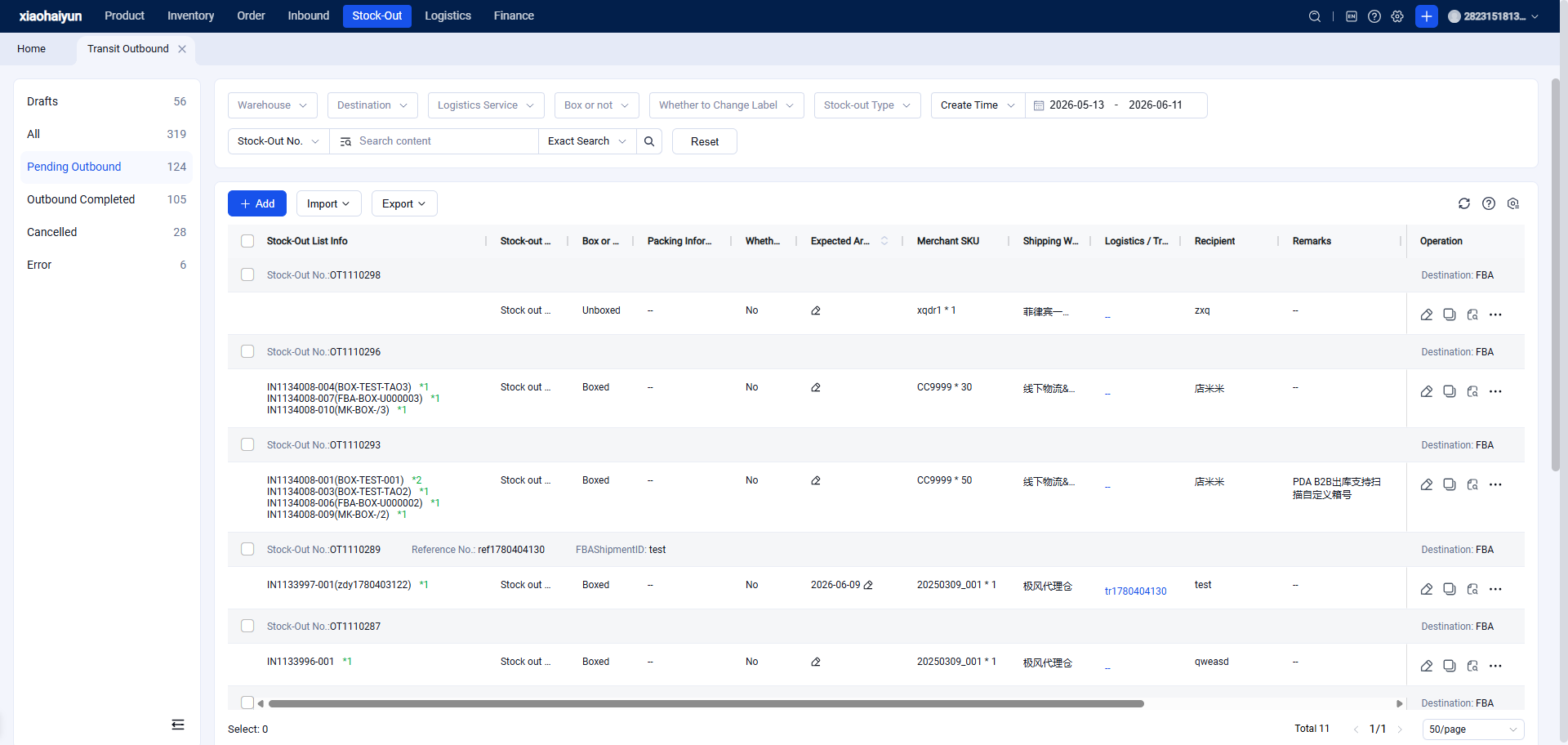
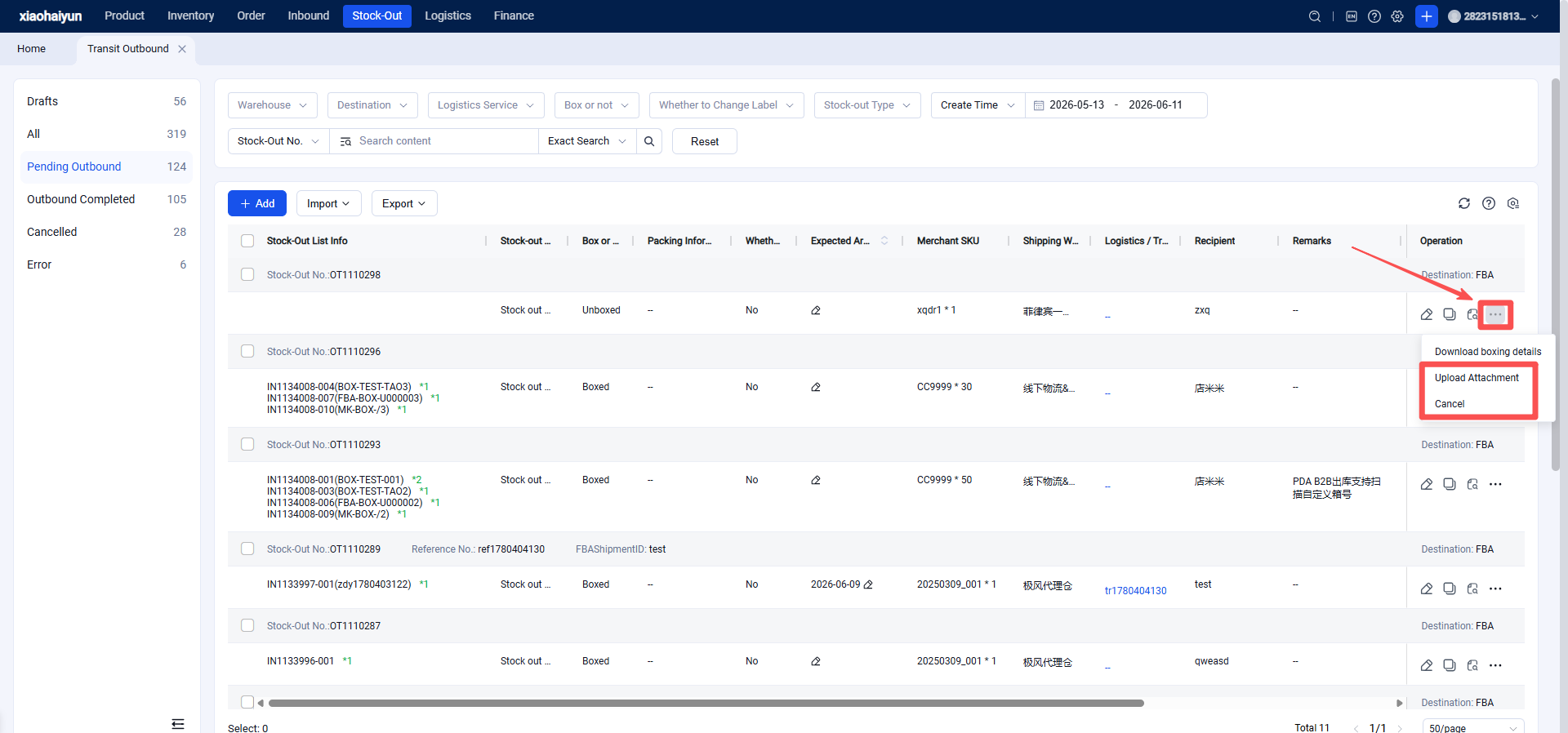
Attachments can be uploaded or the outbound order can be canceled before the warehouse processes the shipment.
(1) You can perform actions like uploading attachments or canceling the outbound order from the Pending Outbound list.