Batch Shipment > Multi-Item Mixed Package: Print Shipping Labels (Pick First, Sort Second)
I. Applicable Scenario
Orders are grouped based on specific criteria, such as by the same SKU, quantity, or logistics service provider. Each group is referred to as a batch (or wave). Picking orders within a batch together improves picking efficiency.
For the "Pick First, Sort Second" batch method, a secondary sorting step is required. This involves first picking all items for a multi-item mixed-package batch, then sorting those items to allocate them into their respective packages. After sorting is complete, the packing process begins, followed by printing shipping labels.
II. Operational Procedure
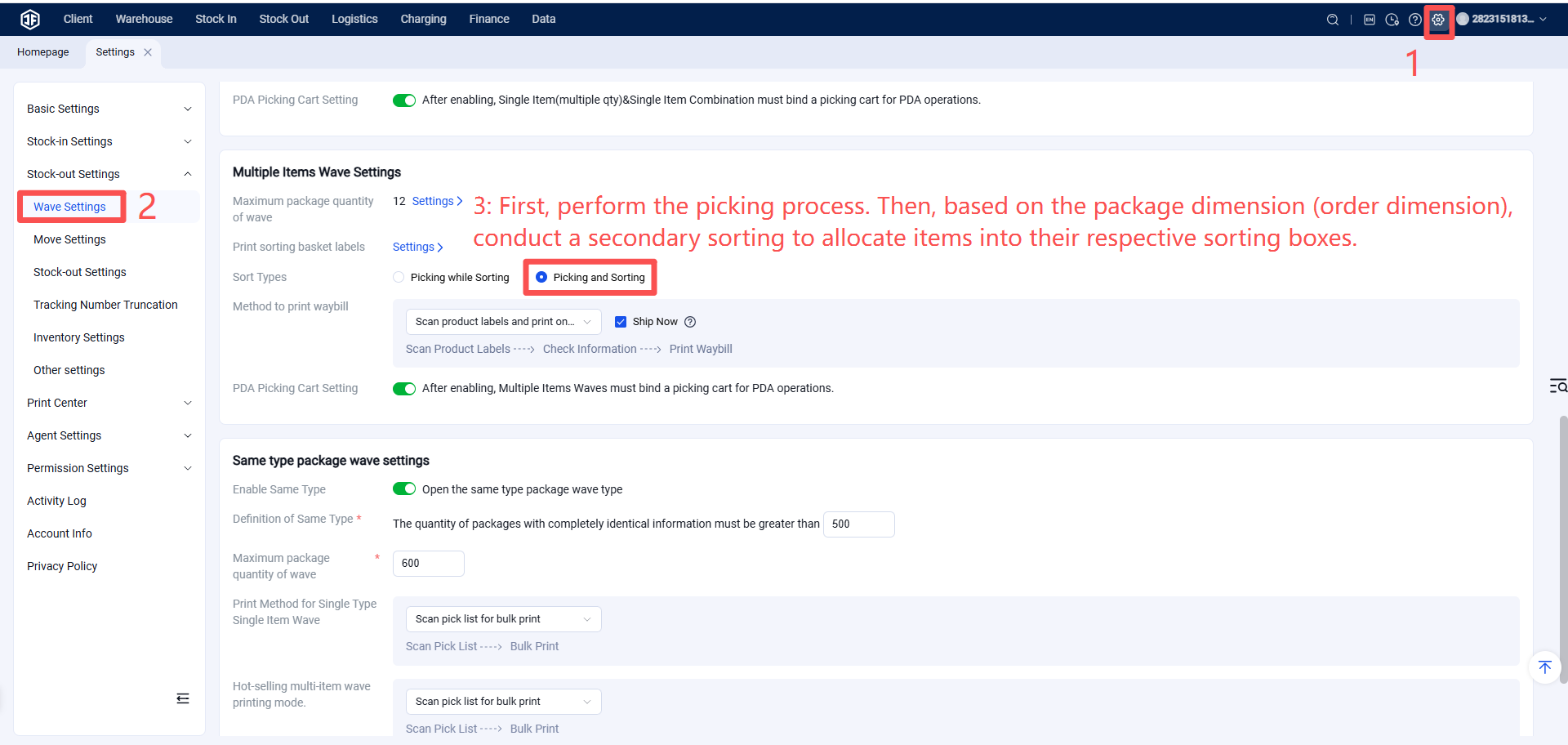
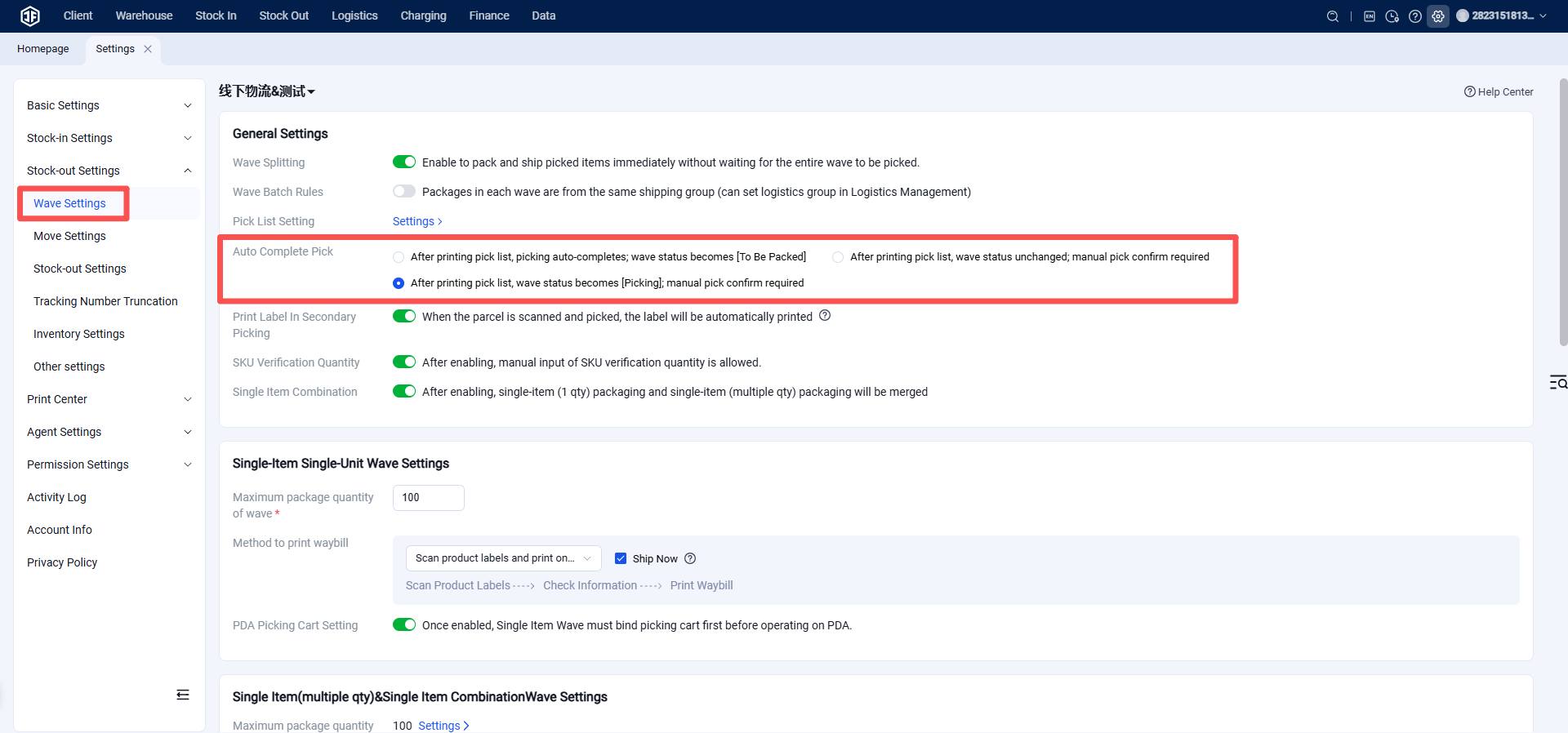
Step 1: Configure Multi-Item Mixed-Package Picking Mode - Pick First, Sort Second
Step 2: Batch Settings and Generation Reference: https://help.jfwms.com/zh_CN/doc-article/1003000610-
Step 3: Secondary Sorting After pickers complete the initial sorting based on the batch, they proceed to secondary sorting by package (order dimension).
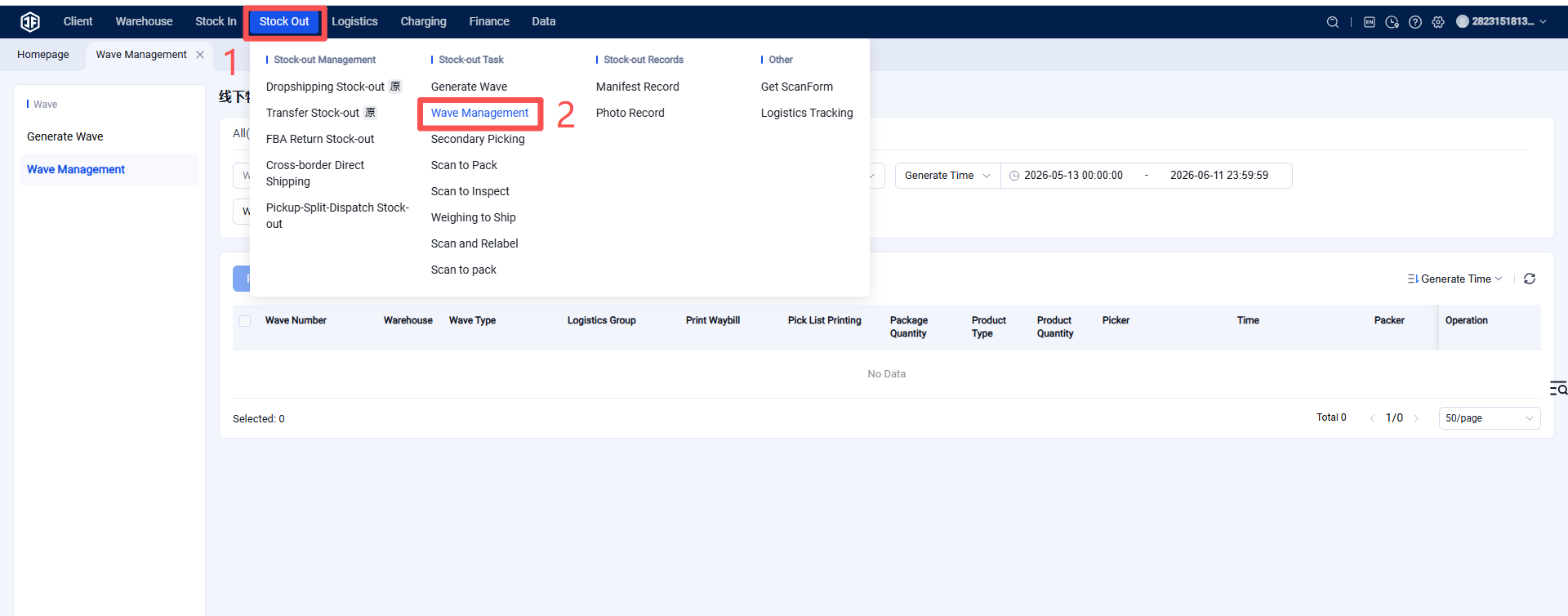
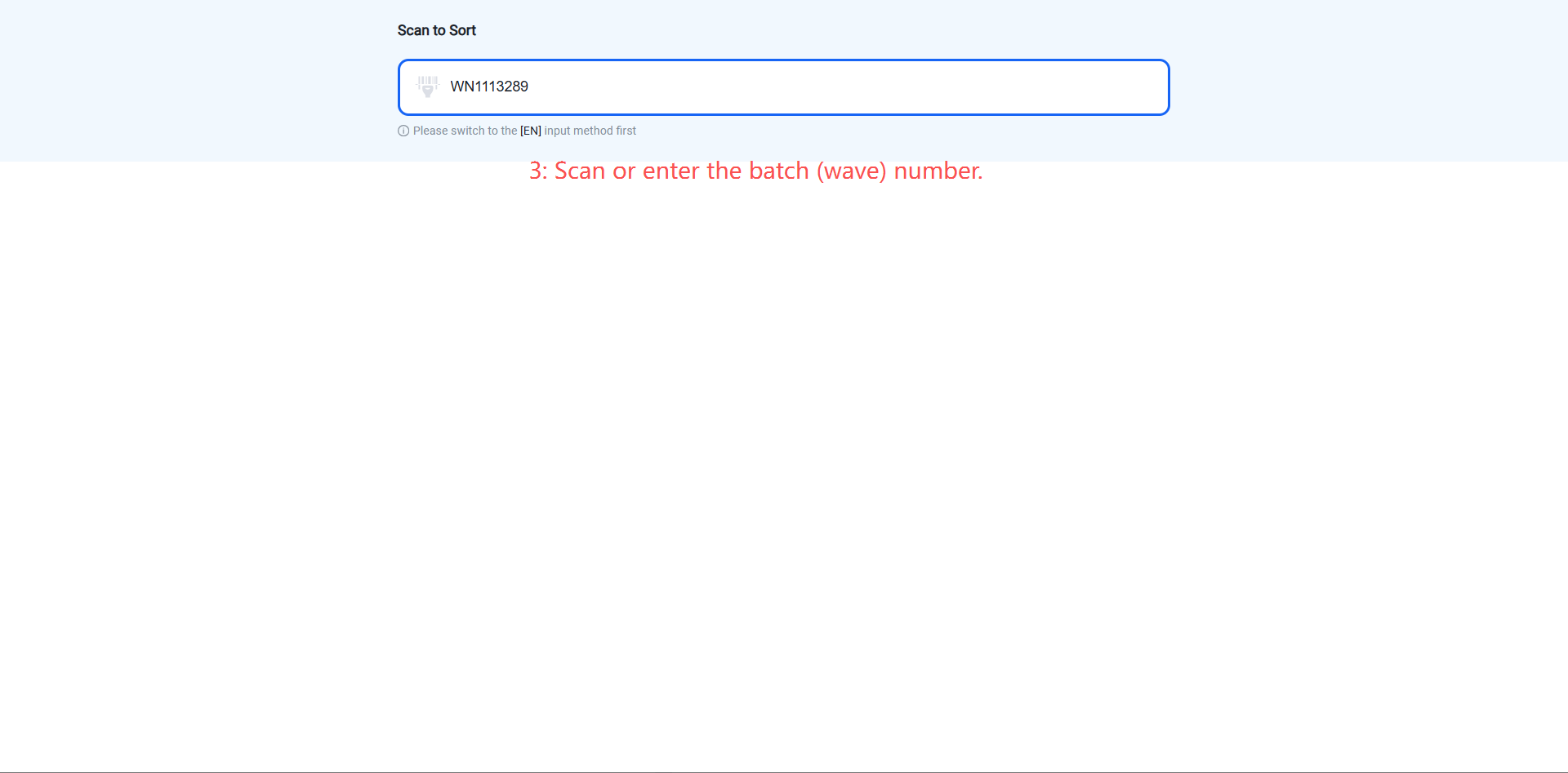
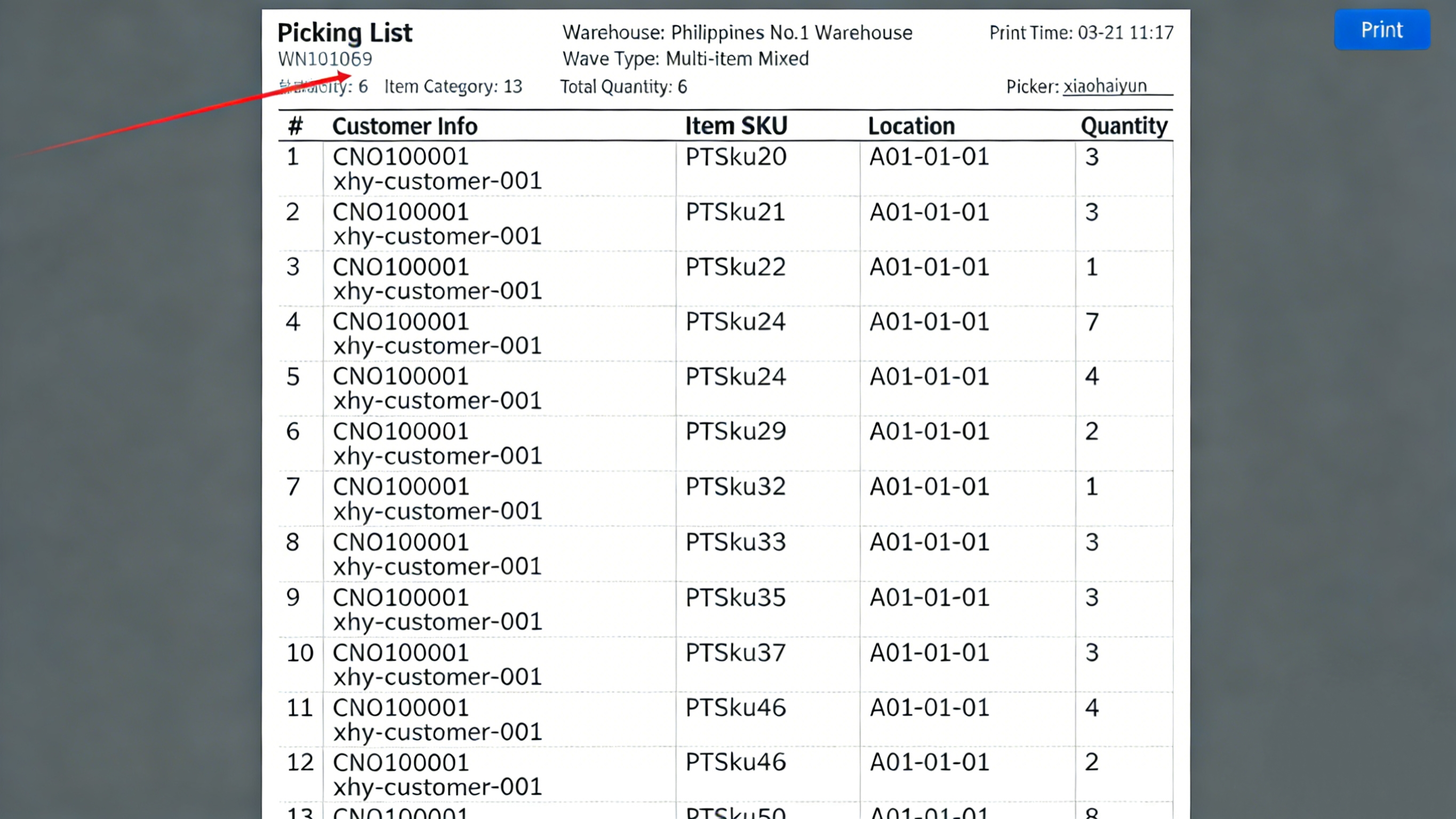
Upon entering the sorting page, begin scanning product labels to initiate the sorting process.
After a product is successfully verified, the system will display the assigned sorting box number for that item, along with the package number corresponding to that sorting box.
Step 4: Scan and Pack
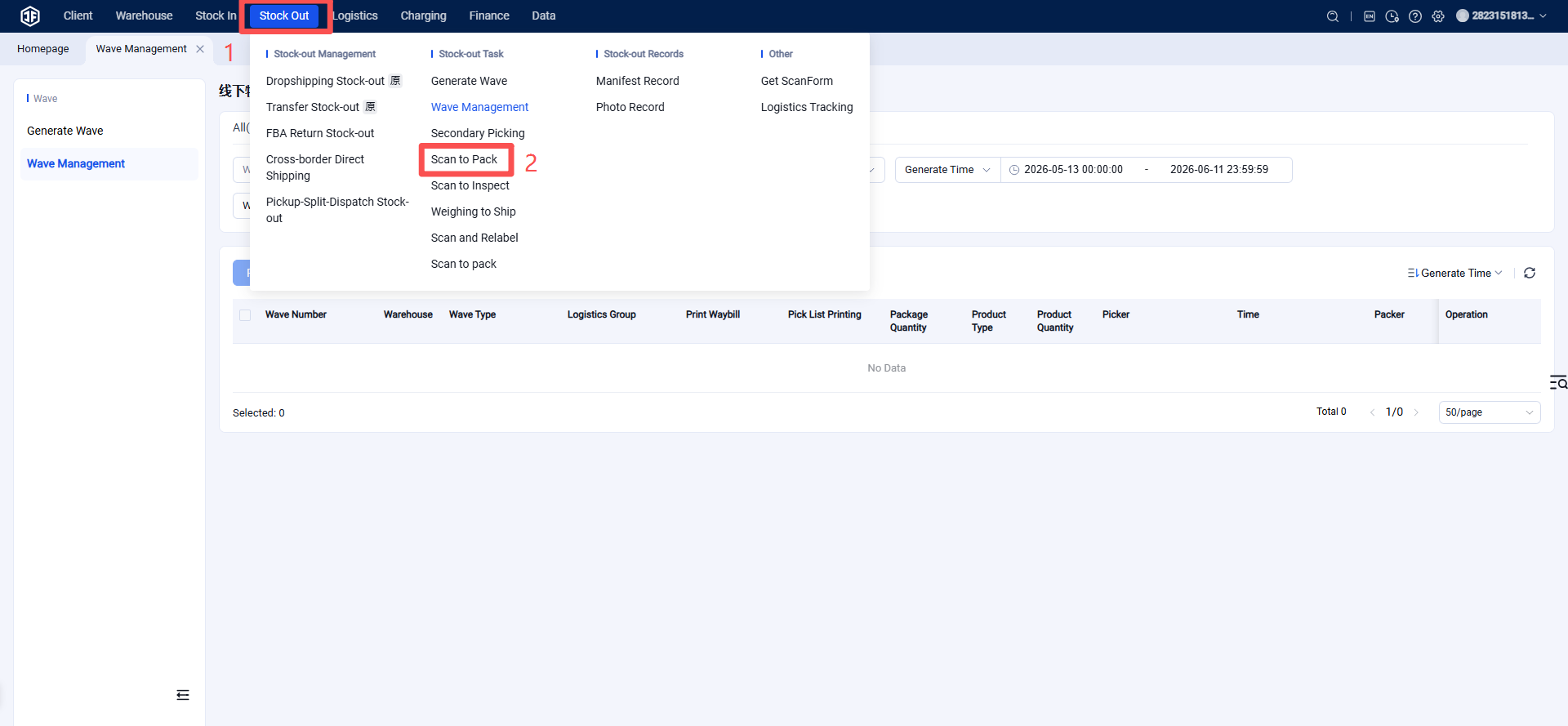
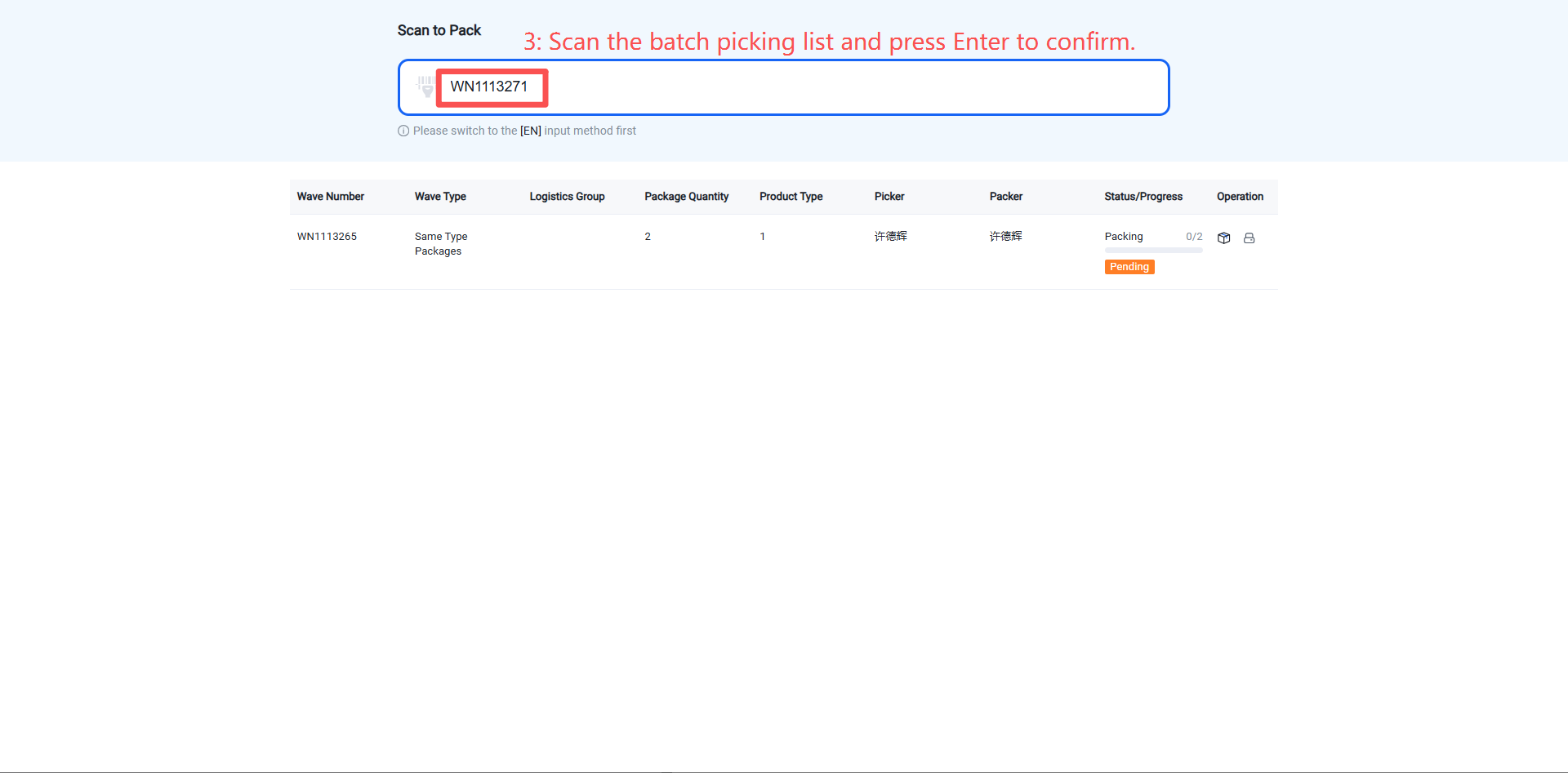
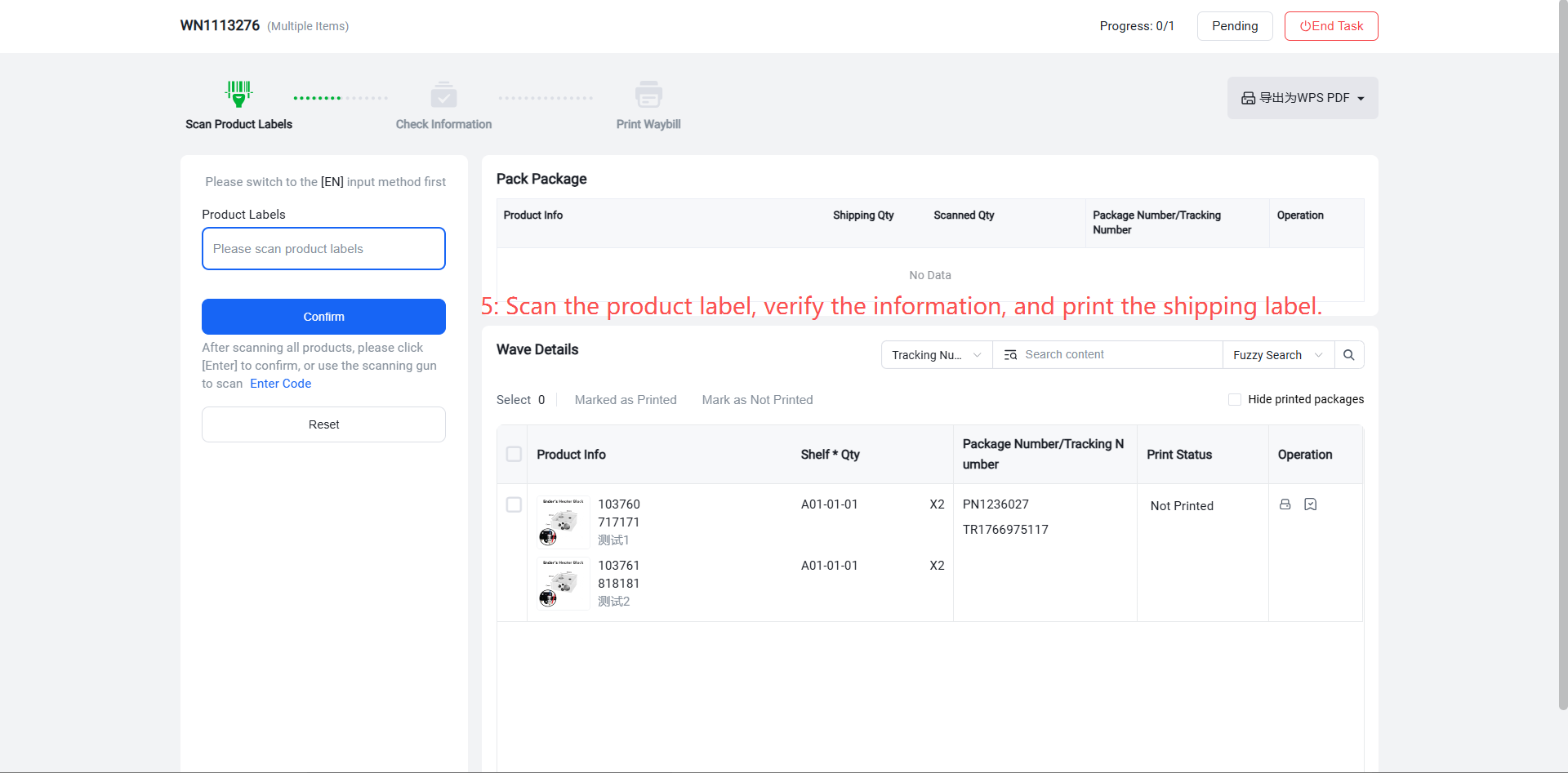
Proceed to the packing stage to print shipping labels. Options include scanning individual product labels to print labels one by one, scanning sorting box numbers to print labels one by one, or batch printing shipping labels.
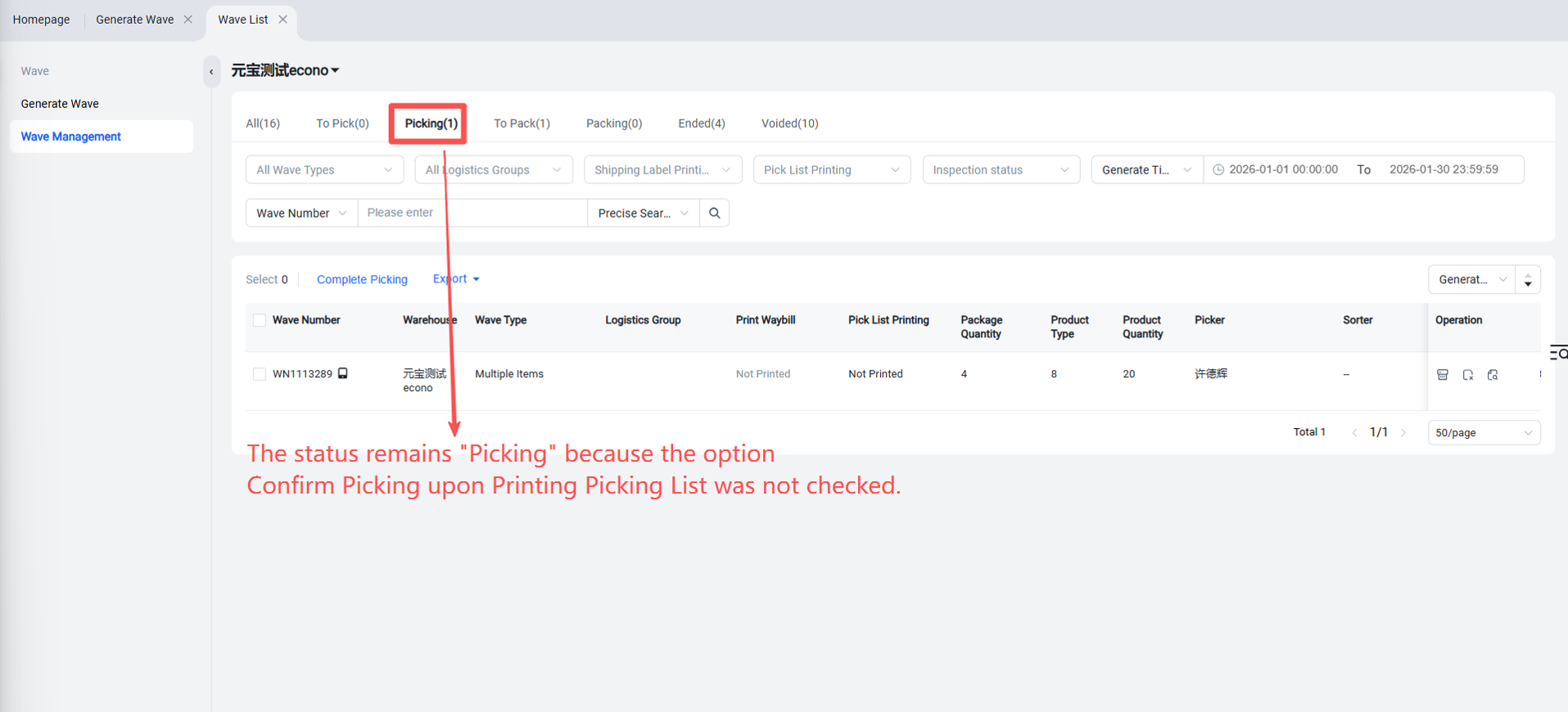
Confirm Picking?
Scan and Pack
For batch picking lists in the "Pending Packaging" status, proceed with scanning and packaging.