Cross-Border Direct Shipping: One-Click Label Replacement at the Overseas Warehouse
I. Definition
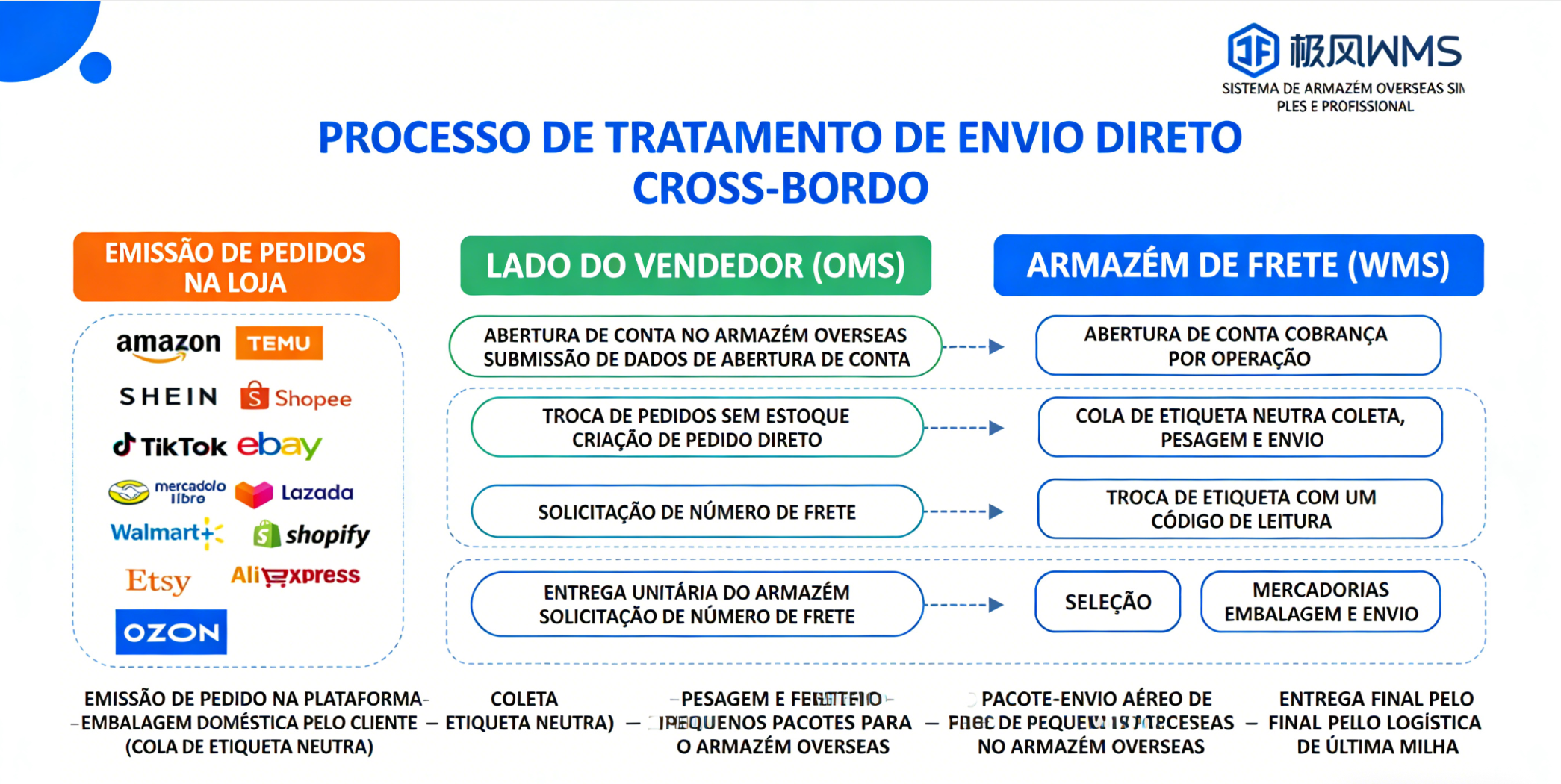
After a cross-border e-commerce seller receives an order from stores such as TikTok, Shopify, Temu, or SHEIN, the seller may purchase the goods from a domestic supplier, pack them domestically, affix neutral shipping labels, and have a domestic logistics provider deliver them to the overseas warehouse. The overseas warehouse then replaces the label with the final-mile shipping label for onward carriage.
Alternatively, after receiving an order, the seller may purchase the goods from a foreign supplier and have them shipped directly to the overseas warehouse, where the warehouse handles the label replacement.
II. Operational Steps (Warehouse Side)
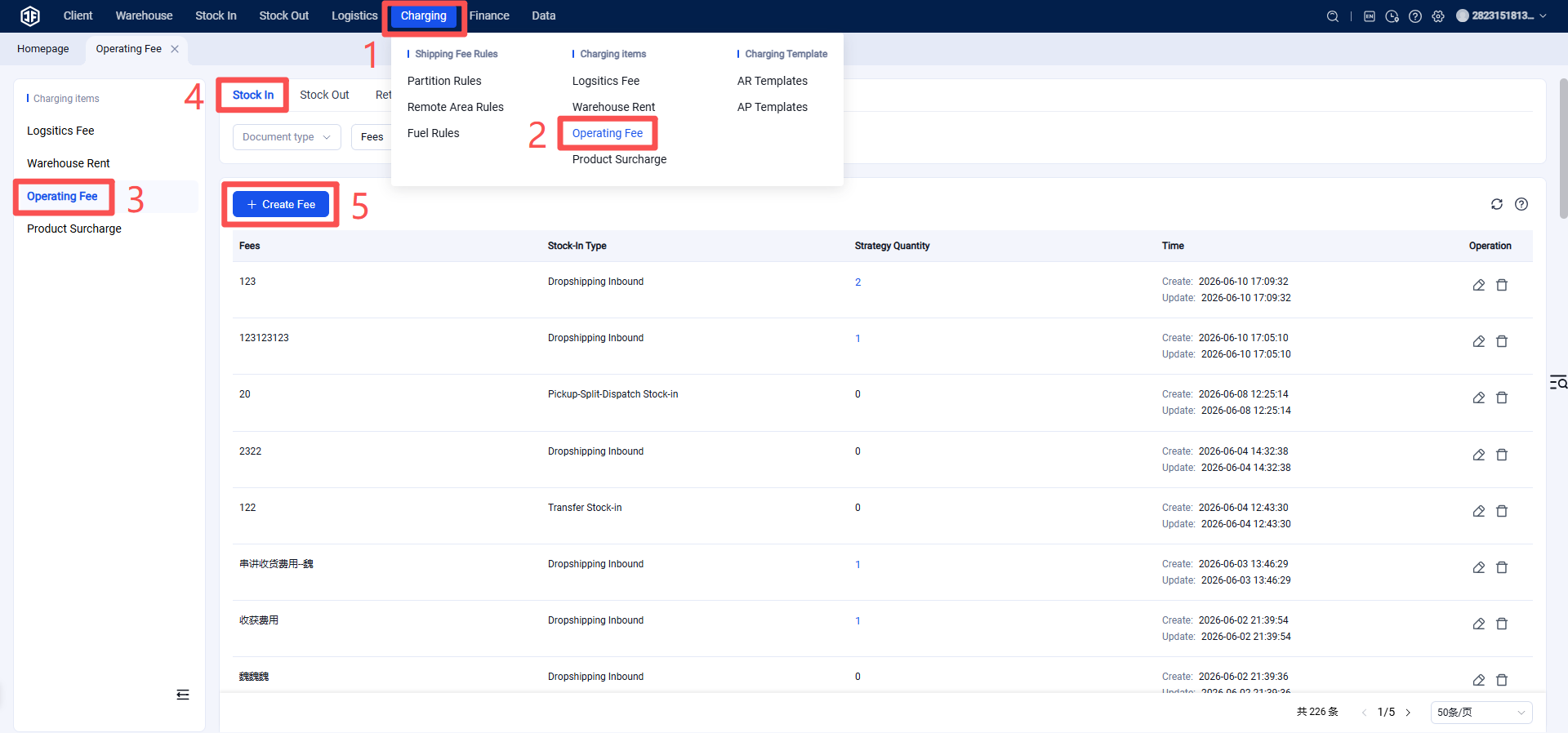
Step 1: Set Up Direct Shipping Order Billing Template
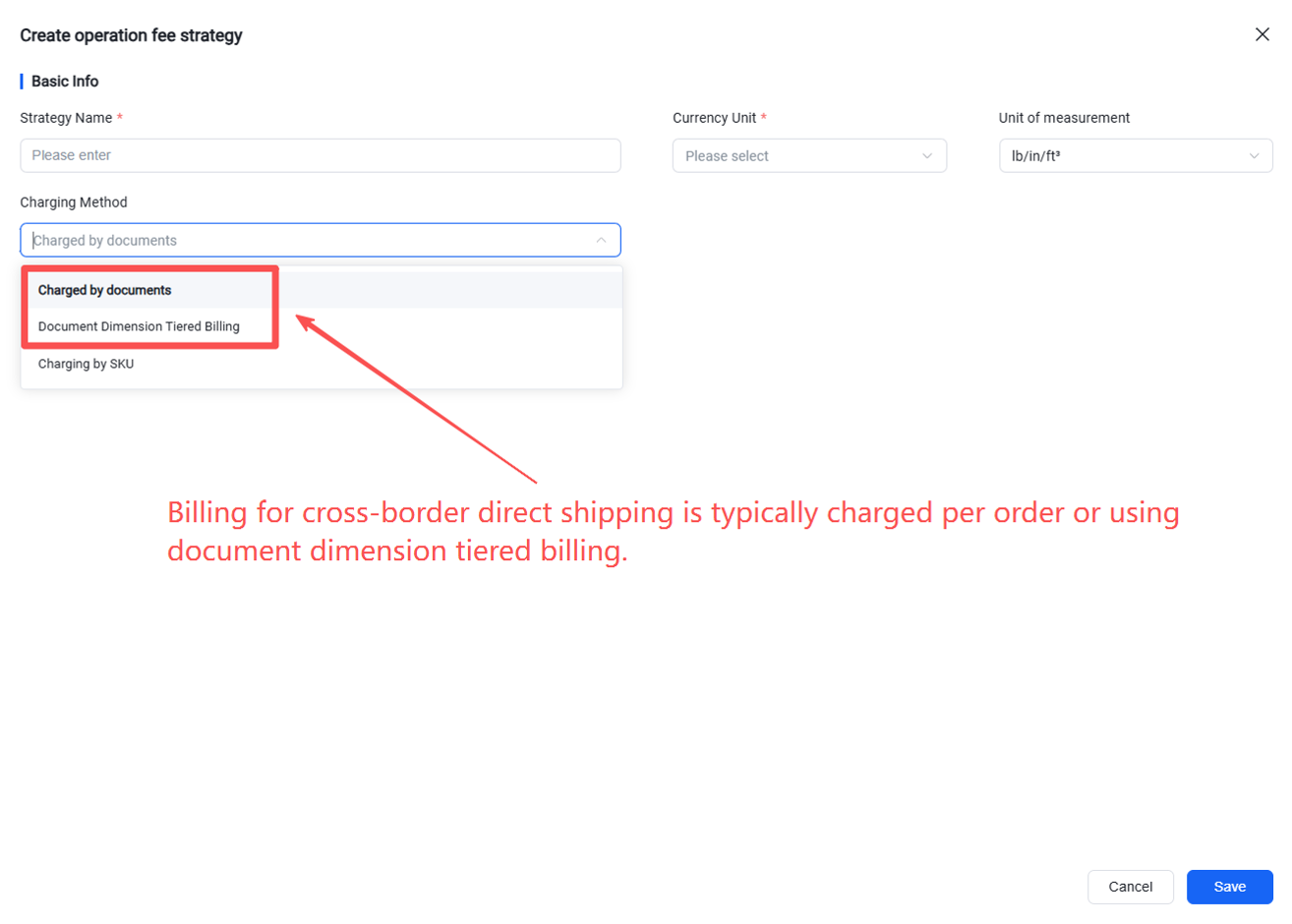
① Configure billing items and select Cross-Border Direct Shipping Order as the document type.
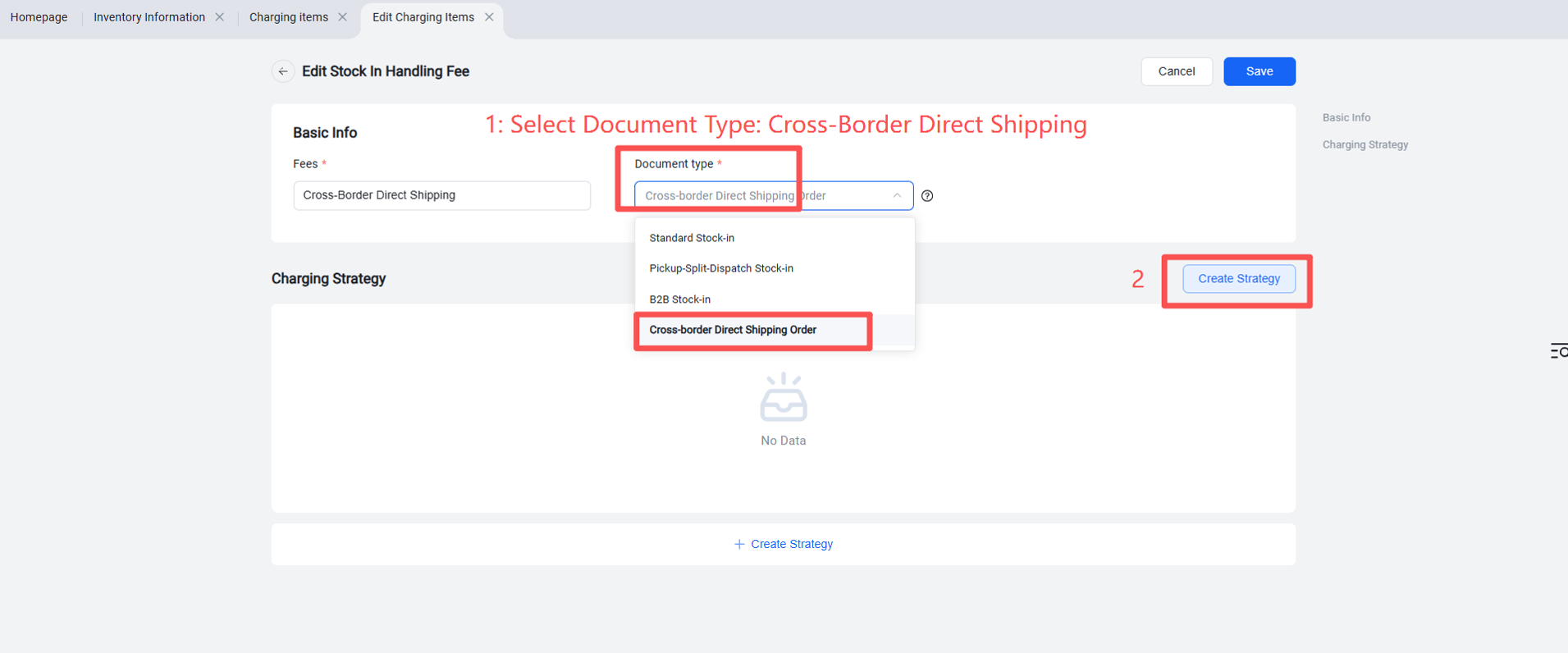
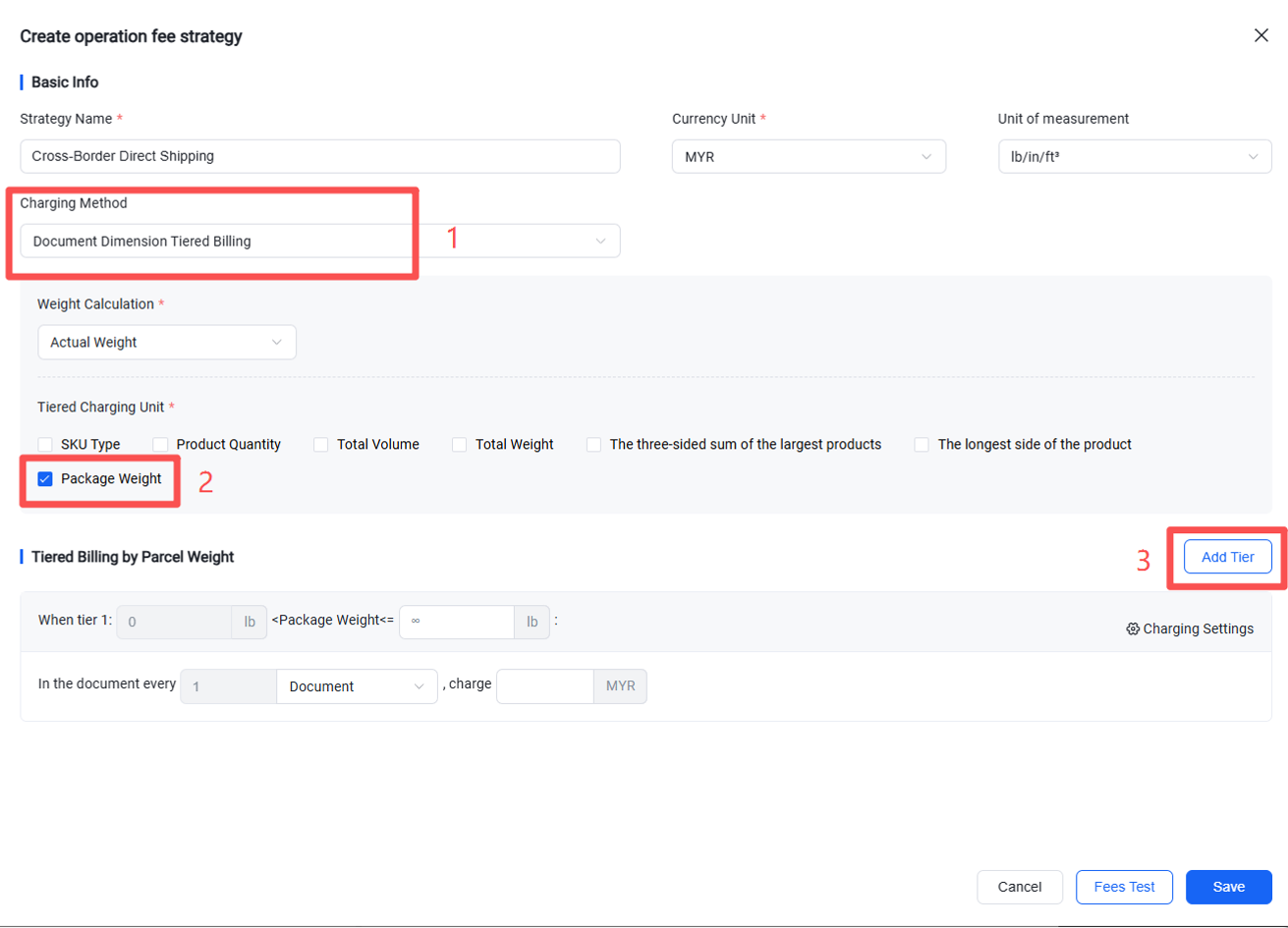
② If weighing is required, select Document Dimension Tiered Billing as the billing method, and choose Package Weight as the billing method. (If another option is selected, billing will be based on the specifications declared by the seller.)
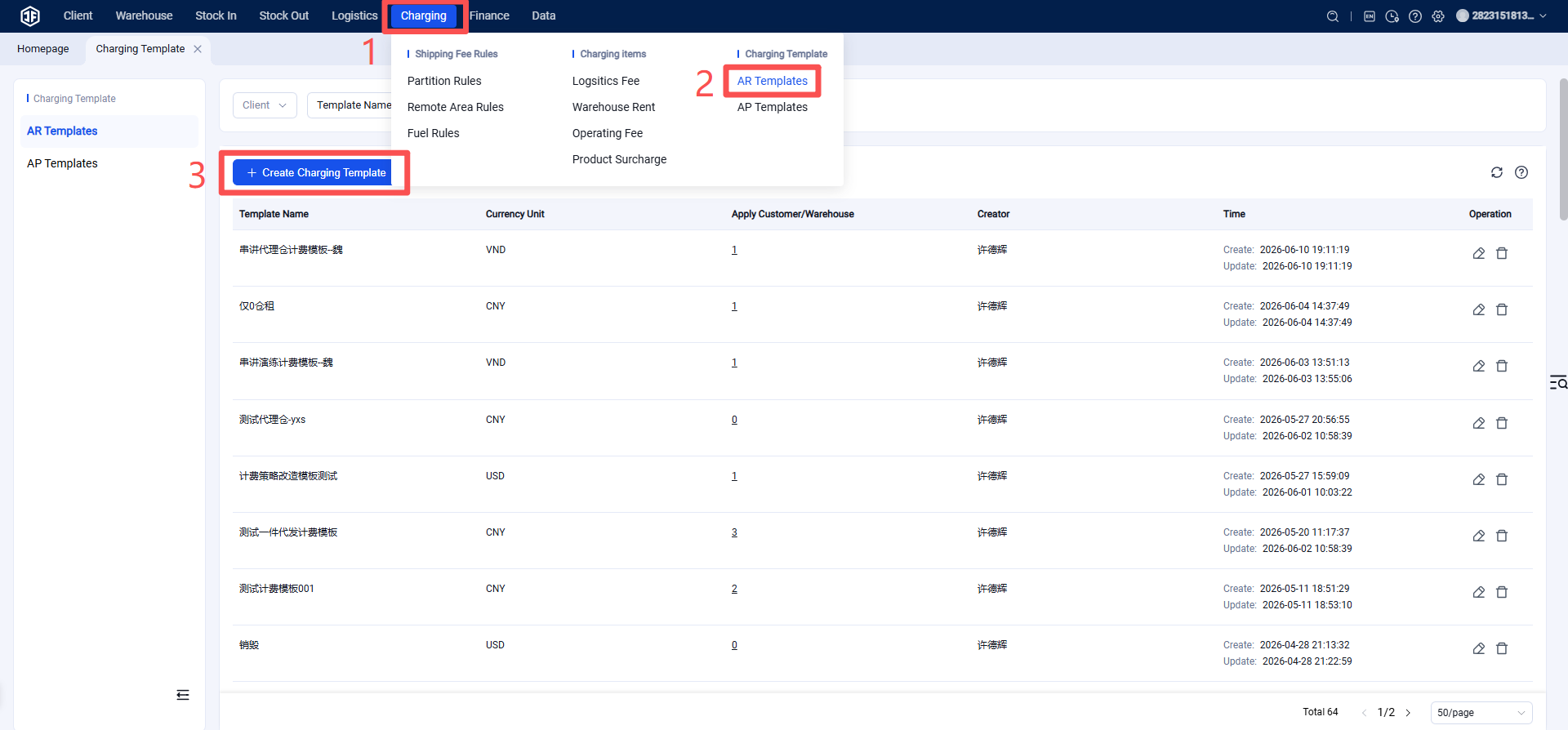
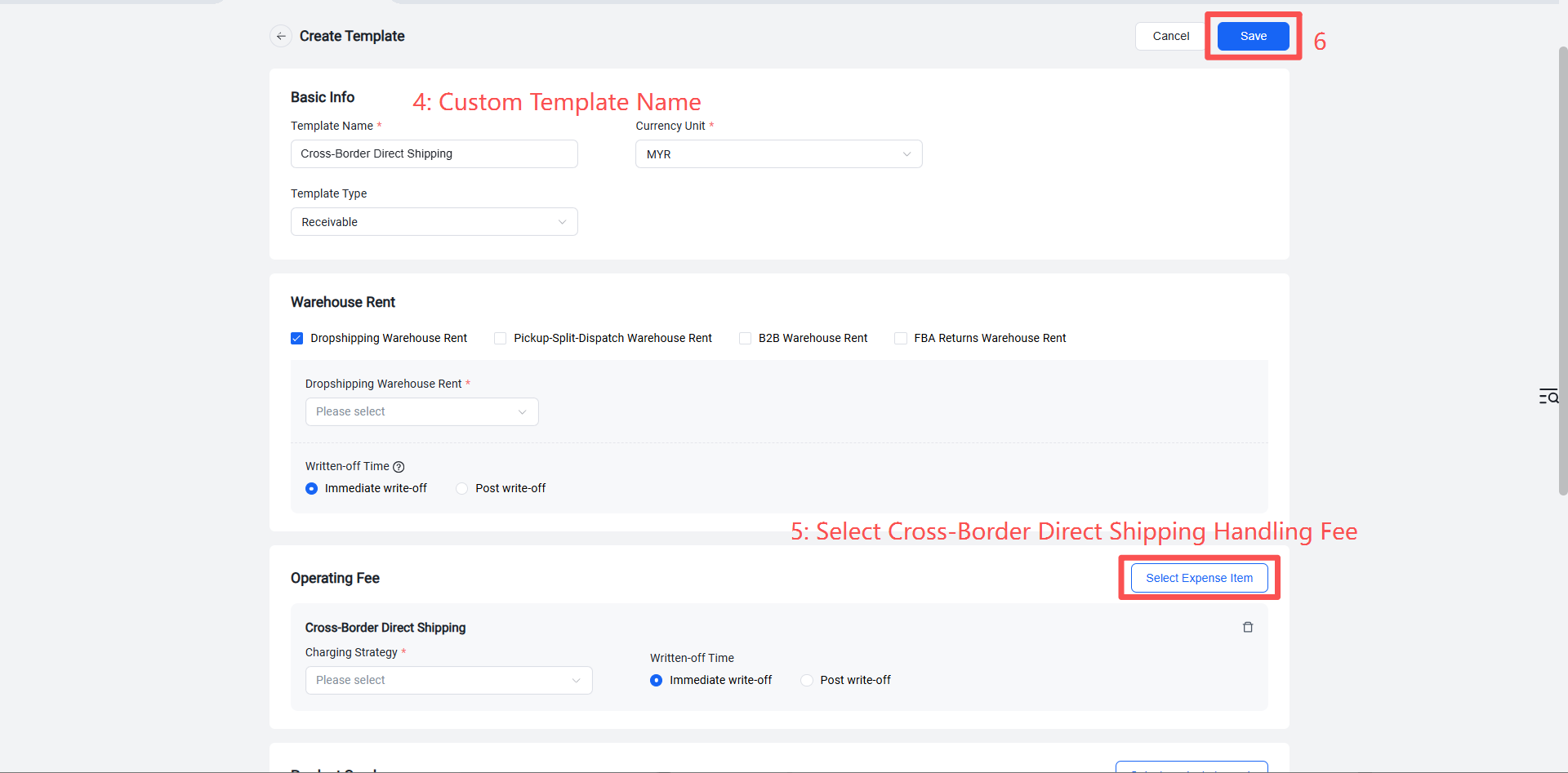
③ Create the billing template and assign it to the seller.
Step 2: Enable Direct Shipping Order Weighing in Scan Receiving Settings to Apply Weighing-Based Billing (Skip this step if weighing is not required)
① Enable the direct shipping order receiving and inbound process.
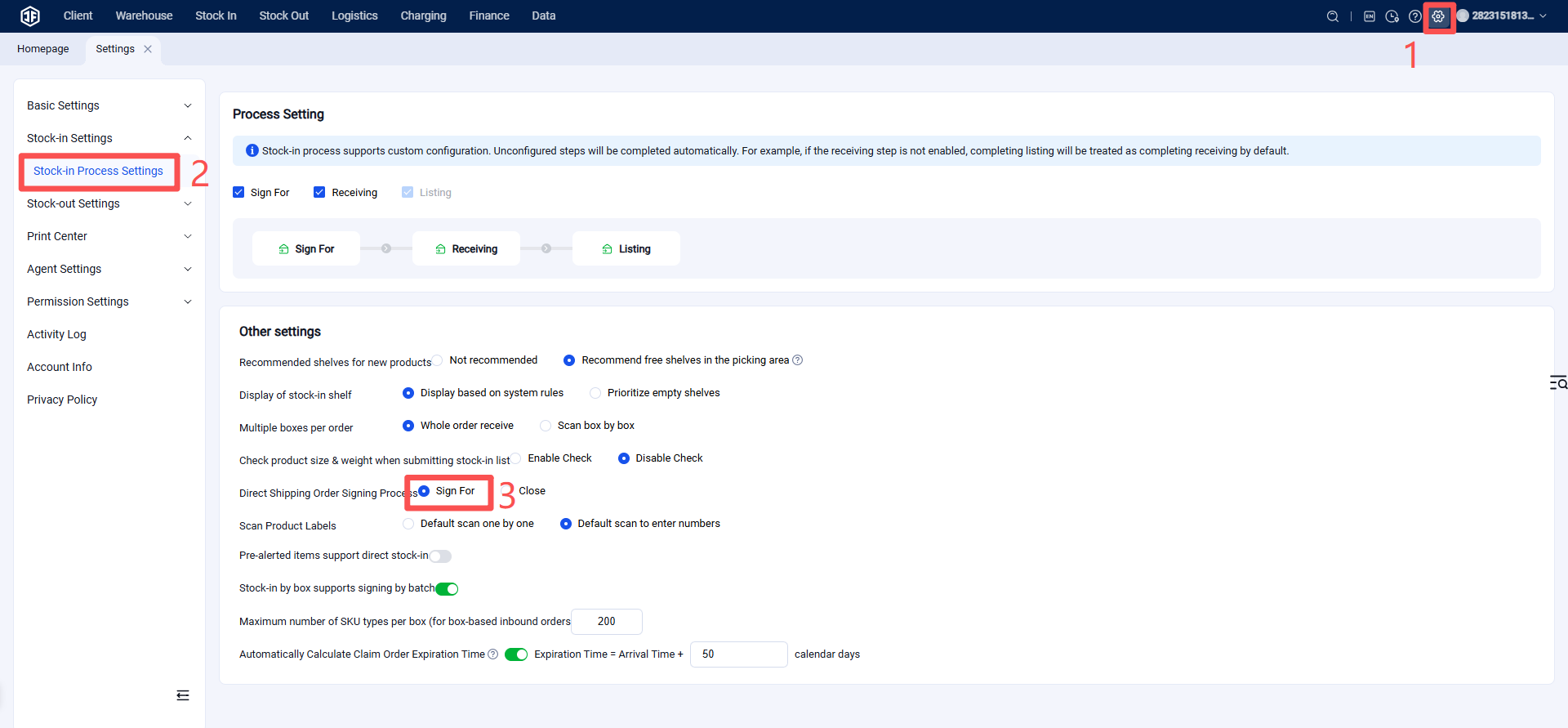
② Configure direct shipping order weighing and perform scan receiving.
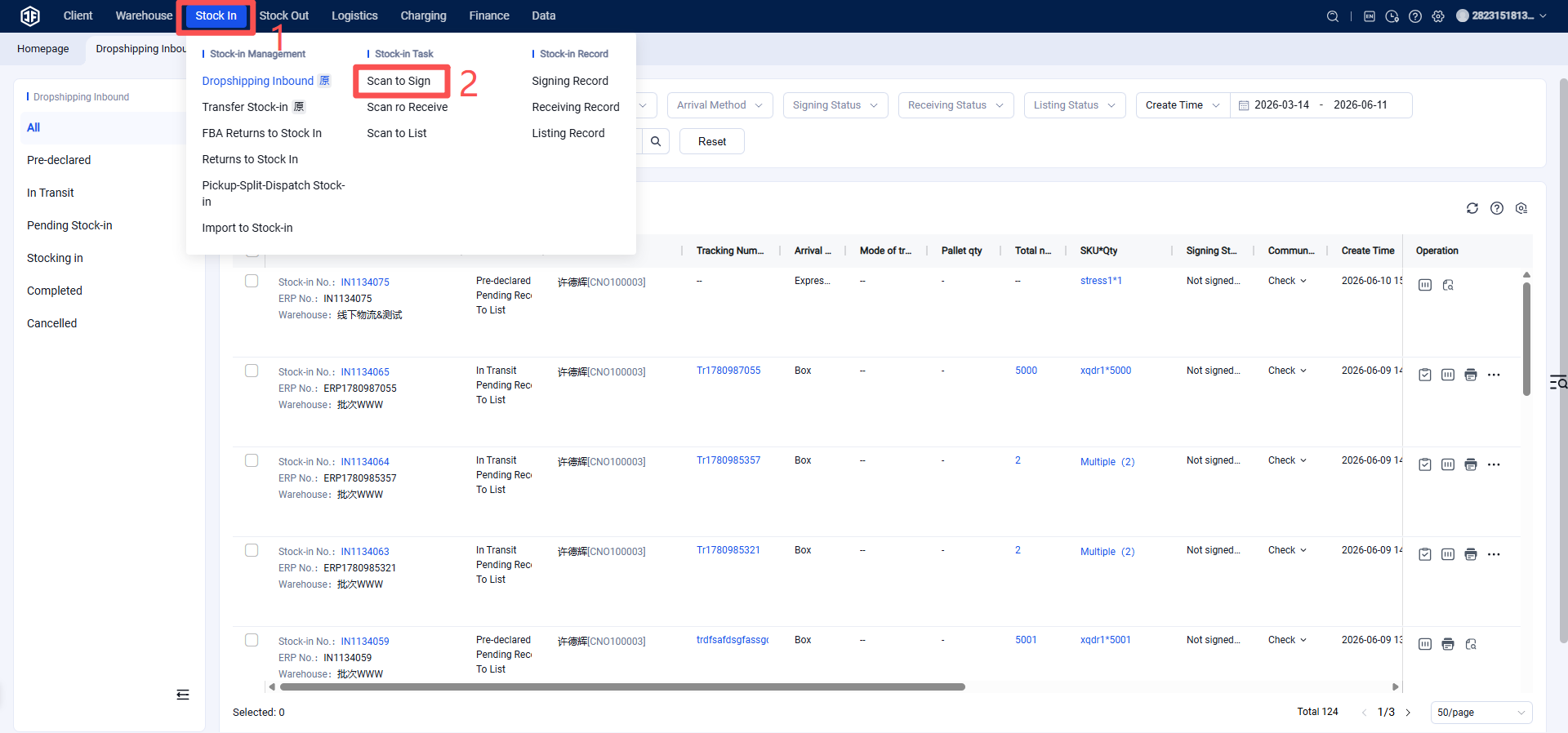
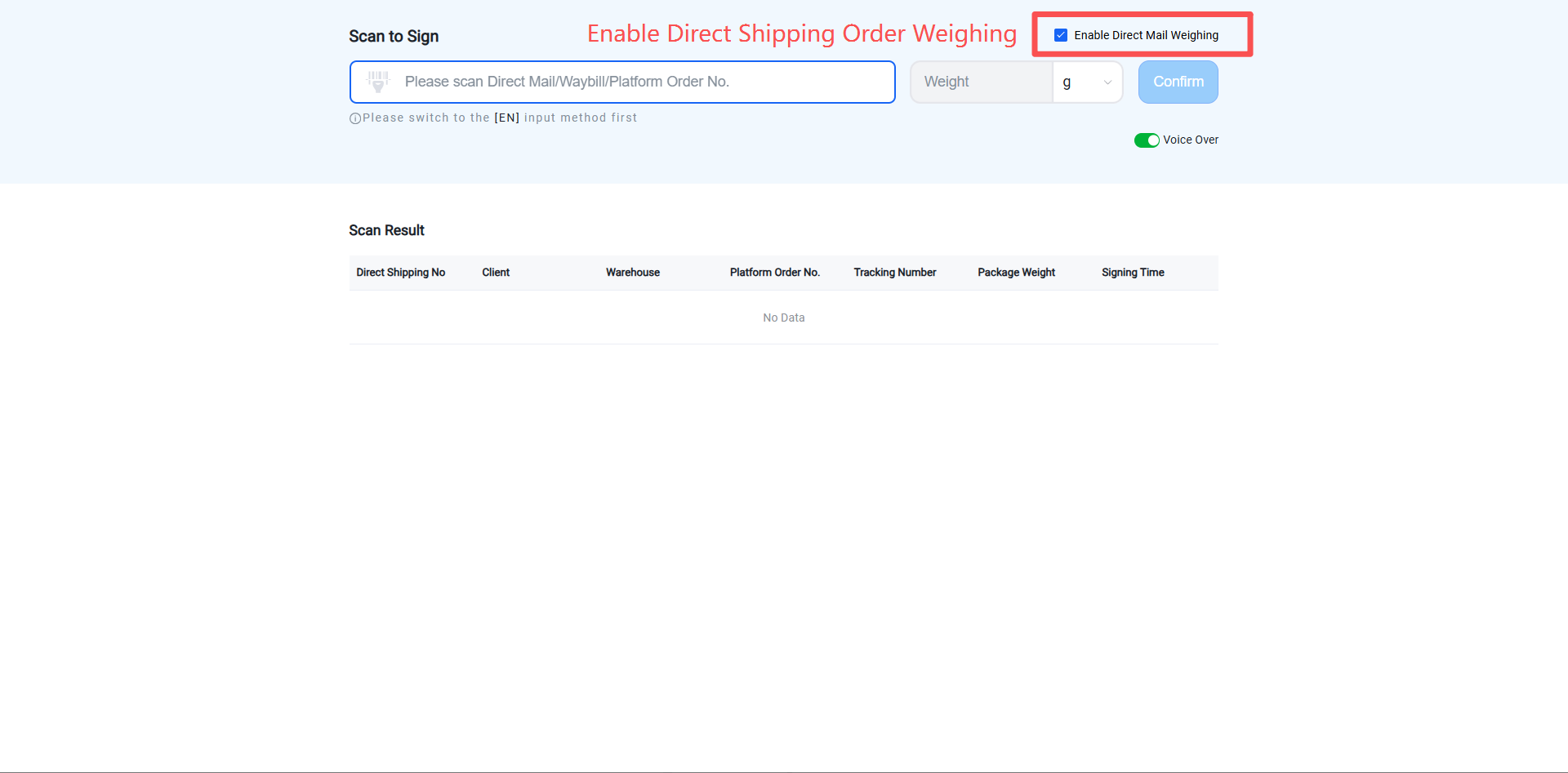
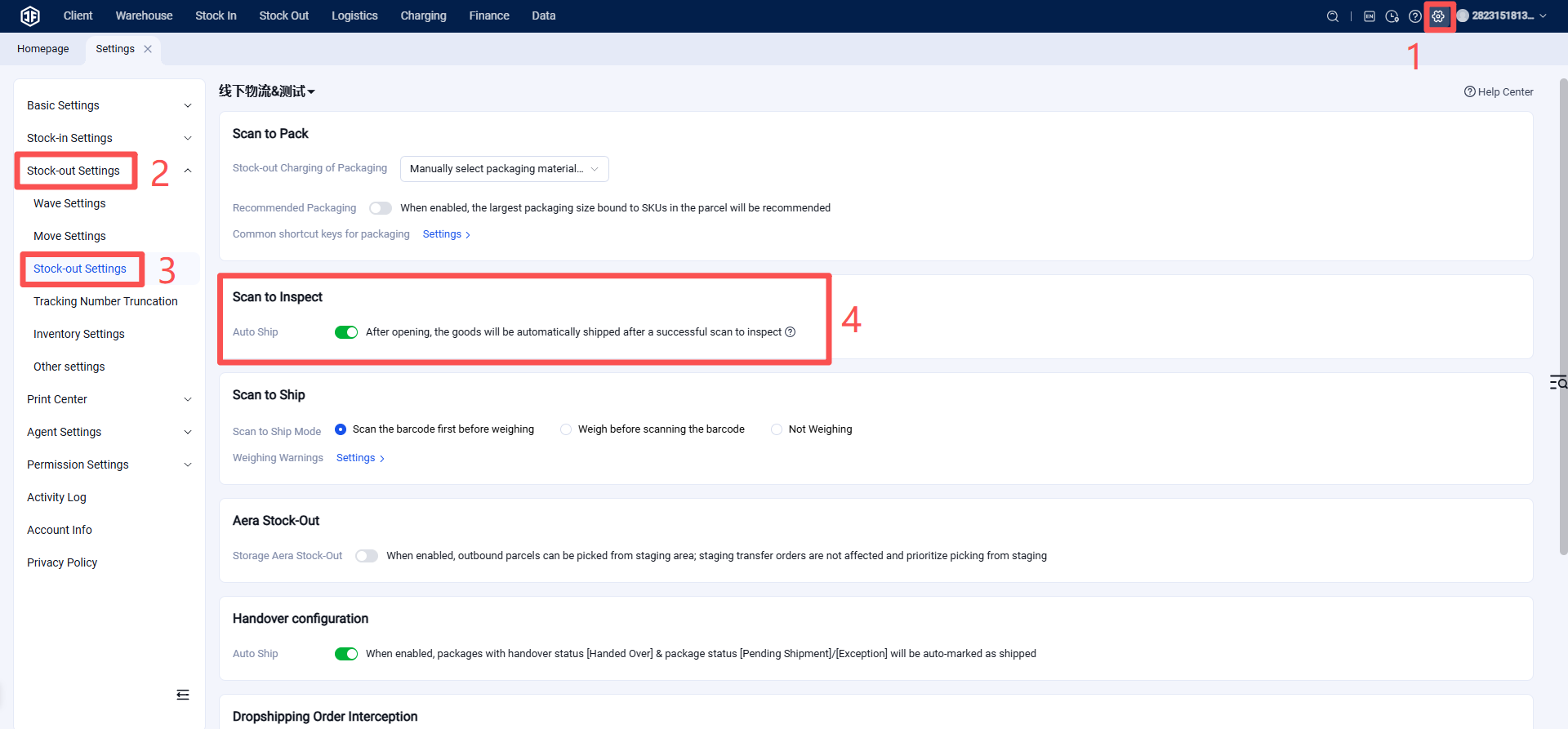
Step 3: Configure Auto-Transition to "Shipped" upon Inspection Completion (This saves warehouse staff time by eliminating the need for a secondary manual "Ship" click).
Step 4: Set the Scan Verification Mode, switching it to the Direct Shipping Order Label Replacement Mode.
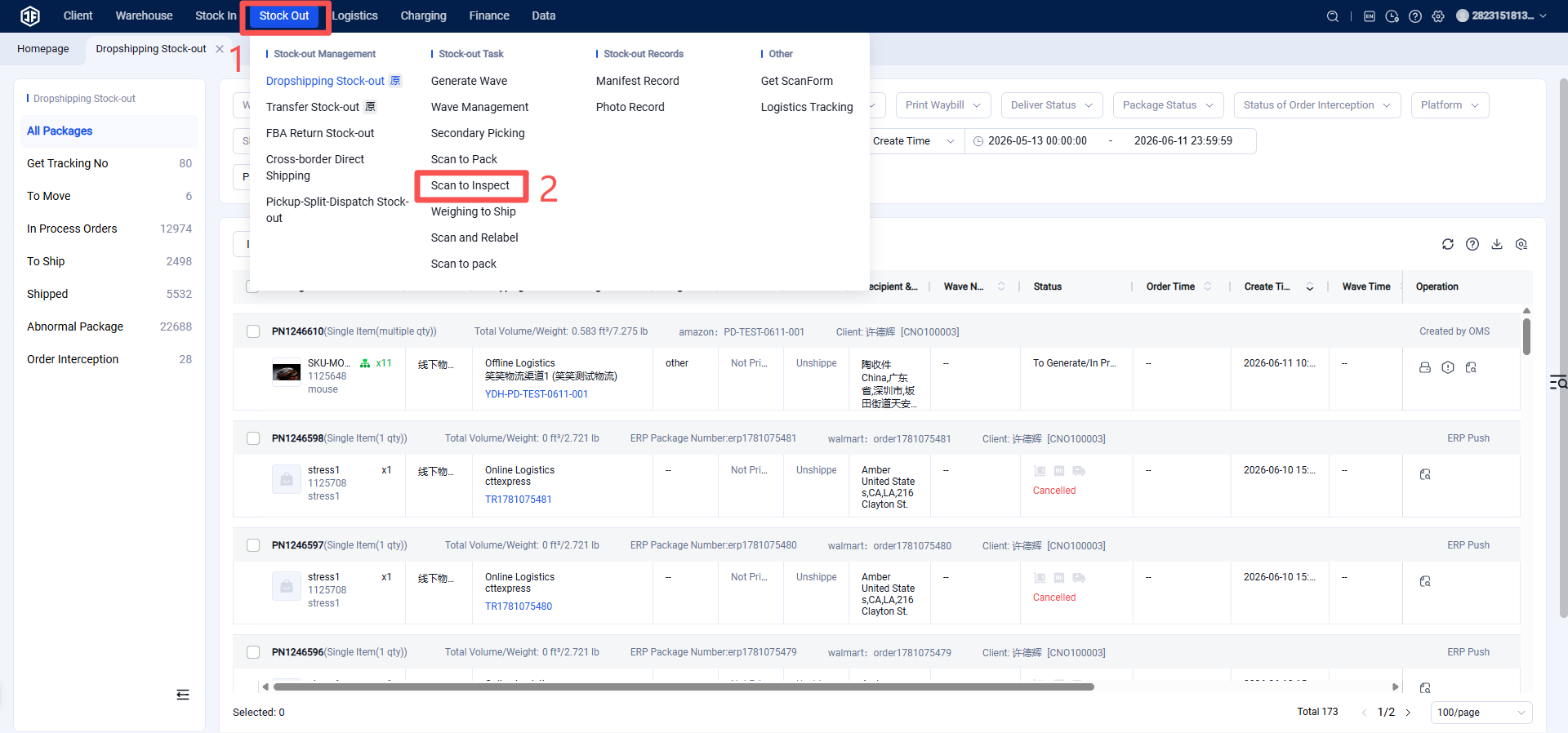
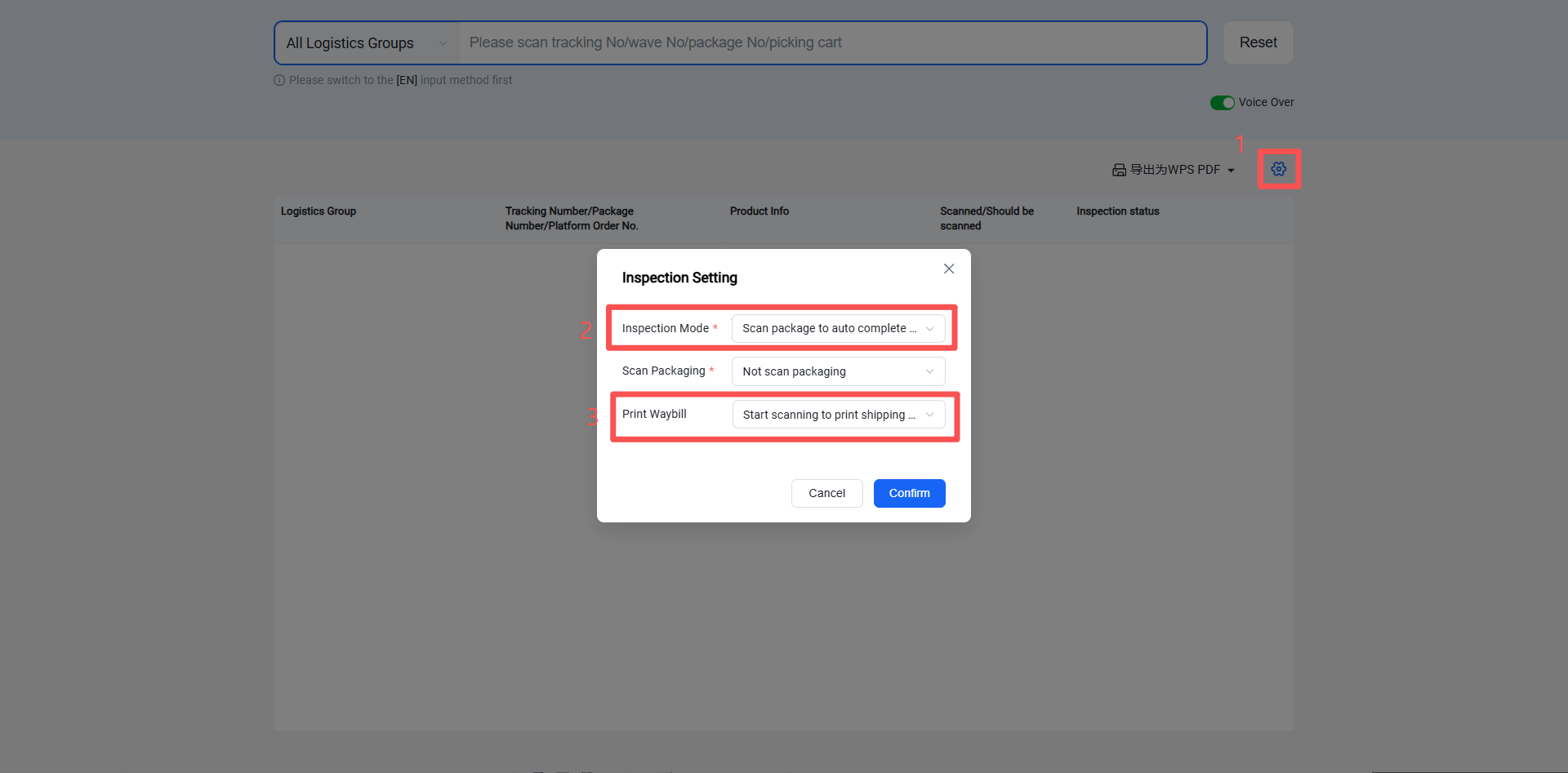
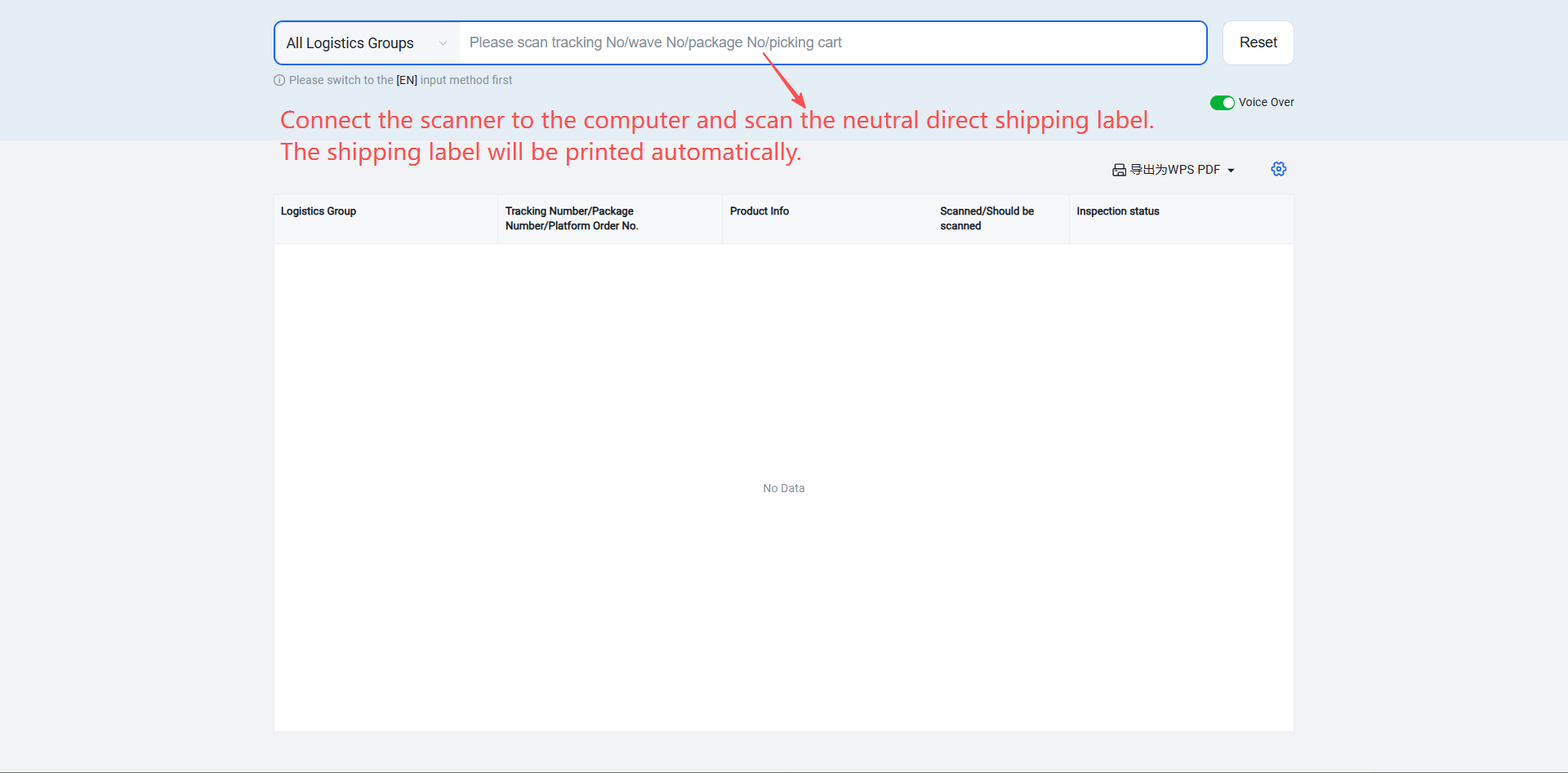
Step 5: Scan the Direct Shipping Label to Print the Final-Mile Shipping Label.
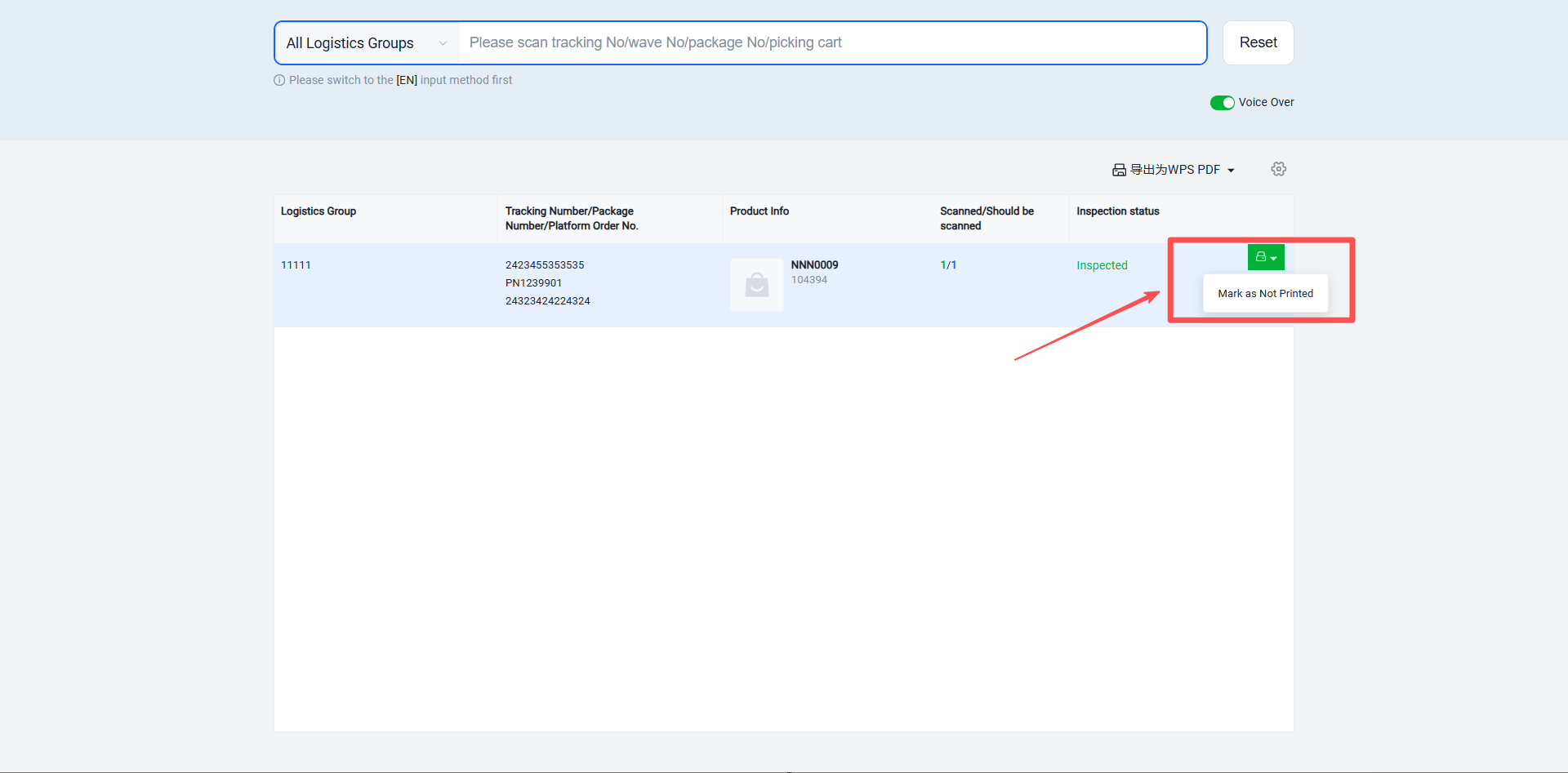
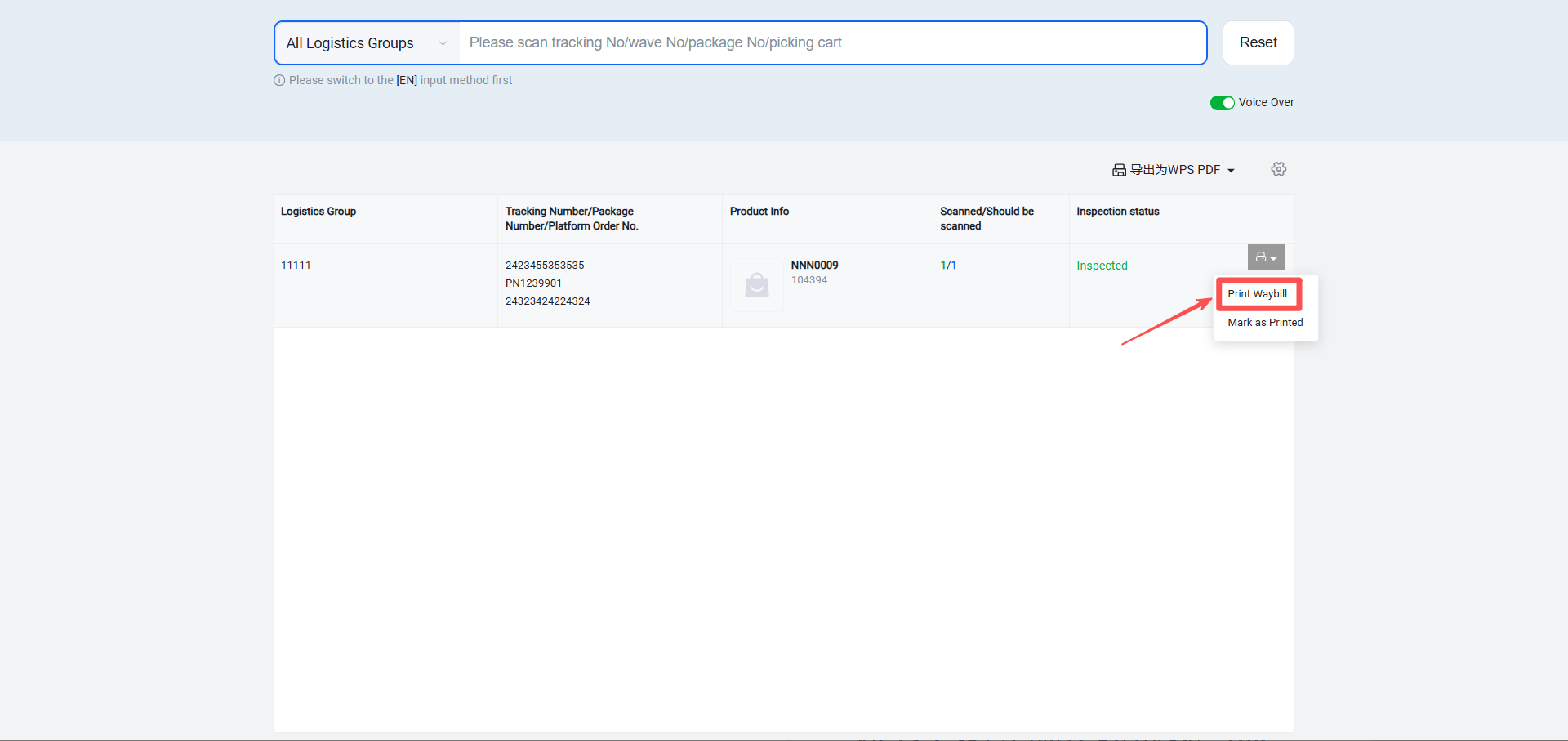
If a paper jam occurs during label printing, the label can be manually reprinted.
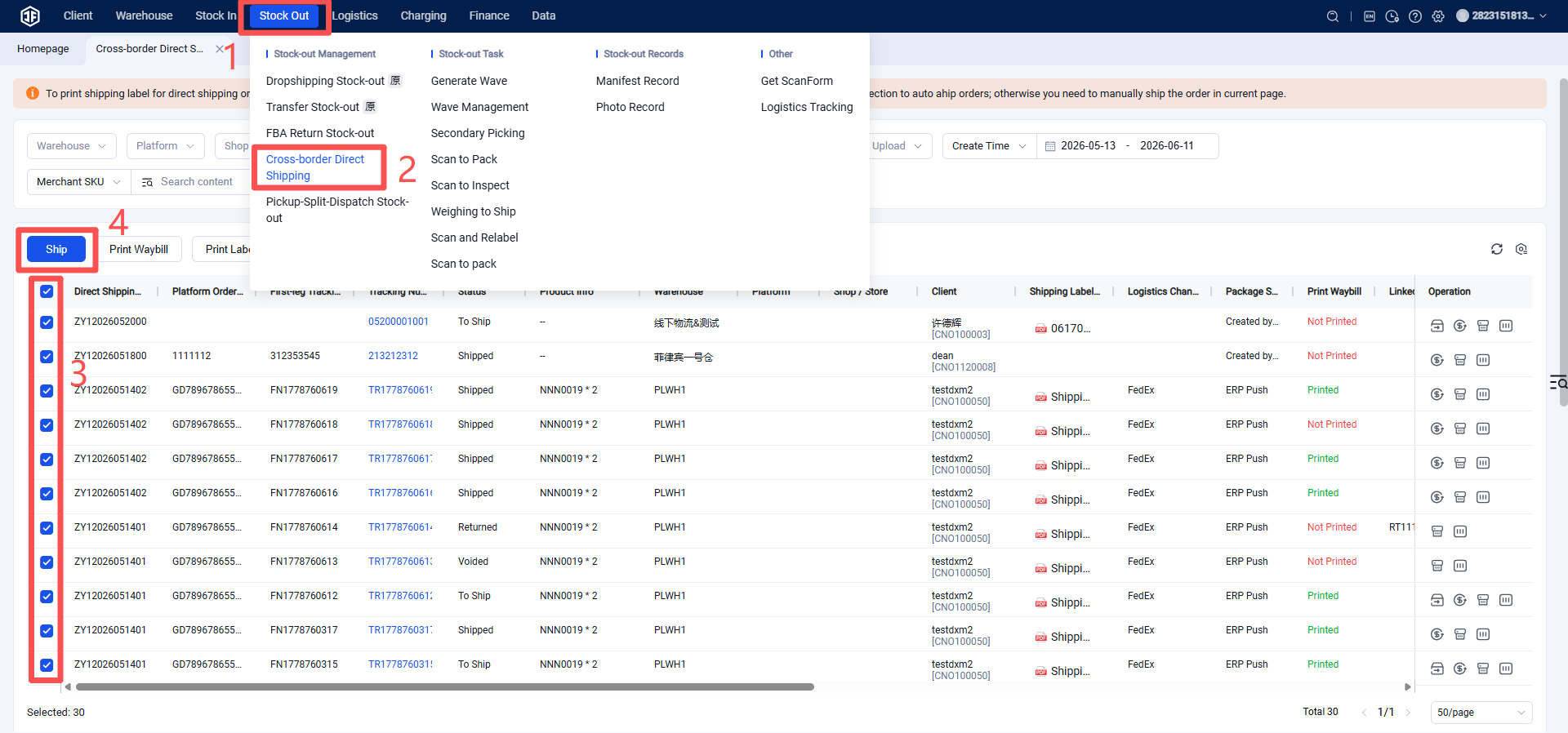
Step 6: Manually Click "Ship" (This step can be omitted if auto-shipment upon successful inspection was configured in the previous steps).