Single-Item Batch: Batch Print Shipping Labels
I. Definition
When a warehouse has a high volume of orders, particularly with many single-item orders, a single-item batch can be generated. After printing the picking list, scanning this list allows for batch printing of shipping labels.
II. Operational Path
Important Note: The scanning and packaging step requires the print plugin to be installed.
Print Plugin Download: https://download.jfwms.com/print/plugin/JFPrinter.msi
A printable "Enter Code" can be downloaded to confirm individual label printing via scanning.
Enter Code Download: https://download.jfwms.com/product/temp/setting/file/1/20240305052832/b713a3f0d1e571c23ef74485a6b3288f.pdf
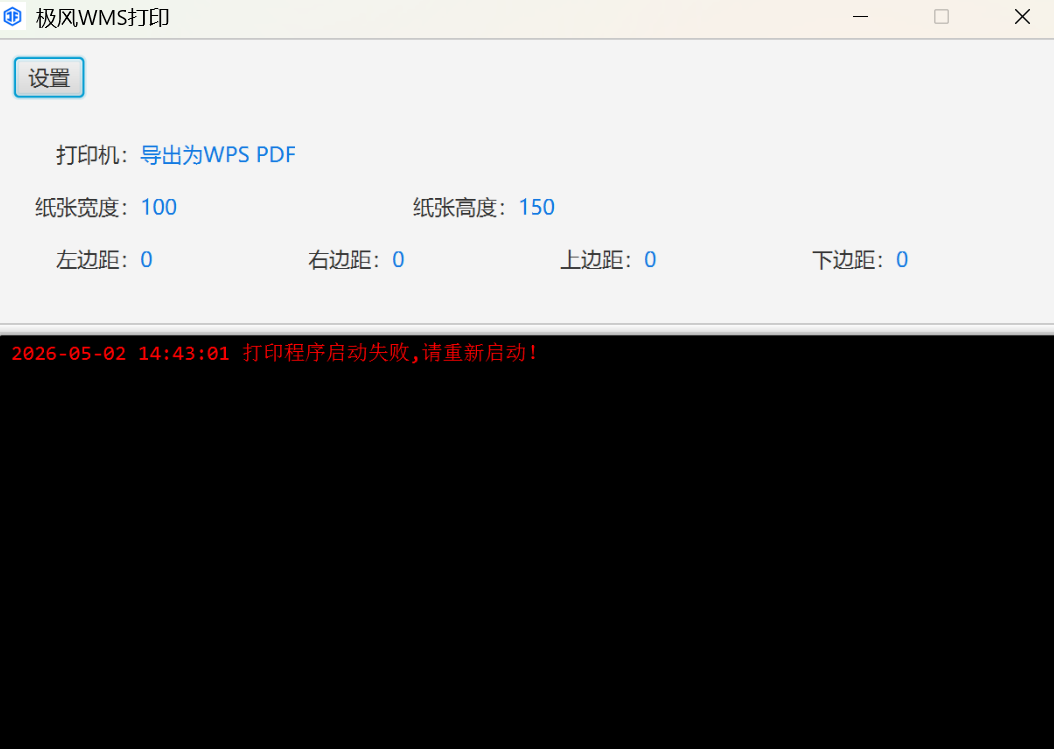
Step 1: After installing the print plugin, double-click to launch it.
Step 2: Configure the Printing Method in Batch Settings
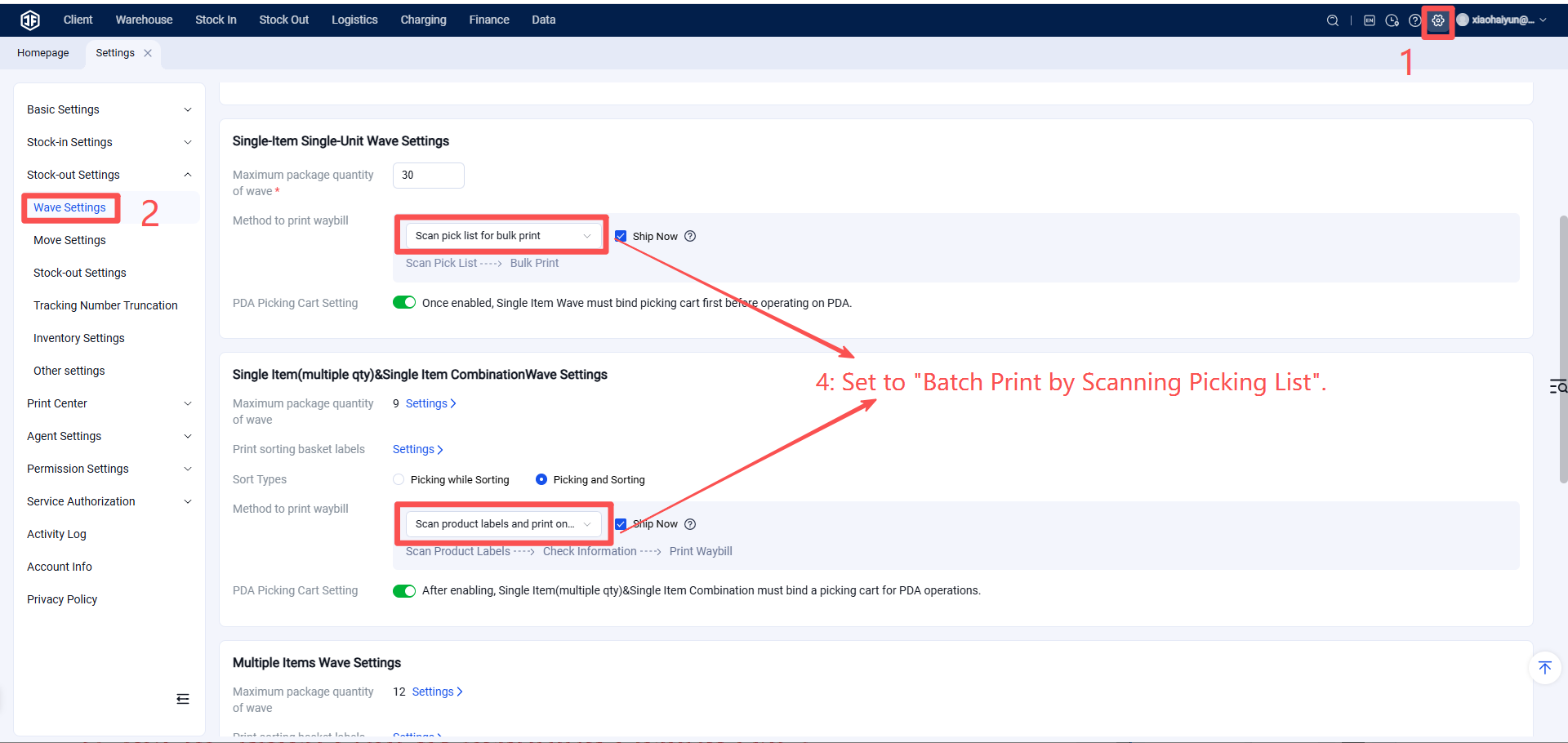
Function Entry: Settings > Business Settings > Batch Settings > Shipping Label Printing Method — Set to "Batch Print by Scanning Picking List."
Step 3: Generate Batch (Wave) and Pick
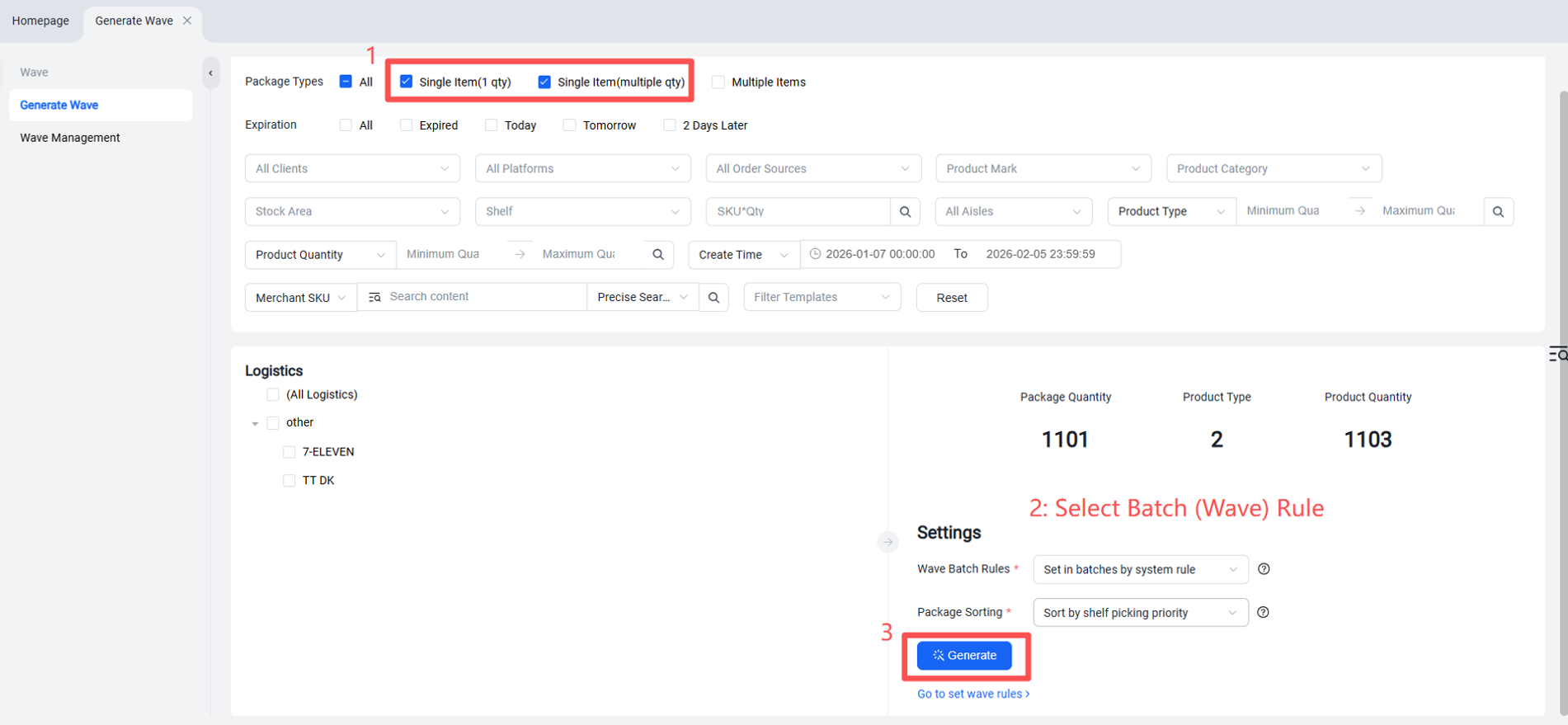
After generating a batch (wave), the picking list can be printed from the Batch Management page.
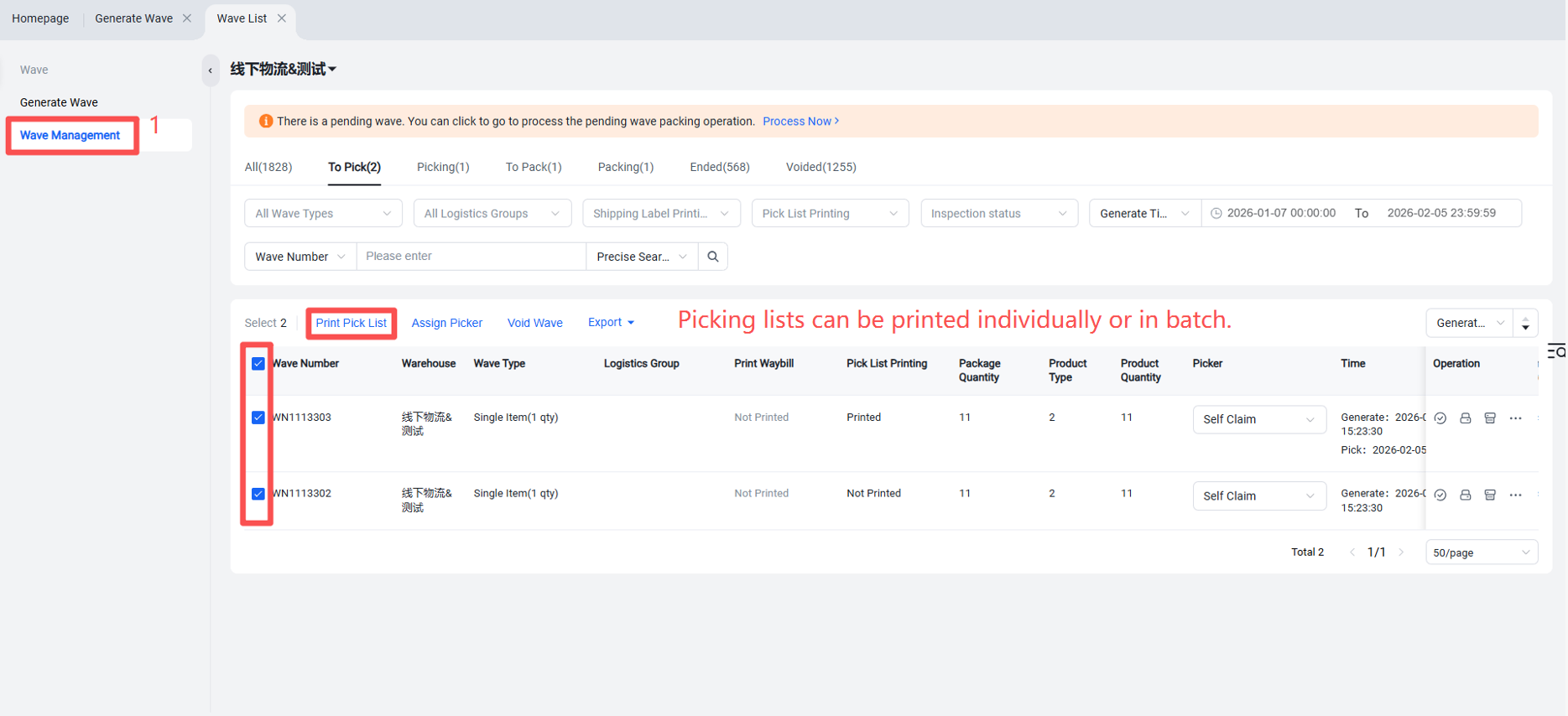
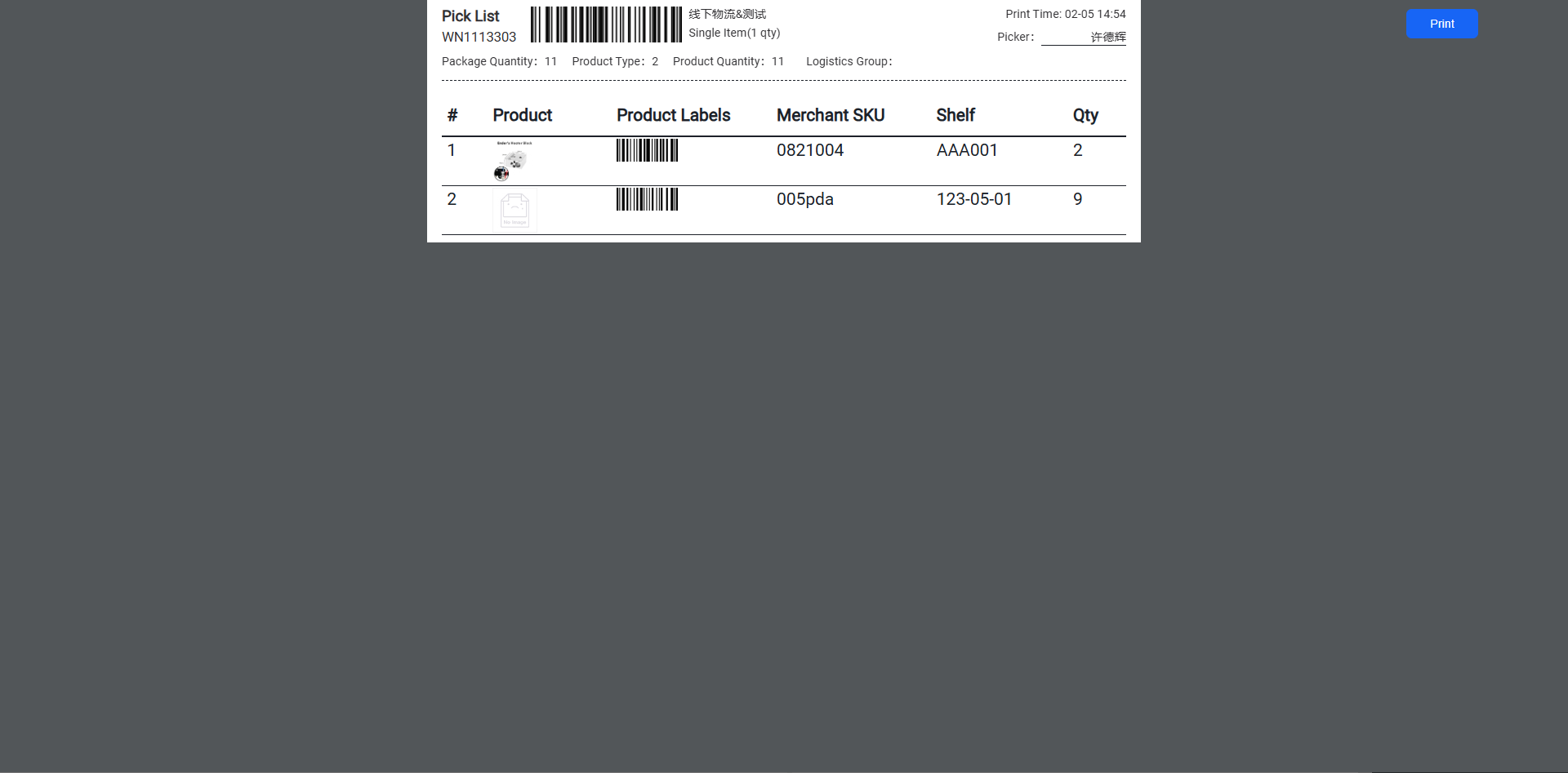
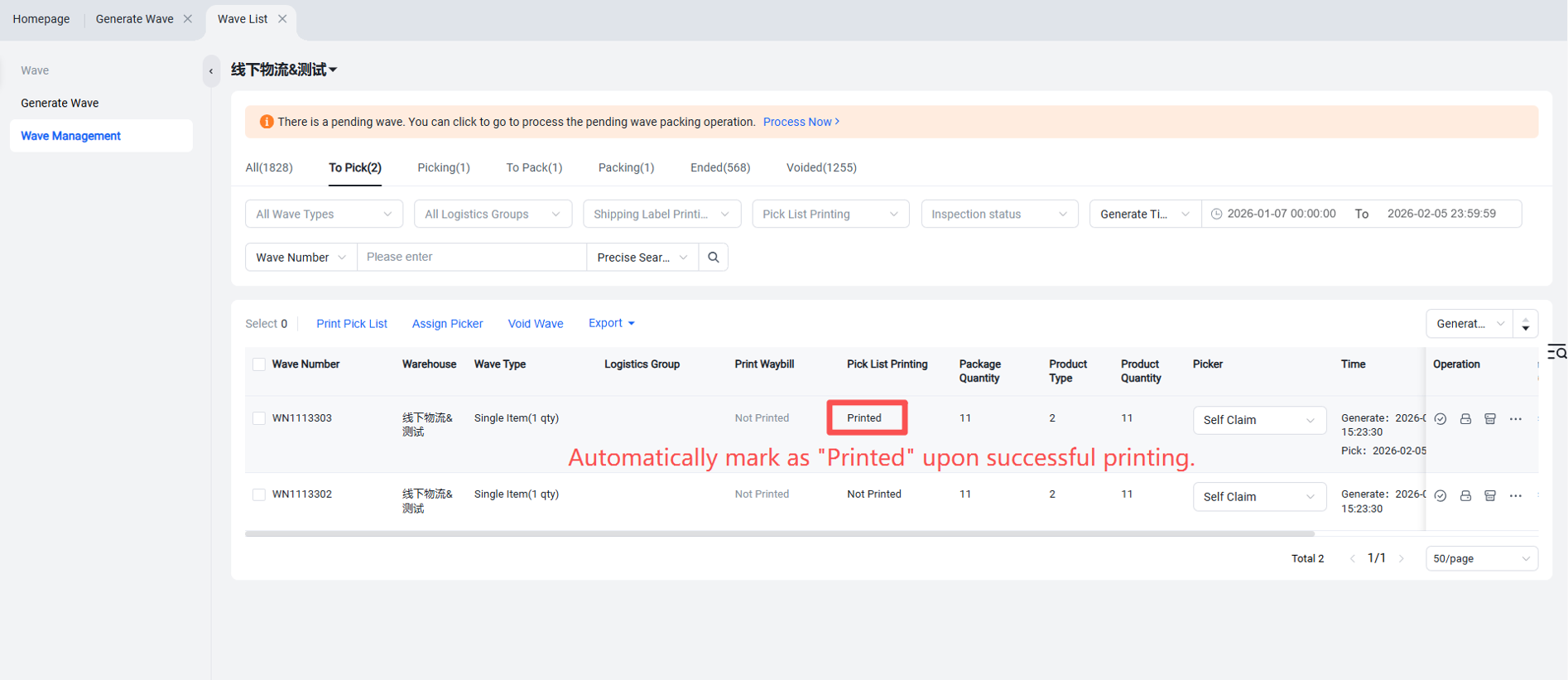
After printing is completed, mark it as "Printed".
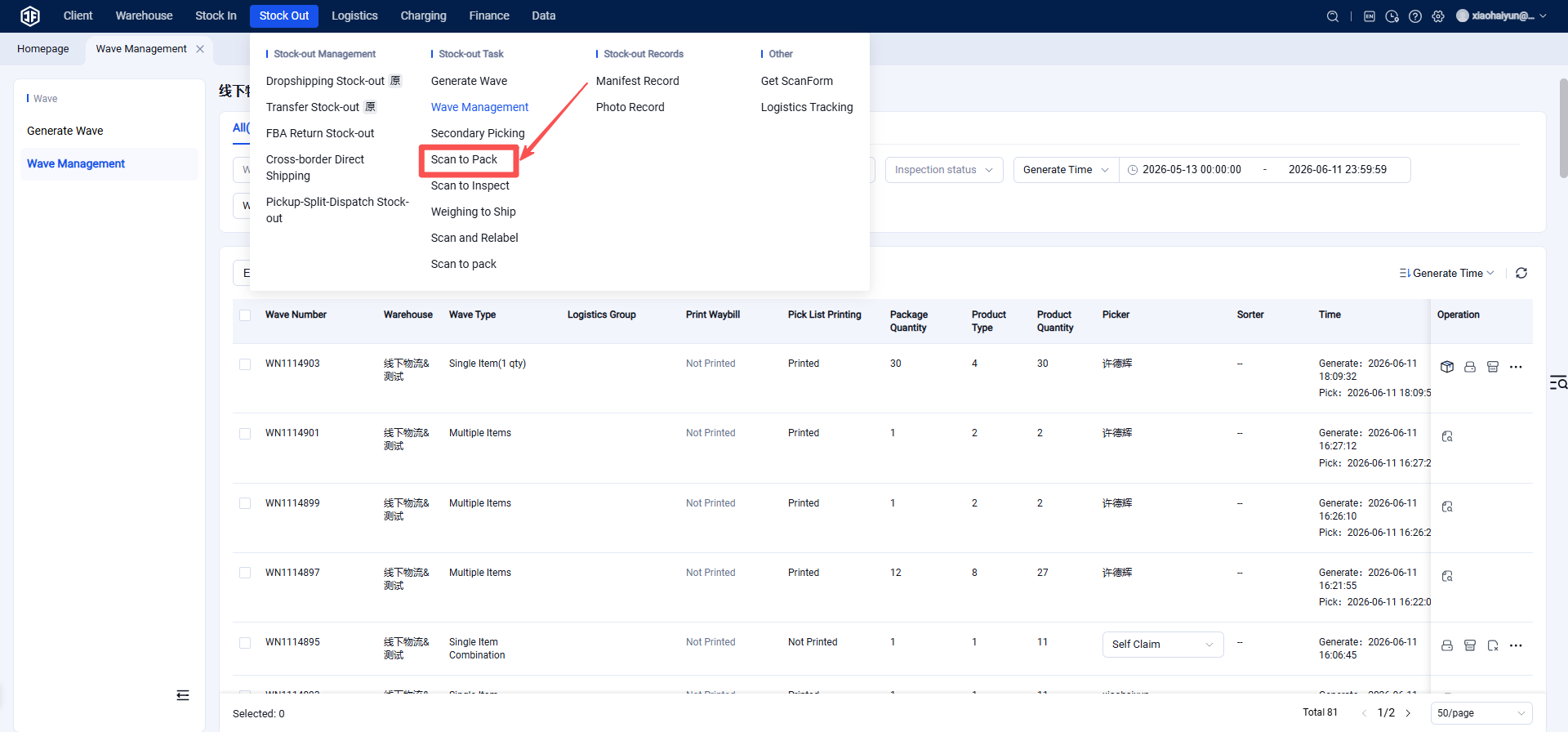
Step 4: Scan the barcode on the picking list or enter the batch (wave) number to access the batch packaging page.
Function Entry: Outbound > Scan to Pack (Note: This operation is only available for batches with a status of "Pending Packaging.")
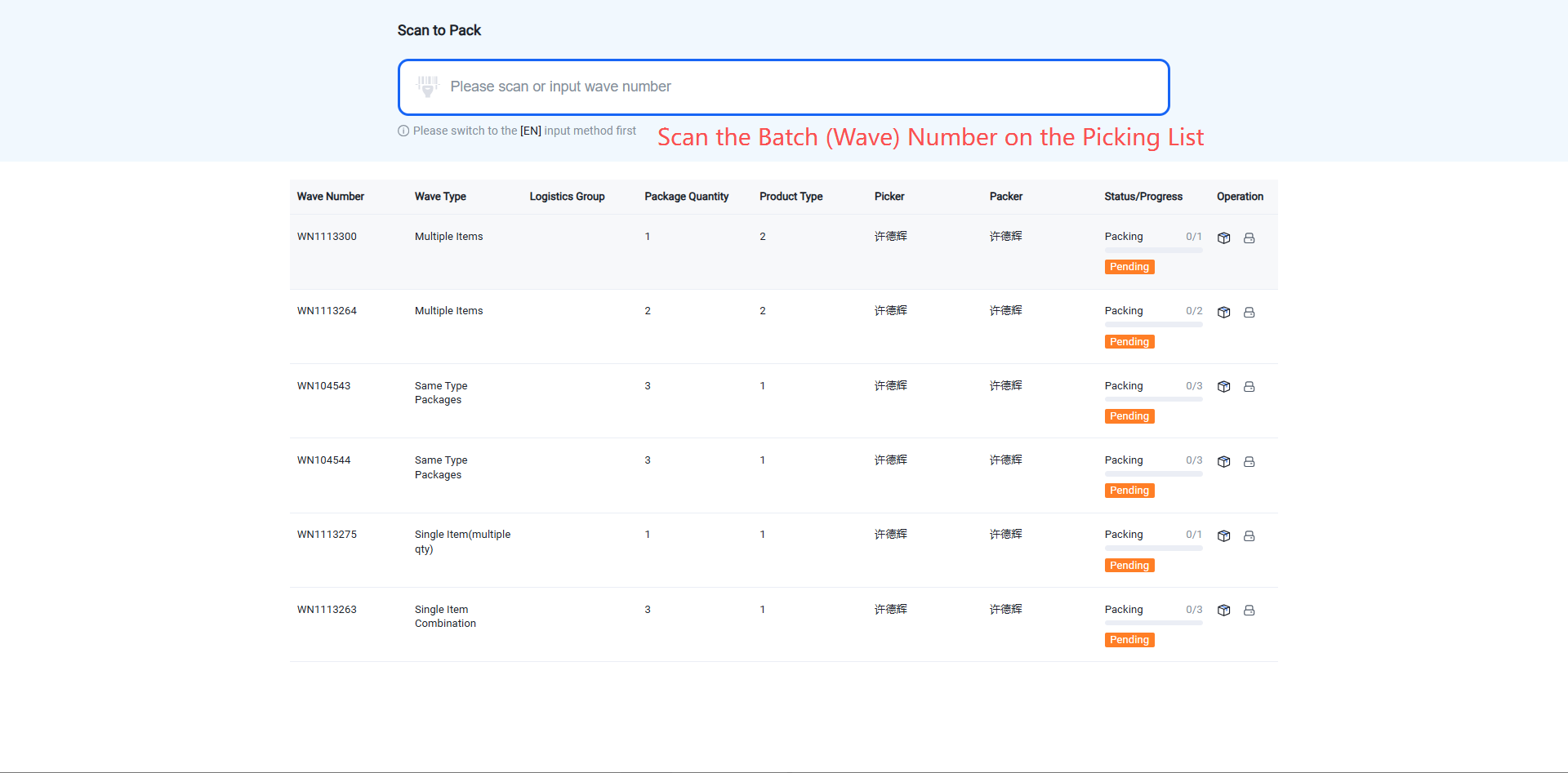
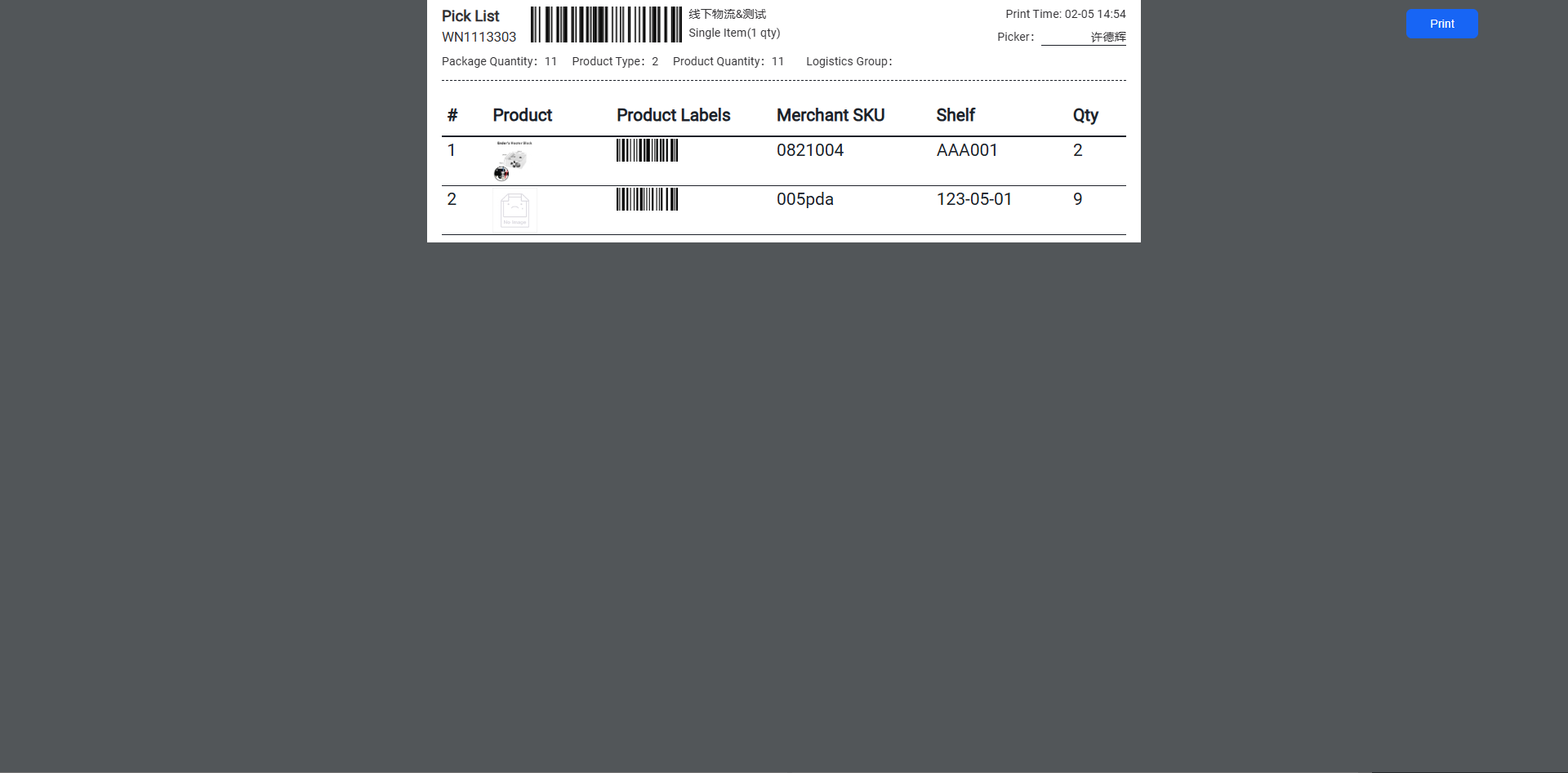
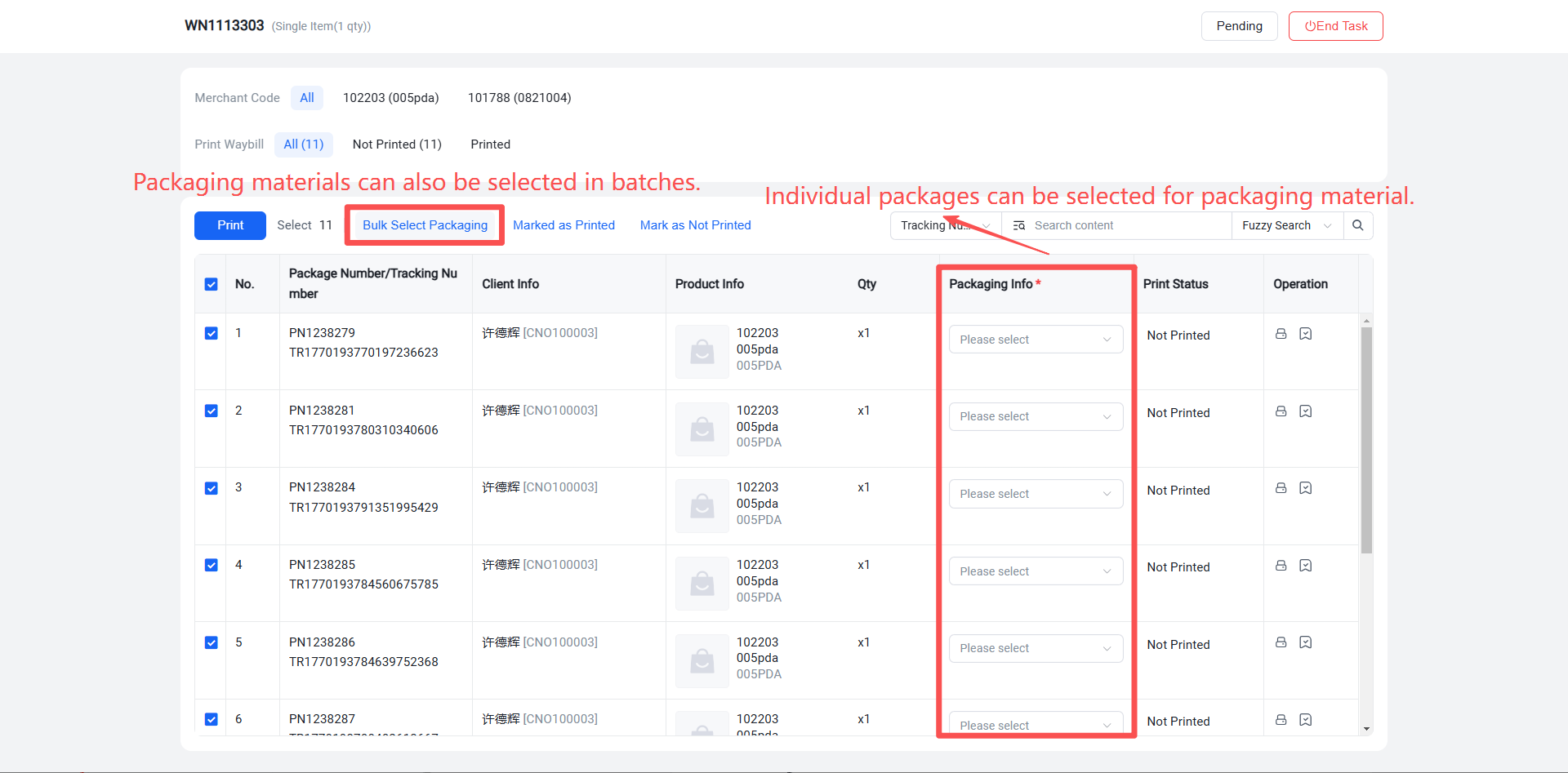
Step 5: After entering the packaging page, select the packaging material.
If "Enable Packaging Material Outbound Billing" is selected in Outbound Settings, you must choose a packaging material during this step. (This selection is not required if packaging material billing is not enabled.)
This setting can be configured in Outbound Settings.
Step 6: After selecting the packaging material, shipping labels will be printed automatically. Check the "Print Shipping Labels" option.
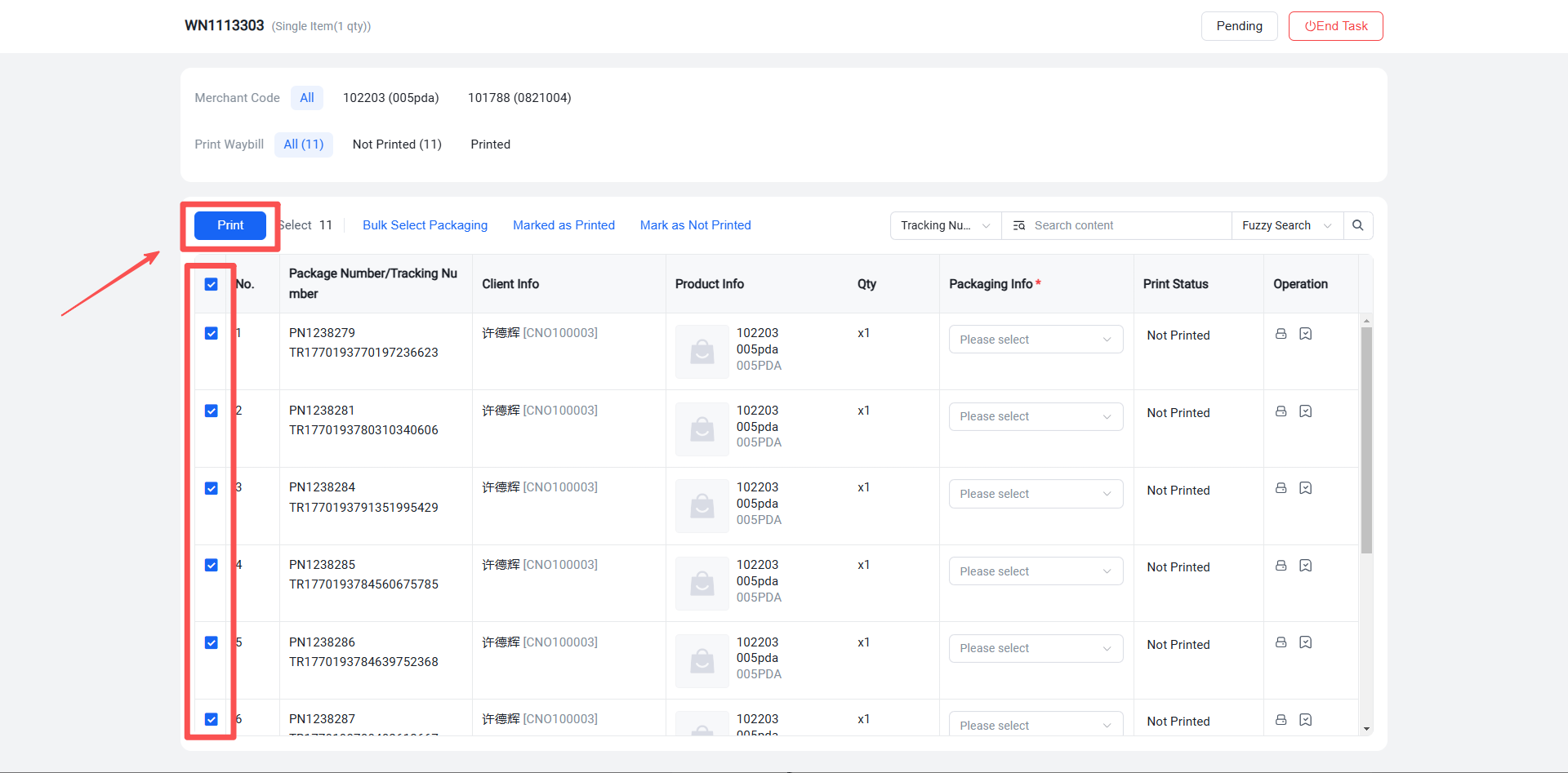
Step 7: A progress pop-up window will appear when printing shipping labels begins.
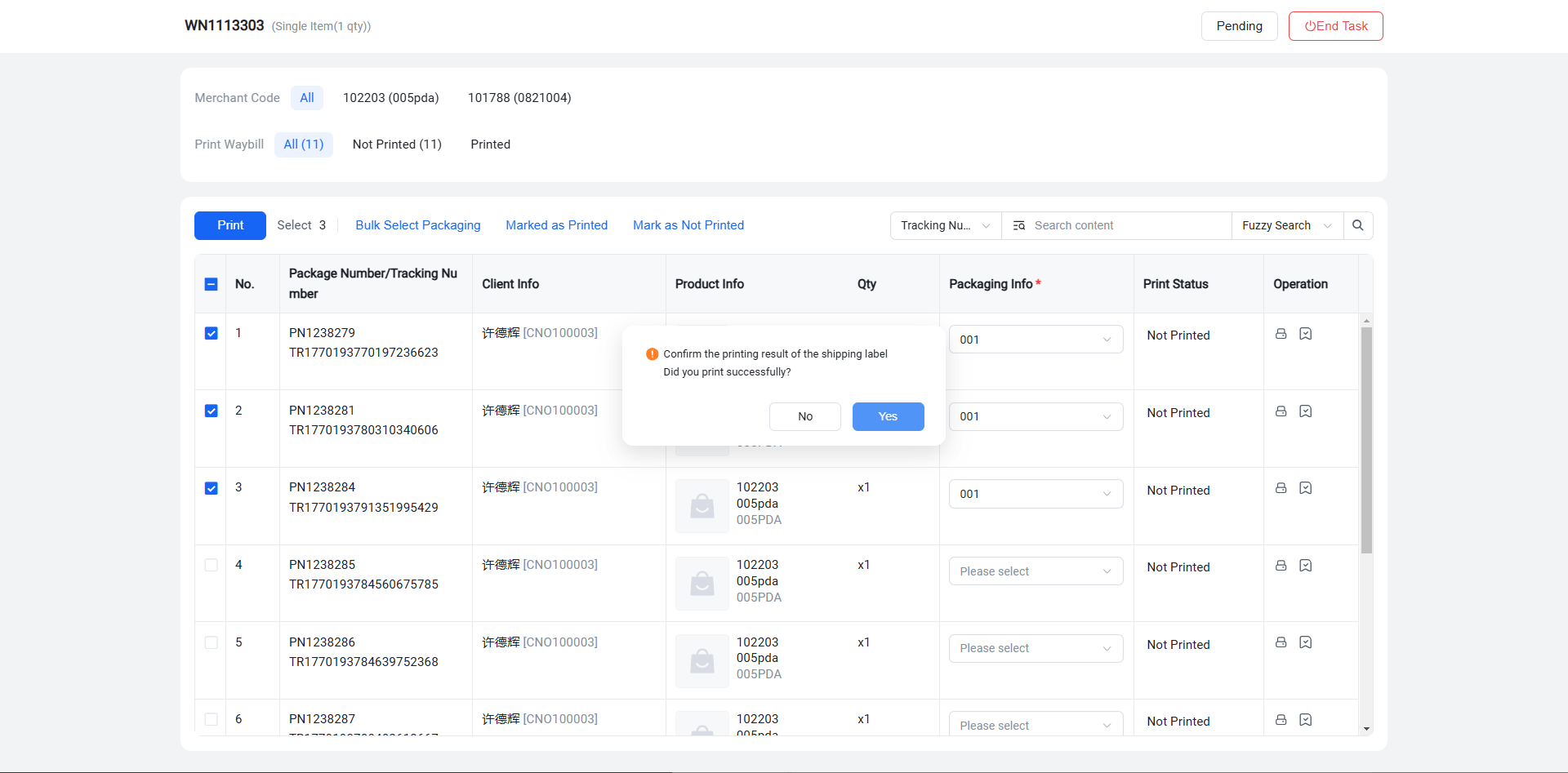
Step 8: Close the progress pop-up window after printing is complete.
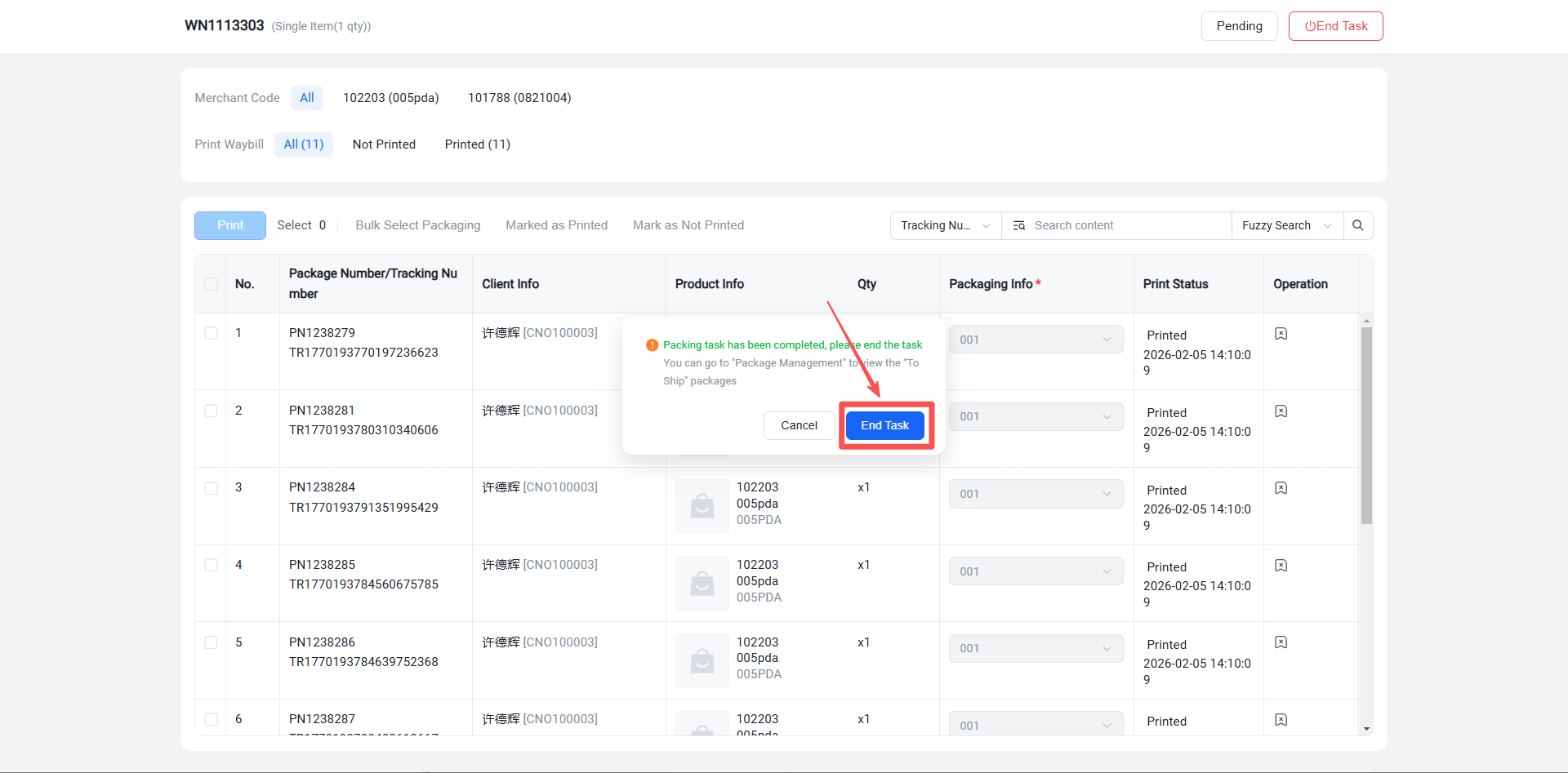
If shipping labels for all packages in the batch have been printed, a confirmation prompt will automatically appear. You can click "End Task" to change the batch status to "Completed". The packages will then enter the "Pending Shipment" status. You can proceed to "Scan to Pack" for shipping operations or go to Package Management > Pending Shipment List to manually mark them as shipped.