Batch Processing - Pick and Sort Simultaneously Shipment Outbound Process
I. Definition
When a warehouse serves many sellers and handles a high volume of orders (thousands or more), processing them individually is time-consuming. Batch order processing (wave picking) can be used instead. All client orders are grouped into batches (waves) based on predefined rules, followed by picking, sorting, scanning to generate labels, and shipping.
Batch picking can be performed using either the "Pick and Sort Simultaneously" method or the "Pick First, Sort Second" method.
This help guide focuses on the "Pick and Sort Simultaneously" operation.
II. Operational Path
Step 1: Configure Batch (Wave) Business Settings
Path: Settings > Business Settings > Batch Settings > Enable Batch Rules > Multi-Item Mixed Package Batch Configuration > Pick and Sort Simultaneously (Batch picking includes both "Pick and Sort Simultaneously" and "Pick First, Sort Second" methods.)
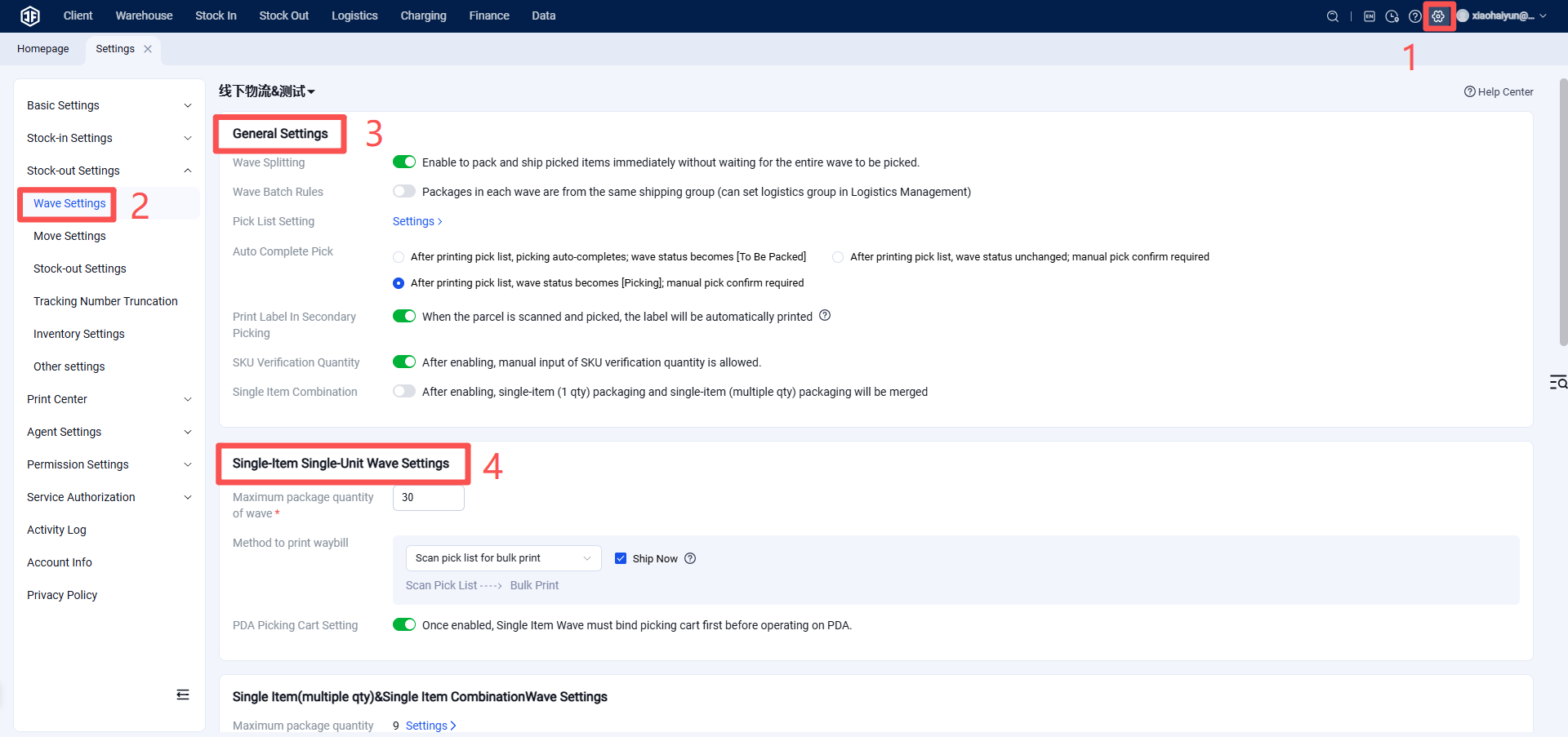
General Settings:
Batch Grouping Rule: All packages within a single batch (wave) must belong to the same logistics group.
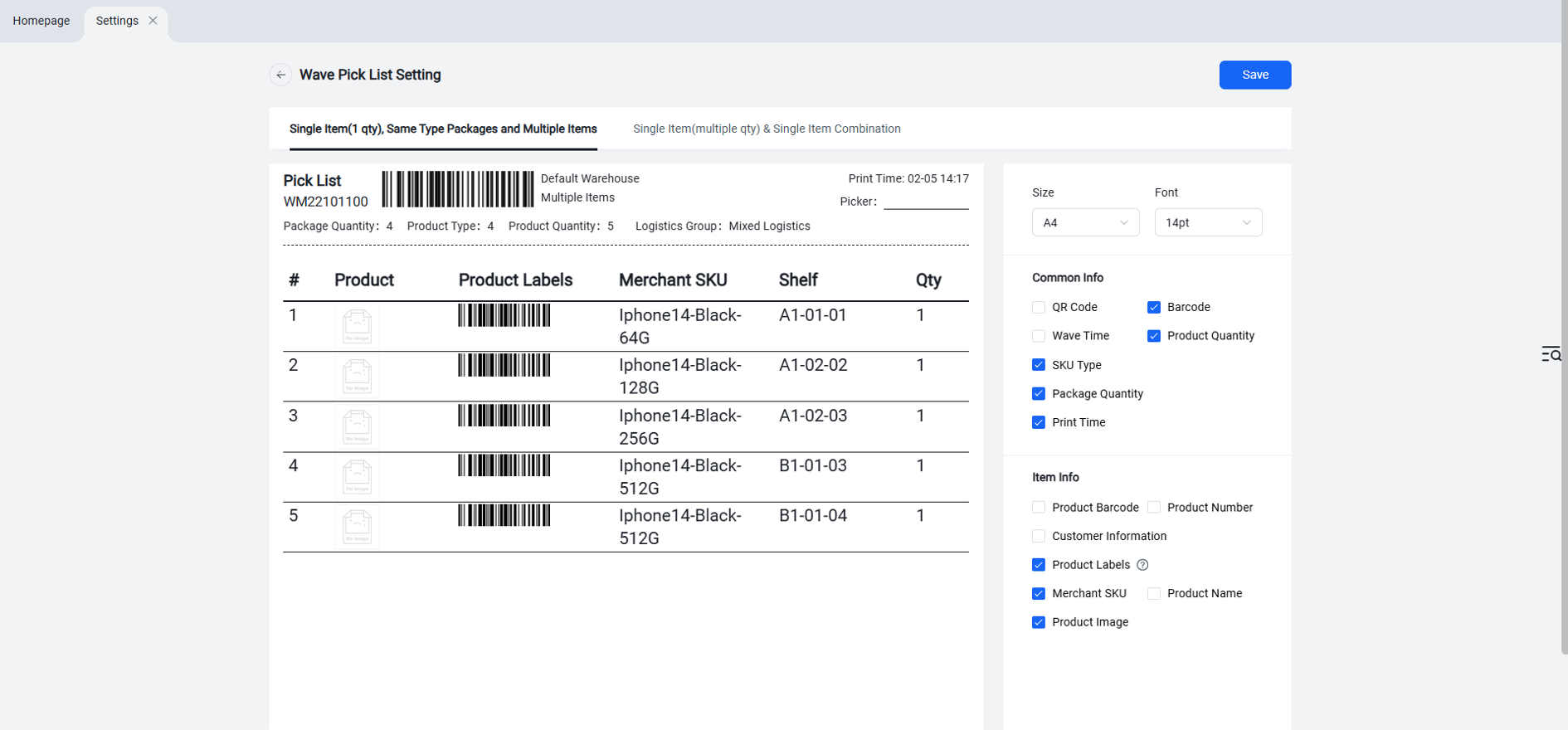
Picking List Settings: Configure based on either product dimension or package dimension, including paper size for the picking list and the information displayed on it.
Single-Item Batch Settings:
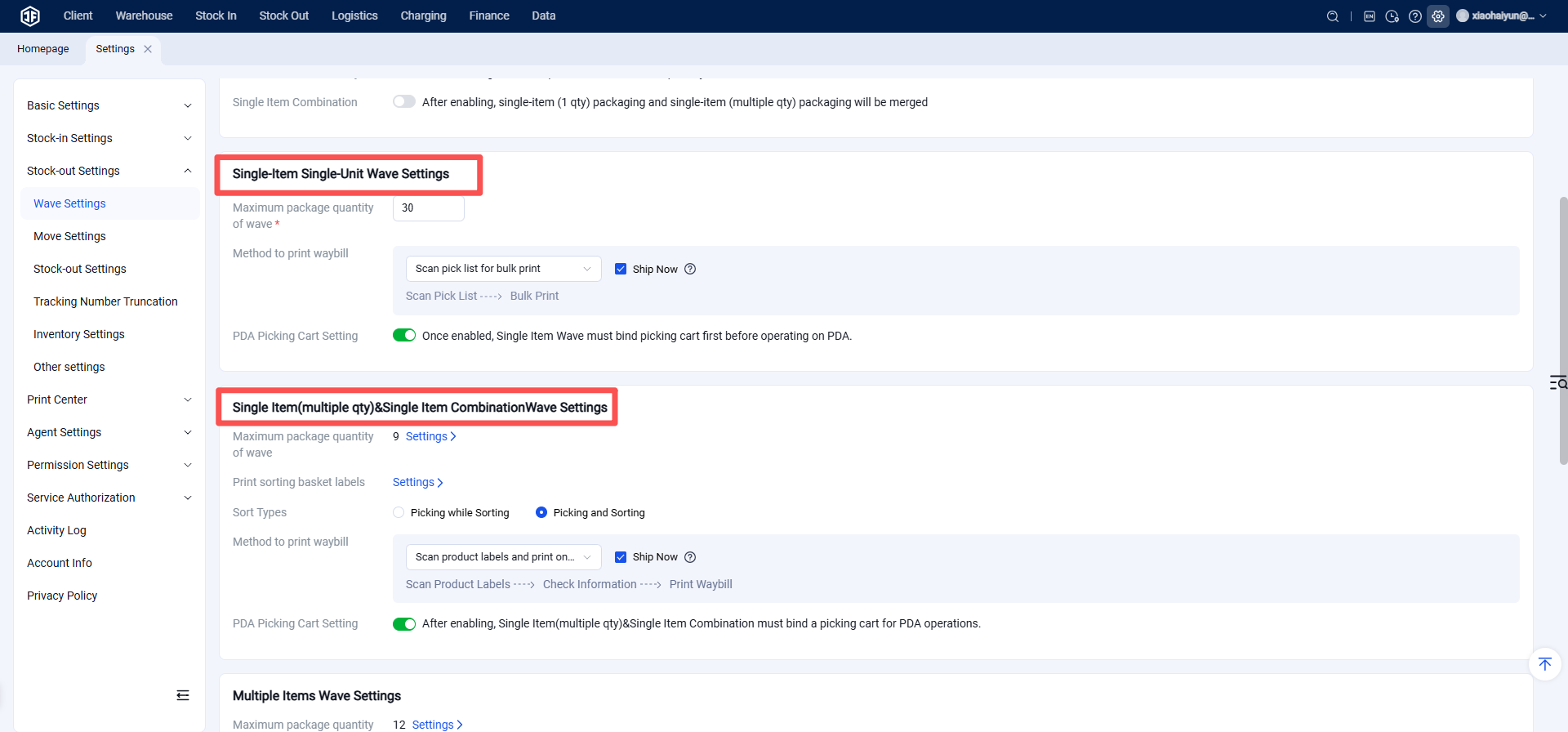
Single-Item Consolidation: When enabled, single-item single-quantity packages and single-item multiple-quantity packages will be grouped together for picking.
Maximum Packages per Batch: Defines the maximum number of orders to be grouped together each time a batch (wave) is generated.
Shipping Label Printing Method: Options include scanning the picking list for batch printing or scanning individual product labels for sequential printing.
Ship Immediately: If checked, printing the shipping label will automatically update the order status to "Shipped".
SKU Quantity Verification: Allows sellers to manually enter SKU quantities for verification. If disabled, quantities must be verified by scanning.
Multi-Item Mixed Package Batch Settings:
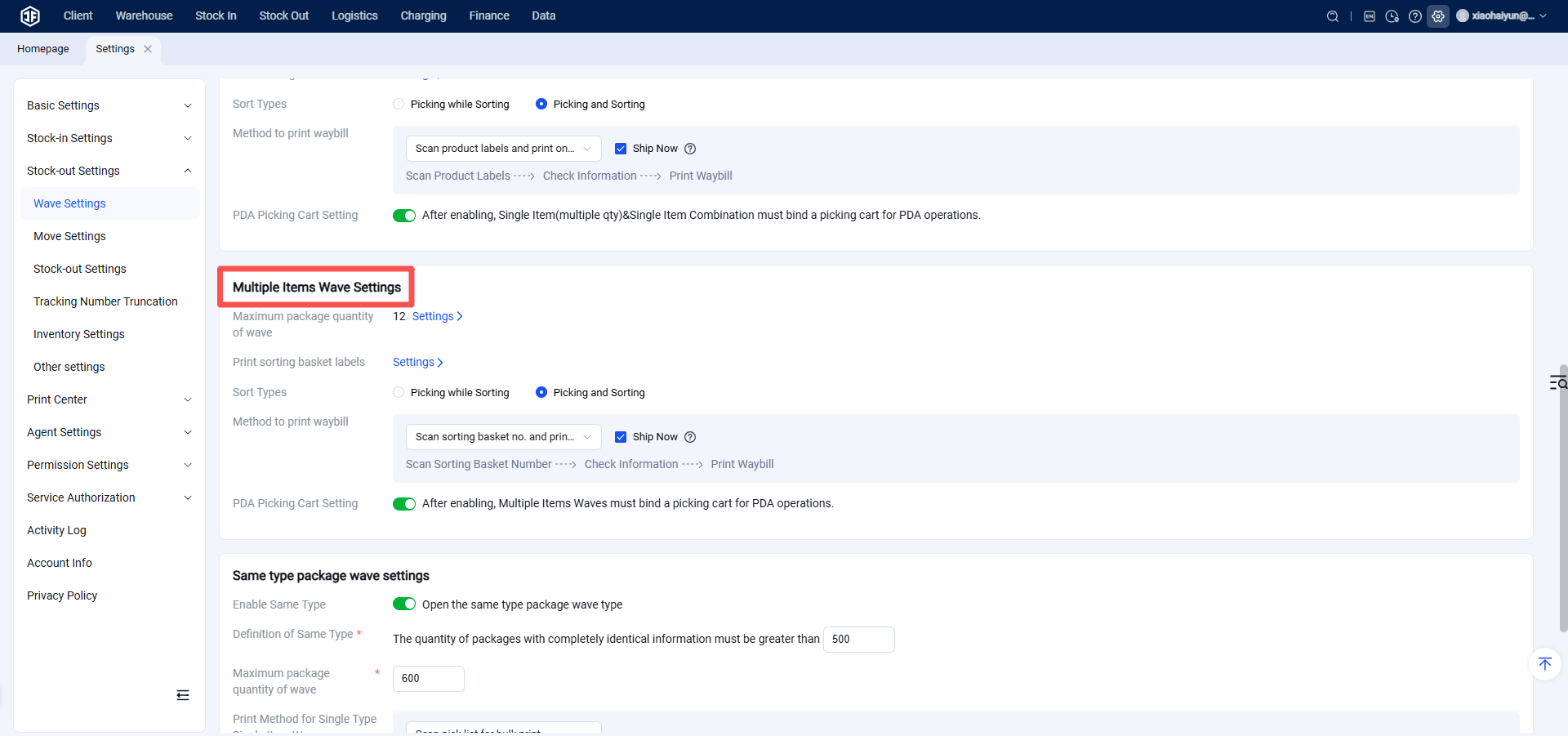
Maximum Packages per Batch: The number of packages in each batch should be configured based on the maximum handling capacity of the sorting rack.
Sorting Rack Configuration: When unified picking (e.g., using a picking cart) is performed, items need to be separated by package afterward, which requires a sorting rack. Sorting rack configuration involves setting the number of rows and columns. During sorting, if the system indicates "Box 1," the item should be placed into Box 1.
Print Sorting Box Labels: After configuring the sorting rack, you can print and affix labels to the corresponding sorting boxes.
Sorting Methods (2 types):
Pick and Sort Simultaneously: Pick items and immediately place them into the box corresponding to their package.
Pick First, Sort Secondarily: Pick all items first, then sort them into the correct boxes for each package in a secondary step.
Shipping Label Printing Methods (3 types):
Scan Picking List for Batch Printing: Faster label generation.
Scan Sorting Box Number for Individual Printing: Scan each sorting box label to print labels one by one.
Scan Product Label for Individual Printing: Higher accuracy.
Ship Immediately: When checked, printing the shipping label will automatically update the package status to "Shipped".
High-Demand (Hot-Selling) Item Batch Settings
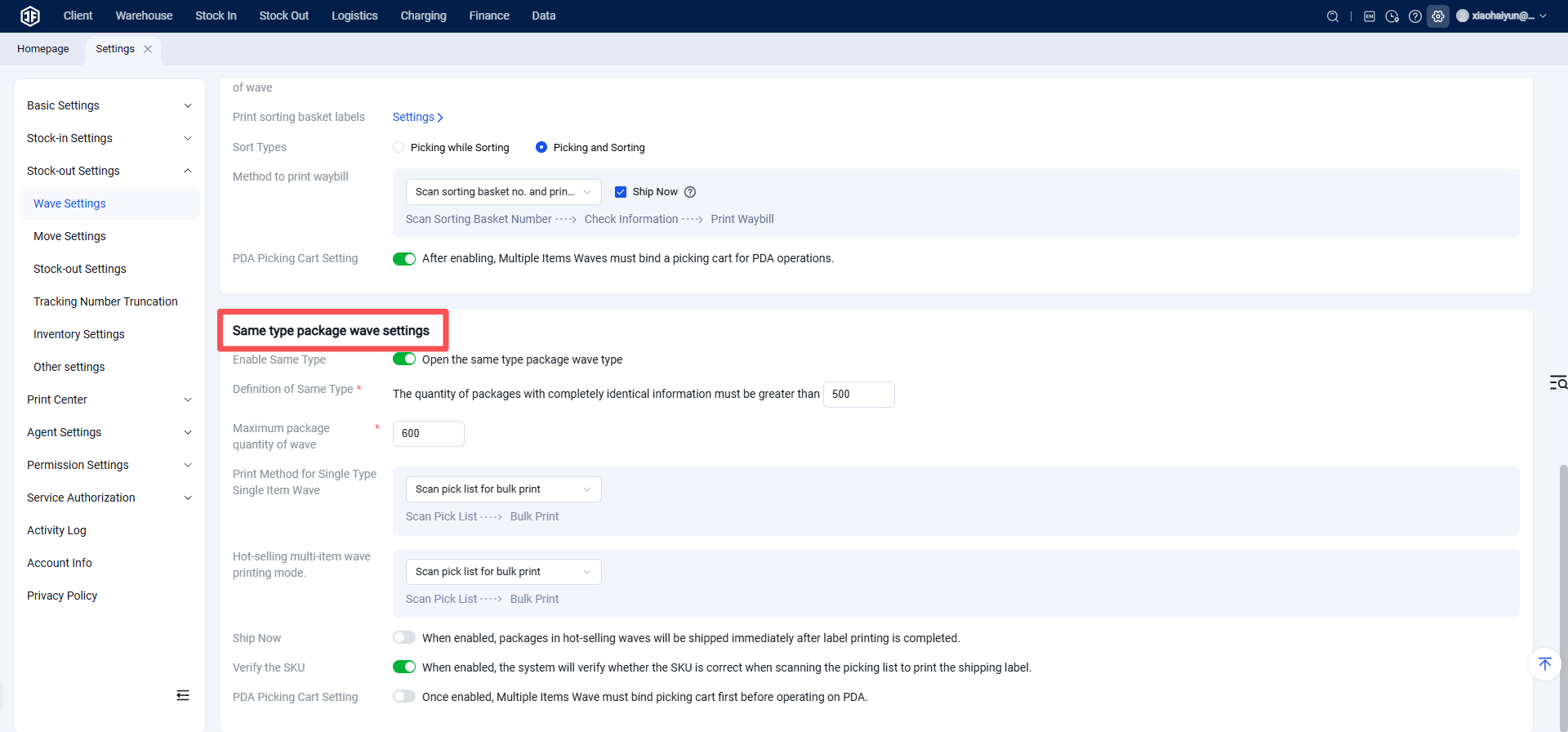
Enable High-Demand Mode: During major promotional events (e.g., holidays), frequent campaigns lead to high order consistency and large volumes. To improve picking efficiency during these periods, the High-Demand Item Batch settings can be enabled.
Maximum High-Demand Item Processing per Batch: Configure based on the warehouse's handling capacity.
Shipping Label Printing Type: Select "Ship Immediately." Printing the shipping label will automatically update the order status to "Shipped".
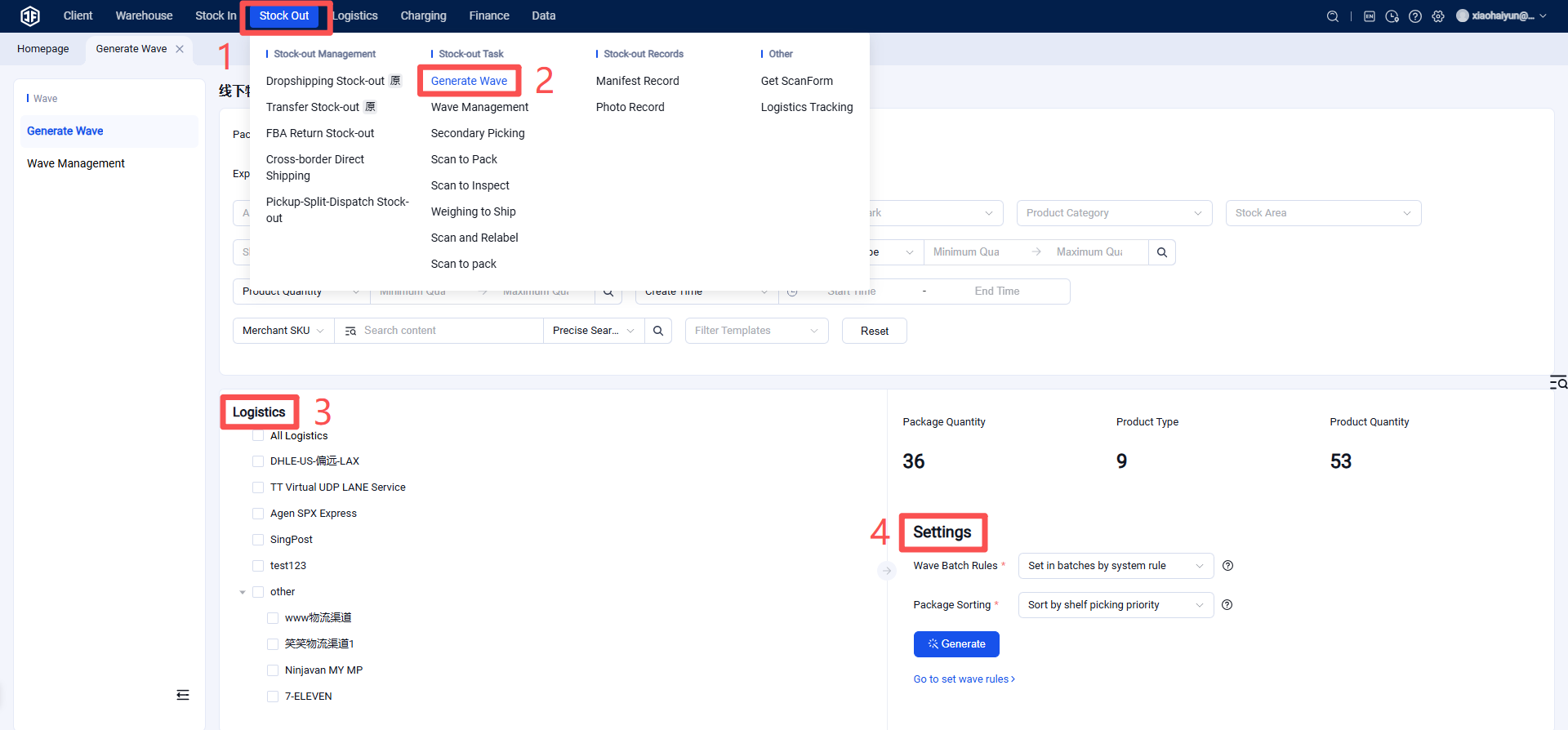
Step 2: Generate Batch (Wave)
For Pick and Sort Simultaneously, after configuring the batch settings for this mode in Step 1:
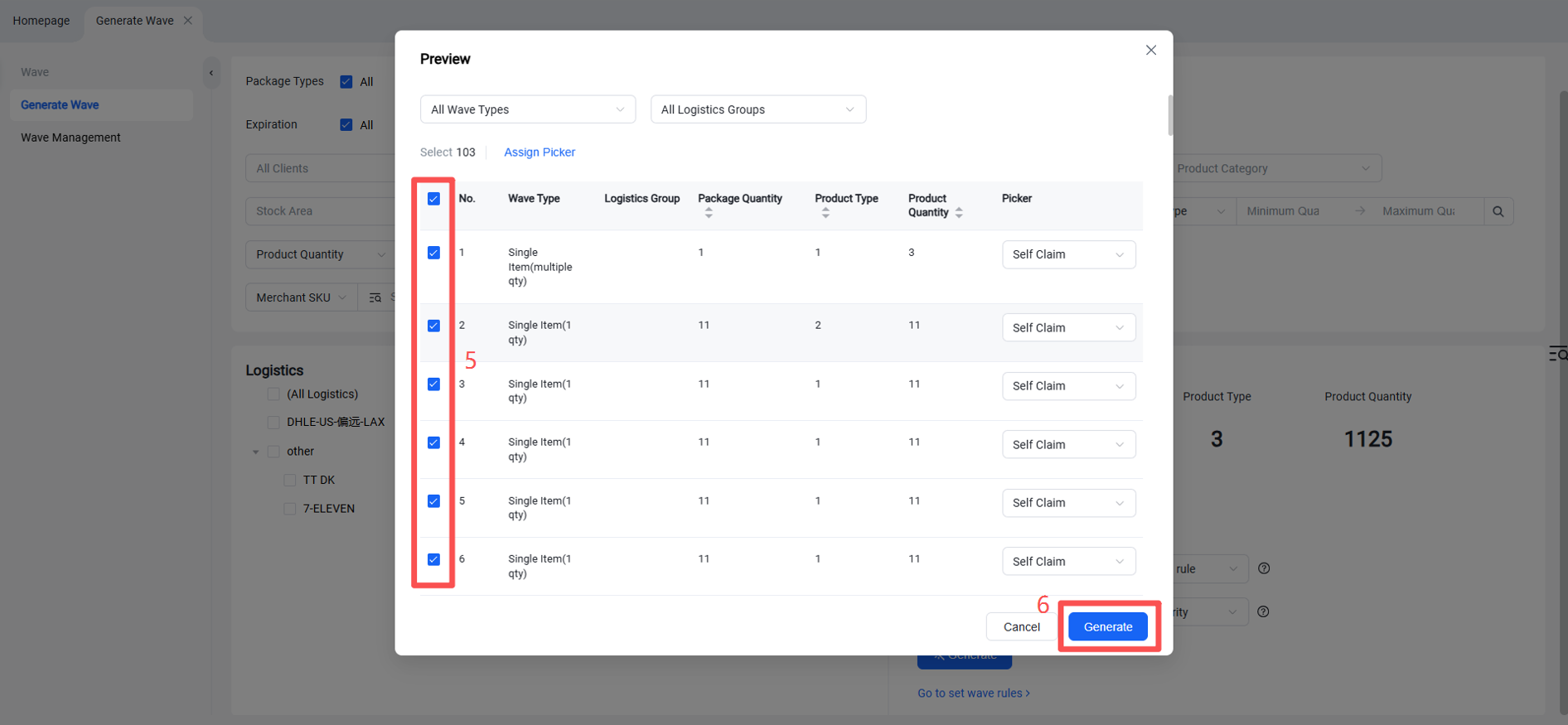
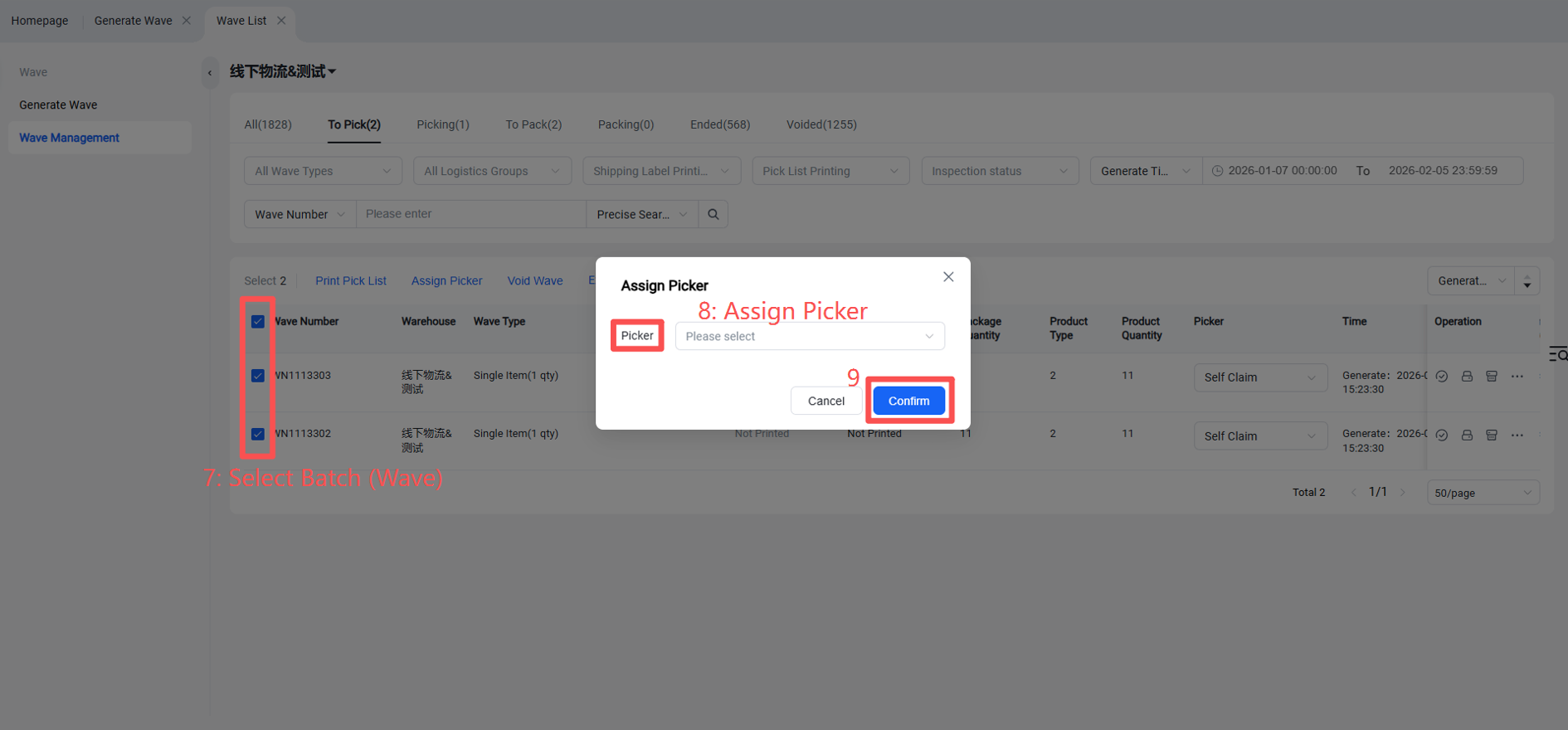
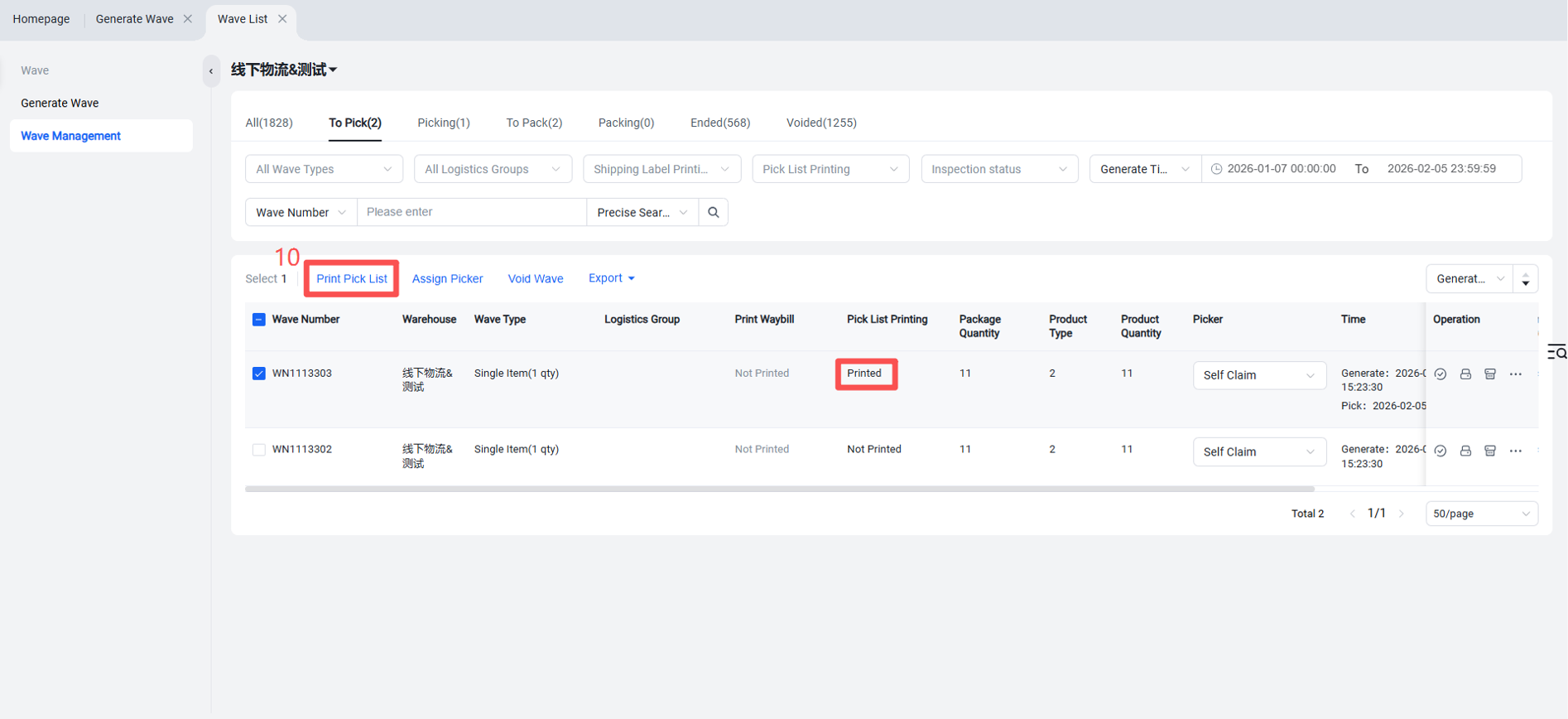
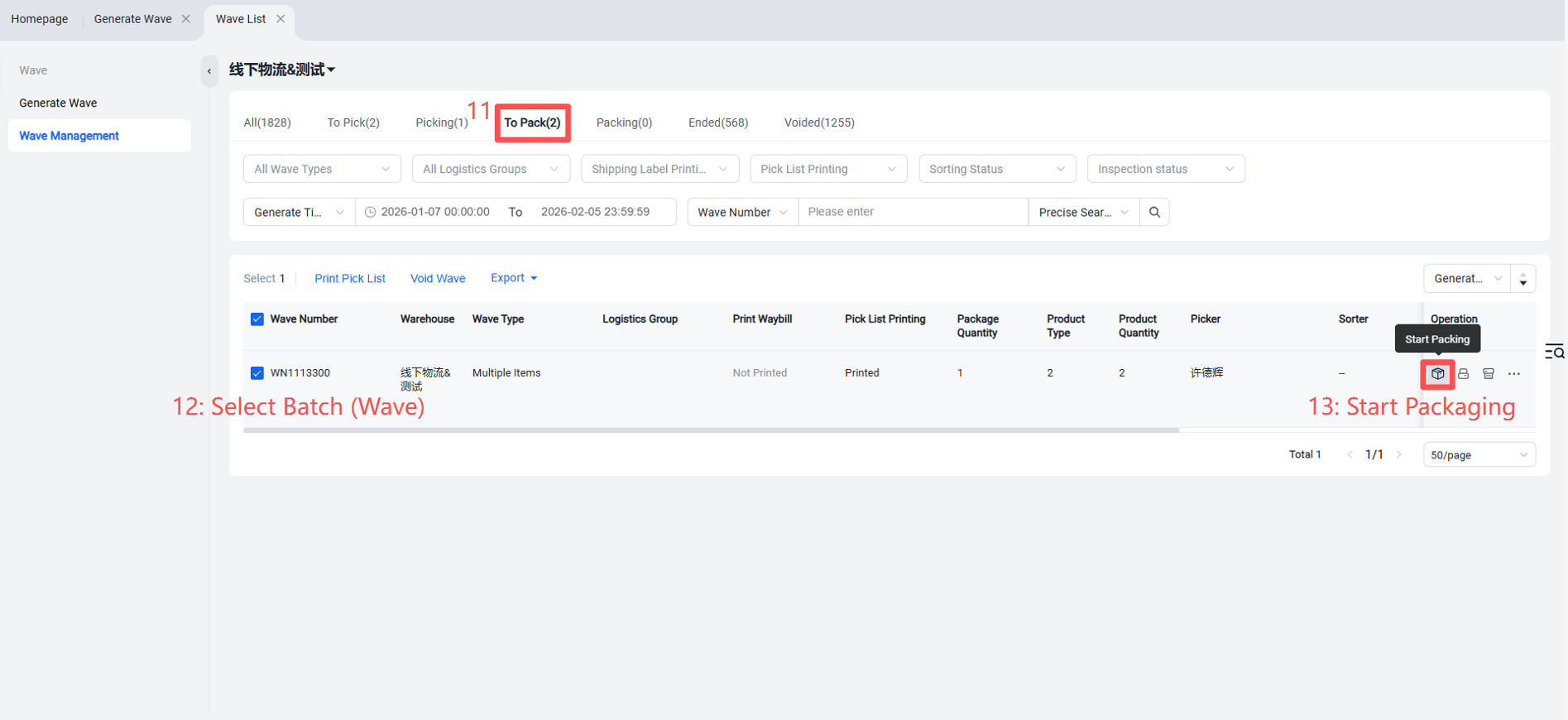
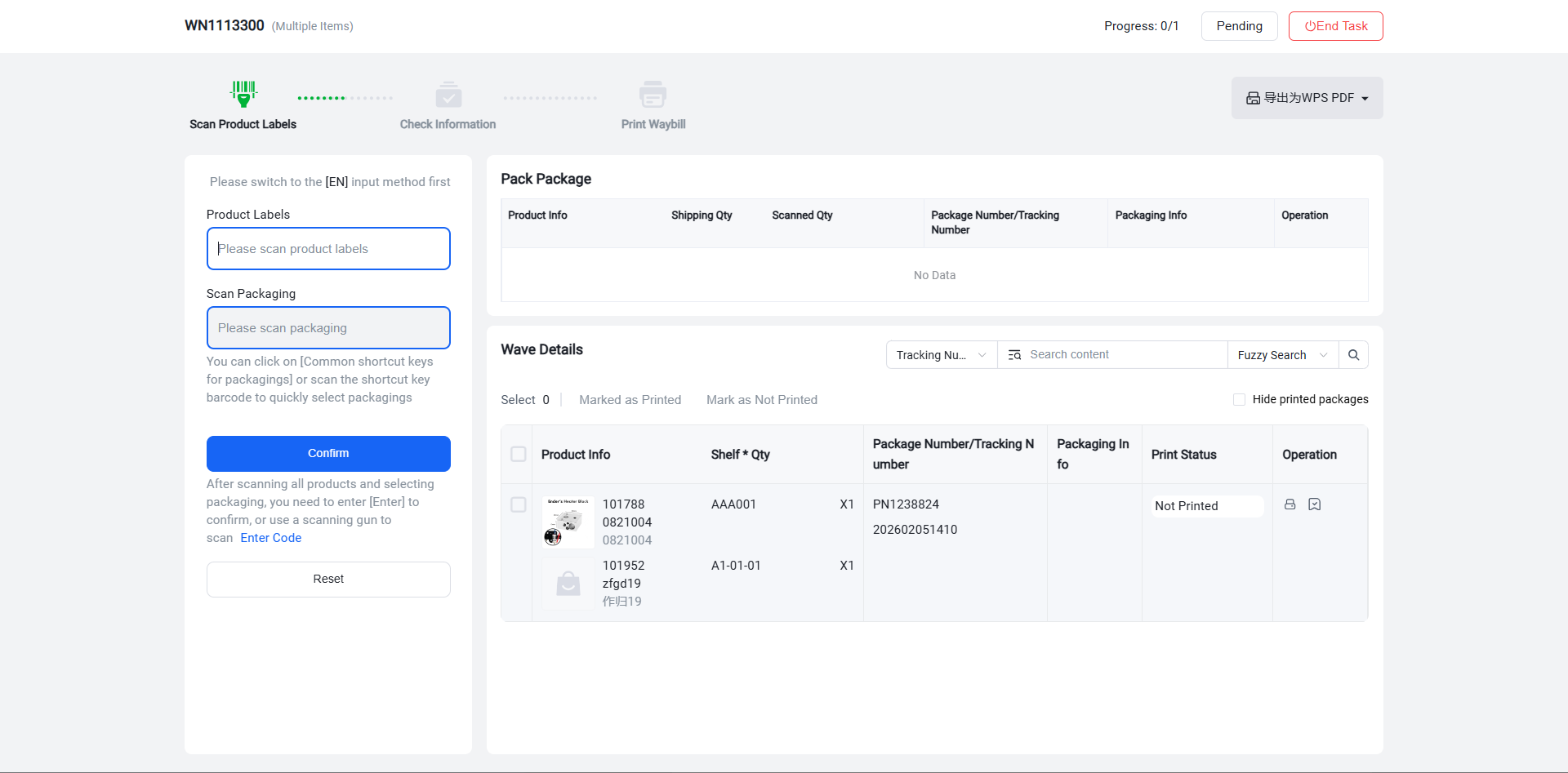
Operation Path: Outbound > Generate Batch > Generate Batch (Can use system rules for grouping or package consolidation grouping) (Package sorting can be by creation time, SKU, shelf location, etc.) > Batch Management — Pending Picking (Assign picker) (Print picking list, mark as printed) > Pending Packaging (Scan products, verify package contents and quantities, print shipping label) > Confirm.