How to Use PDA to Scan Packages for Shipment Confirmation and Record Photos
I. Definition
Overseas warehouses use PDAs to scan packages for shipping and record photos.
During the processing of third-party warehouse orders, the following situations can occur, leading to unnecessary losses for the warehouse:
① An order is already packed and labeled, but is then canceled by the buyer. ② Multiple employees print the same shipping label, resulting in two identical packages awaiting shipment.
To avoid these issues, it is recommended to use a handheld PDA in the final outbound stage to scan the package's shipping label to confirm the shipment status.
II. Detailed Operation
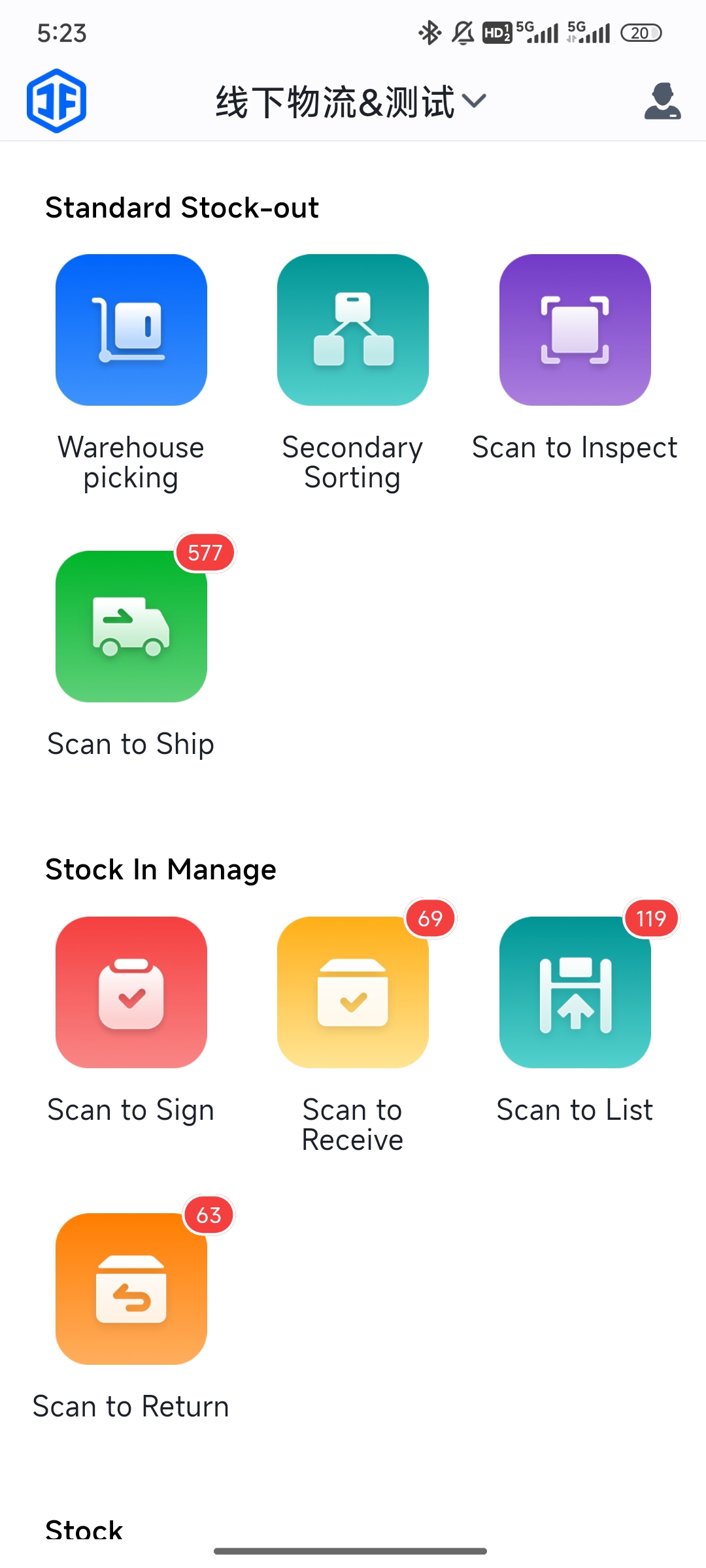
Step 1: From the PDA home screen, tap [Scan to Ship] to enter the scanning page.
Step 2: Choose whether to take a photo for documentation after shipping is completed.
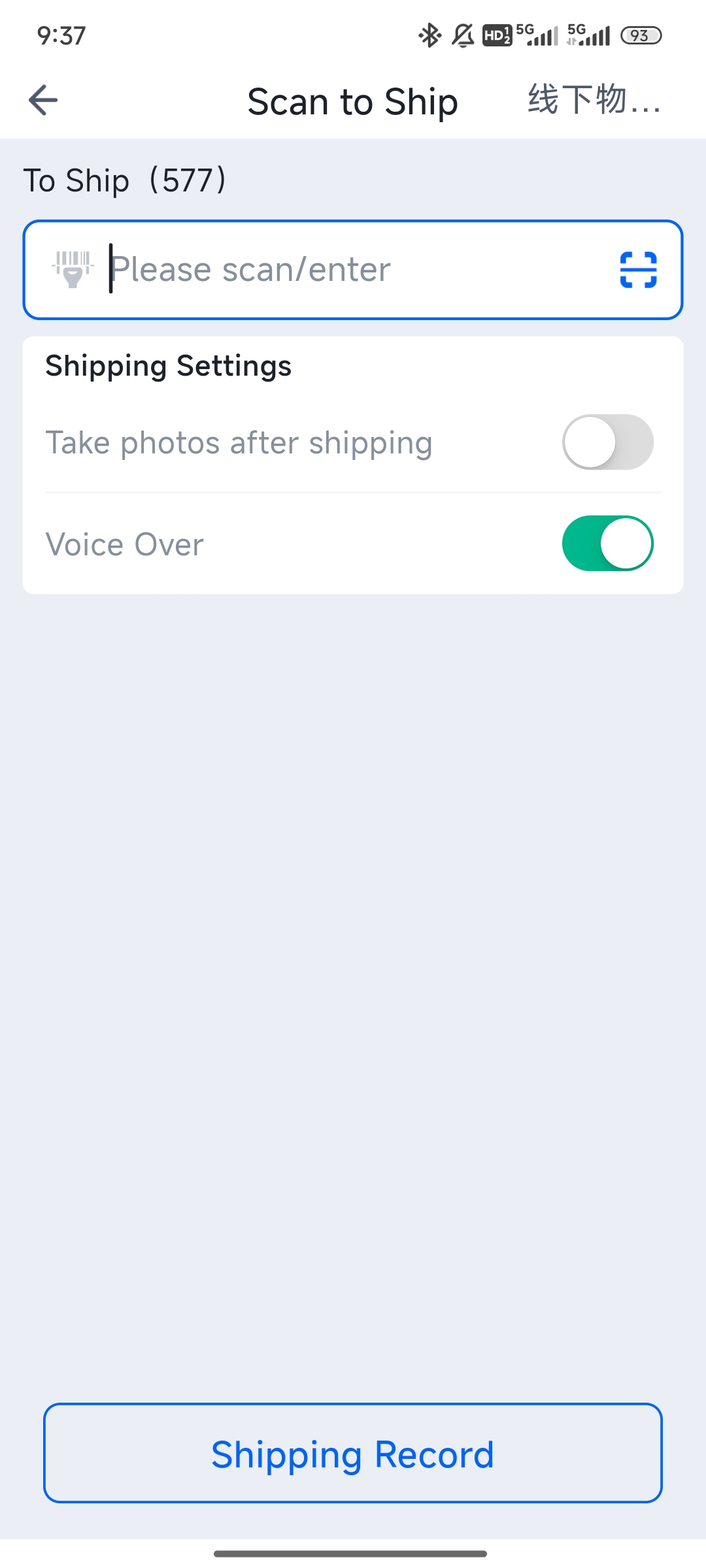
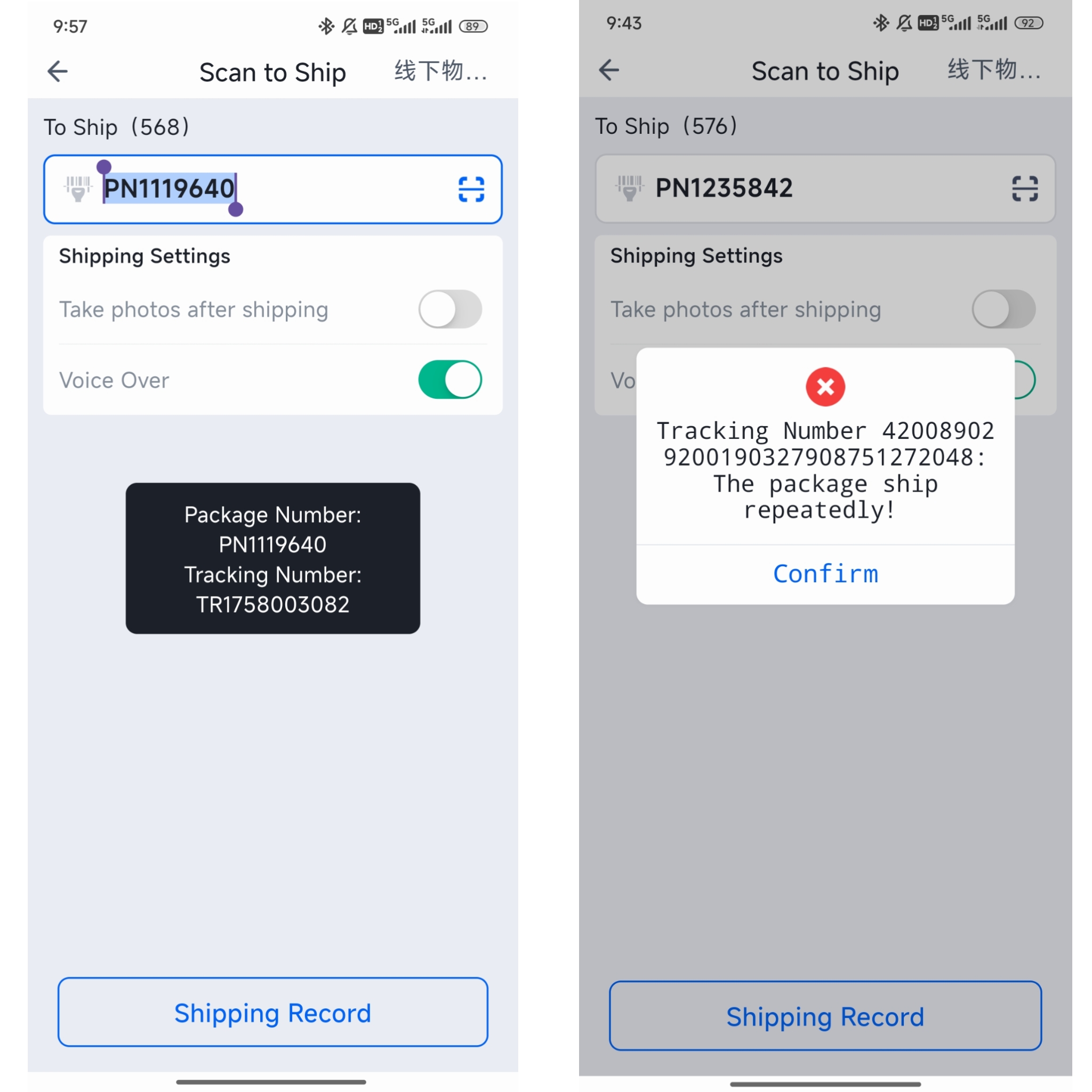
When photo capture is disabled, scanning the barcode on the shipping label provides shipping feedback. If the scanned package has been canceled or already shipped, a pop-up will notify you of the failure reason. If shipping is successful, the PDA will announce the package's logistics channel audibly, assisting the shipping staff in sorting packages by carrier.
After closing the feedback pop-up, you can immediately scan the next package.
Step 3: Photo Record After Scanning to Ship
When 【Take Photo After Scan to Ship】 is enabled, you cannot immediately scan the next package after a successful shipment. Instead, you must take a photo of the package you just shipped. The PDA will enter the photo capture page for that order, as shown in the figure below.
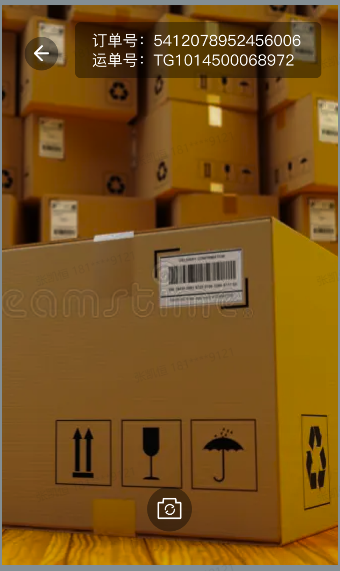
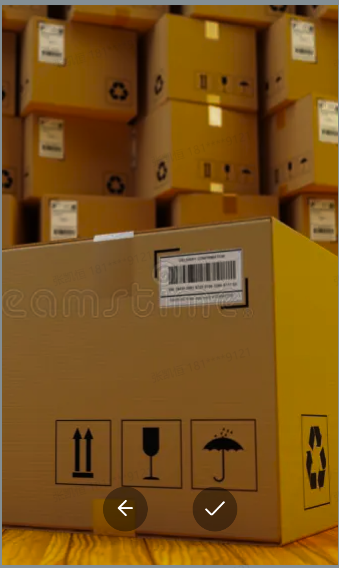
After taking the photo, if you are not satisfied with it, you can go back and retake it. If the photo is acceptable, click "Confirm" to save it.
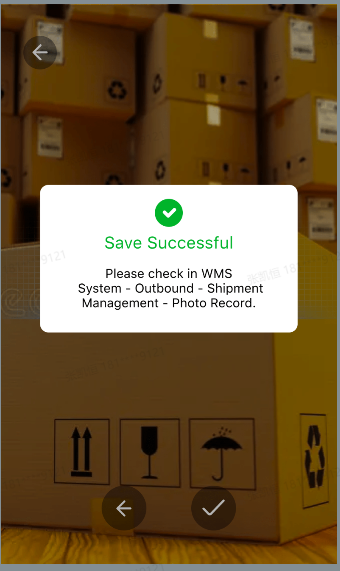
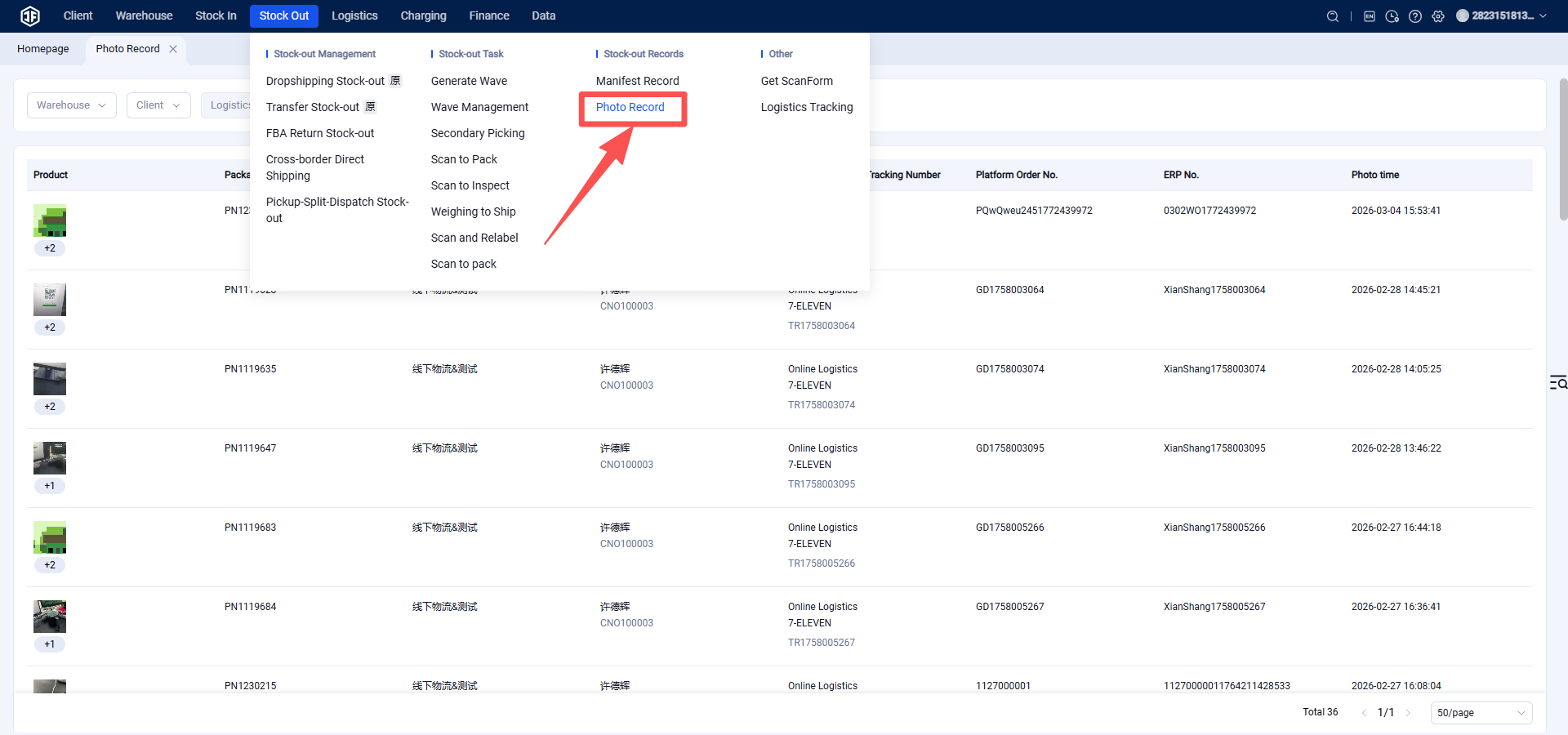
The saved photos can be viewed in WMS > Outbound > Photo Records.
Note: Only photo records from the last 15 days are retained.