Logistics Product Management
I. Definition
Logistics provider channels that have already been added on the warehouse side cannot be seen by seller clients in their ERP systems. It is necessary to add logistics products in the Logistics Product section for all clients or for specific seller clients. Only then will the corresponding seller clients be able to see the logistics channel in their ERP.
This allows seller clients to batch process orders in their ERP, select the logistics channel they see, apply for a tracking number, and subsequently push the ERP orders to the overseas warehouse system.
II. Operational Path
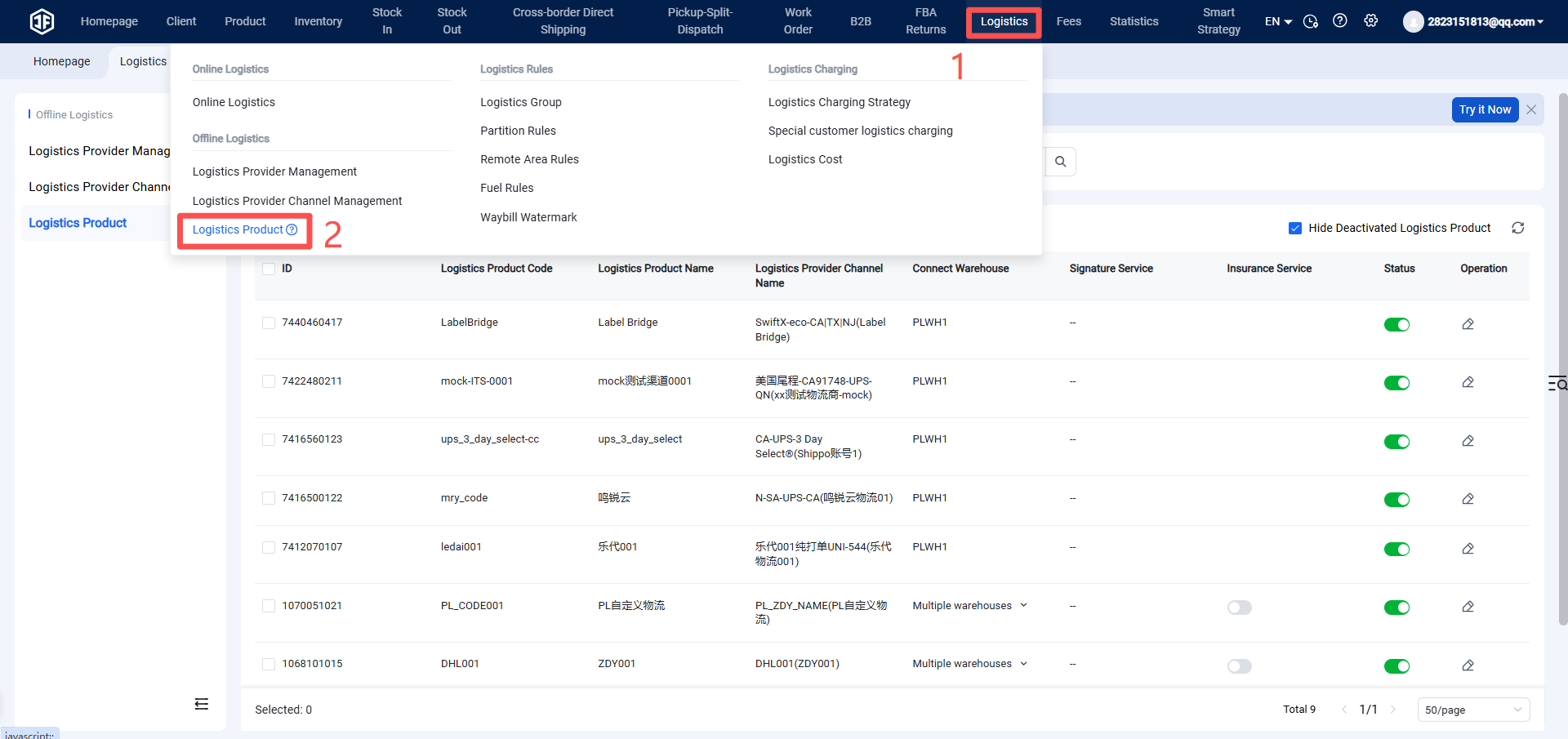
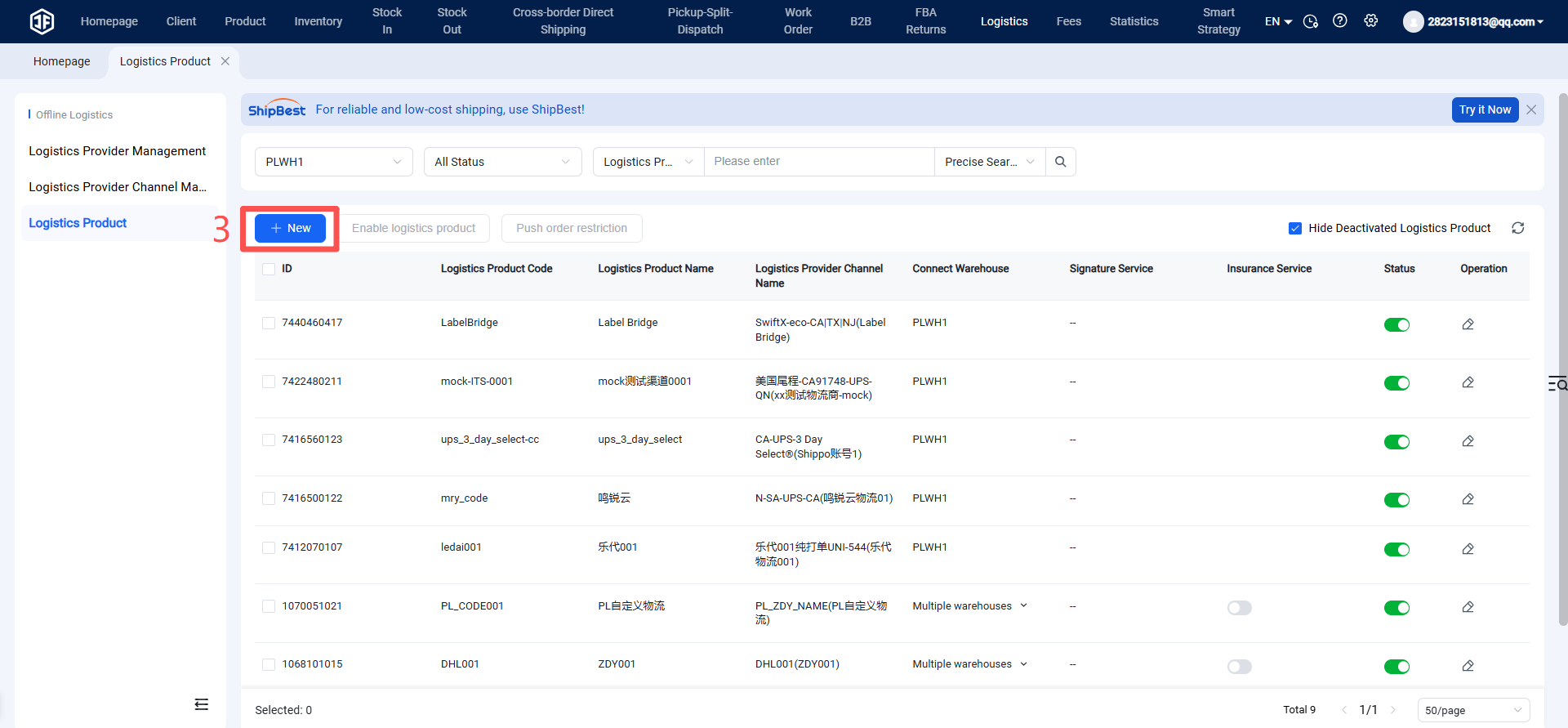
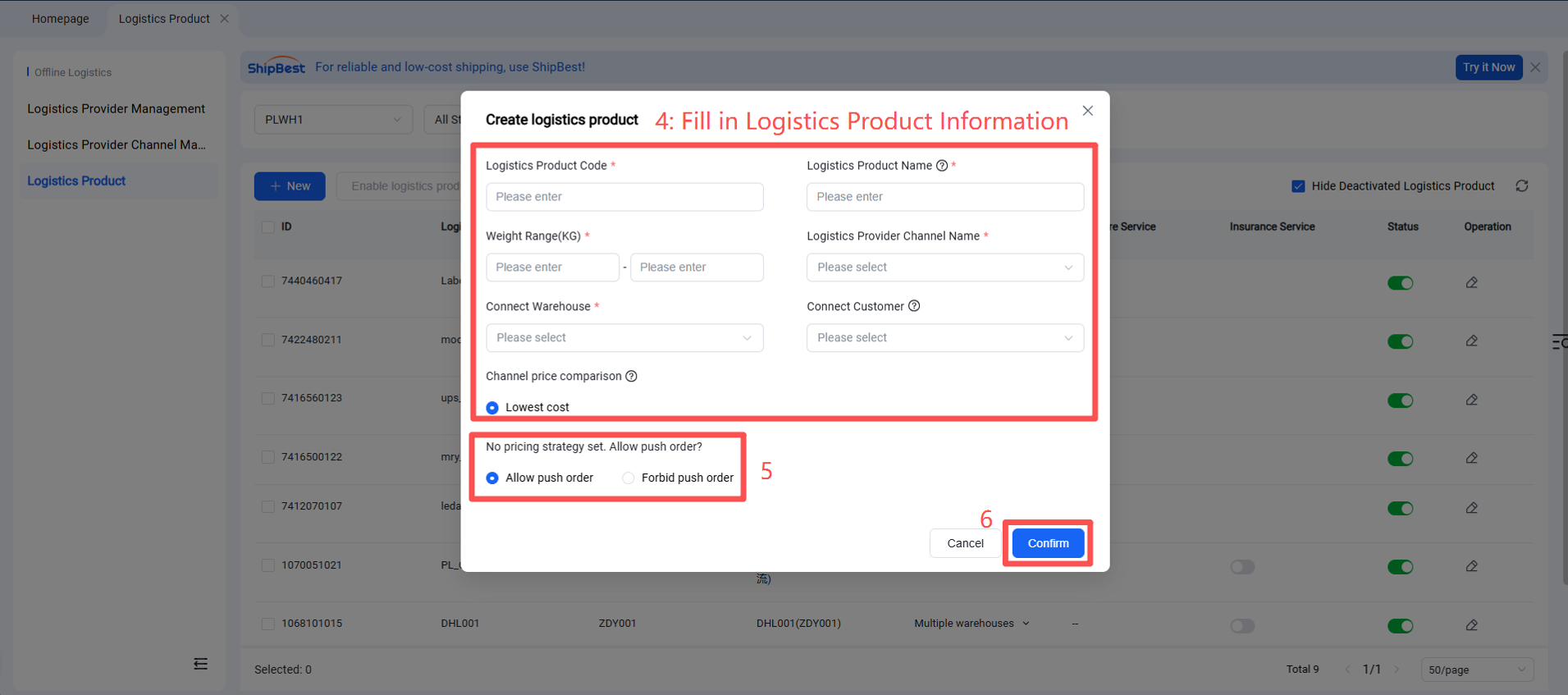
Warehouse WMS > Logistics > Logistics Product > Add New > Fill in the custom logistics channel code, client logistics channel name, acceptable package weight, select the logistics provider channel to be used, select the shipping warehouse (multiple warehouses can also be selected) > Confirm.
Important Notes:
Logistics Product Code: You can enter a code that is easy to identify and remember. Once saved, it cannot be modified.
Logistics Product Name: You can enter a name that is easy to identify and remember. It can be modified after saving.
Weight Range (KG): This refers to the allowable weight range for packages shipped using this logistics product. The system will first validate against the weight range set for the logistics channel, and then validate against the logistics product weight range.
Logistics Provider Channel: Select from a dropdown list of enabled logistics provider channels (multiple selections allowed).
Binding Warehouse: Select from a dropdown list (multiple selections allowed). You can bind multiple warehouses, meaning the same client logistics channel can be used across several warehouses.
Once a logistics product is created, it is enabled by default. If you no longer wish to use this logistics product for shipping, you can disable it.
Logistics Freight Estimation: The freight estimation will calculate based on the lowest cost among the selected logistics channels.