Configure Shipping Fees by Custom Rules
I. Definition
When billing is not based on logistics rates, you can set custom rules, or define logistics fees by state, province, region, or remote area according to specified rules. This requires first creating zone rules, and then setting up a logistics billing strategy.
The fee will be deducted only after the order status in the warehouse WMS changes to "Shipped".
II. Operation Path
Step 1: Create Zone Rule
Logistics > Zone Rules > Create New > Fill in basic information > Enter rule details > Save.
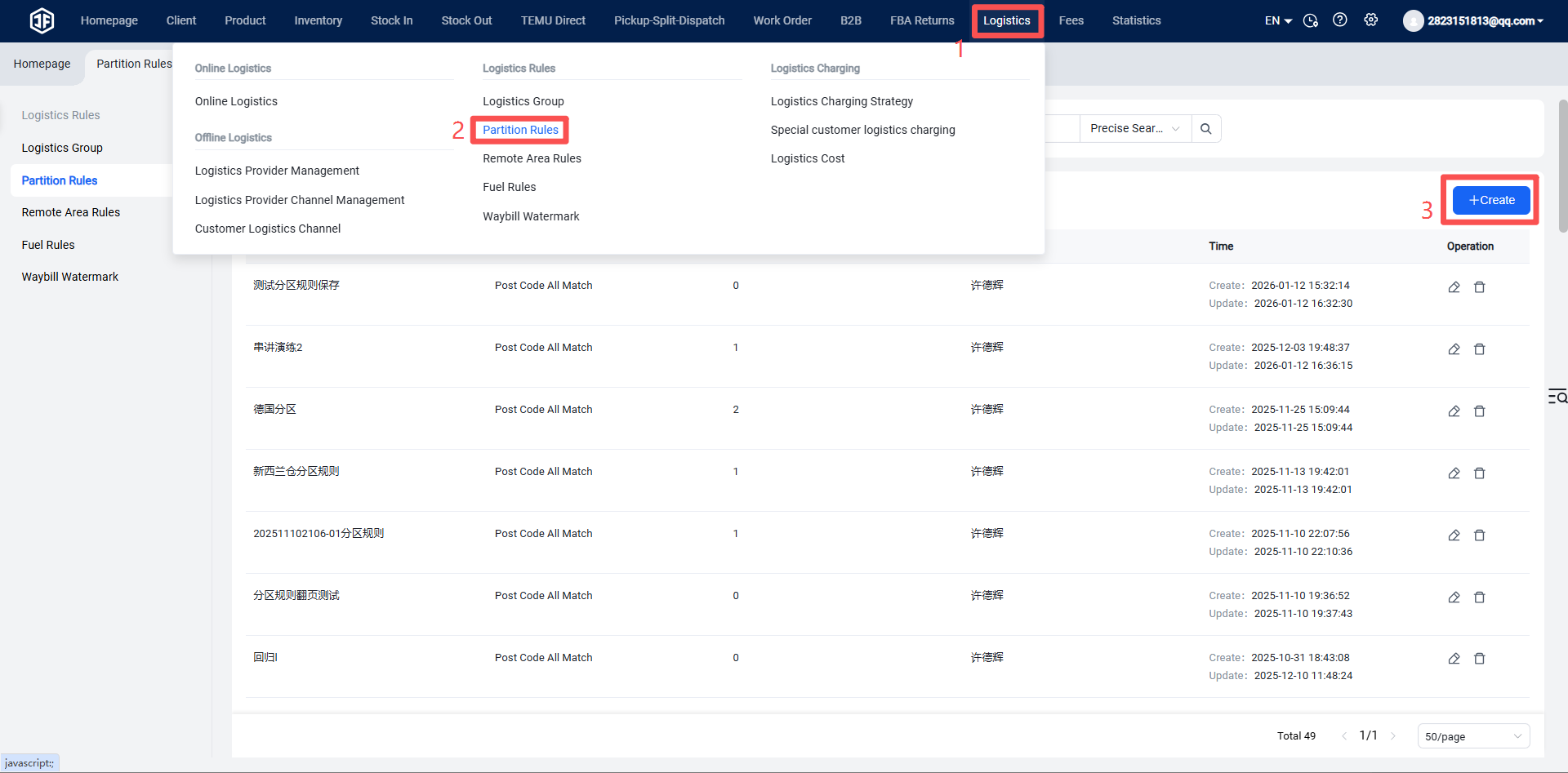
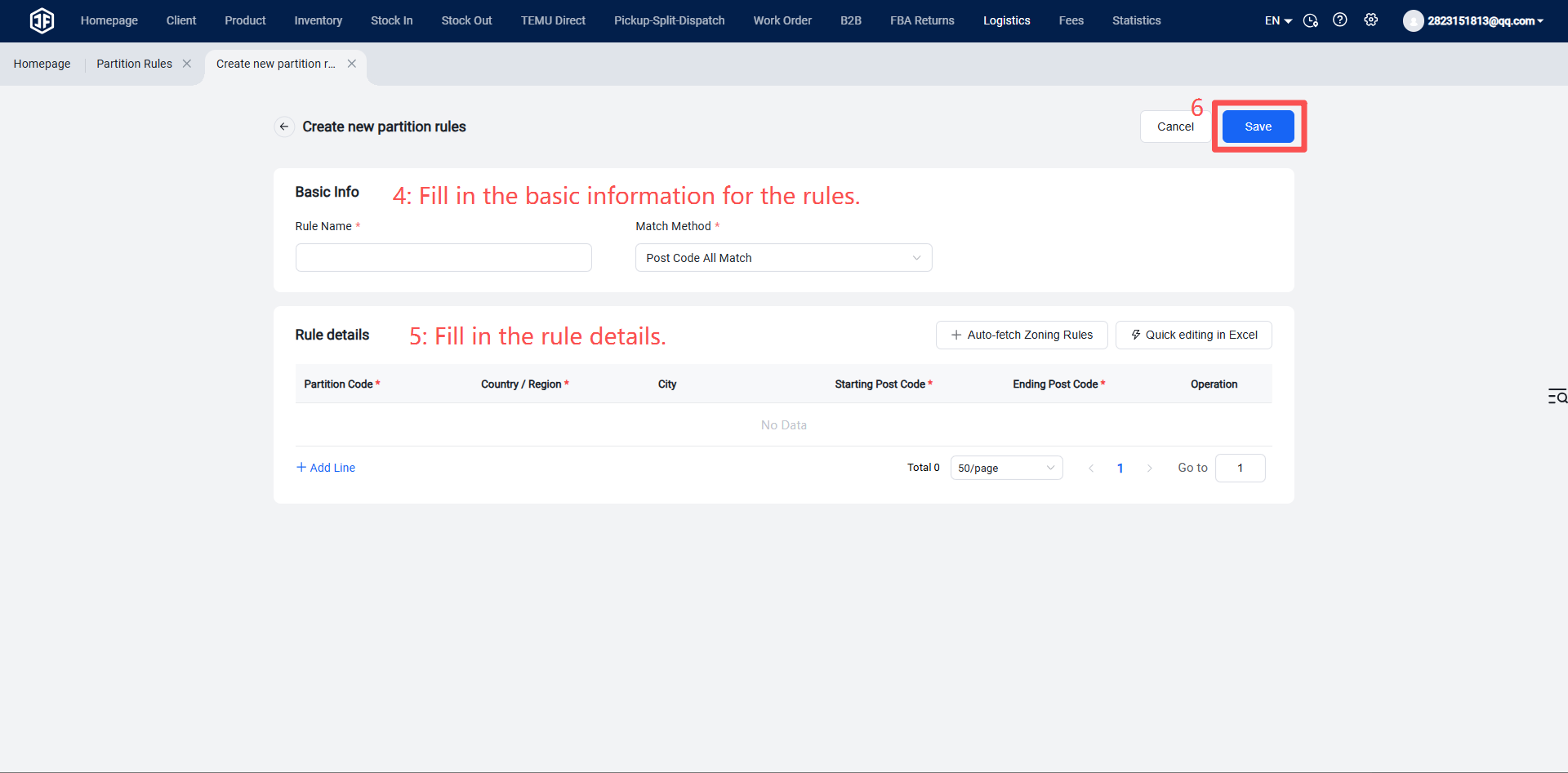
Basic Information
(1) Rule Name: Enter a name that is easy to remember and identify.
(2) Matching Method: Select the matching method from the dropdown:
Full Zip Code Match: If partitioning is based on zip codes.
Country/Region Match: If partitioning is based on countries.
Country + City Match: If partitioning is based on country and city.
Rule Details
You can add rows to set rule details, or quickly edit by copying and pasting.
Step 1: Click Copy to copy system information such as zone code, country/region, city, start zip code, end zip code, and paste it into an Excel sheet.
Step 2: After organizing the zone information in Excel, paste the arranged information back into the system.
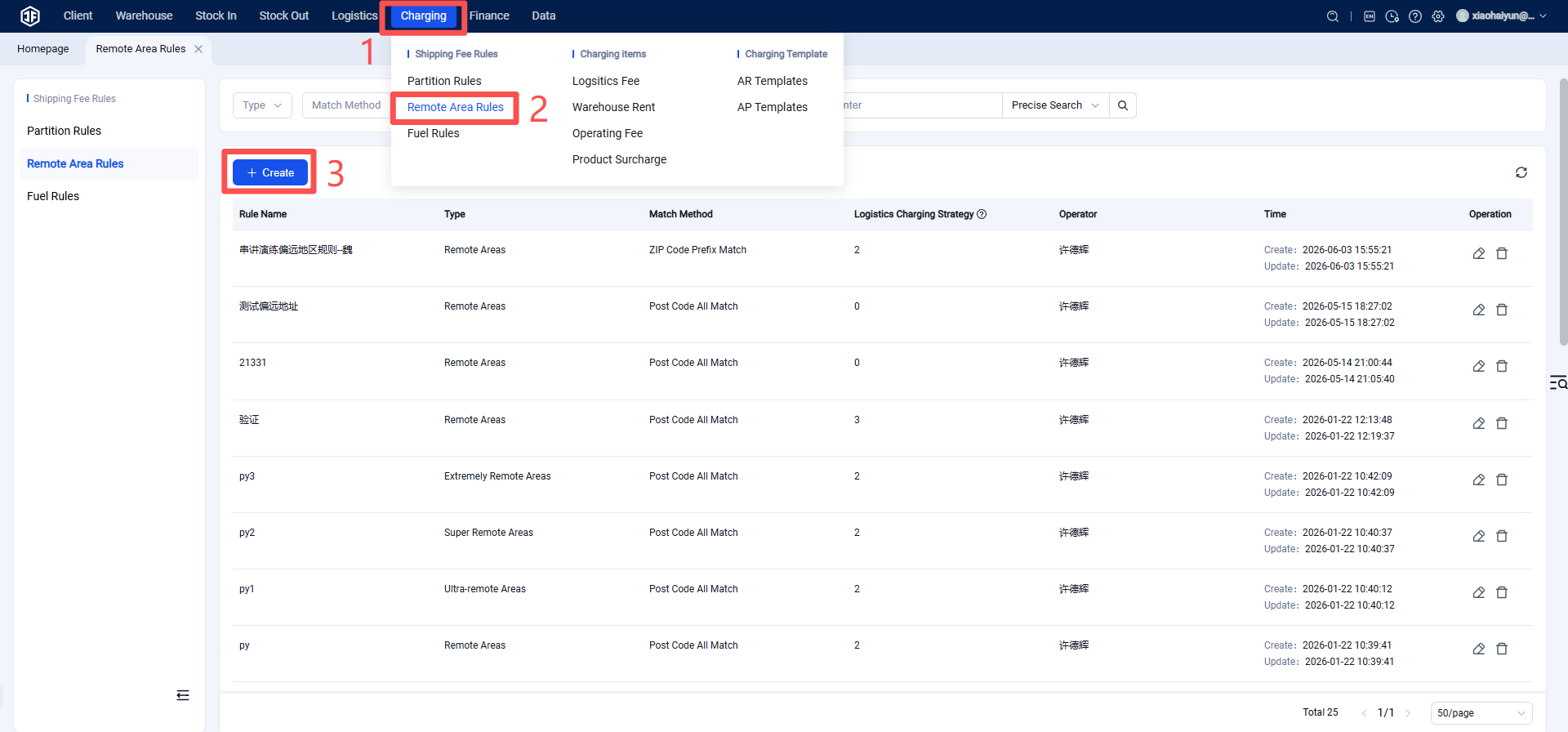
Remote Area Rule Setup
Operation Path: Logistics > Remote Area Rules > Create New > Fill in basic information > Enter rule details > Save.
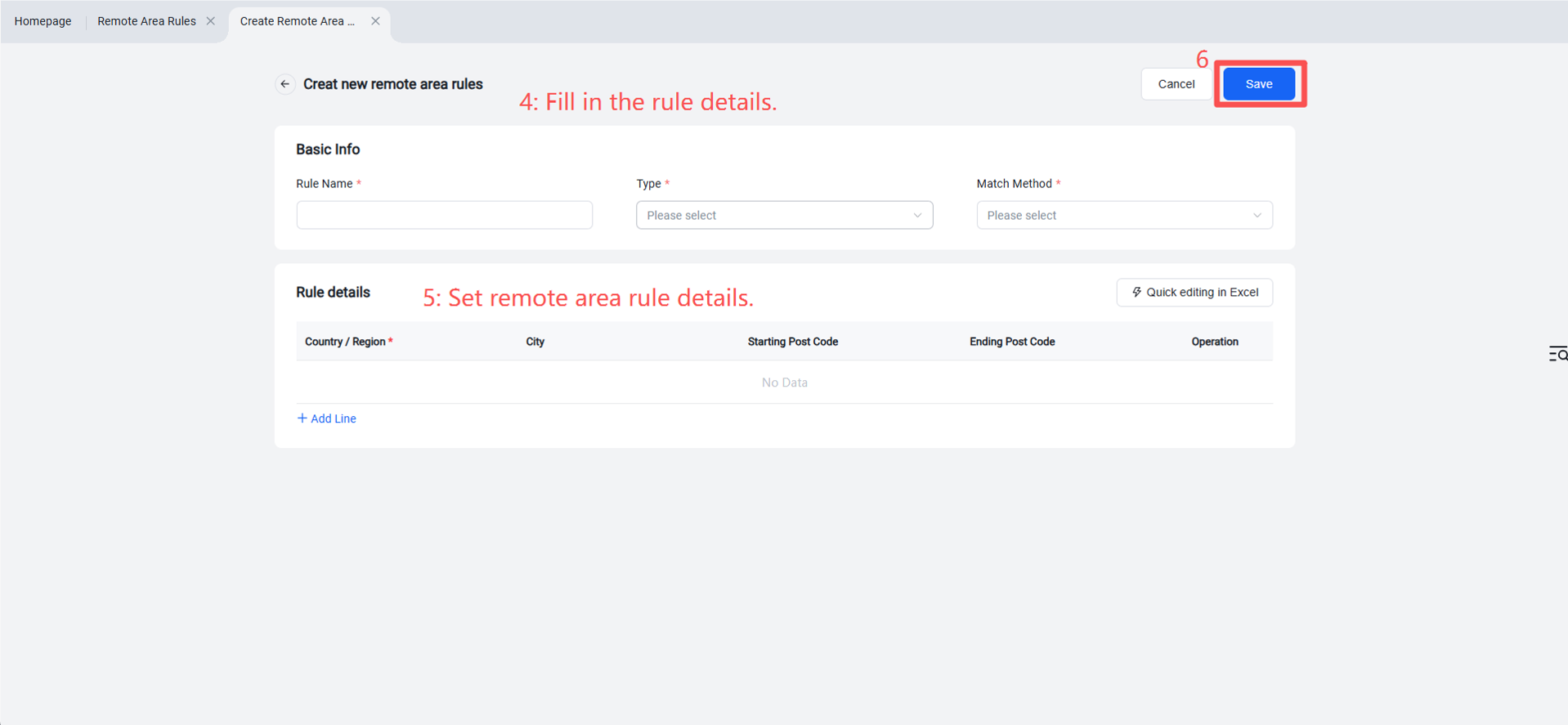
Step 2: Create Rule‑Based Billing Strategy
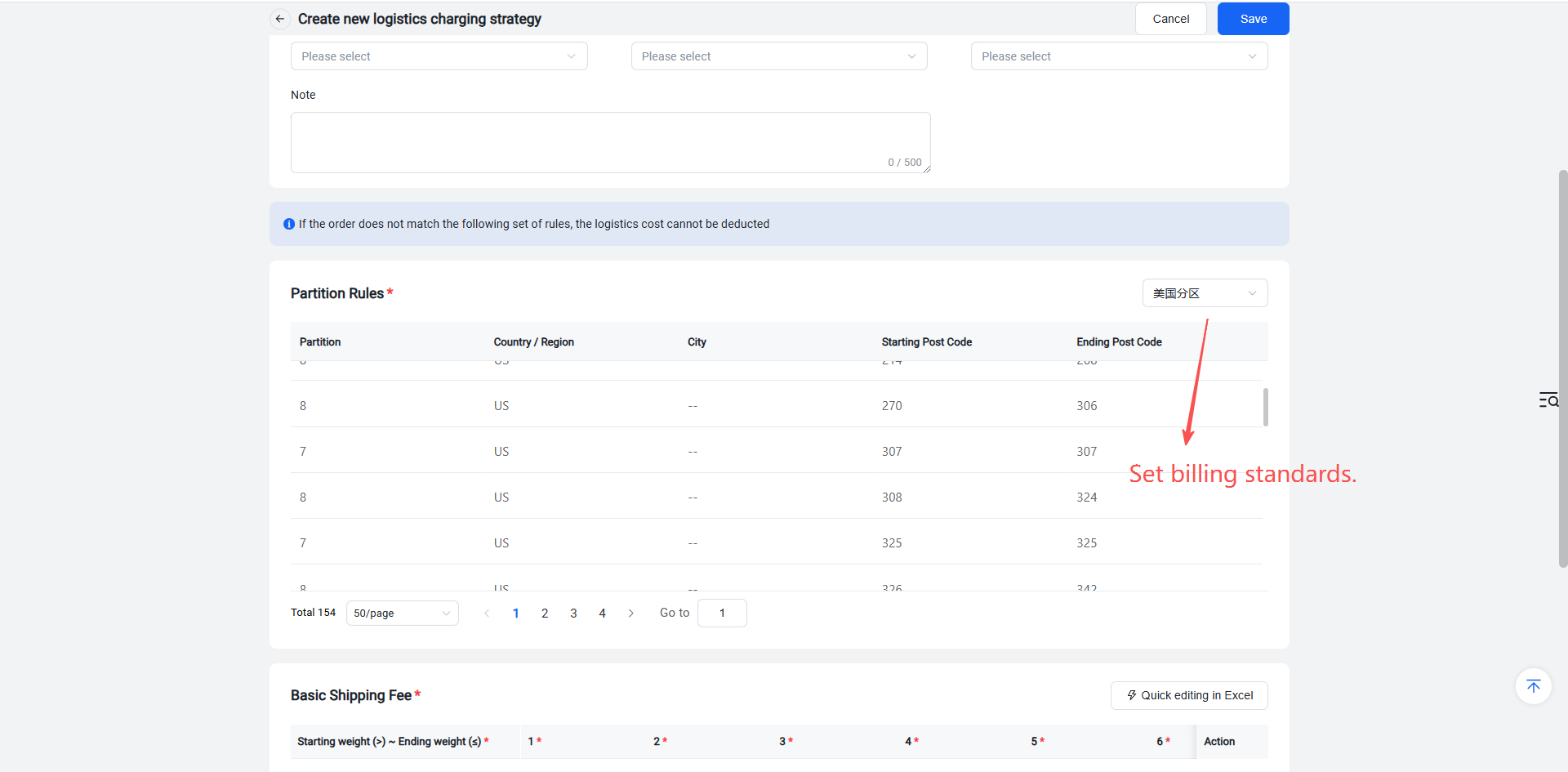
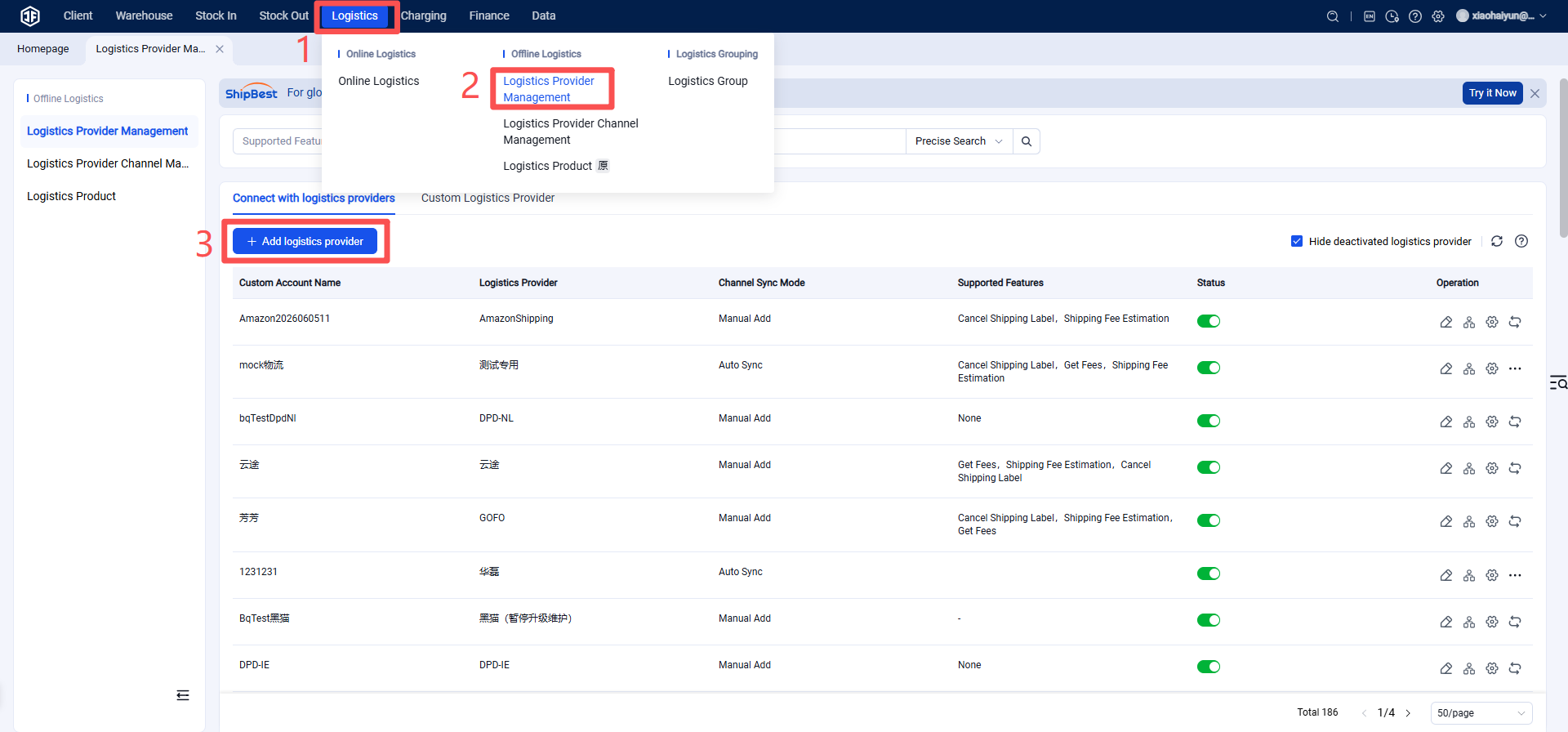
Warehouse Terminal (WMS) > Logistics > Logistics Billing Strategy > Select "Rule‑Based Billing" > Fill in rule details > Select zone rules, set billing standards > Save.
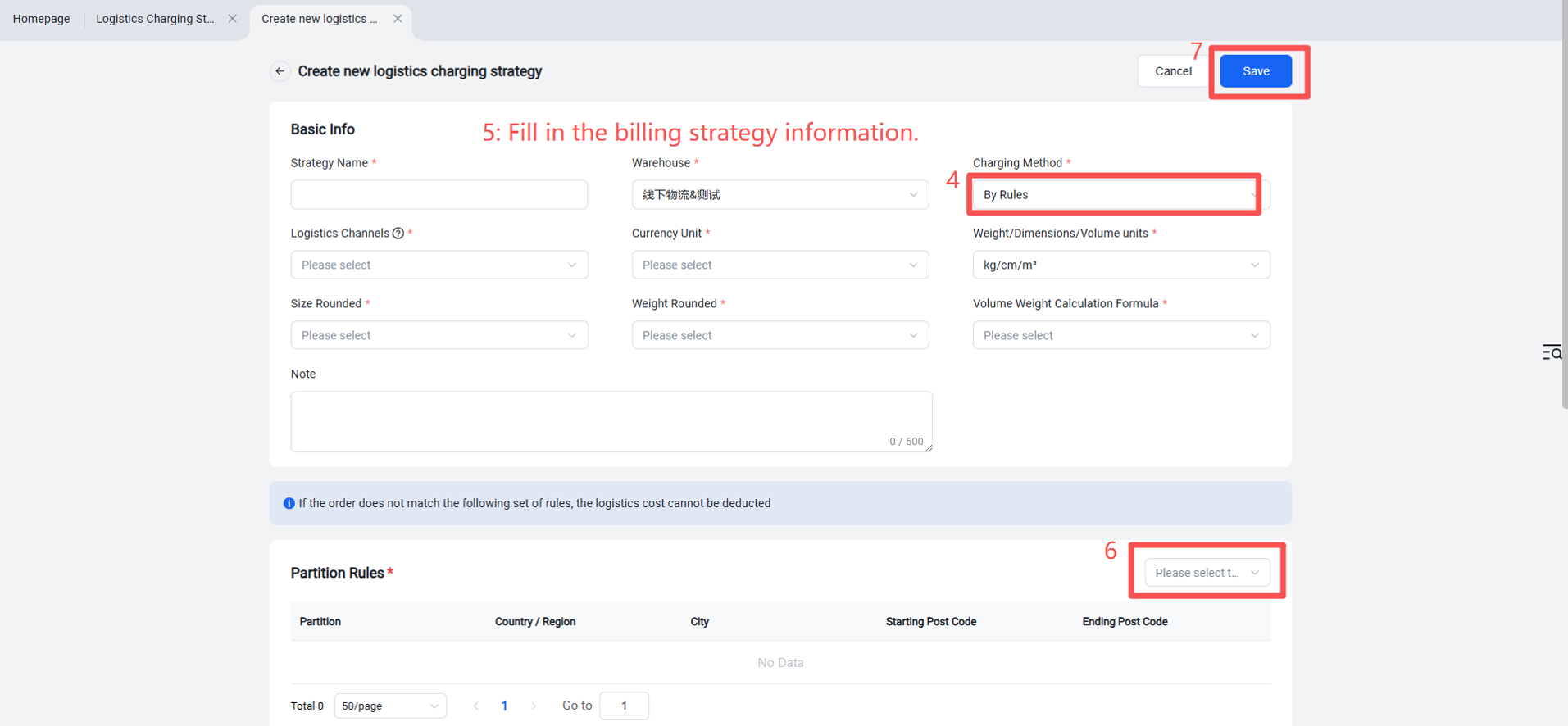
When selecting zone rules in step 6, you can set the billing standards.