Complete Workflow for UpSeller Sellers Distributing Overseas Warehouse Products
I. Definition
Local sellers in Latin America use Upseller to distribute products from the Jifeng Overseas Warehouse System.
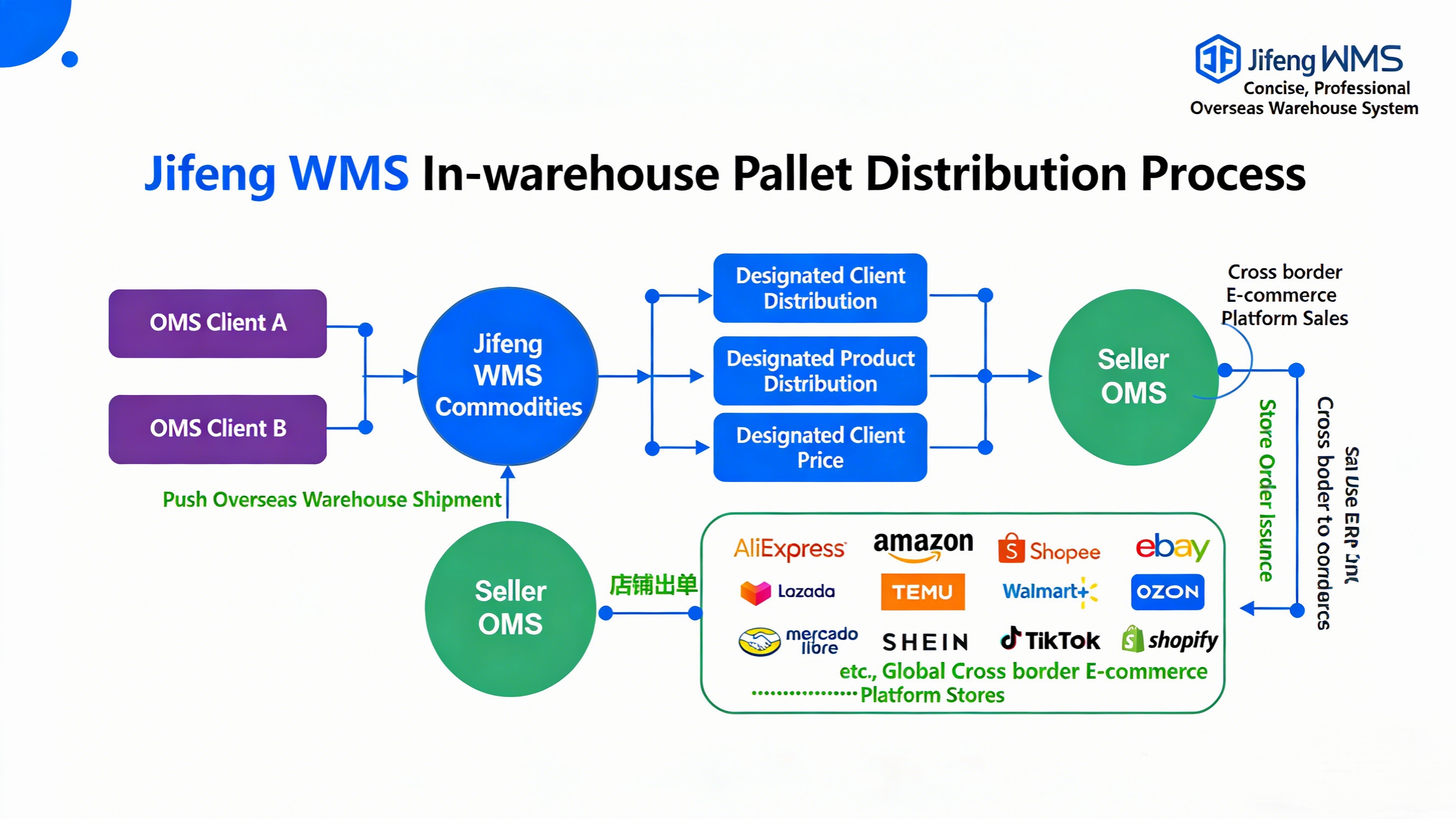
II. Operating Procedure
Step 1: Seller Claims Distribution Products in Jifeng OMS
In the OMS seller platform, navigate to the Products module and click on Distribution Products.
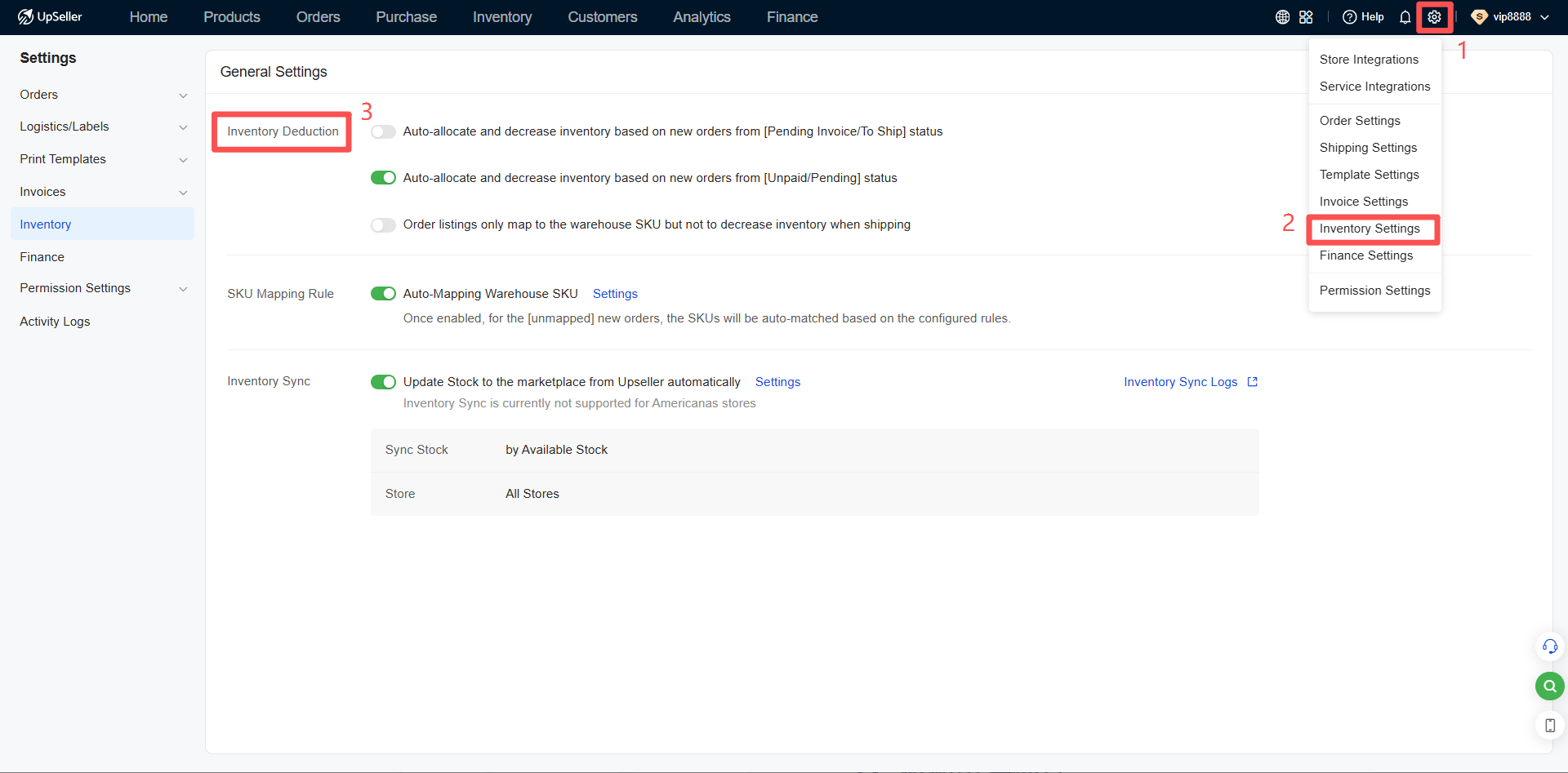
2.Enable Inventory Function
The inventory function must be enabled before authorizing a third-party warehouse. The entry point to enable this function is as follows:
3.Authorize Jifeng Overseas Warehouse
(1) Add Overseas Warehouse in Upseller
Method 1: In the seller's Upseller account, click "Settings" > "Service Authorization" > Select Service Provider > Click "Add Warehouse".
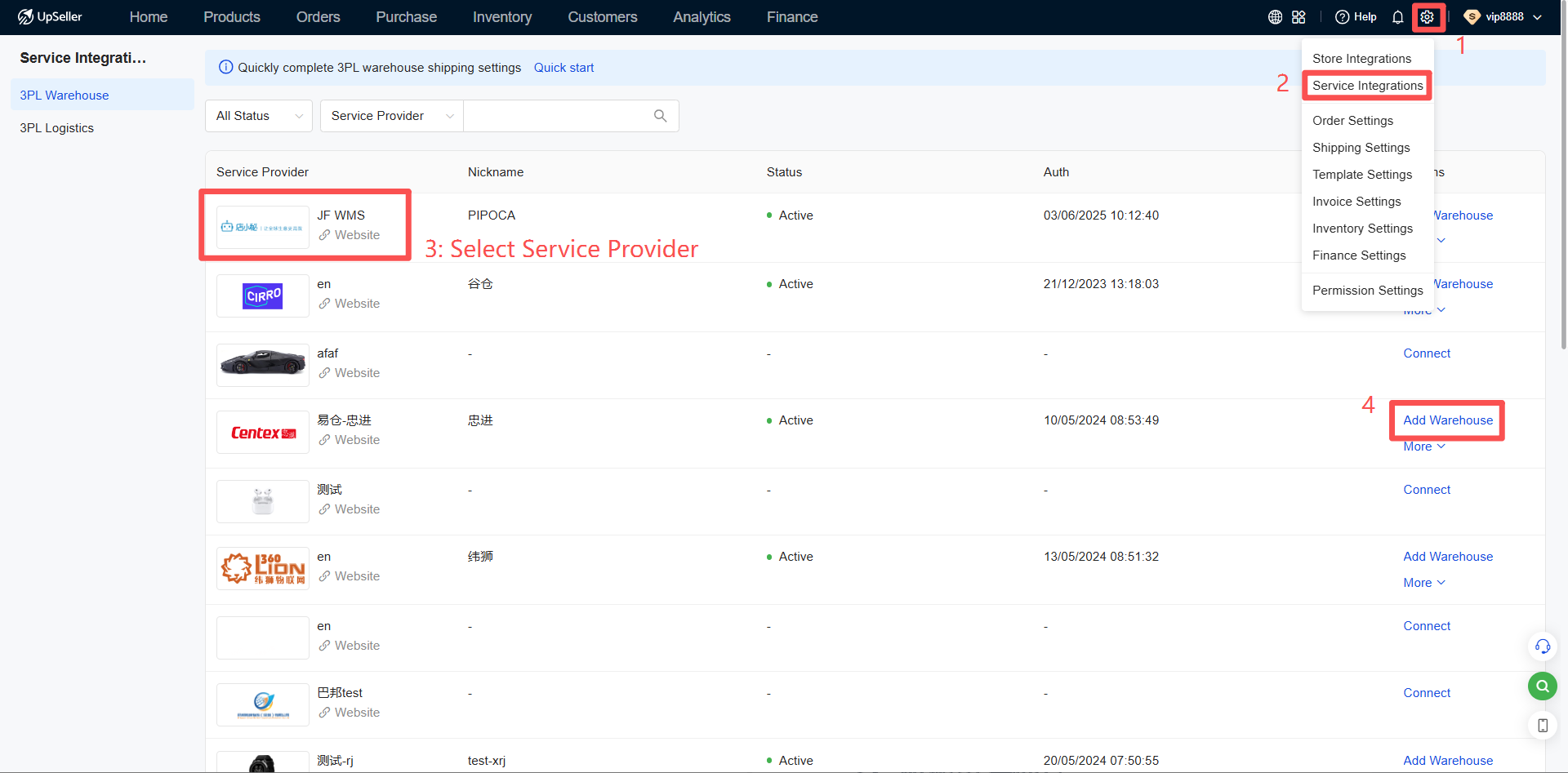
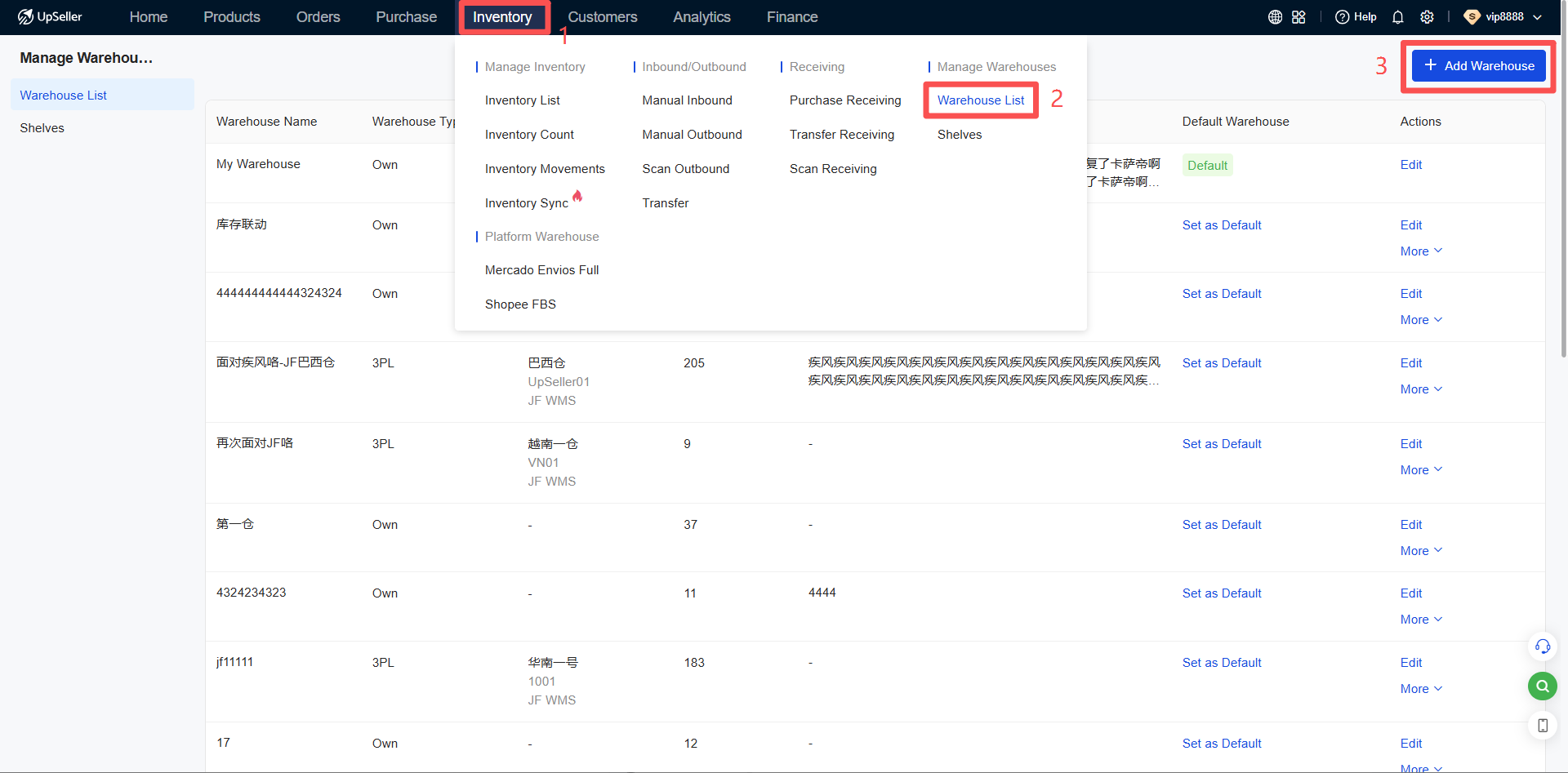
Method 2: Alternatively, you can also click on the "Inventory" module > Warehouse Management > Warehouse List, and then click "Add Warehouse".
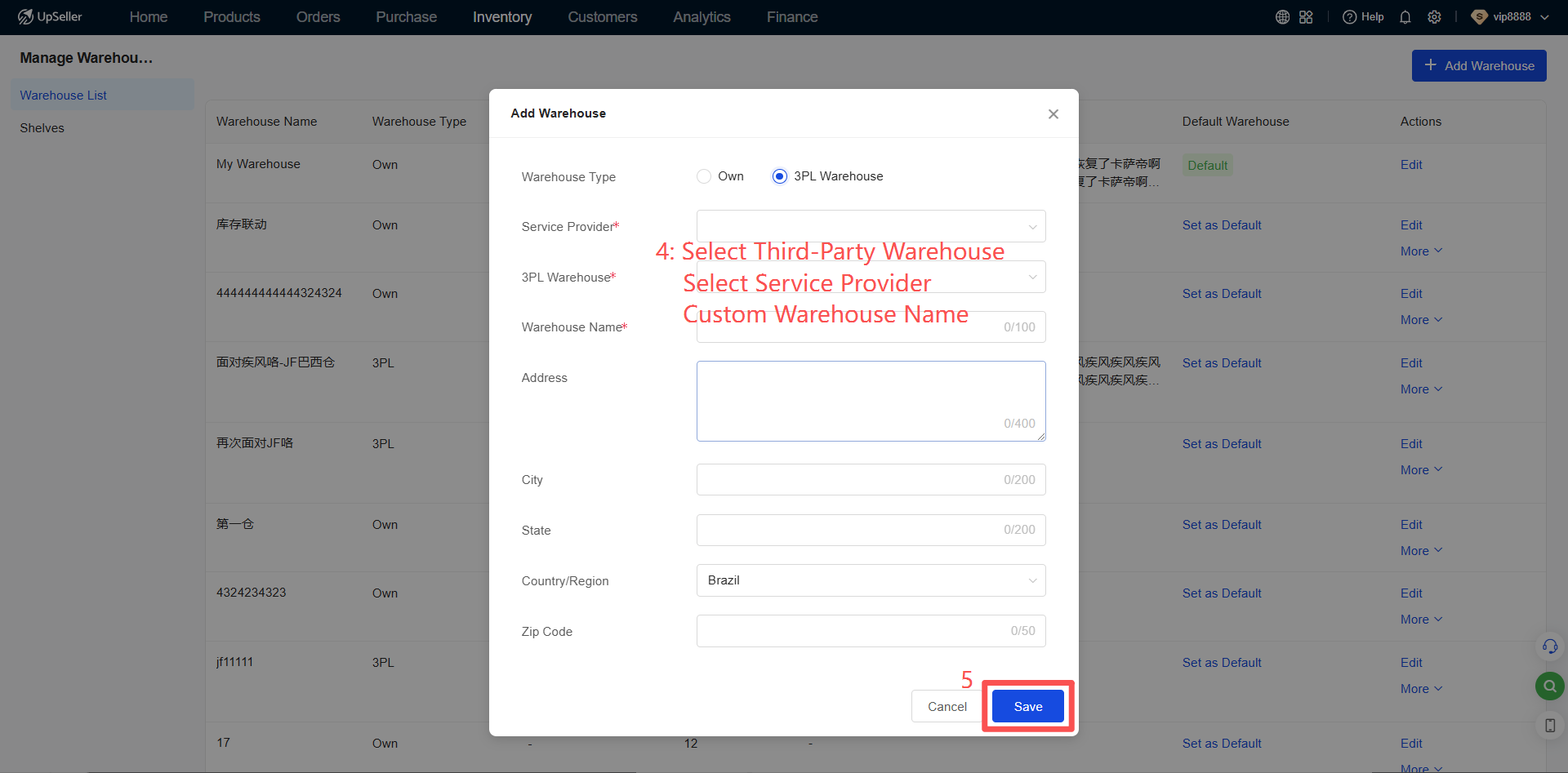
(2) Complete Authorization Information
Complete the authorization information >> Click "Authorize" to finalize the third-party warehouse authorization.
Note:
Nickname: Used only within UpSeller. It can differ from the actual third-party warehouse name for easier identification and management.
Email: The registered email of the third-party warehouse, not the UpSeller registration email.
(3) Obtain Credentials
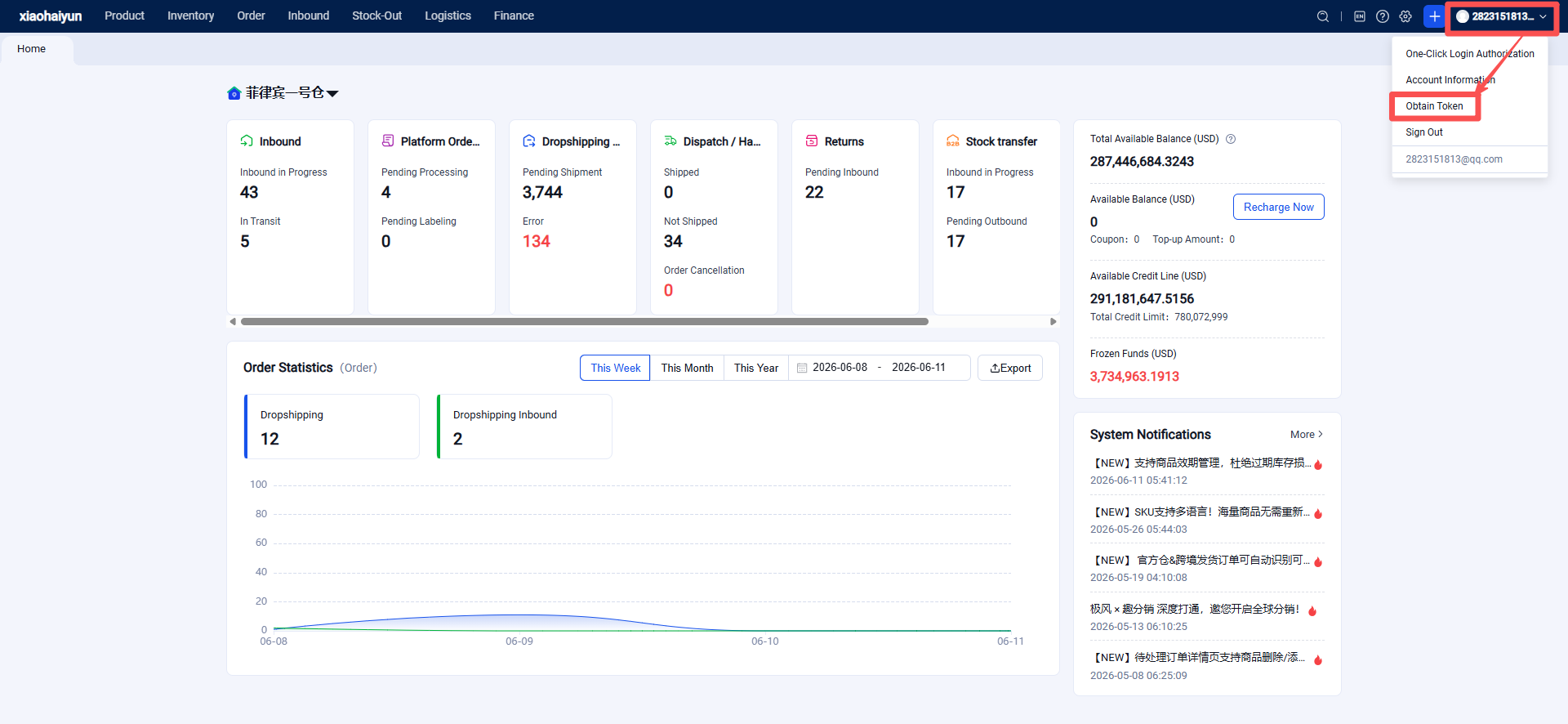
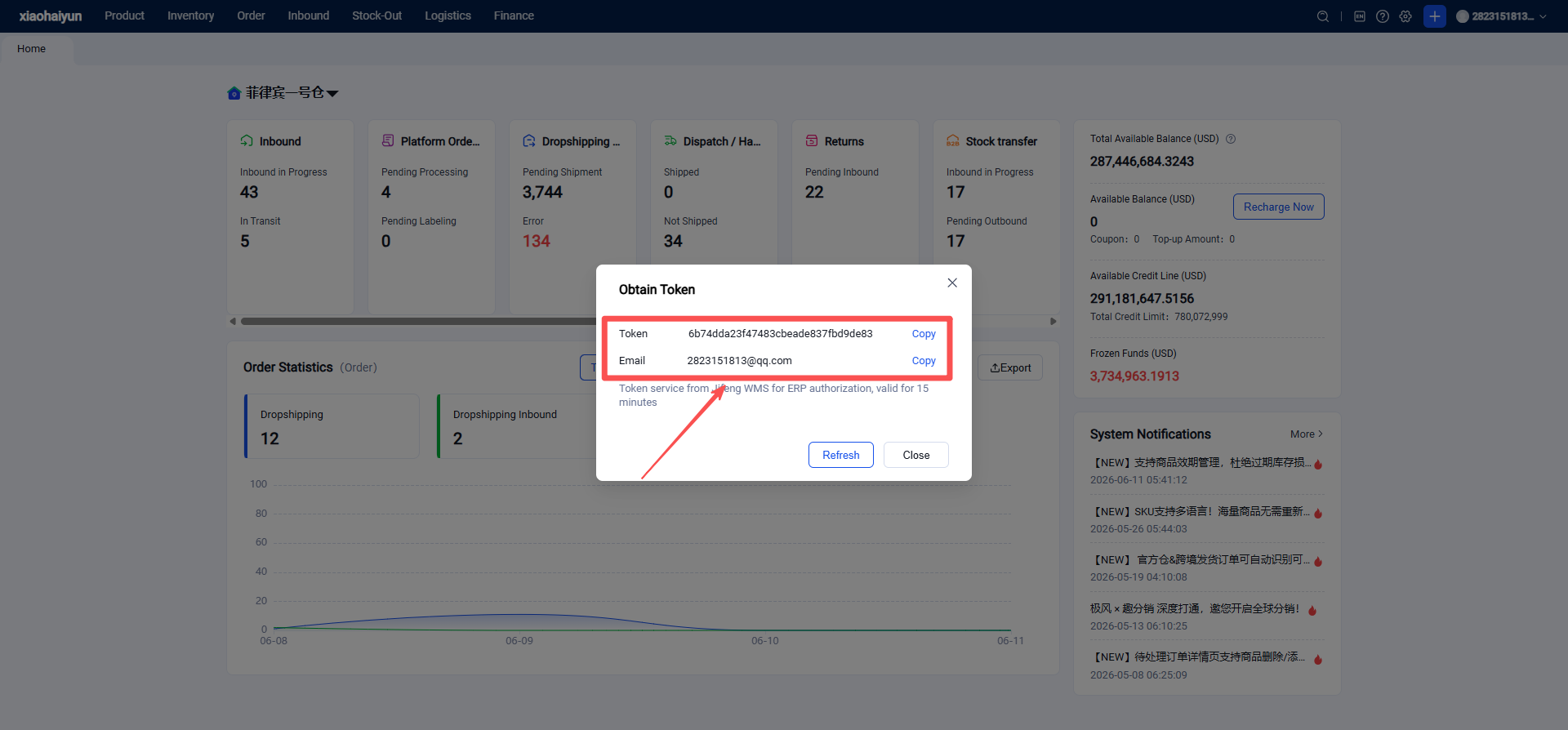
Token: The Token must be obtained from the third-party warehouse. As shown in the figure below, the seller logs into Jifeng OMS to retrieve the Token.
Step 2: Seller Claims Distribution Products in the OMS
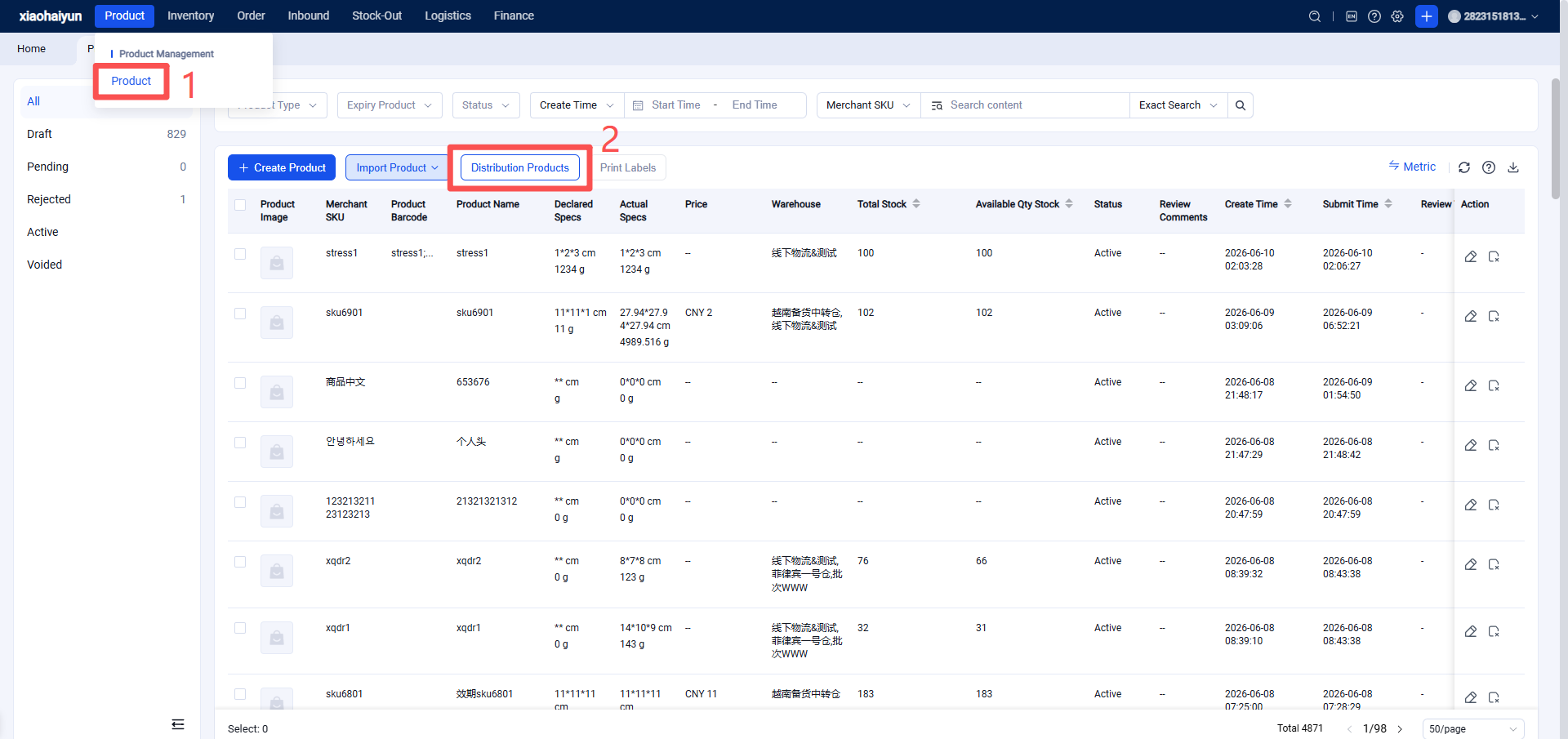
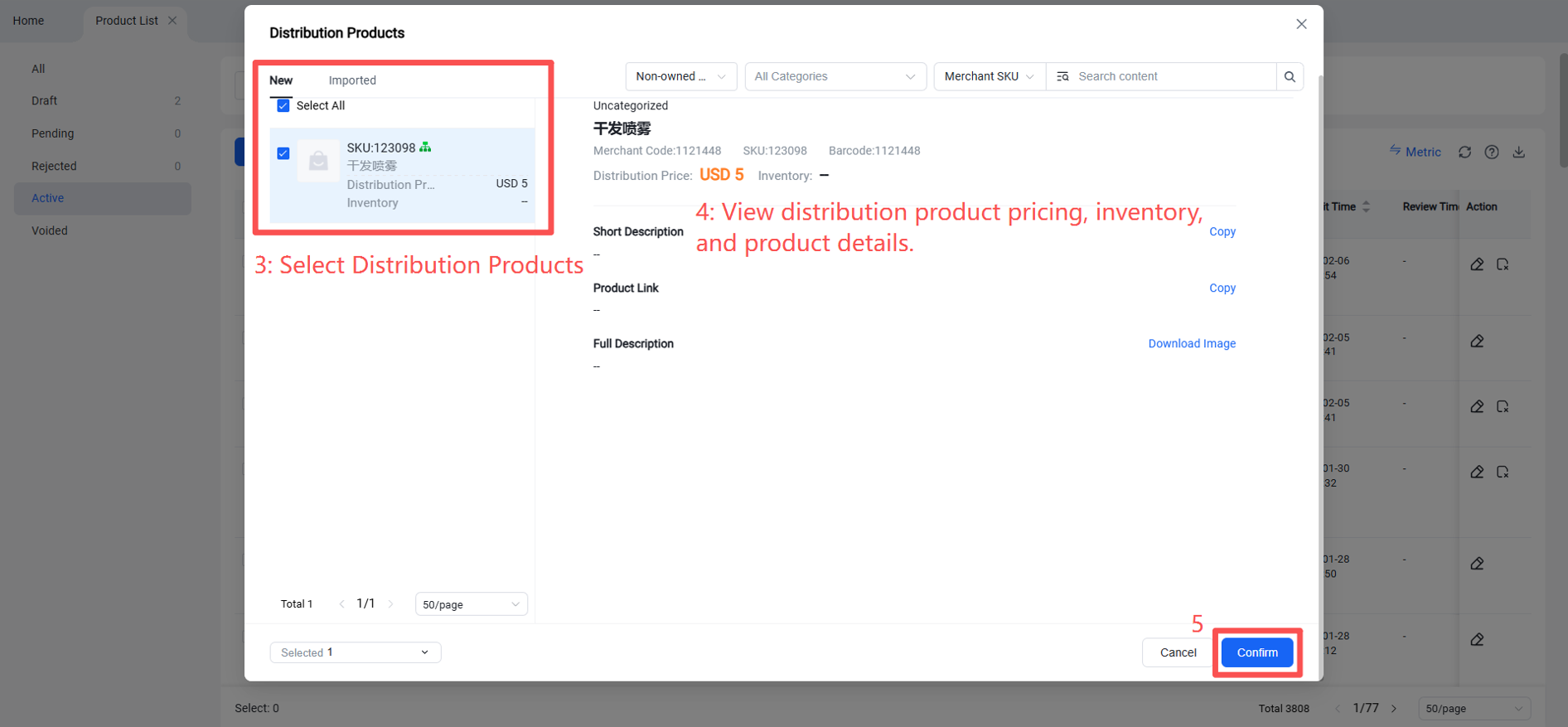
Step 3: Seller creates an SKU in Upseller that is identical to the distribution product.
Upseller > Products > Product List > Create Product > The created product SKU must be exactly the same as the SKU of the claimed distribution product in OMS.
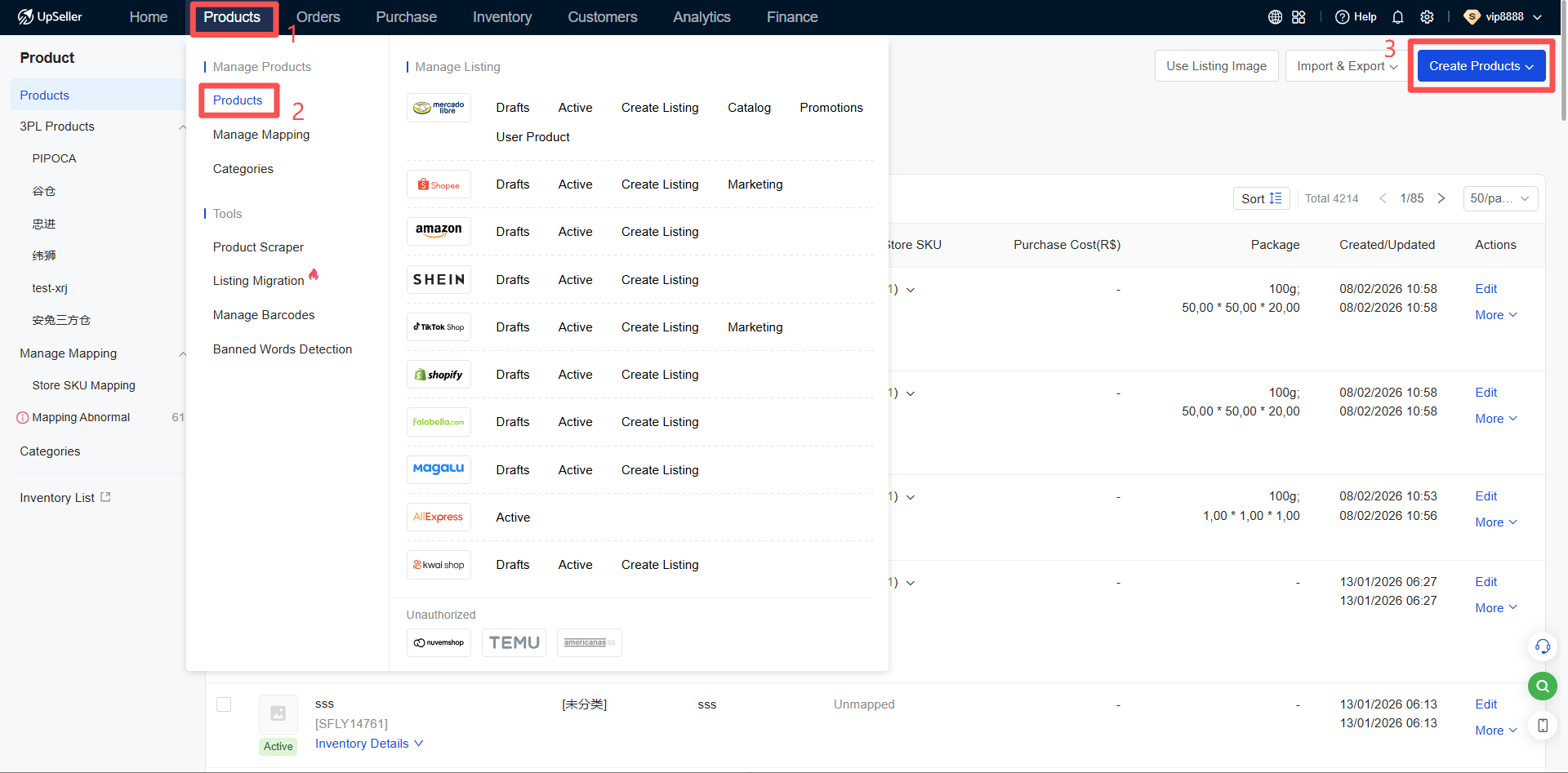
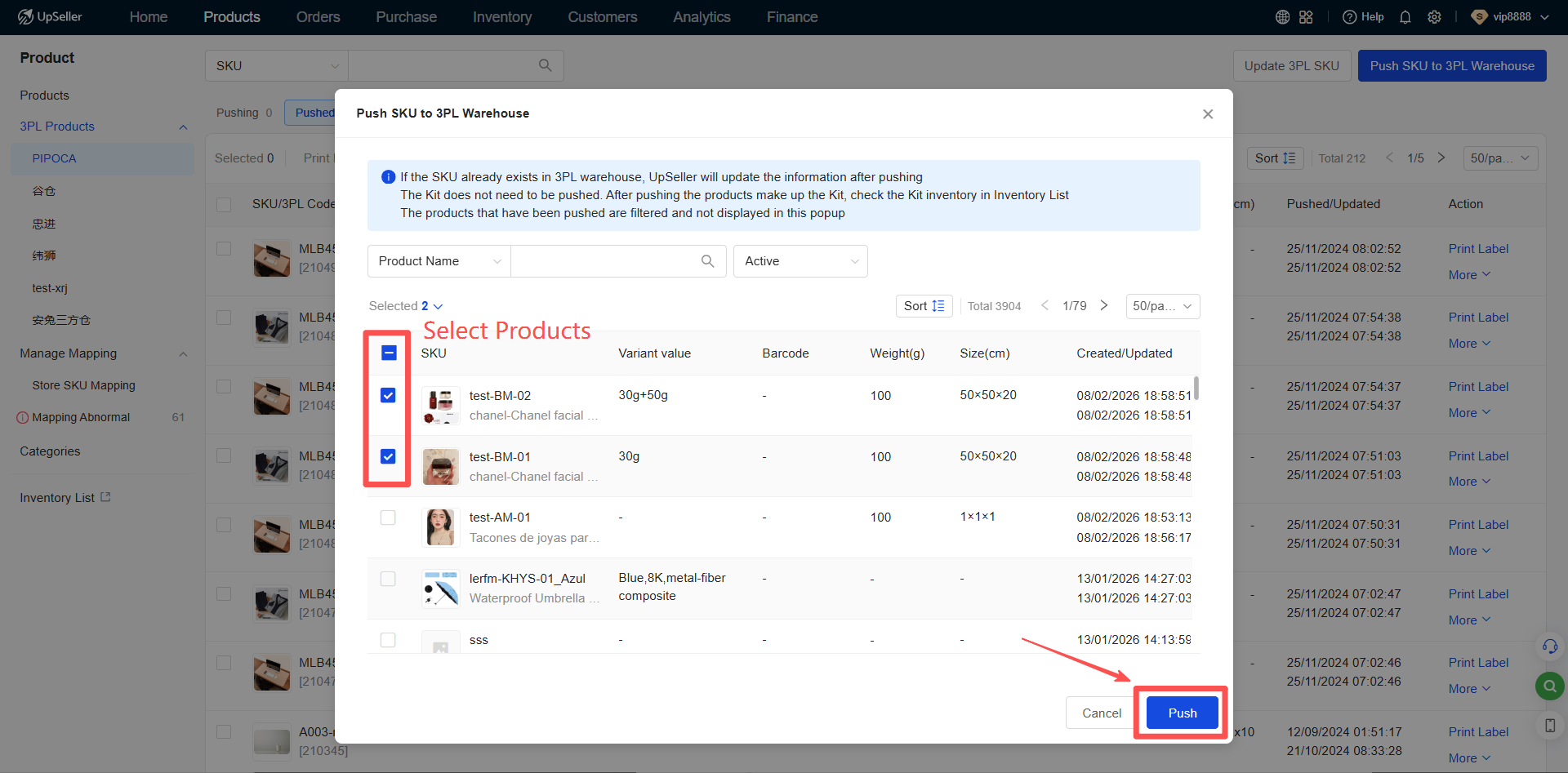
Step 4: Seller pushes the created distribution product SKU from Upseller to Jifeng.
Upseller > Products > Third-Party Warehouse Products > Select the product SKU to be pushed > Click "Push" (This completes the pairing of the Upseller product SKU with the overseas warehouse product).
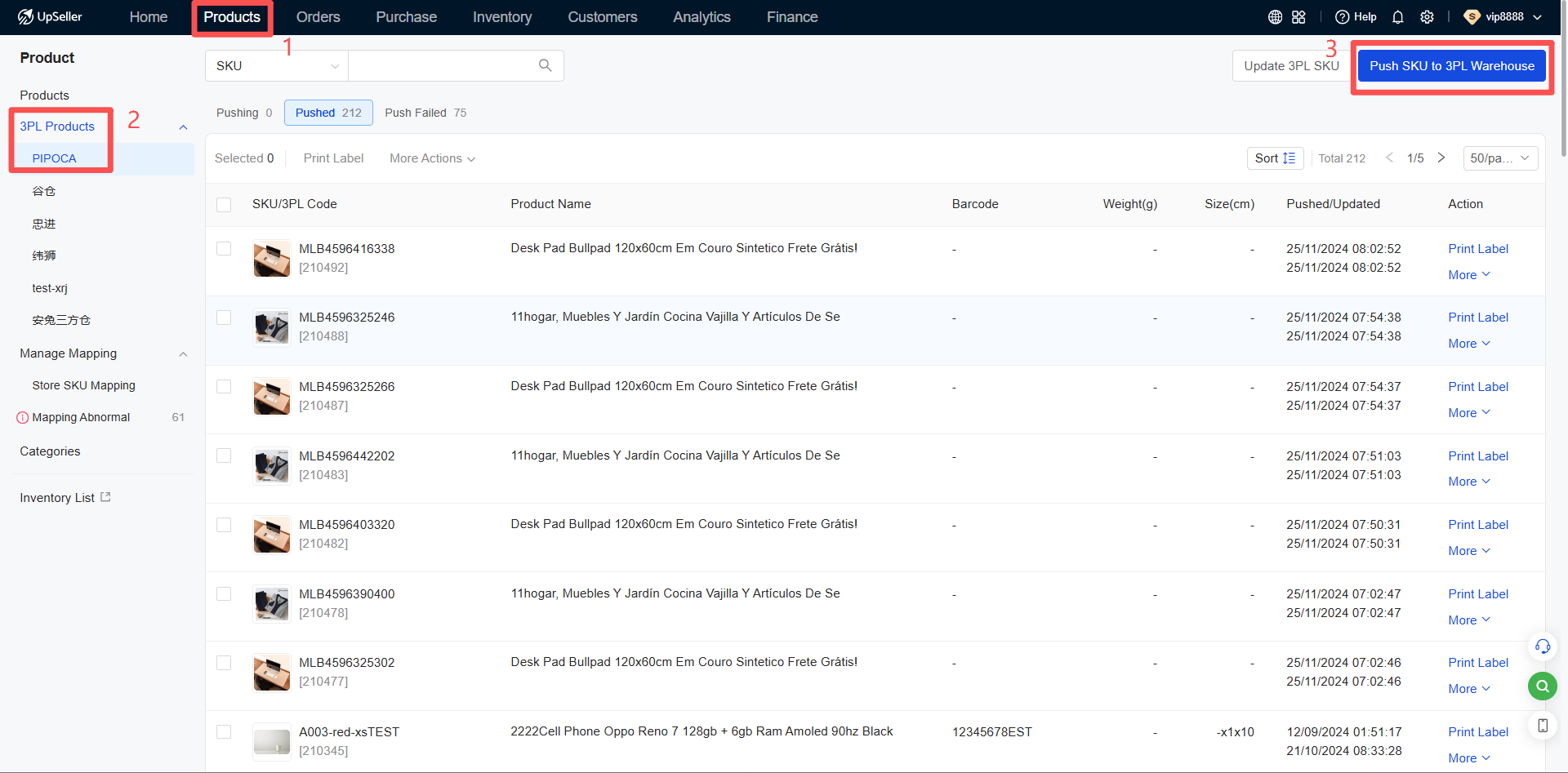
Step 5: Seller processes distribution product orders in Upseller
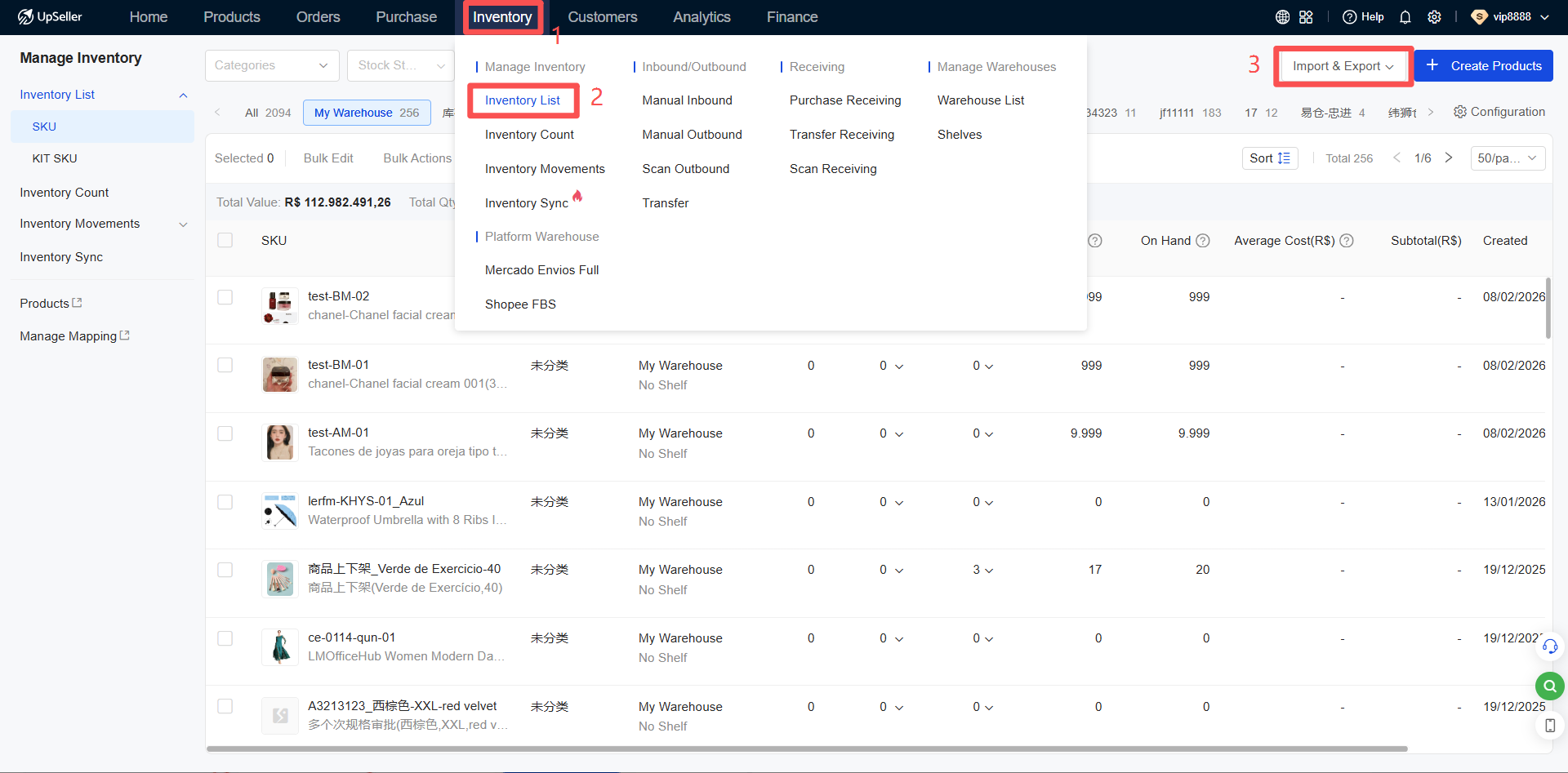
1.Synchronize Overseas Warehouse Inventory
Synchronize the distribution product inventory set in the overseas warehouse's WMS to Upseller to avoid displaying insufficient stock when processing orders in Upseller.
Seller logs into Upseller > Clicks the "Inventory" module > Inventory Management > Inventory List > Select the third-party warehouse > Click "Sync Third-Party Warehouse Inventory".
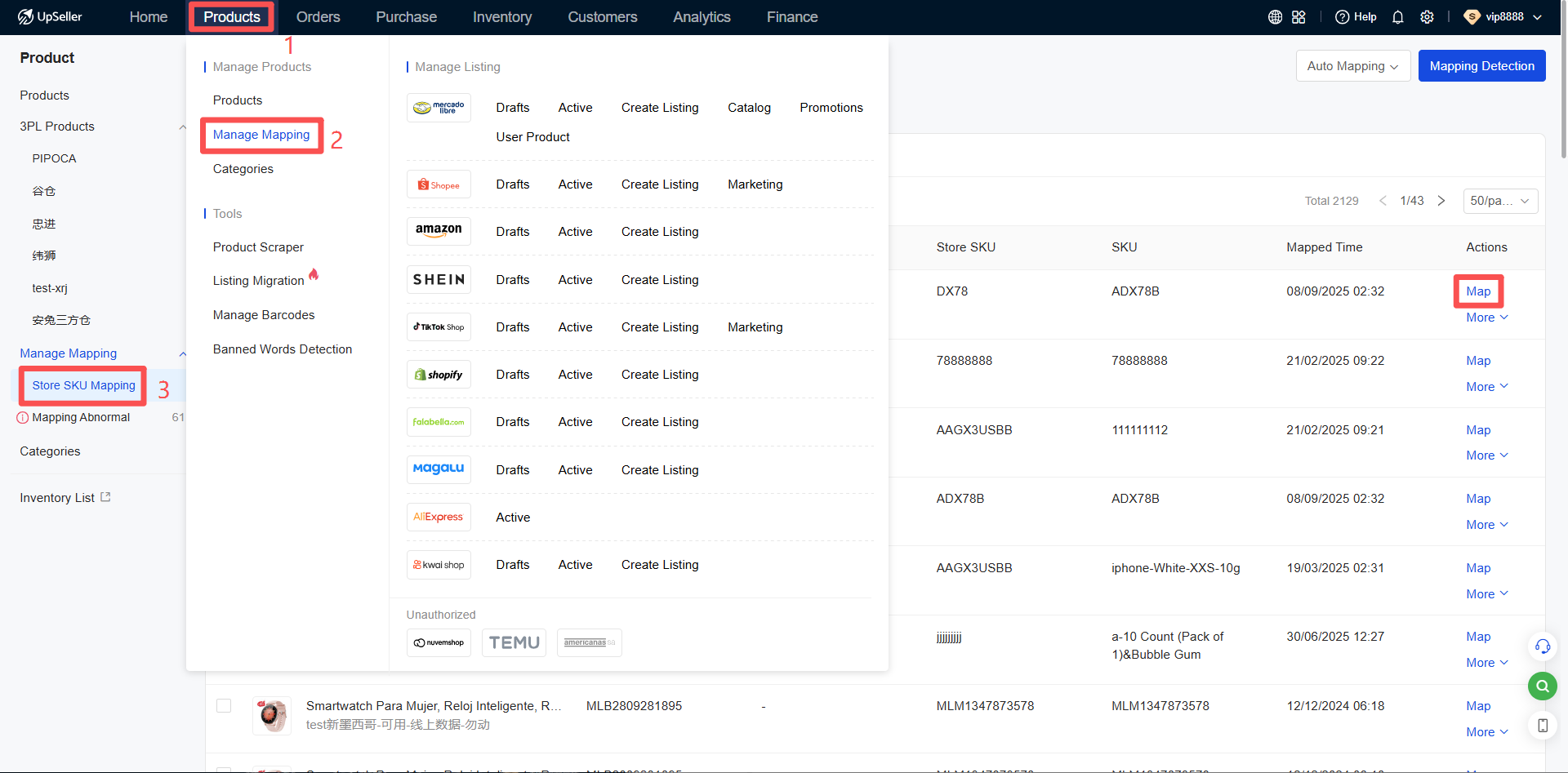
2.Pair the store's listed products with Upseller products.

3.Push Upseller Orders to the Overseas Warehouse
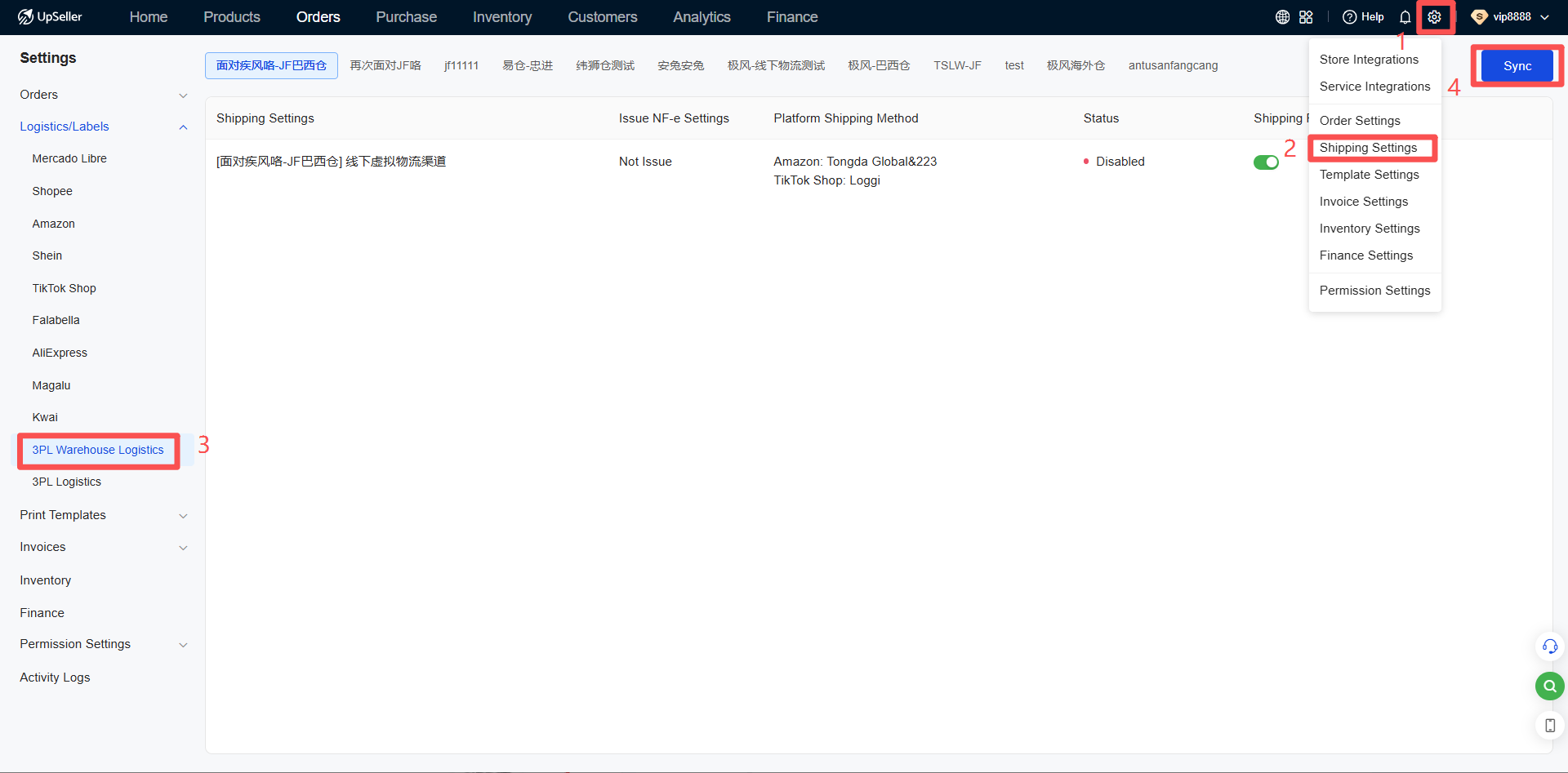
(1) Synchronize Overseas Warehouse Logistics Channels
To process orders using UpSeller, you first need to confirm whether the overseas warehouse has enabled customer logistics channels.
(2) Assign a logistics channel to the order.
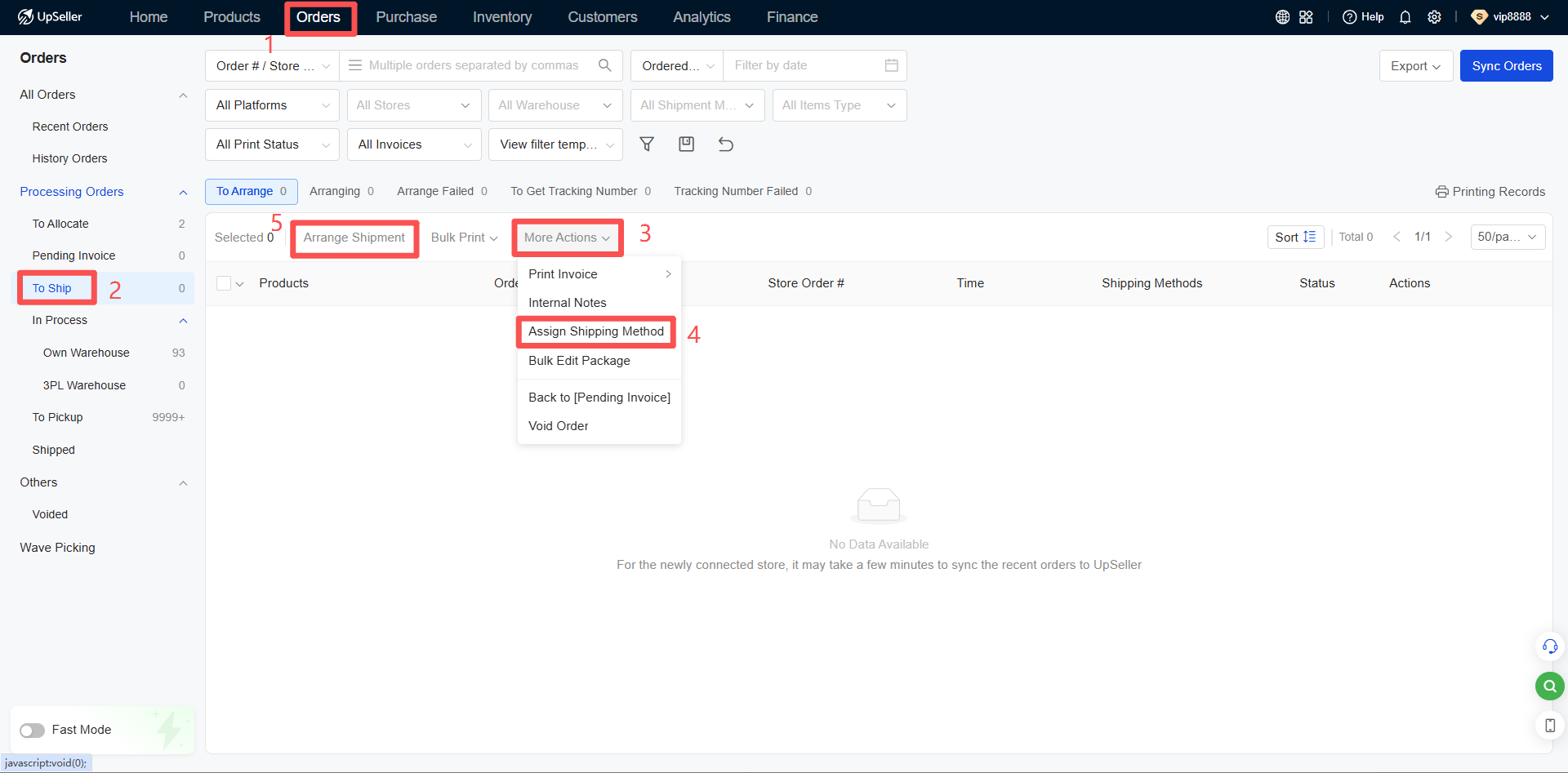
After scheduling the order, it will be automatically pushed to the third-party warehouse. Await processing by the third-party warehouse, after which UpSeller will automatically sync the order's latest status.
Note: Orders already pushed to the third-party warehouse support manual withdrawal. However, please note that orders already shipped by the third-party warehouse do not support withdrawal.