Warehouse Shipment: Order Shipping Mark Configuration
I. Definition
To reduce warehouse workload and improve shipping efficiency, the following shipping options are available for warehouse packing and shipping operations:
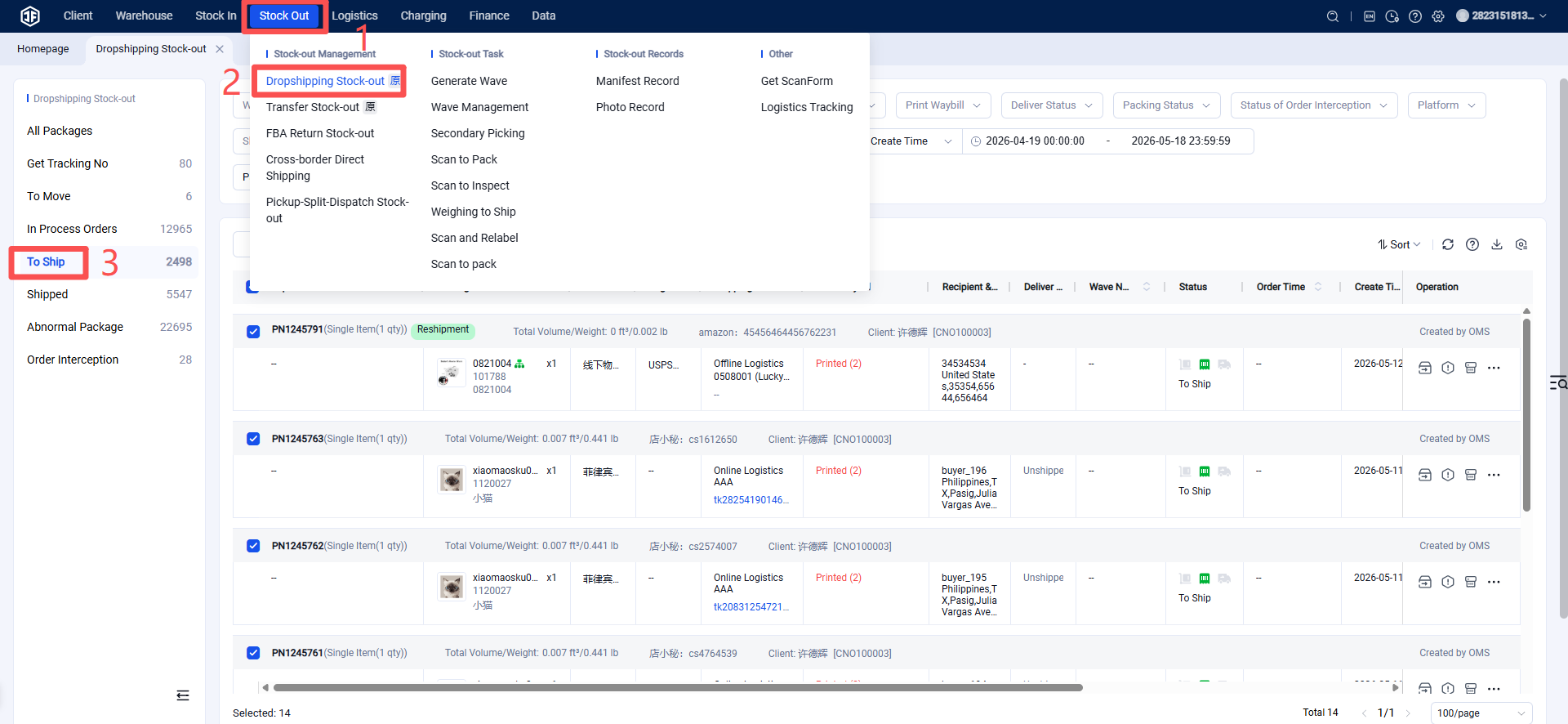
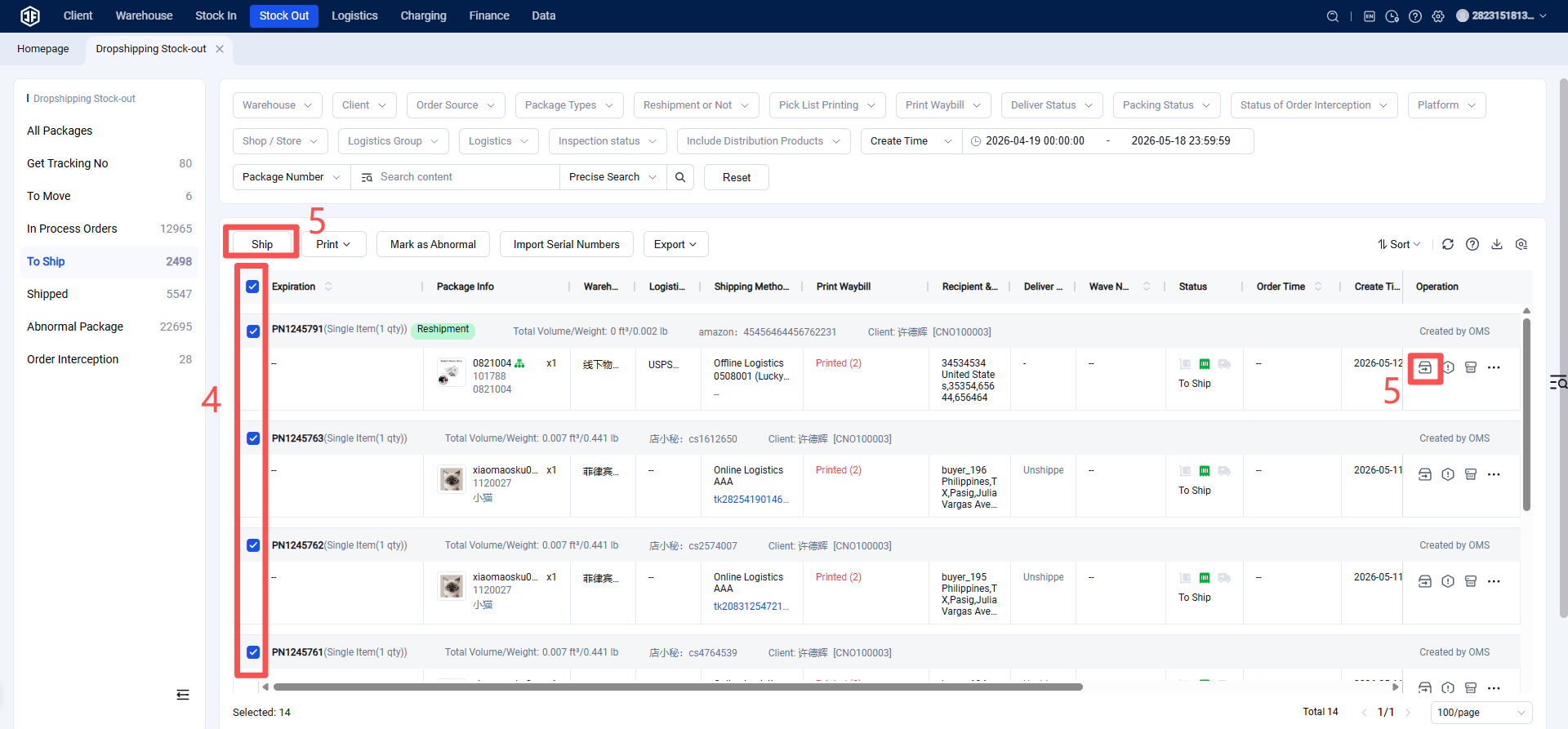
Manual Shipping: Manually mark orders as shipped.
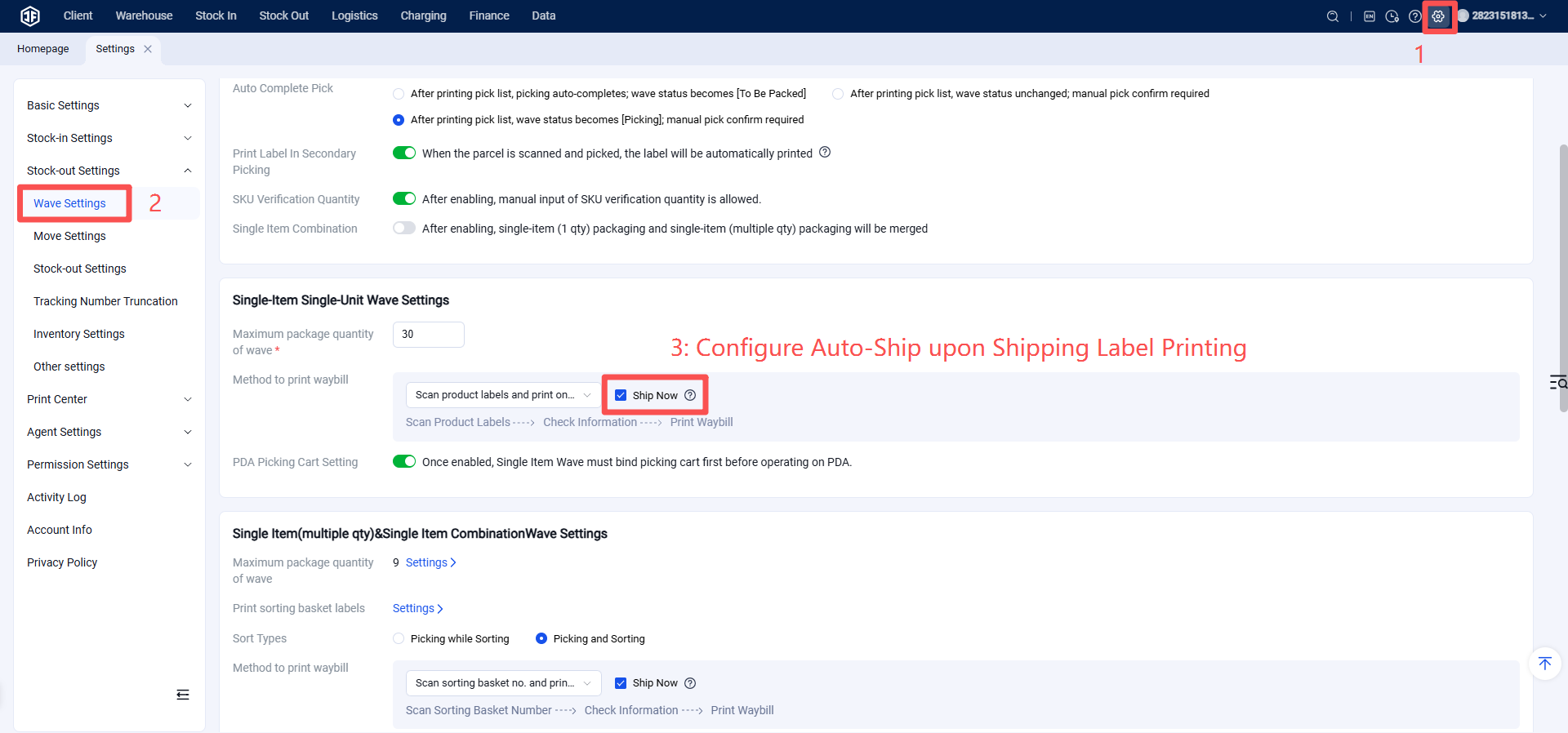
Auto-Ship upon Label Printing: Orders are automatically marked as shipped when the shipping label is printed.
Auto-Ship upon Scan Verification: Orders are automatically marked as shipped upon successful scanning verification.
Scan-to-Ship per Package: Ship each package by scanning its label.
The appropriate shipping mode should be selected based on the overseas warehouse's specific operational scenarios to enhance efficiency while avoiding duplicate shipments.
Note: For all orders, inventory is only deducted and the order status in the seller platform (OMS) is only updated to "Shipped" when the order is marked as shipped. Therefore, it is essential to mark orders as shipped after they are packed.
II. Operational Path
Method 1: Manual Shipping
Method 2: Auto-Ship upon Shipping Label Printing
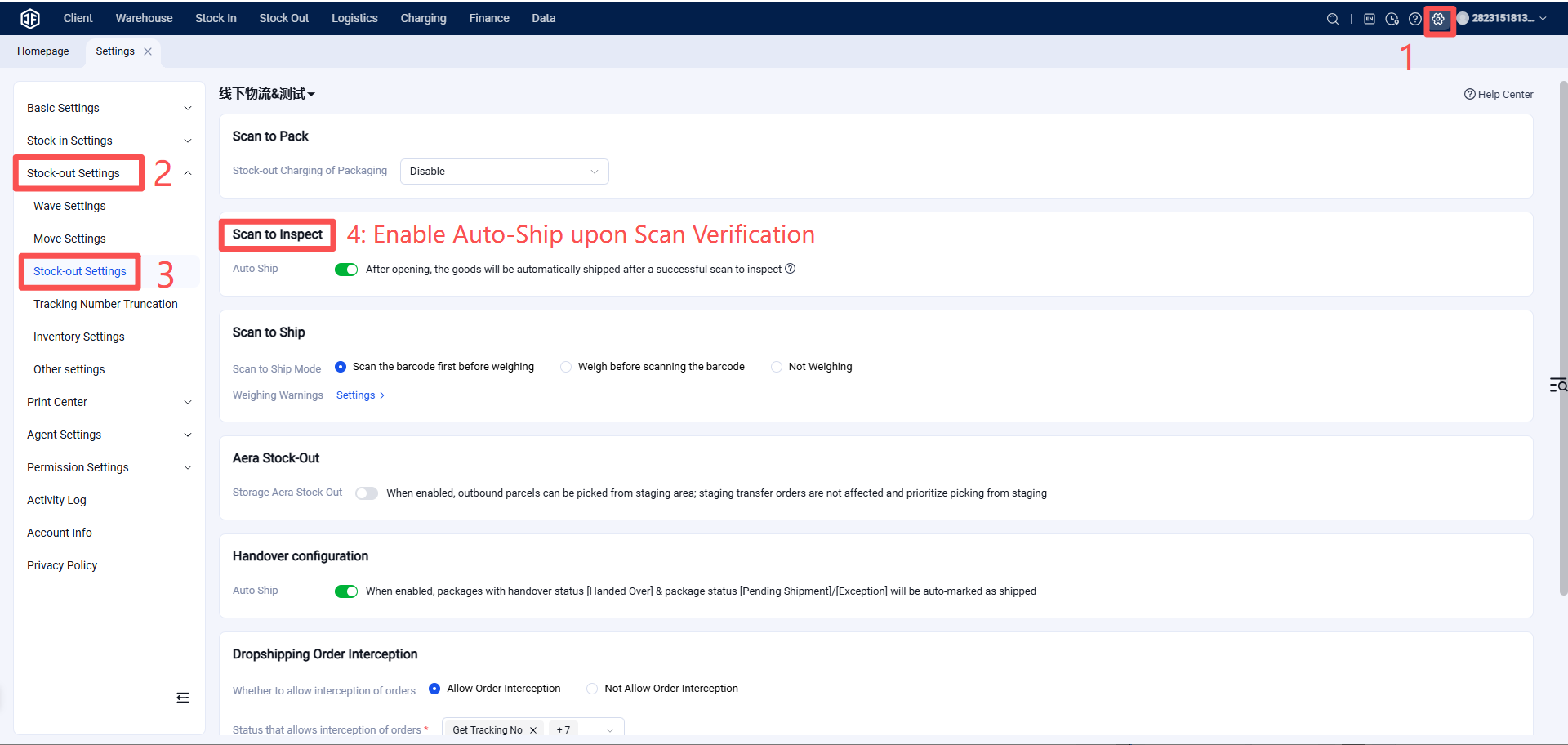
Method 3: Configure Auto-Ship upon Scan Verification
Method 4: Scan to Ship
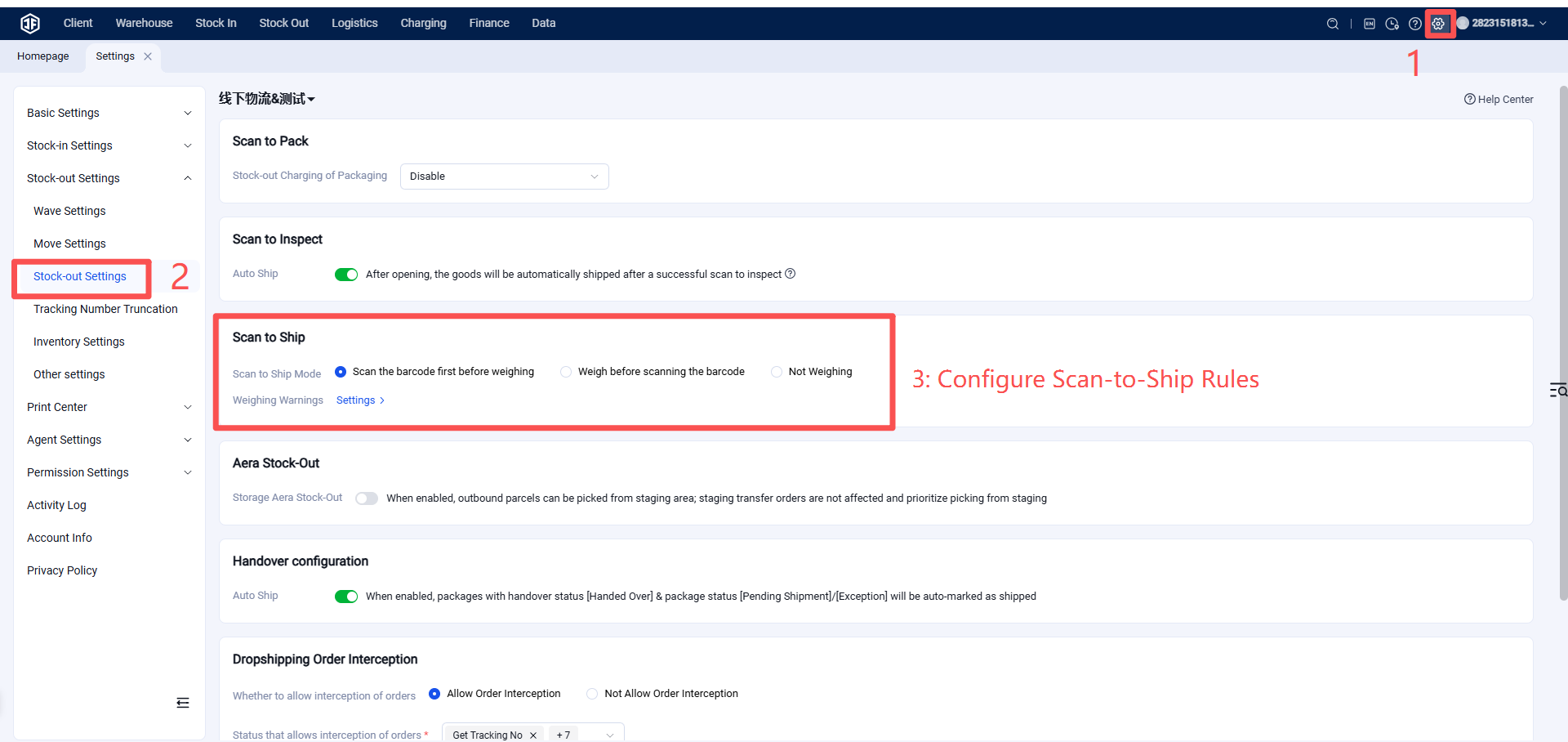
In the Scan to Ship process, there are three scanning modes: Scan Barcode First, Then Weigh; Weigh First, Then Scan Barcode; or No Weighing.
Step 1: Configure Scan to Ship Rules
Settings > Business Settings > Outbound Settings > Scan to Ship > Choose: Scan Barcode First, Then Weigh / Weigh First, Then Scan Barcode / No Weighing.
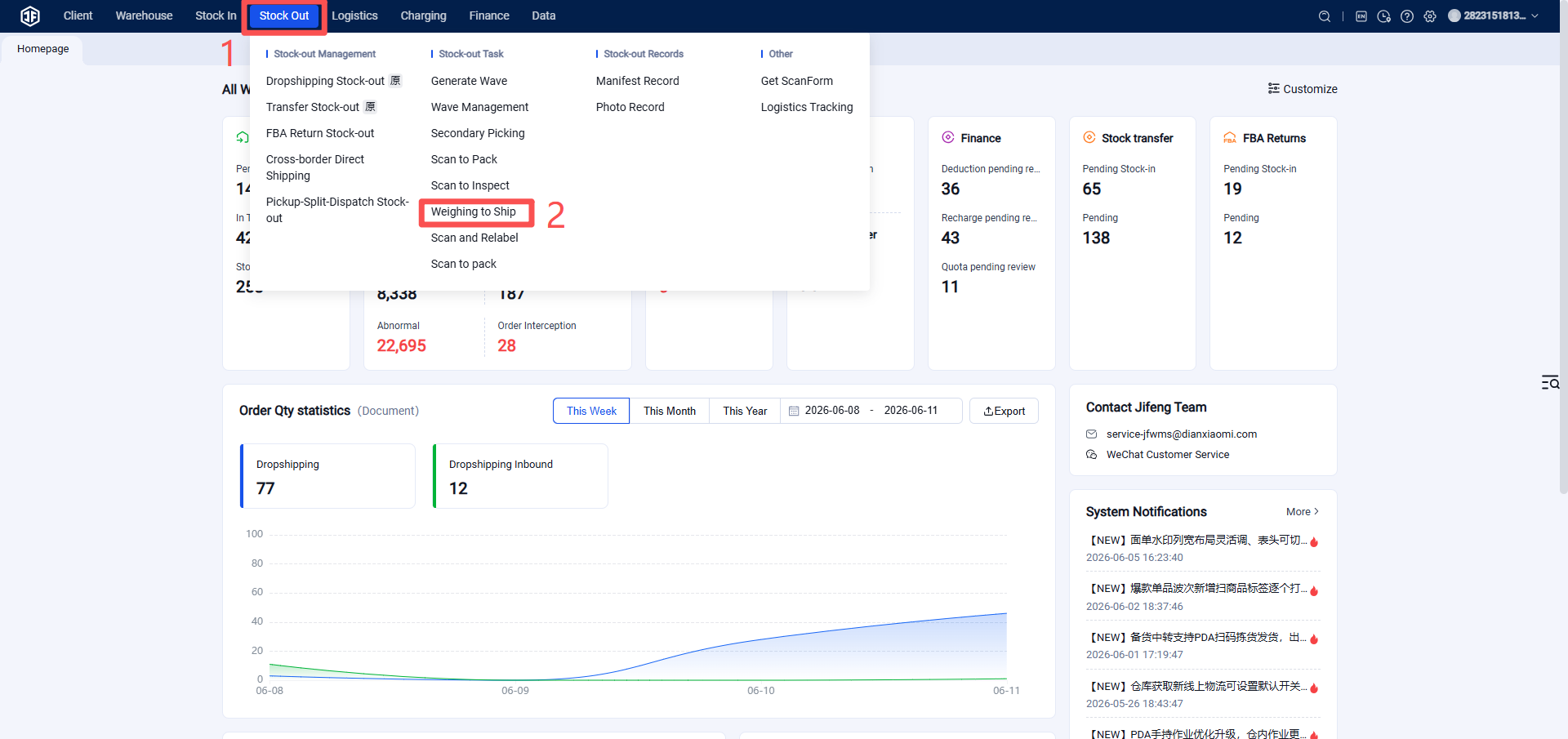
Step 2: Scan to Ship Operational Path: Outbound > Scan to Ship > Scan Package
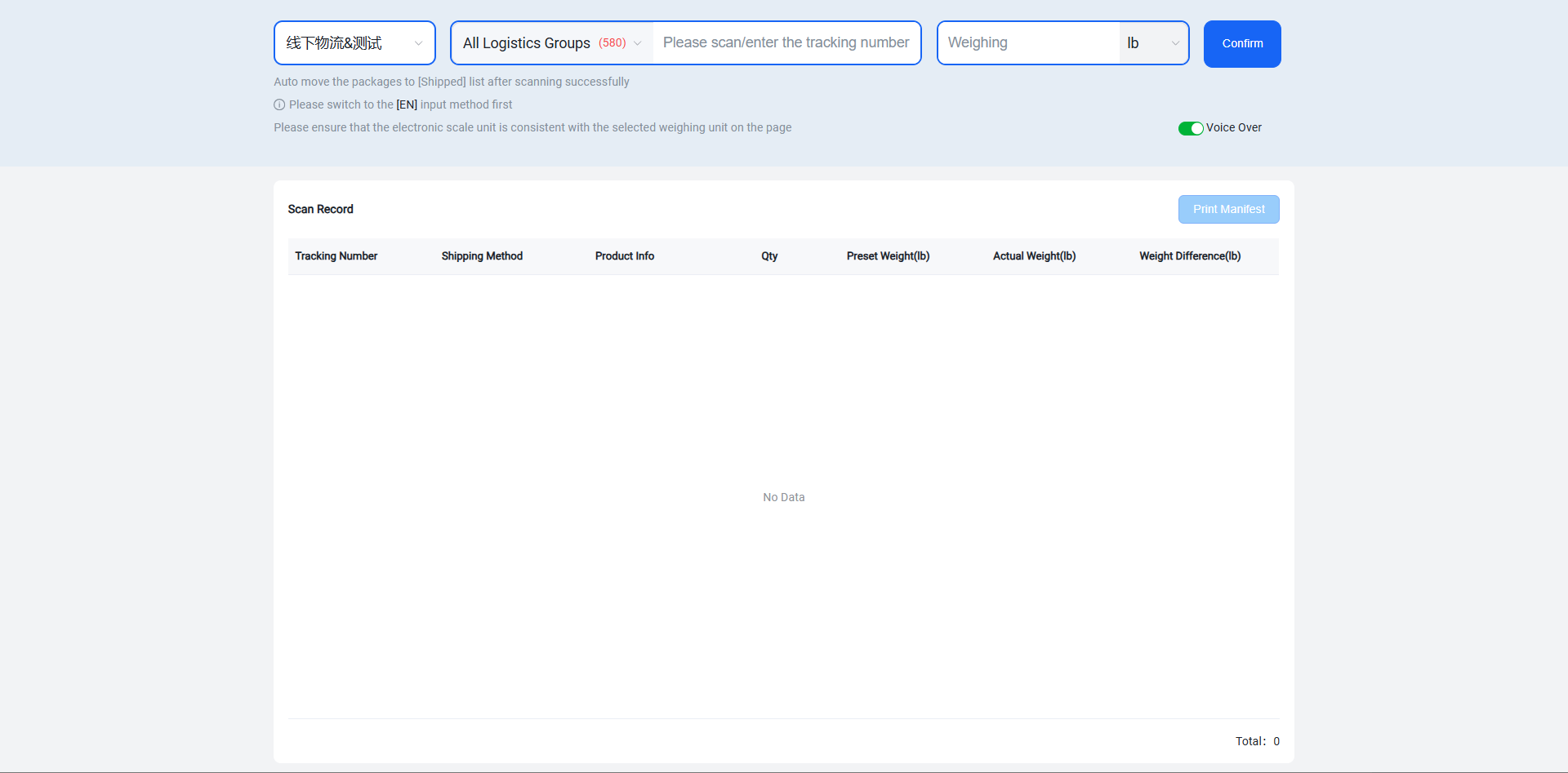
Scan Barcode First, Then Weigh
(1) Step 1: Scan the shipping label barcode. (2) Step 2: Weigh the package and confirm the weight.
Weigh First, Then Scan Barcode
(1) Step 1: Weigh the package. (2) Step 2: Scan the barcode.
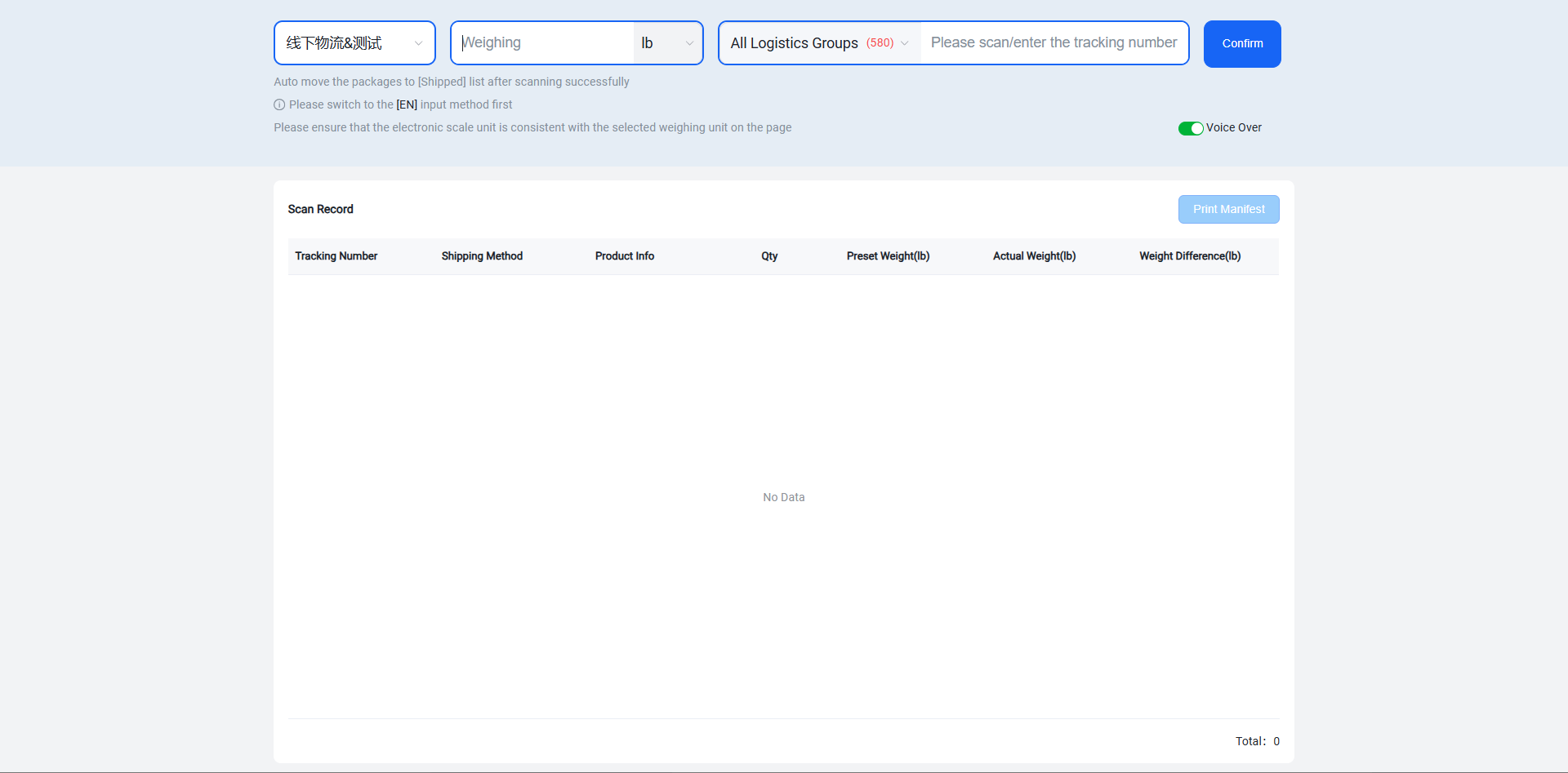
(1) Warehouse: A warehouse can be selected or left unselected. However, once a package is scanned and its associated warehouse is identified, the warehouse option will be locked and cannot be changed. After all packages for that warehouse have been scanned and processed, you can refresh the page to switch warehouses.
(2) Weighing: A scale can be connected. Placing the package on the scale will automatically populate the weight field.
No Weighing
(1) Step 1: Scan the barcode. A successful scan completes the shipment process.
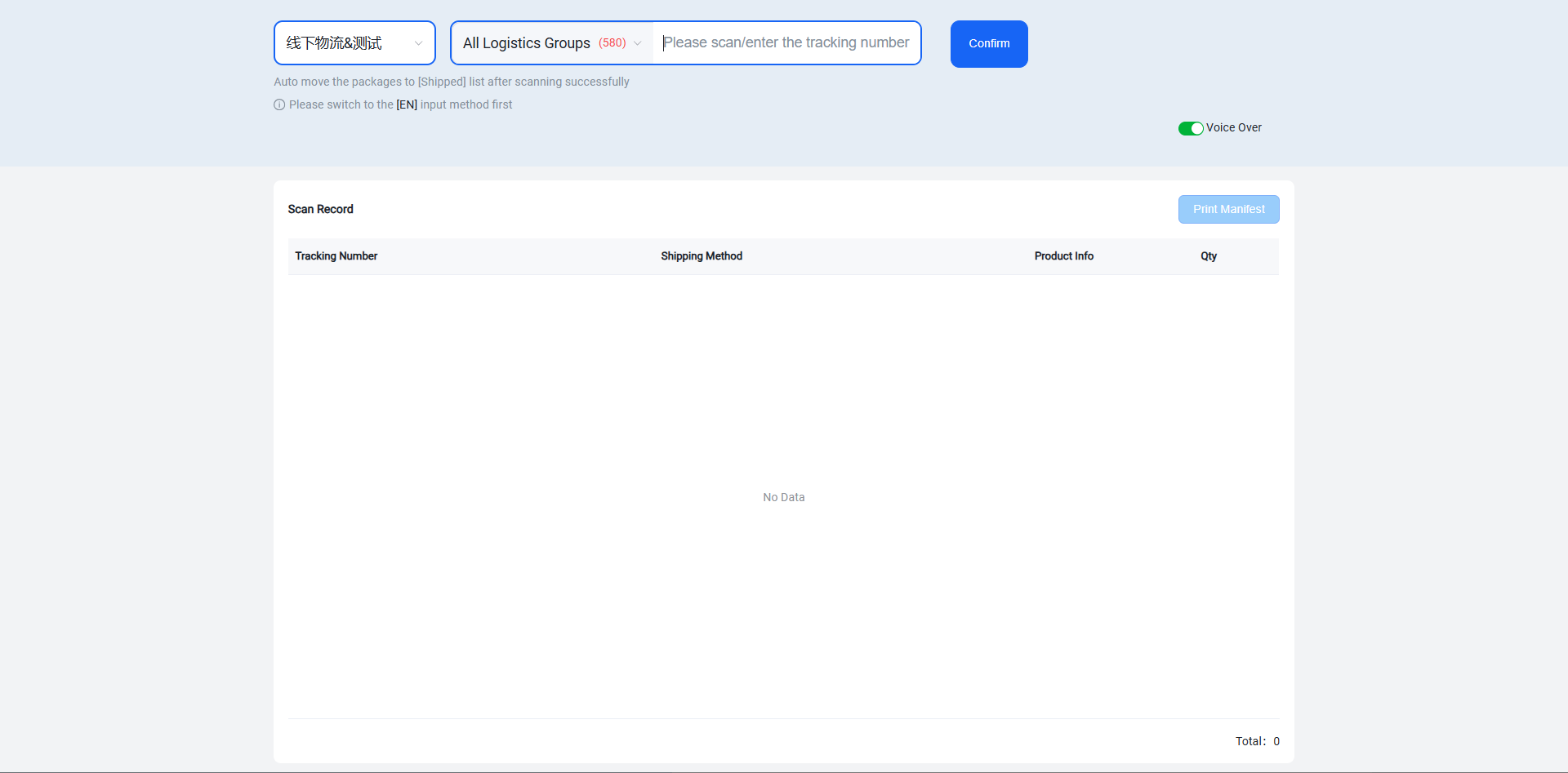
A scan record is generated upon successful shipment.
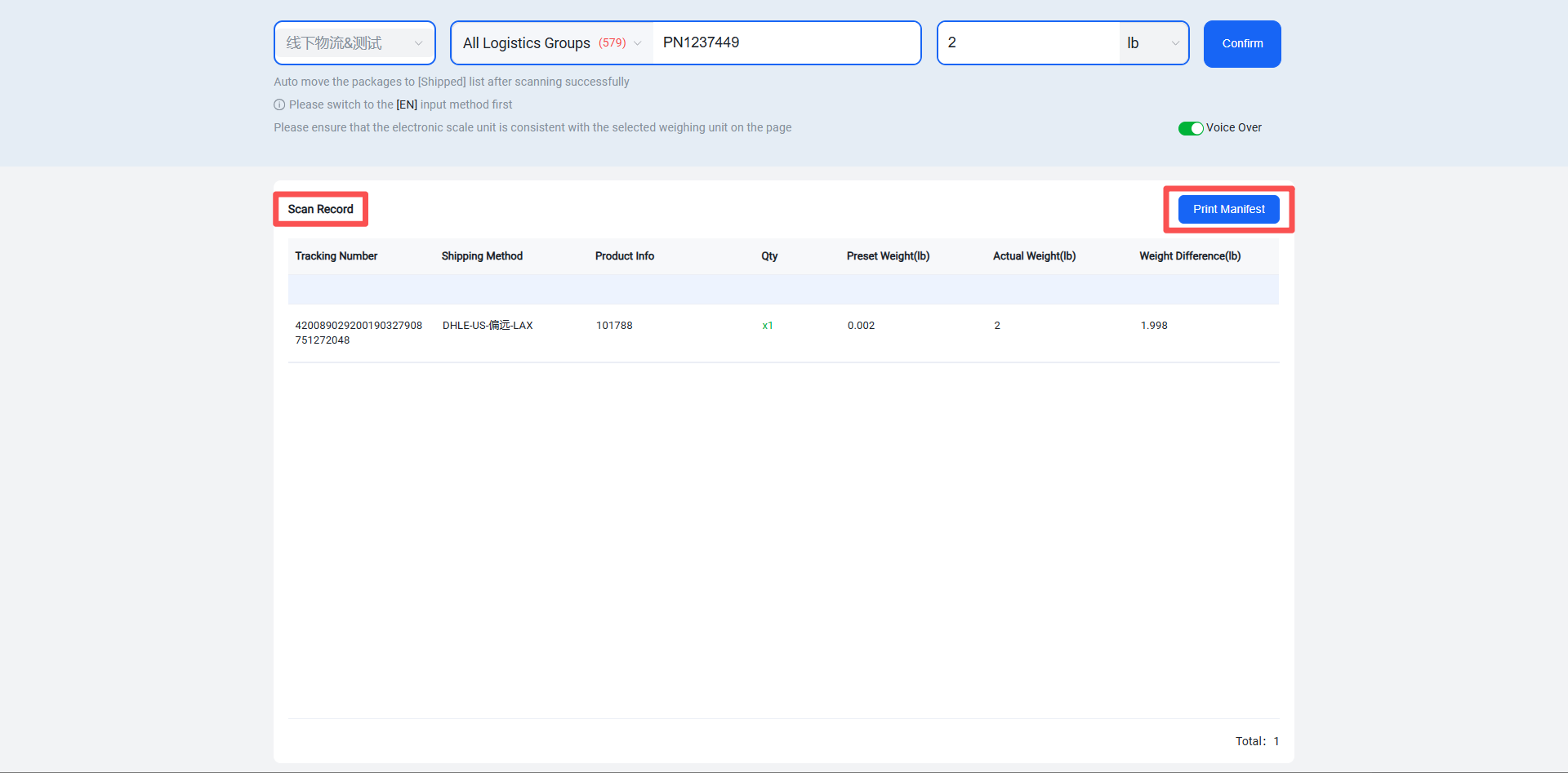
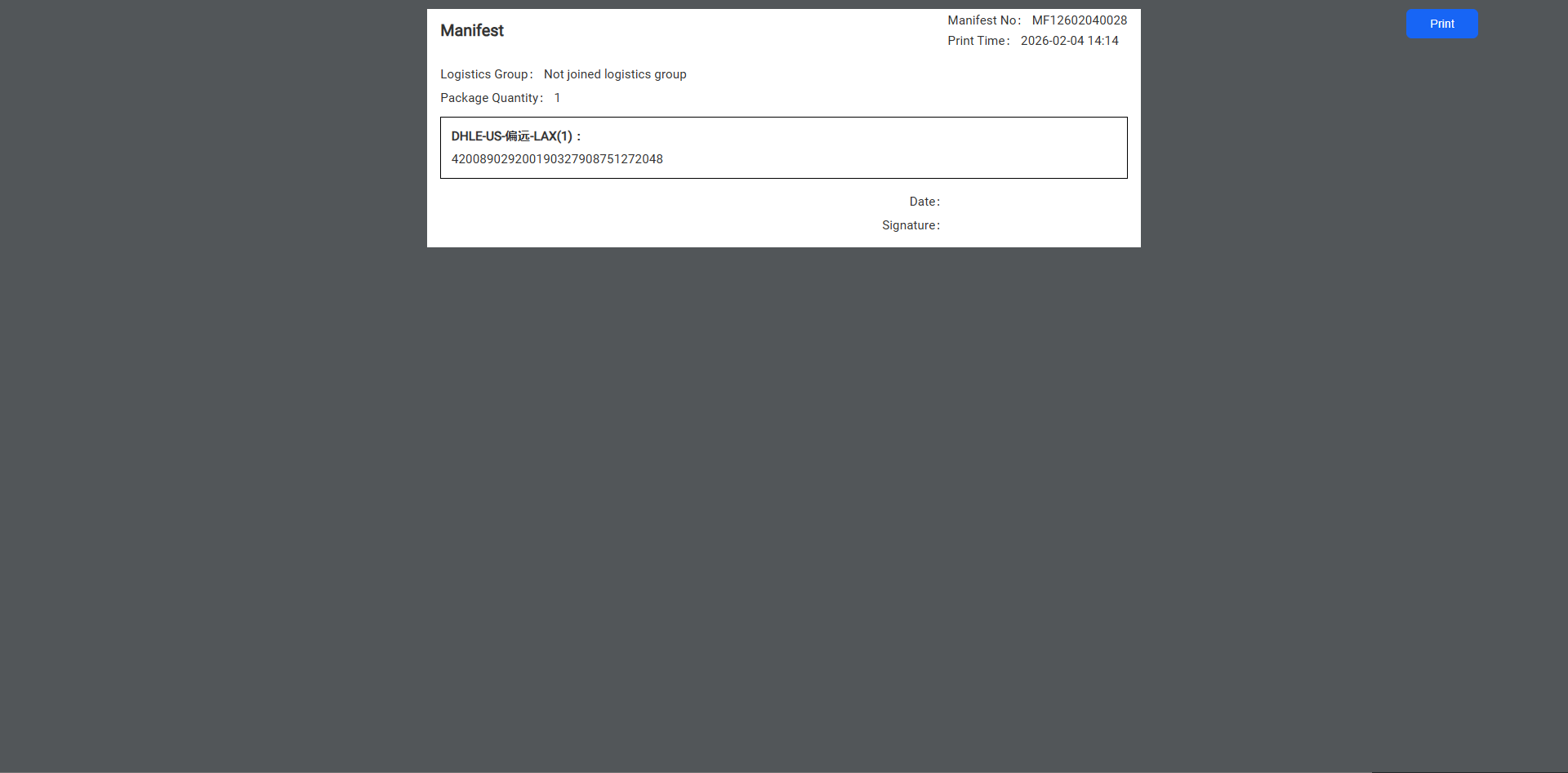
If required, a proof of delivery (POD) can be printed after completing the scan-to-ship process. This document can be signed by the courier upon pickup to serve as proof of shipment.