Shipping Label with SKU Overprint: Fast Order Processing and Shipment
I. Definition
Simplified order processing involves printing shipping labels with SKU and shelf location watermarks. Picking is done based on the SKU and shelf location on the label, followed by packers packaging the items and directly affixing the labels.
Note: There are two methods for adding SKU watermarks to shipping labels:
Method 1: The shipping label can include SKU and shelf location information in a designated area, based on the logistics channel.
Method 2: Use label scaling, where multiple logistics channel labels are scaled down, and SKU and shelf location information is added to the resulting blank space.
II. Operational Path
Step 1: Configure Adding SKU to Shipping Labels
Method 1: Add SKU Information to a Single Logistics Channel Label
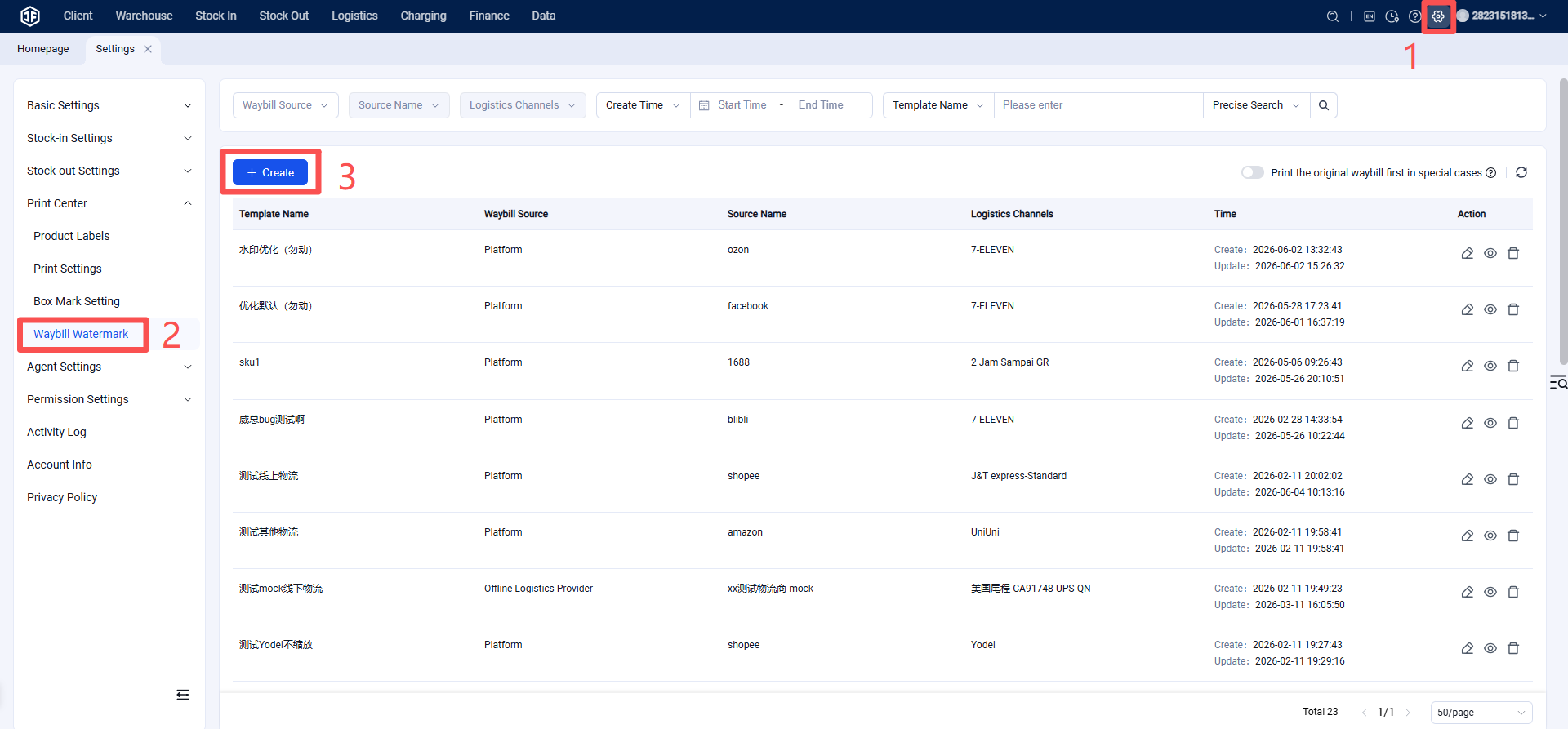
Warehouse WMS > Logistics > Shipping Label Watermark > Create New > Enter template name, select label source, logistics provider, and channel information > Upload logistics channel label template > Configure watermark template or customize watermark > Save.
Method 2: Add SKU Information by Scaling Multiple Channel Labels
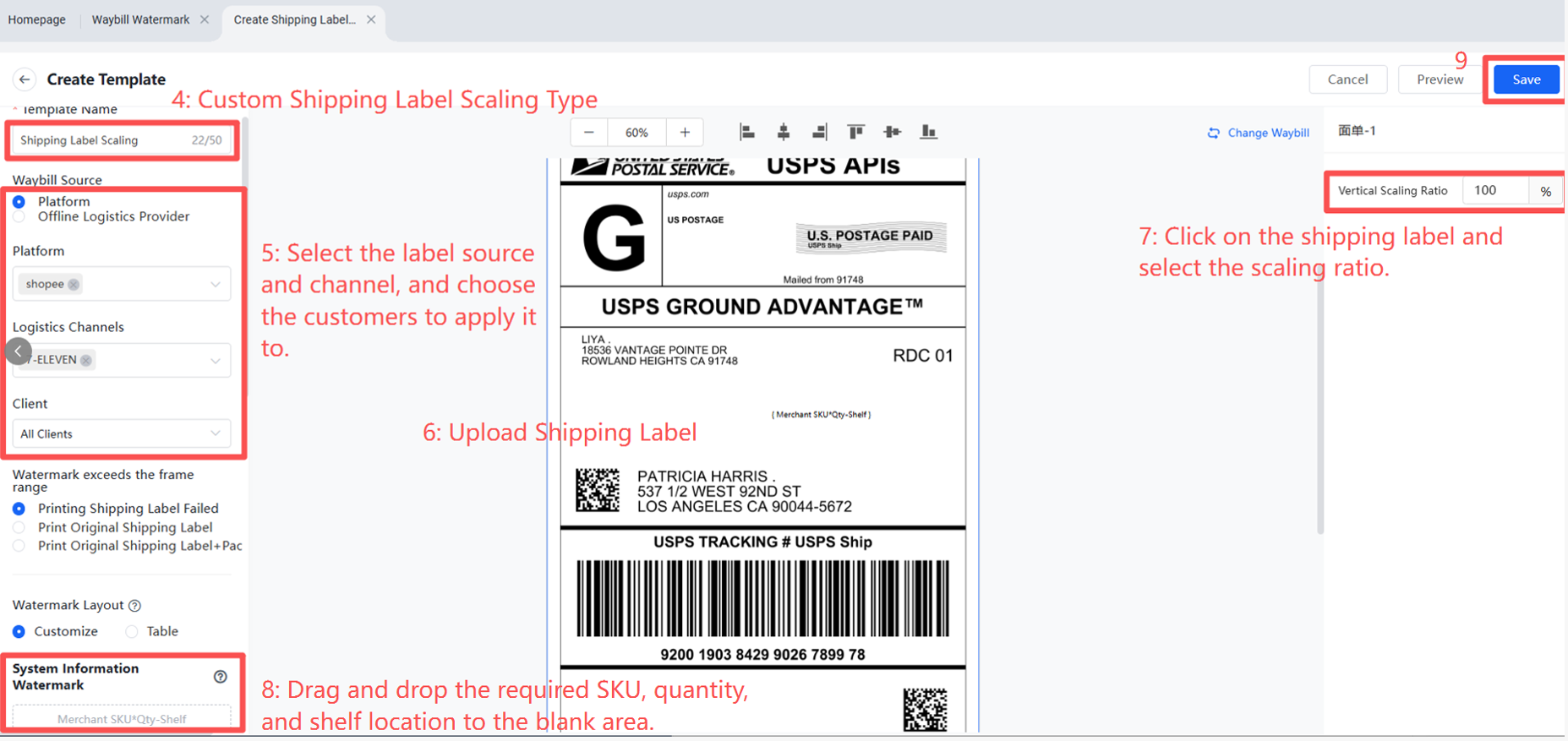
Warehouse WMS > Logistics > Shipping Label Watermark > Create New > Select Custom Label Scaling Type > Choose label source and channel(s) > Upload labels, scale labels > Add watermark(s) > Save.
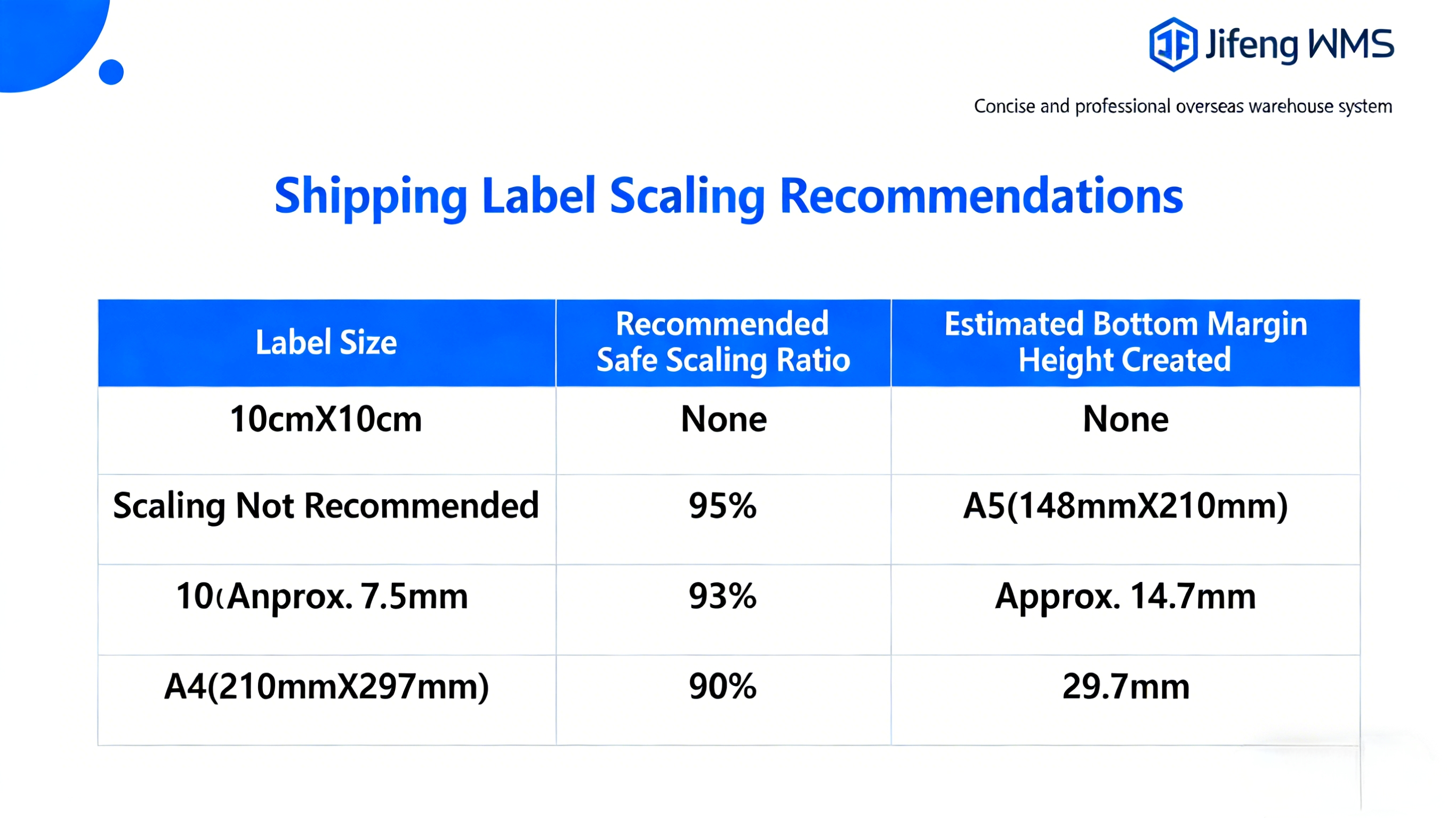
Step 2: Launch the Print Plugin
Step 1: Launch the Print Plugin
If the print plugin is not installed, you can download it by clicking the link below:
Print Plugin Download Link: https://download.jfwms.com/print/plugin/JFPrinter.msi
After installing the print plugin, double-click to launch it.
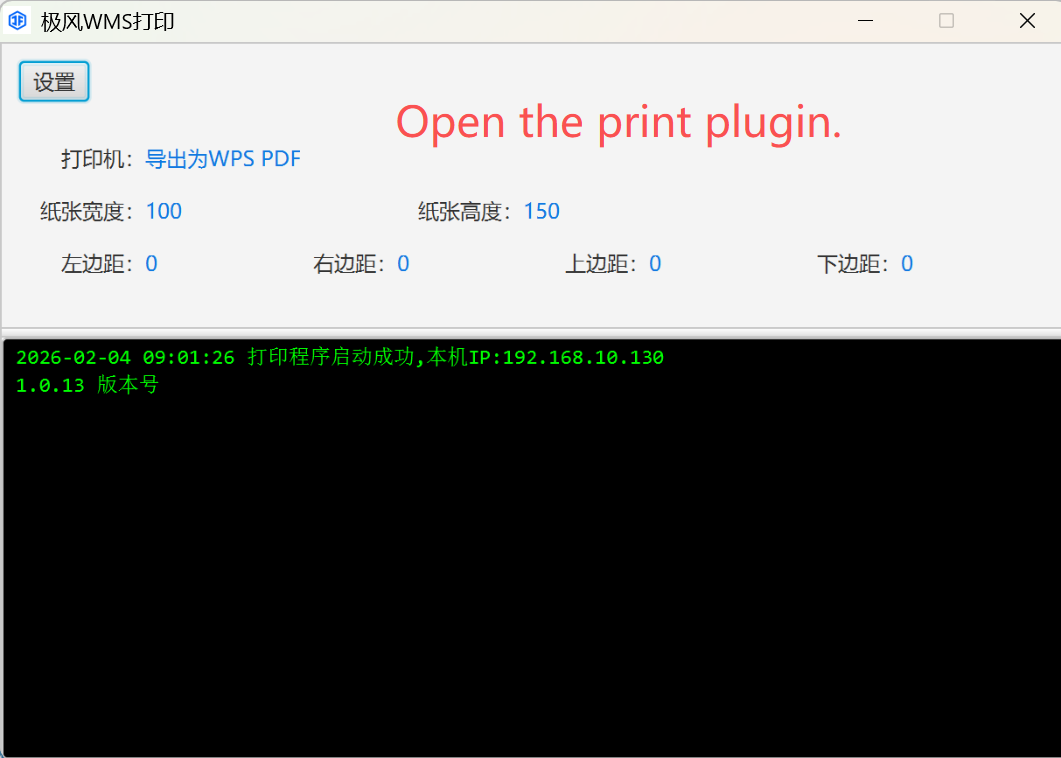
Step 3: Print Shipping Labels
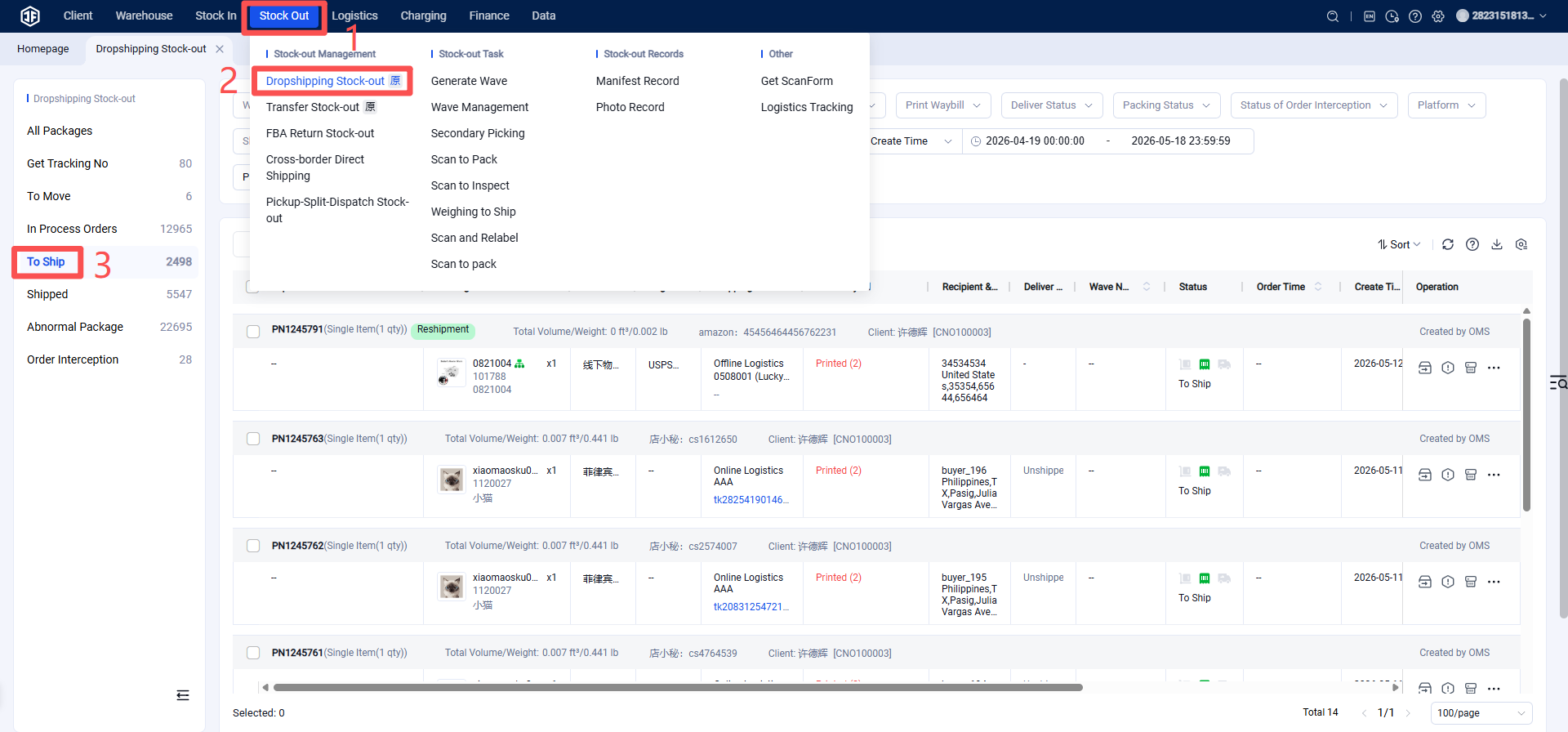
Operational Steps: Outbound - Outbound Packages
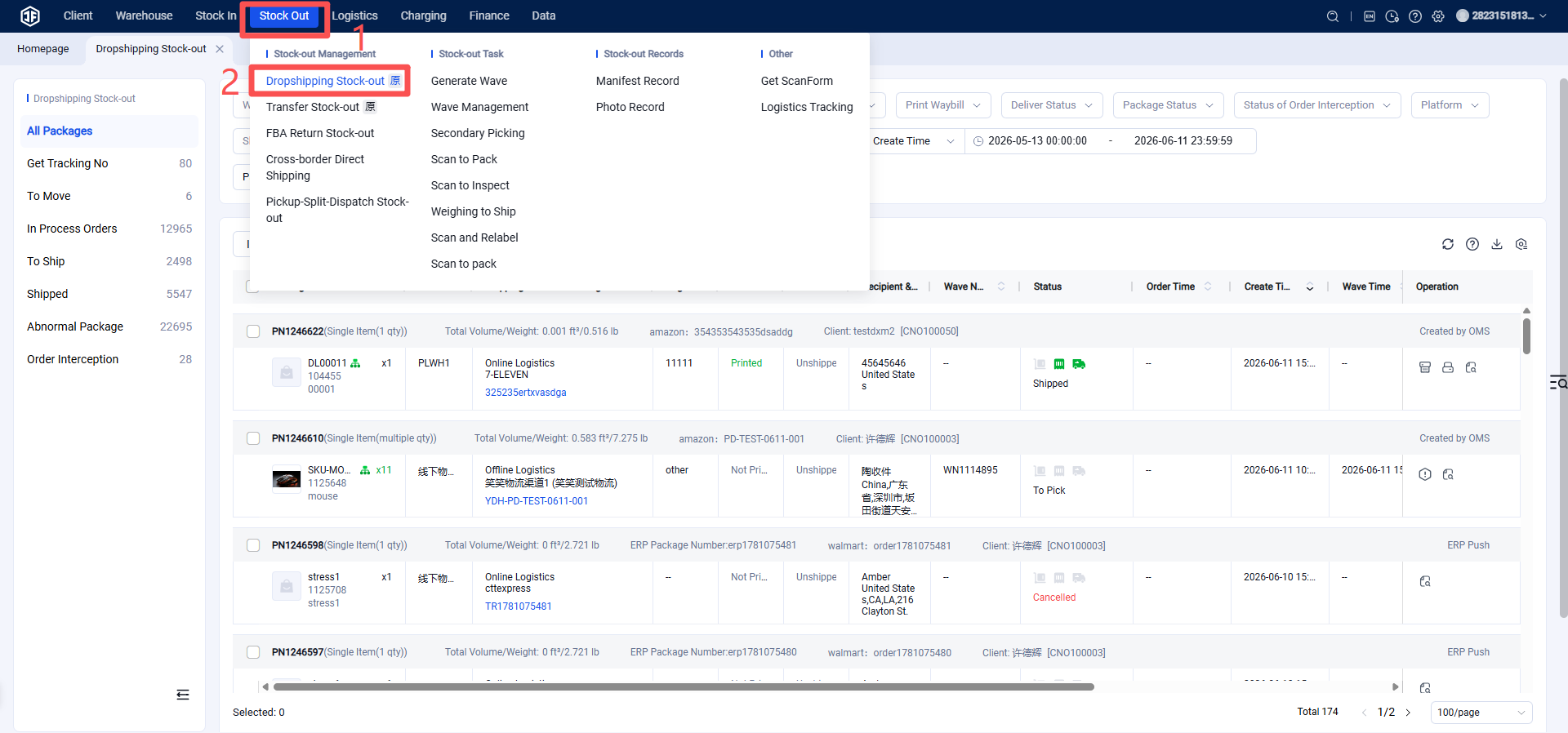
Select the order(s), then choose to print individually or batch print.
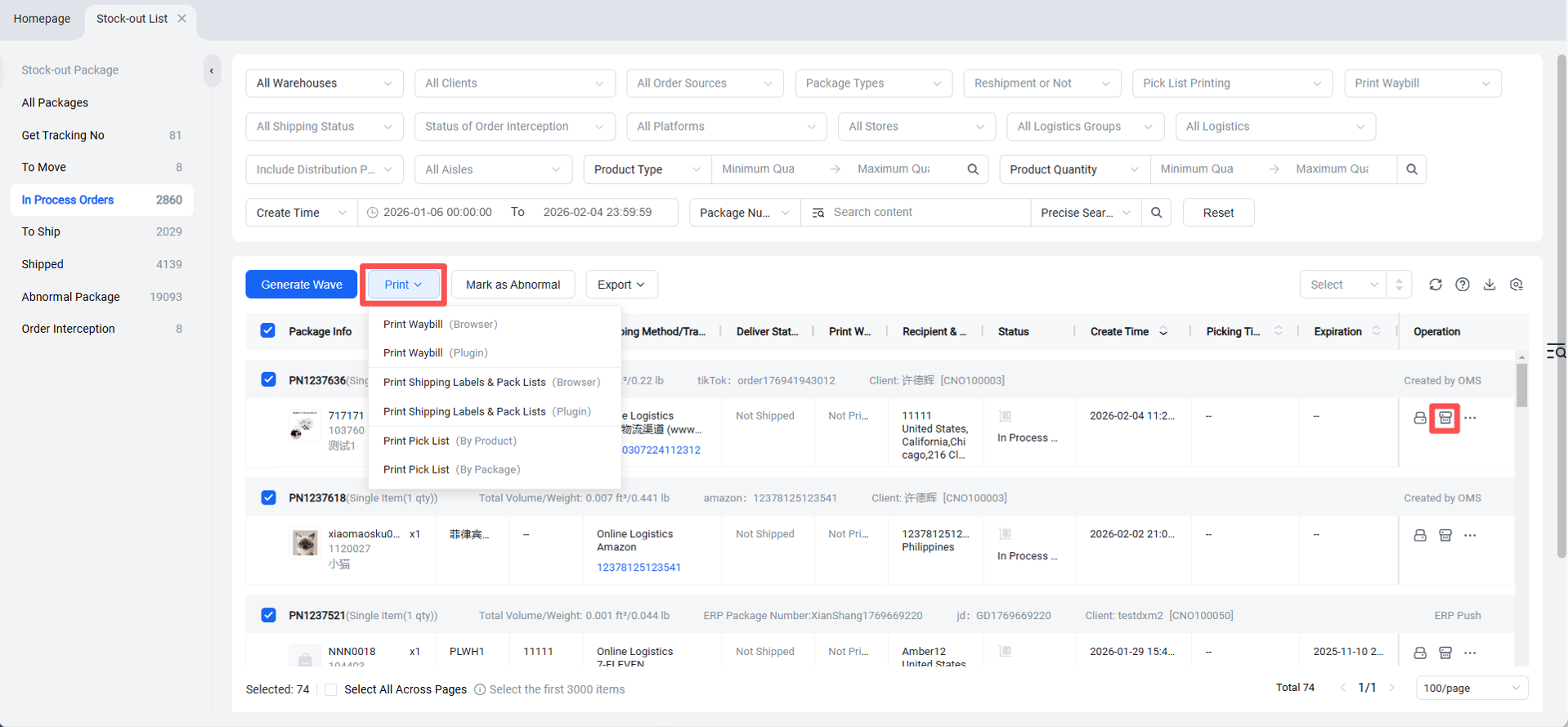
Note: If "Packaging Material Outbound Billing" is enabled, select the packaging material before printing. (If this feature is not enabled, this step is not required.)
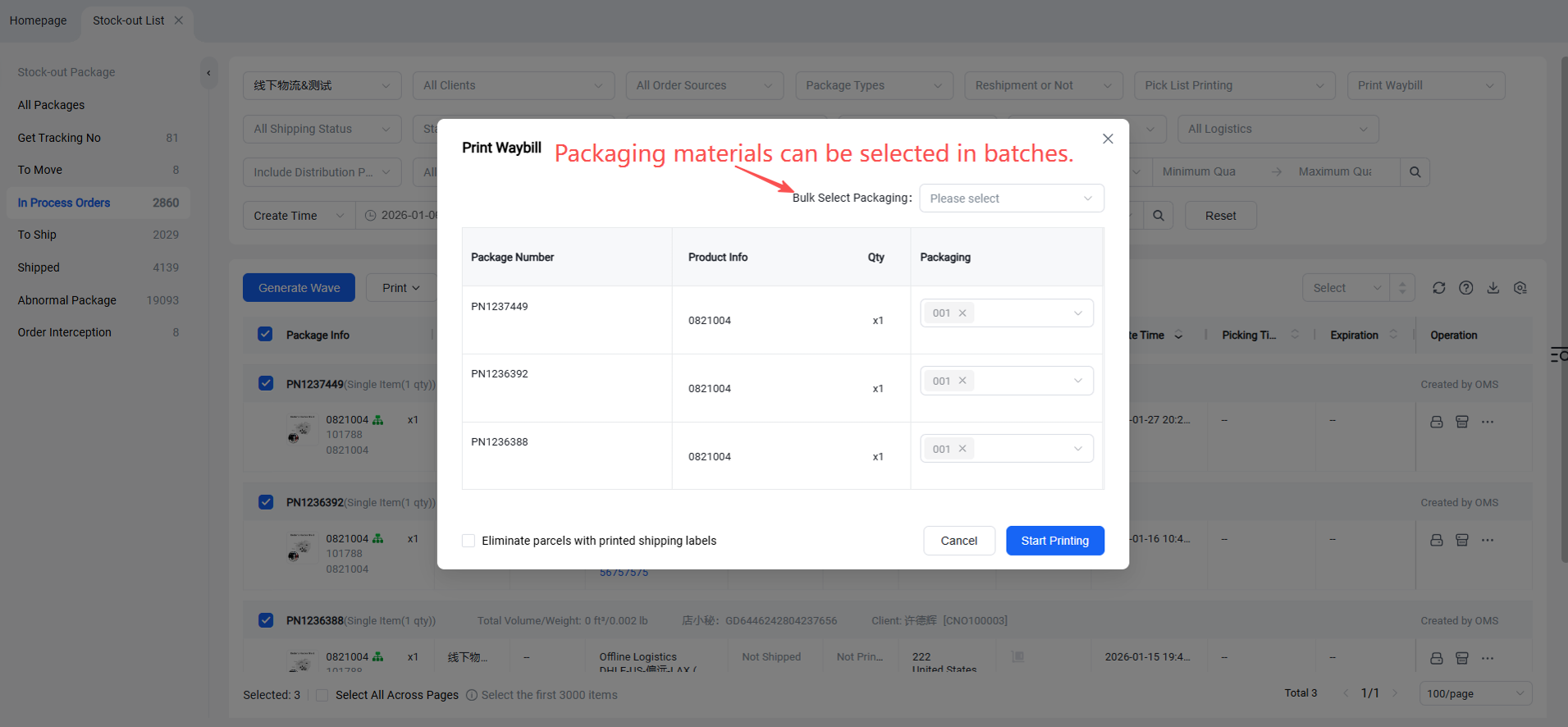
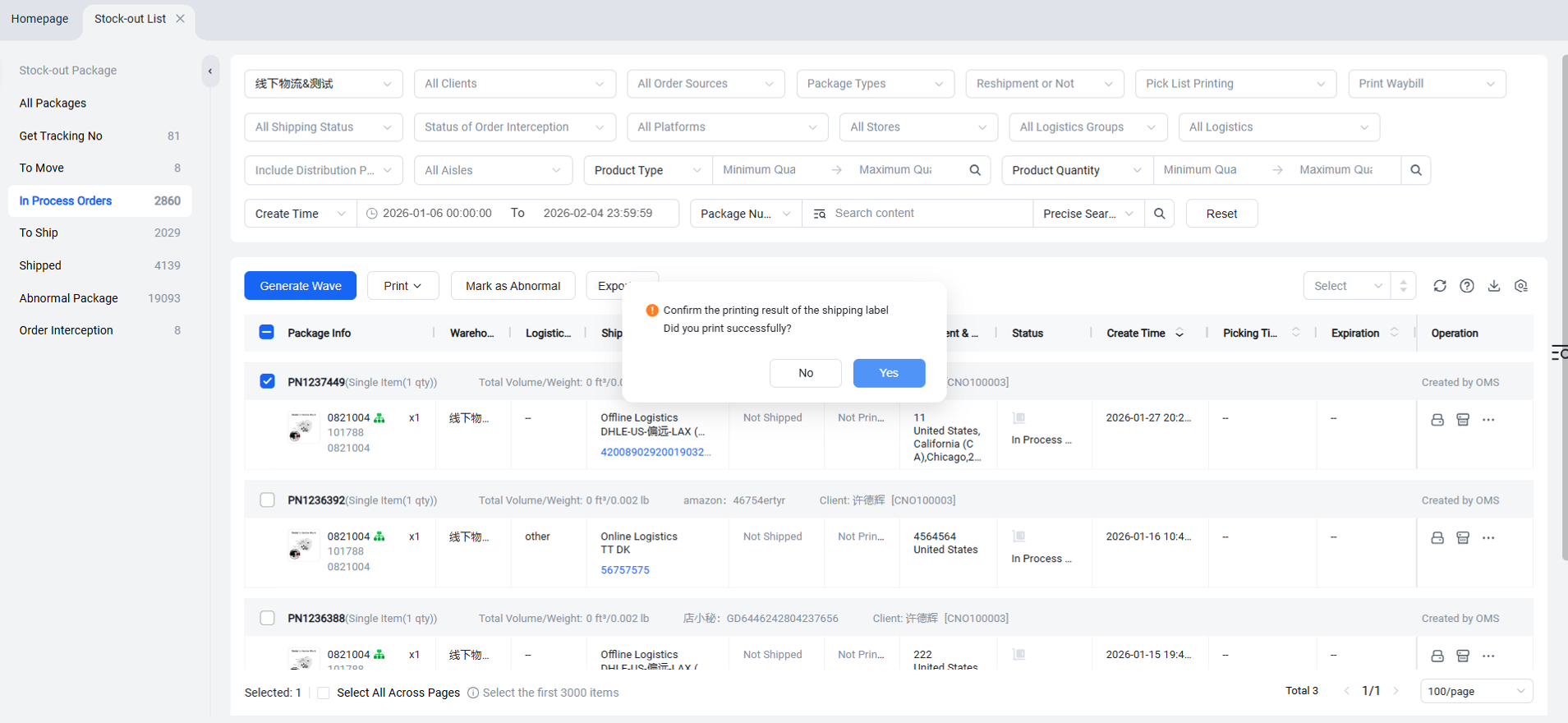
After clicking "Start Printing," a pop-up window will display the printing progress and details of any printing failures.
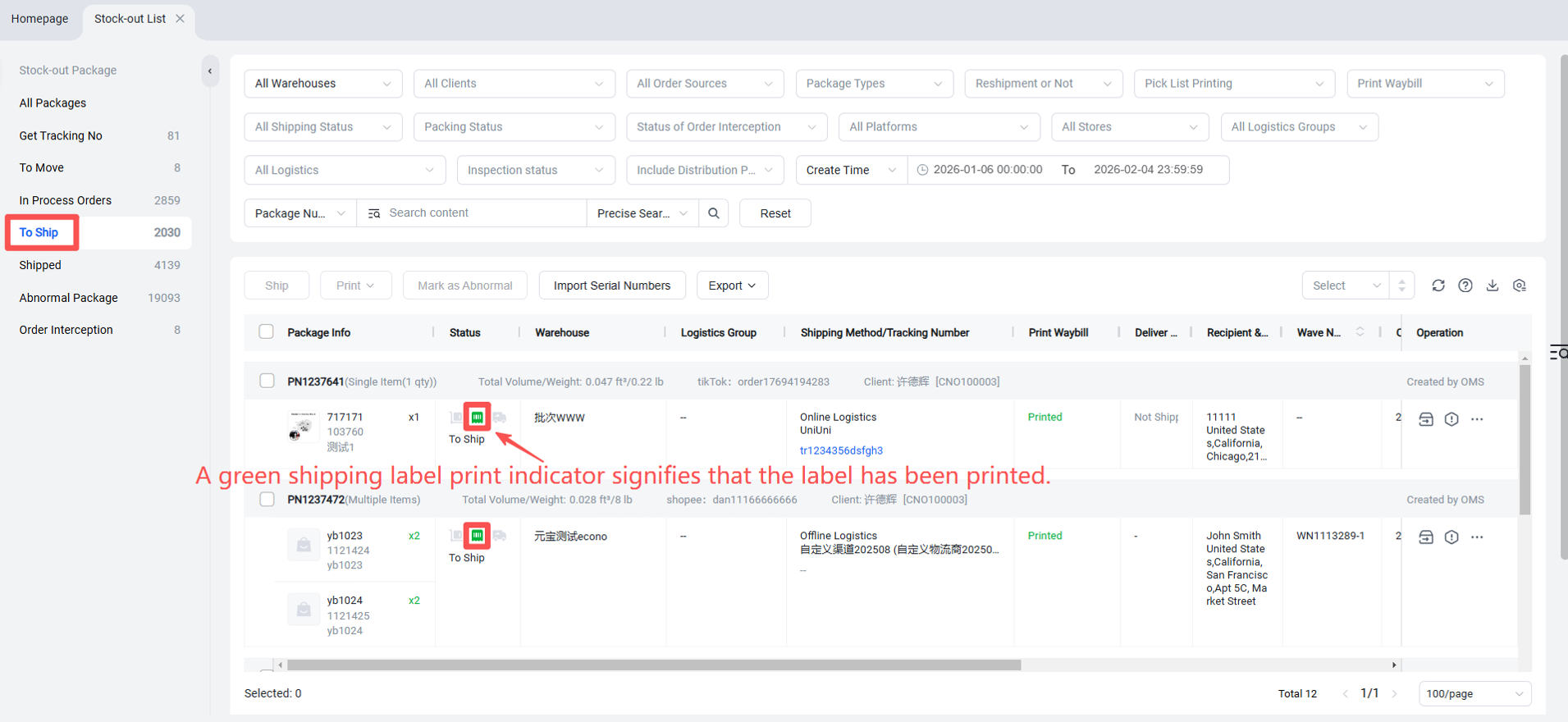
After successful printing, the package enters the Pending Shipment list (Outbound > Package Management > Pending Shipment). The shipping label print status will be marked with a green indicator. (Failed prints will remain in the Simplified Order Processing list and can be reprinted.)
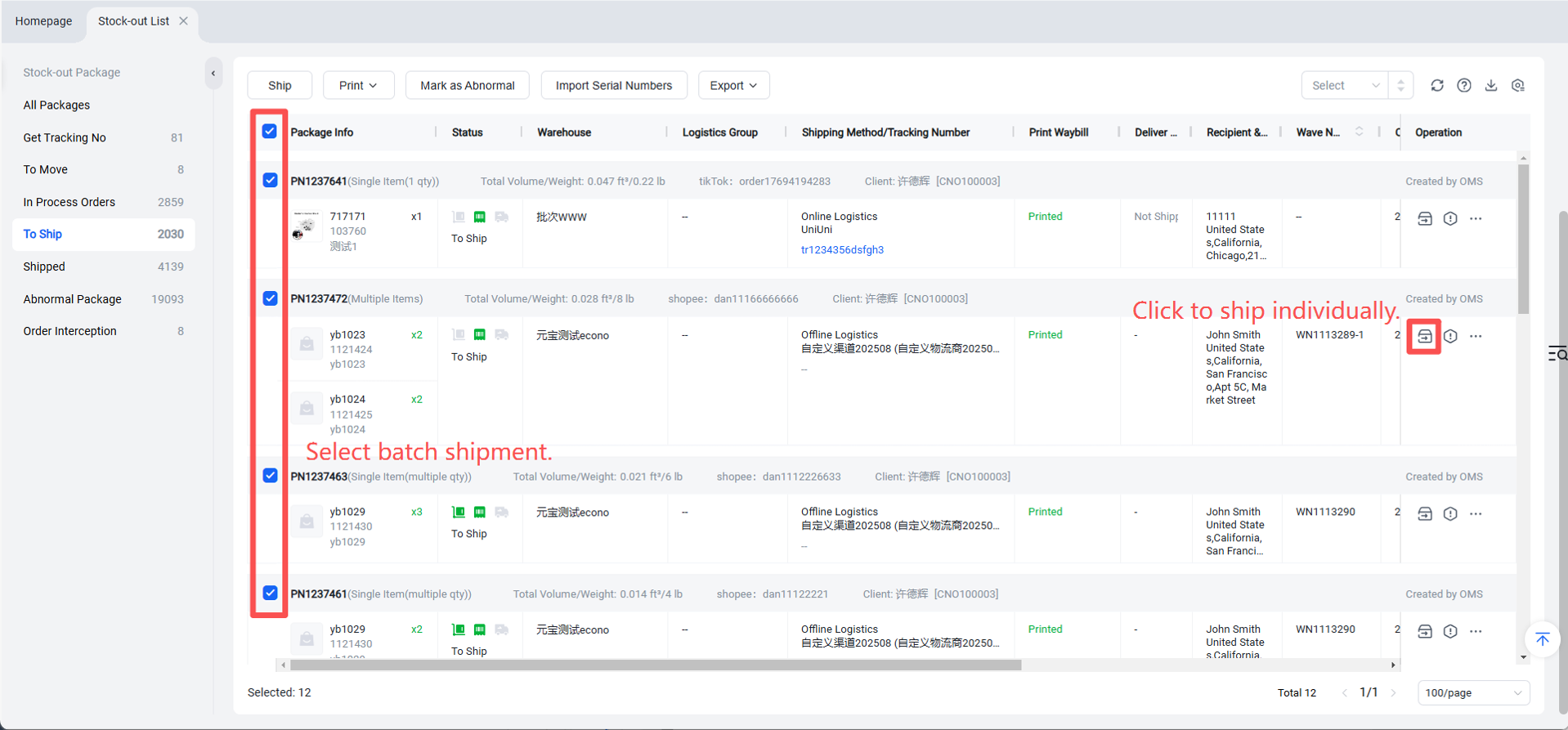
Ship: Scan to ship or manually click to ship.
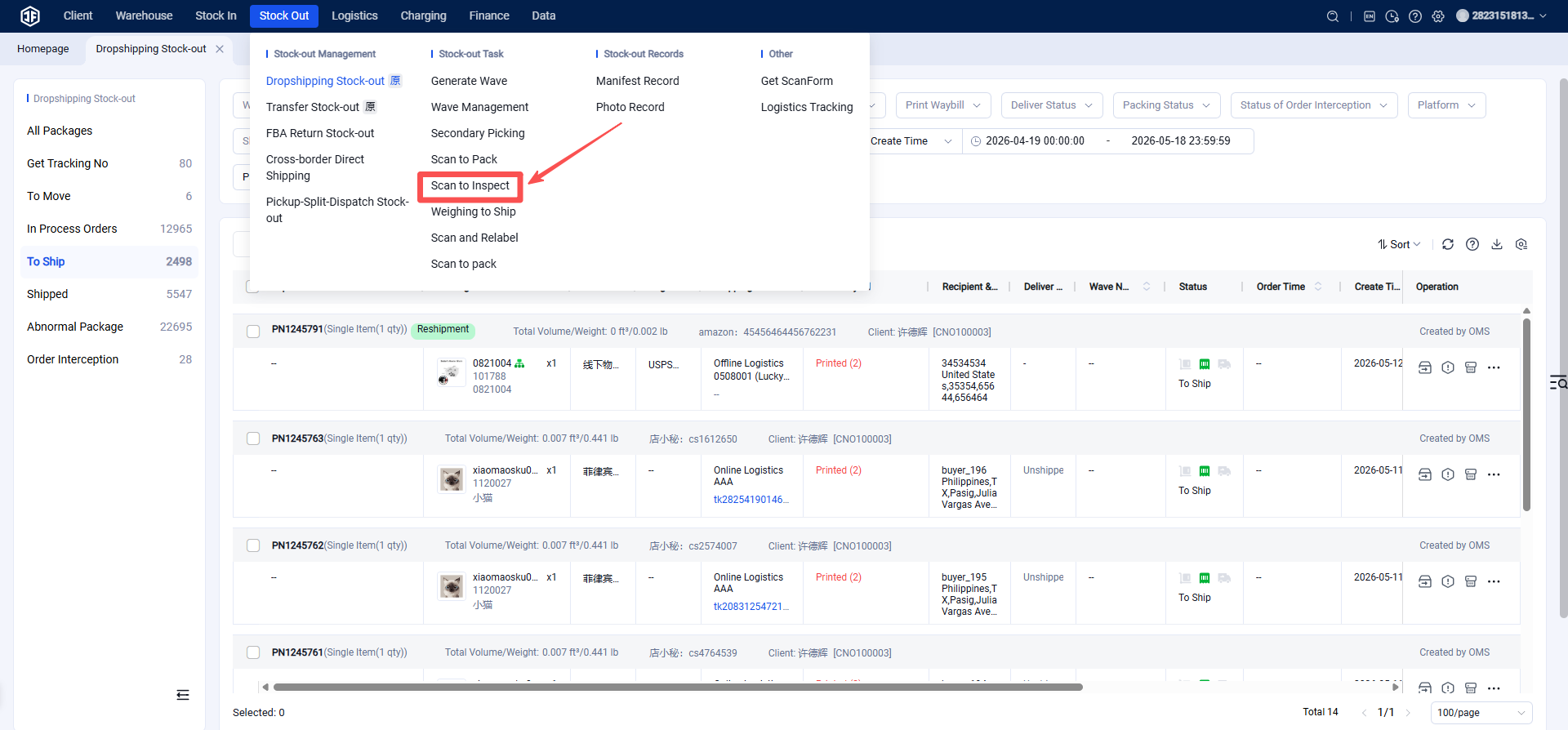
If using a barcode scanner for outbound processing, navigate to Outbound > Shipment Management > Scan verify and ship.and scan the shipping label to complete the outbound process.
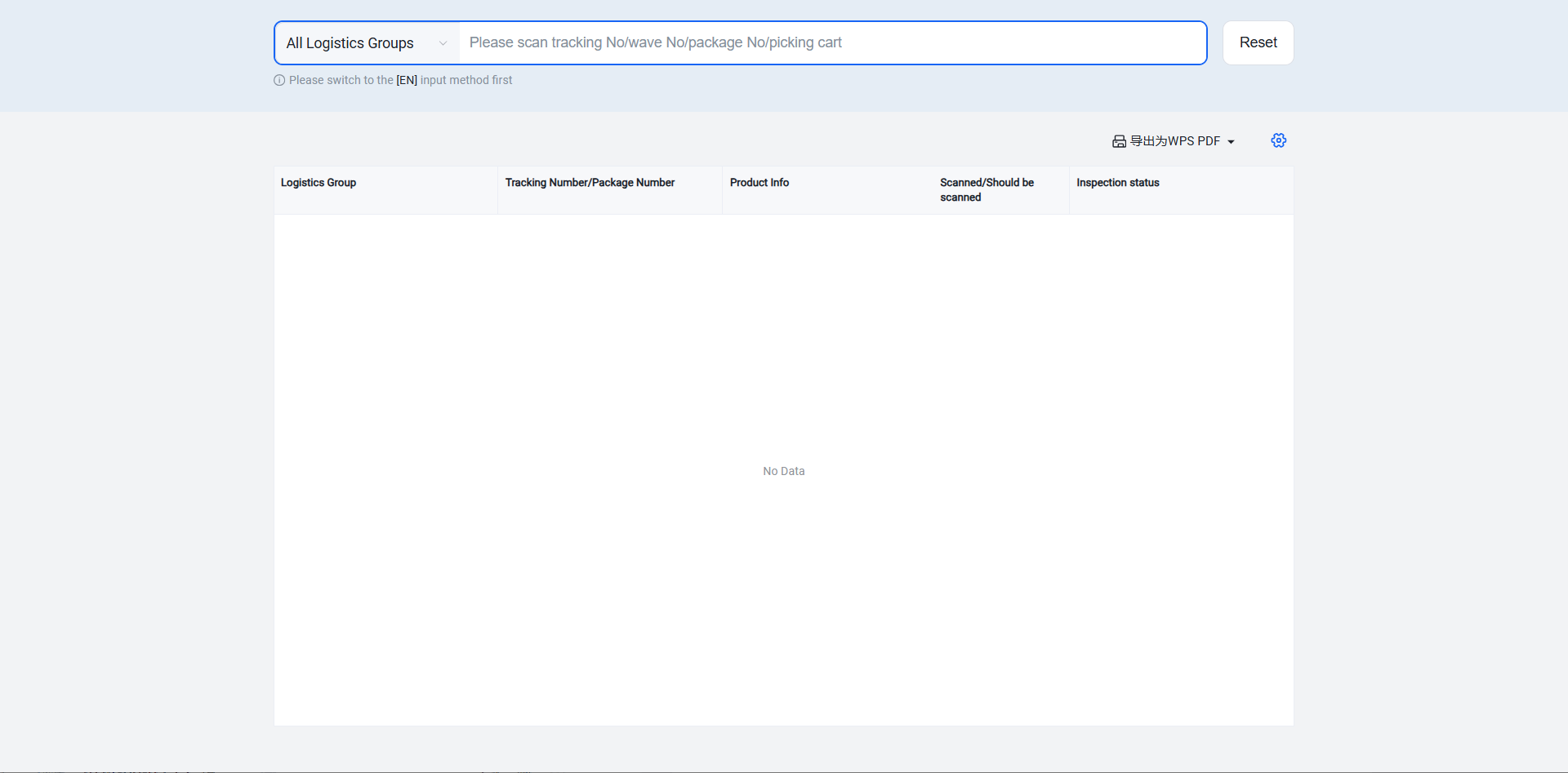
For manual shipment, go to Package Management >Outbound Packages >Pending Shipment List and click "Ship".