Inbound Sorting and Palletizing
I. Definition
A client forecasts a full container of goods to be delivered to the overseas warehouse, containing multiple SKUs. Unloading workers need to sort the SKUs and place them on individual pallets. Previously, this relied on visual identification, leading to low efficiency. Jifeng's sorting and palletizing feature utilizes an intelligent sorting solution within the system's staging area. After scanning, it automatically announces the sorting instructions via voice, improving accuracy and efficiency, and helping the warehouse save significant labor costs.
II. Supported Scenarios
SKUs are all individually boxed, with one SKU per pallet (no mixed pallets).
SKUs are all individually boxed, with one SKU per pallet, but leftover quantities can be combined on a mixed pallet.
Box contents are identical for all boxes; boxes with the same contents are placed on one pallet (no mixing).
Box contents vary; boxes with different contents can be combined on mixed pallets.
III. Operational Path
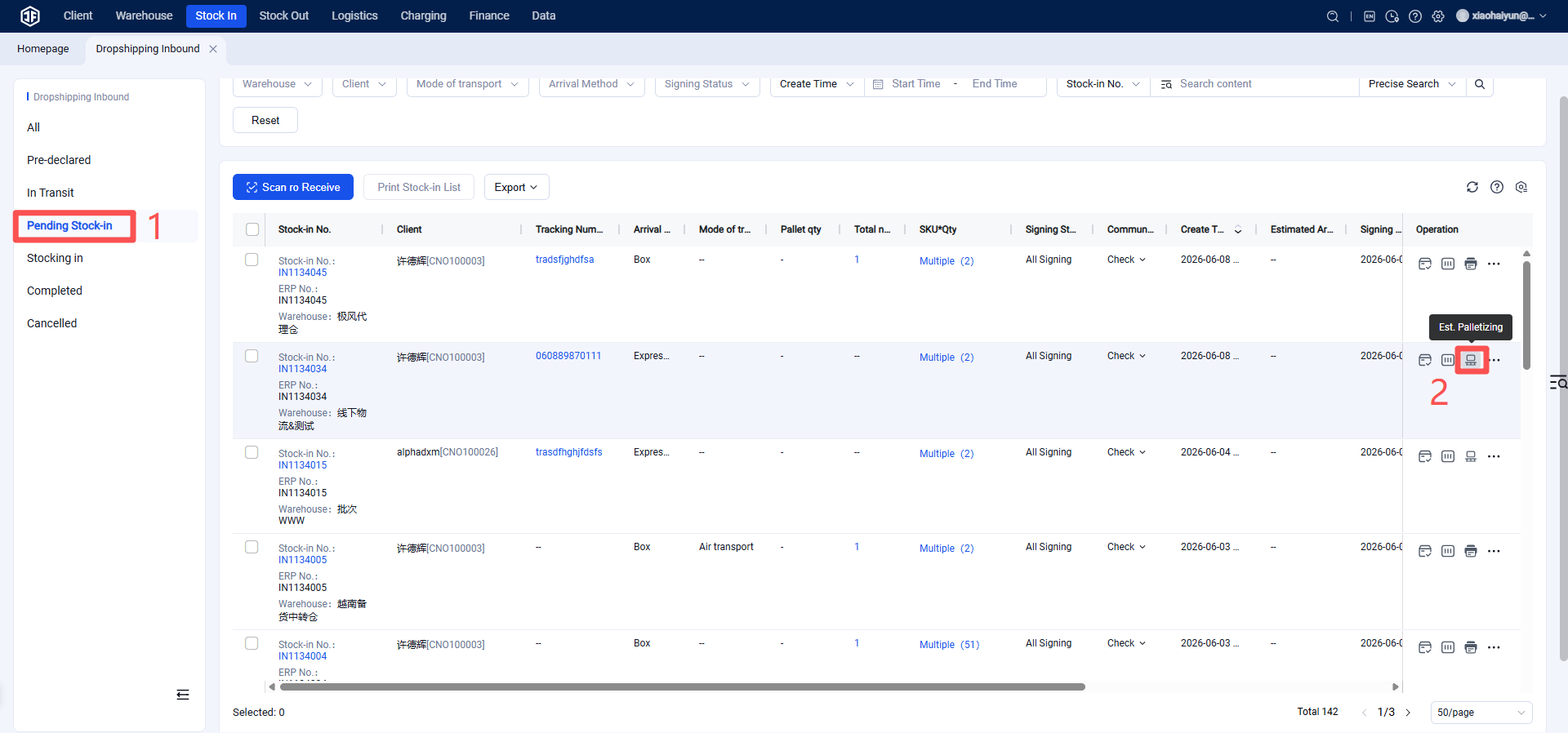
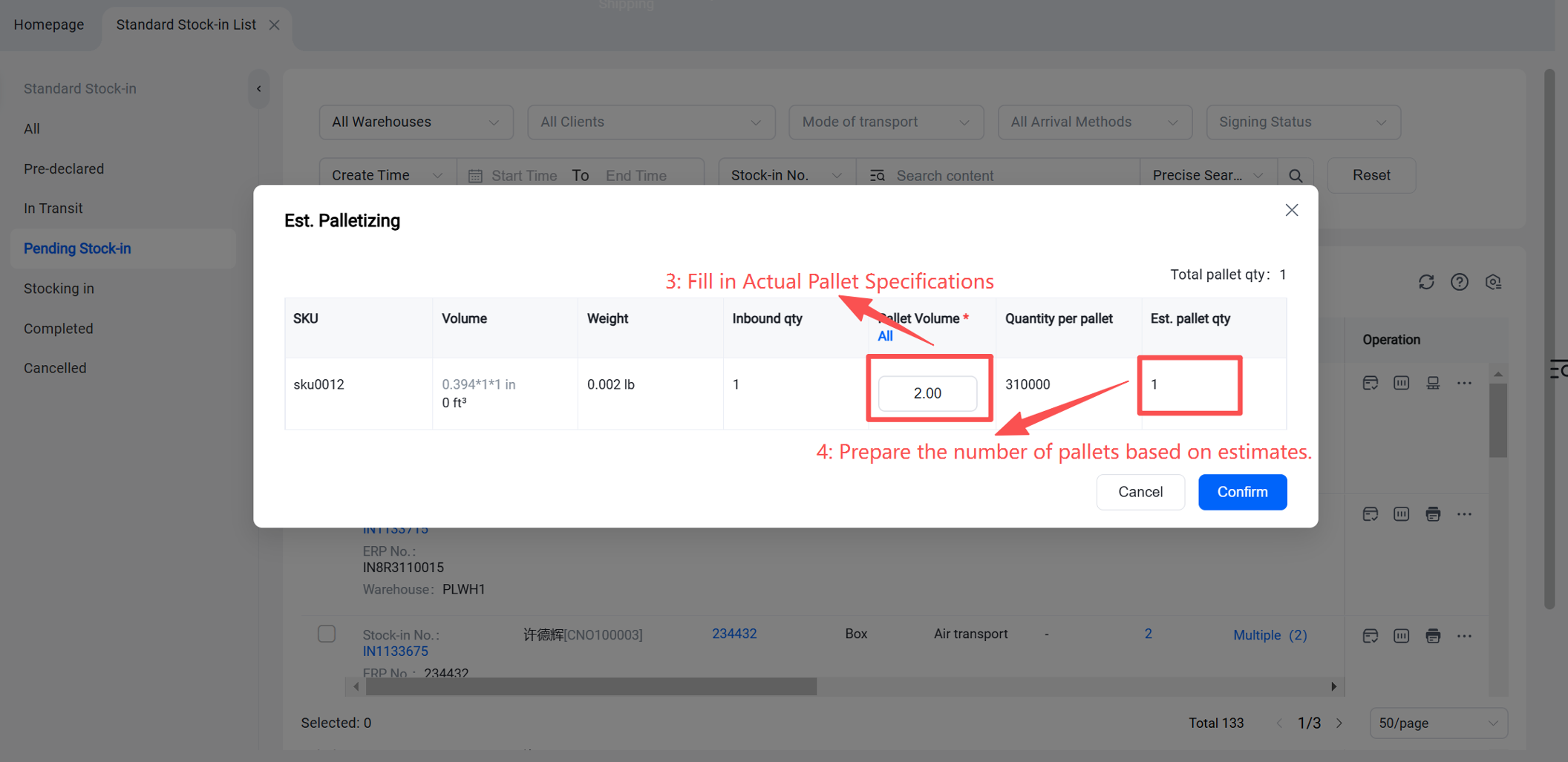
Step 1: After the warehouse receives the goods, perform estimated palletizing for the inbound orders in the Pending Inbound status. The system automatically estimates the number of pallets required based on the goods' volume and the pallet specifications.
Step 2: Perform Sorting and Palletizing
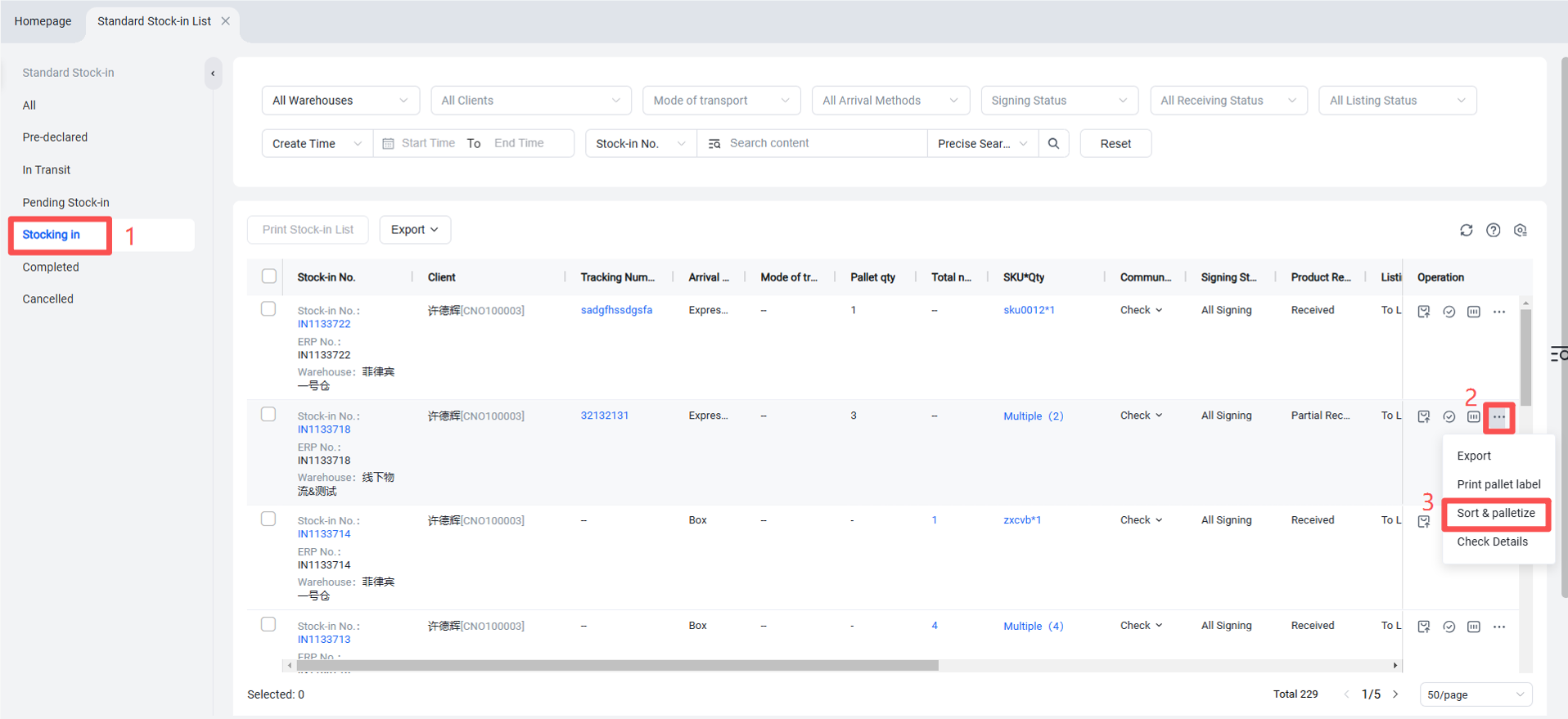
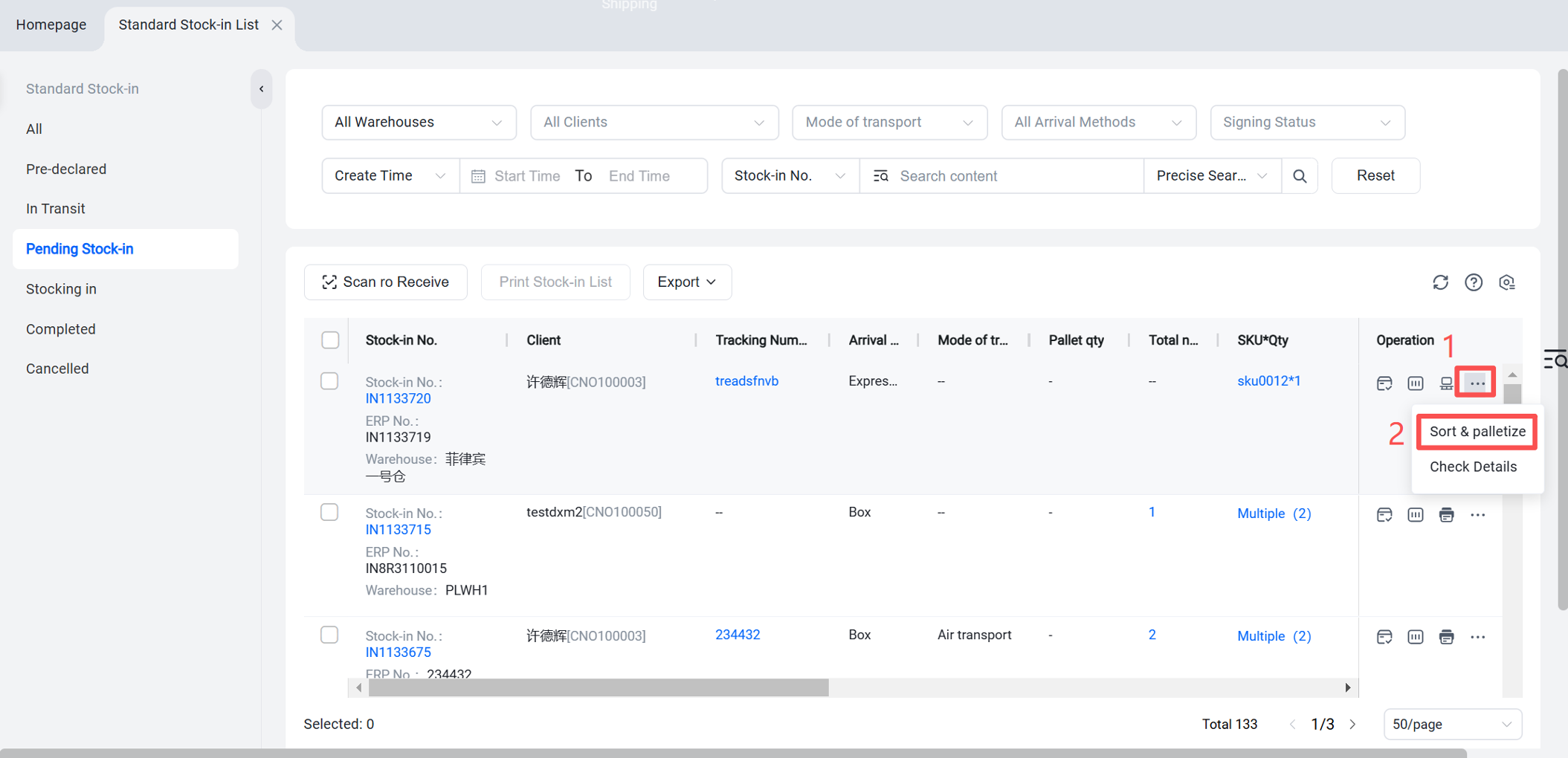
1.For inbound orders in the Pending Inbound status, select Sorting and Palletizing to proceed.
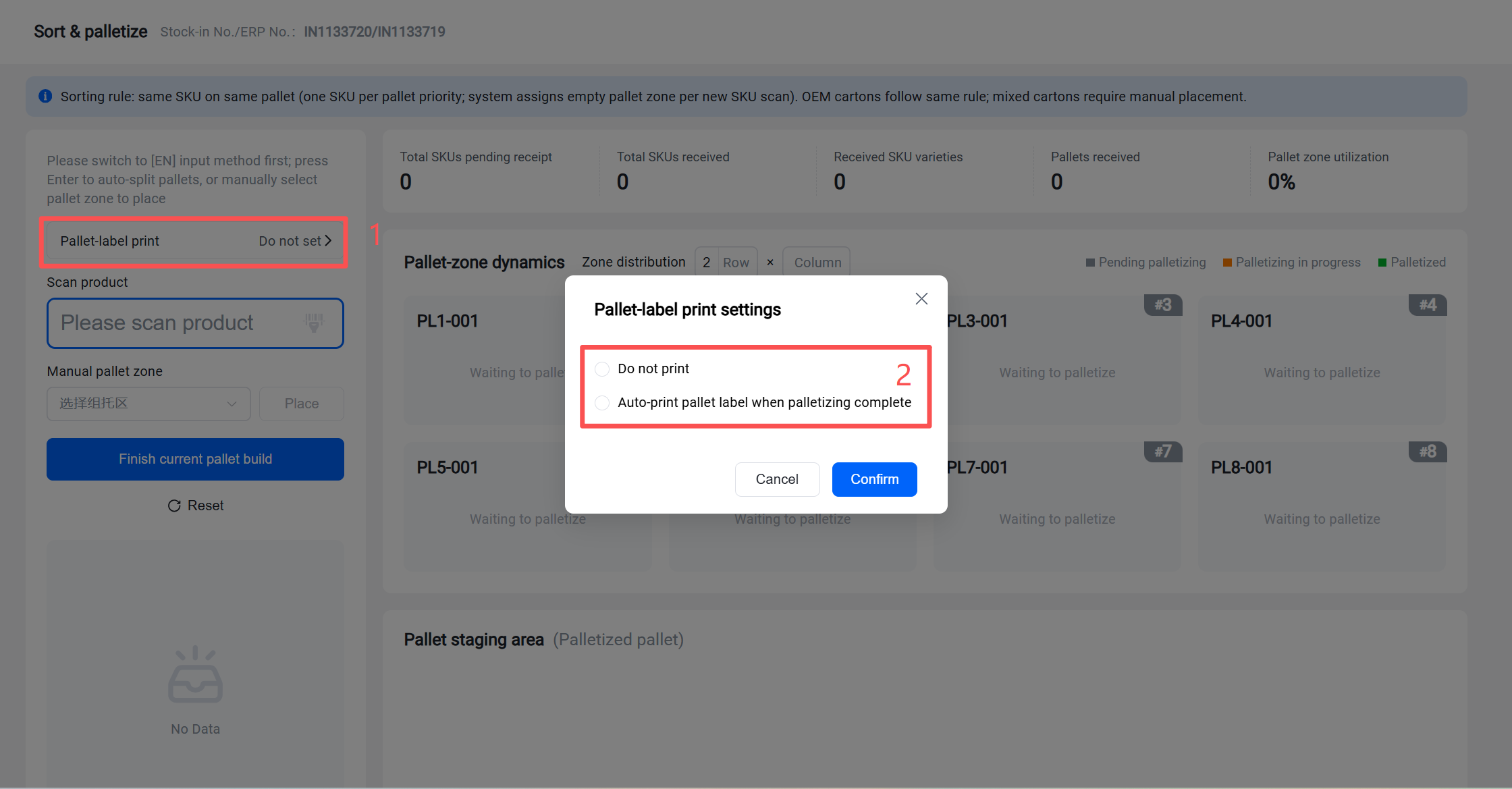
2. You can configure whether to print pallet labels upon completion of palletizing based on actual needs. If not required, you can set it to not print.
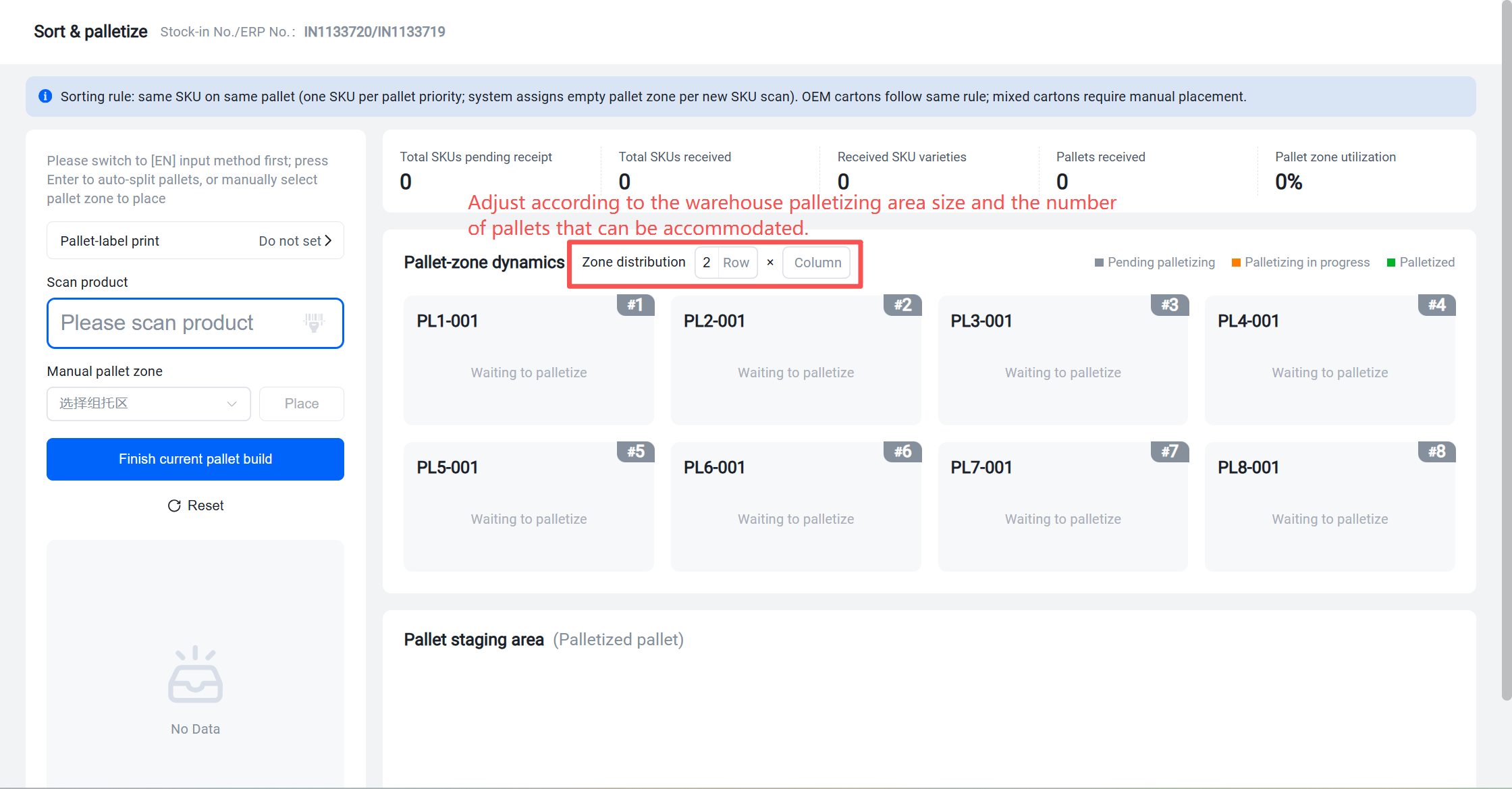
3. Set up the area layout based on the warehouse's palletizing area size and the number of pallets that can be accommodated. For example, if there are 2 rows and 4 columns, allowing for 8 pallets at a time, set it to 2 rows x 4 columns. Arrange the pallets according to this pallet area layout.
4. Perform Scan Sorting (Sorting can be done by SKU or by carton label. If the inbound order was created with the arrival method "By Courier Package," it is SKU sorting. If the inbound order was created with other arrival methods, it is carton label sorting).
Method 1: SKU Sorting
Scan the SKU barcode. After scanning, follow the voice prompt instructions to place the scanned items onto the corresponding pallet. (Multiple SKUs and multiple pallets can be sorted simultaneously).
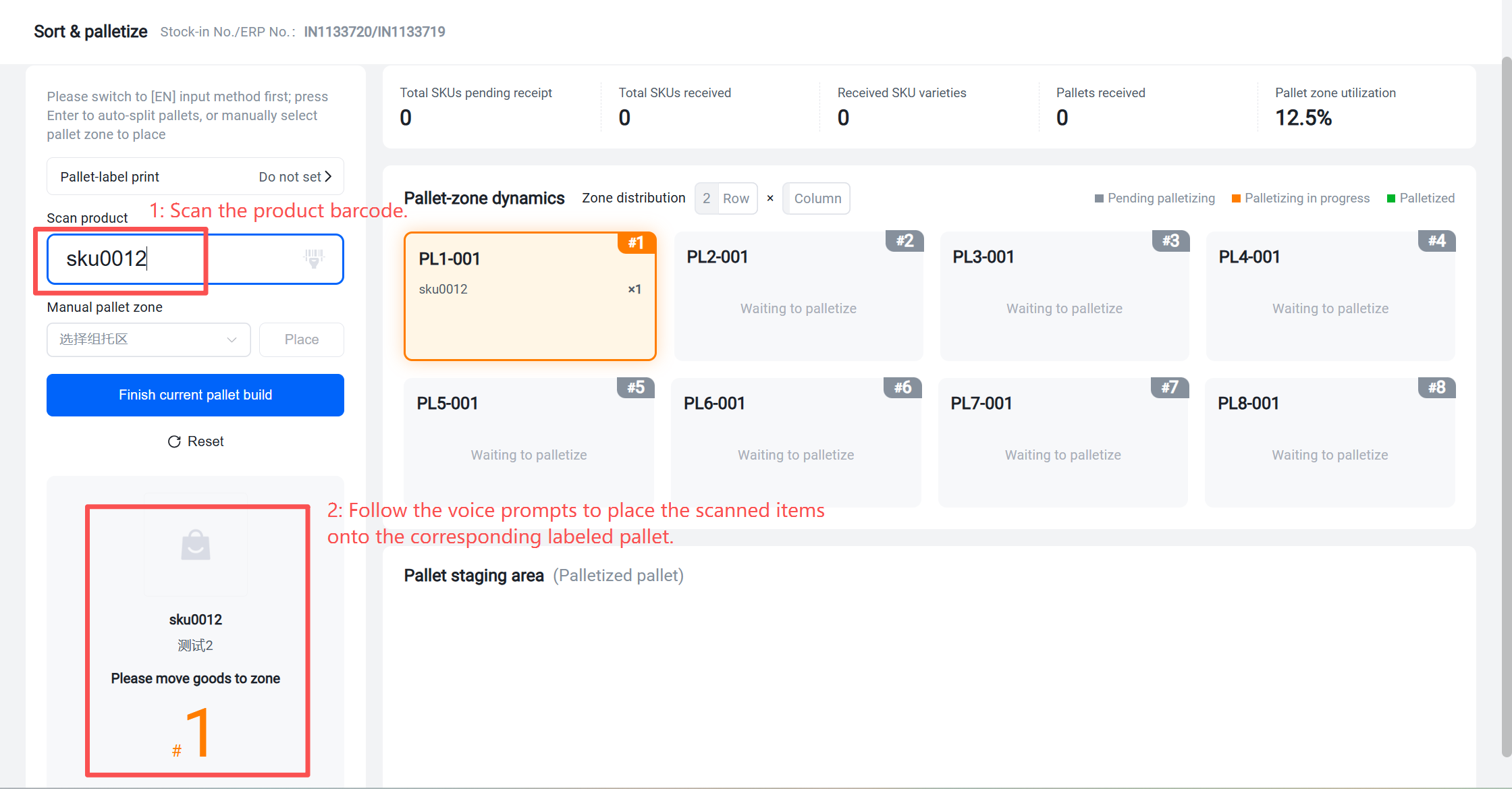
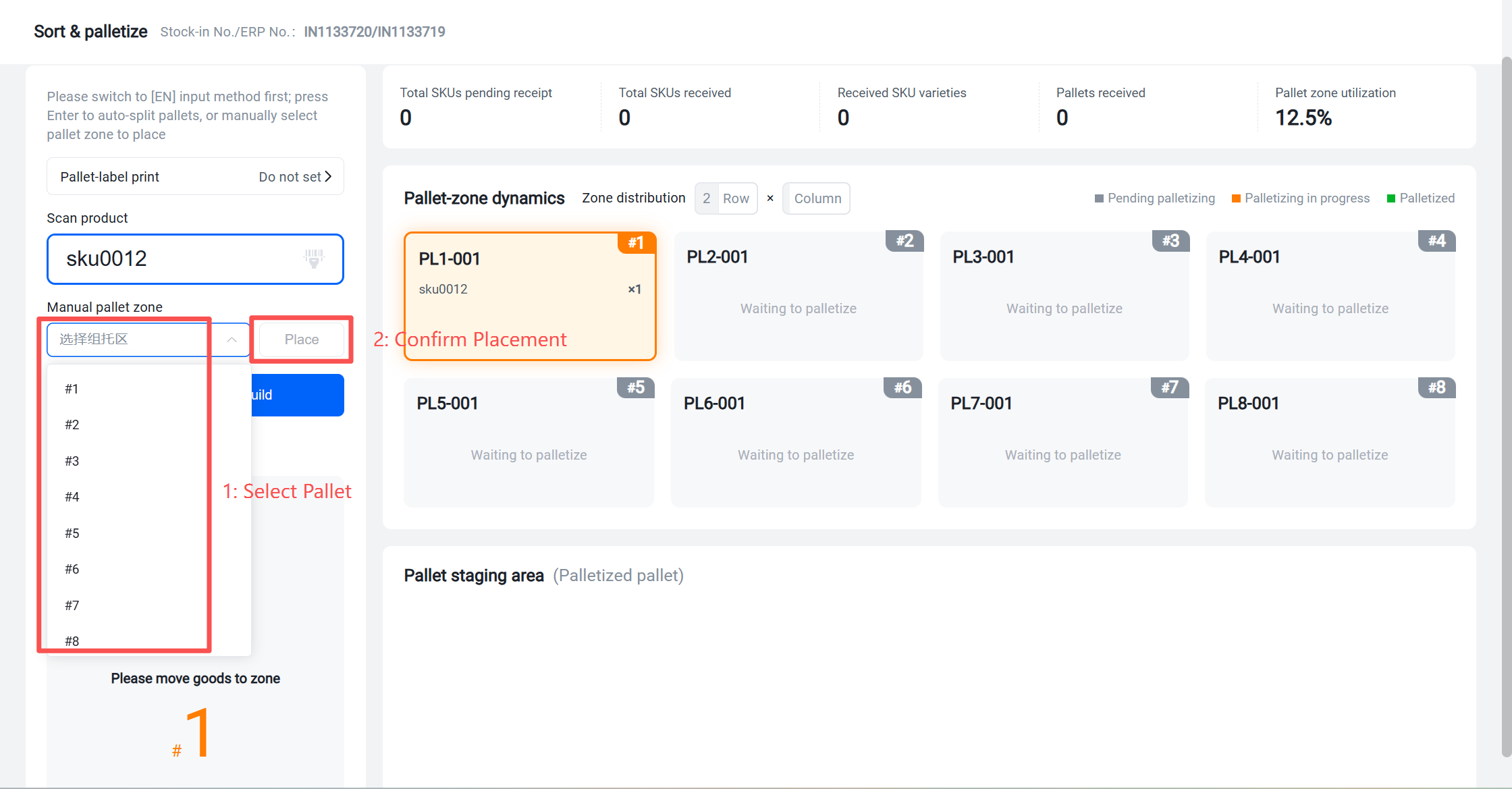
Currently, the default is to place one SKU per pallet. If multiple SKUs need to be placed on one pallet, manual placement in the palletizing area is possible.
Method 2: Carton Label Sorting
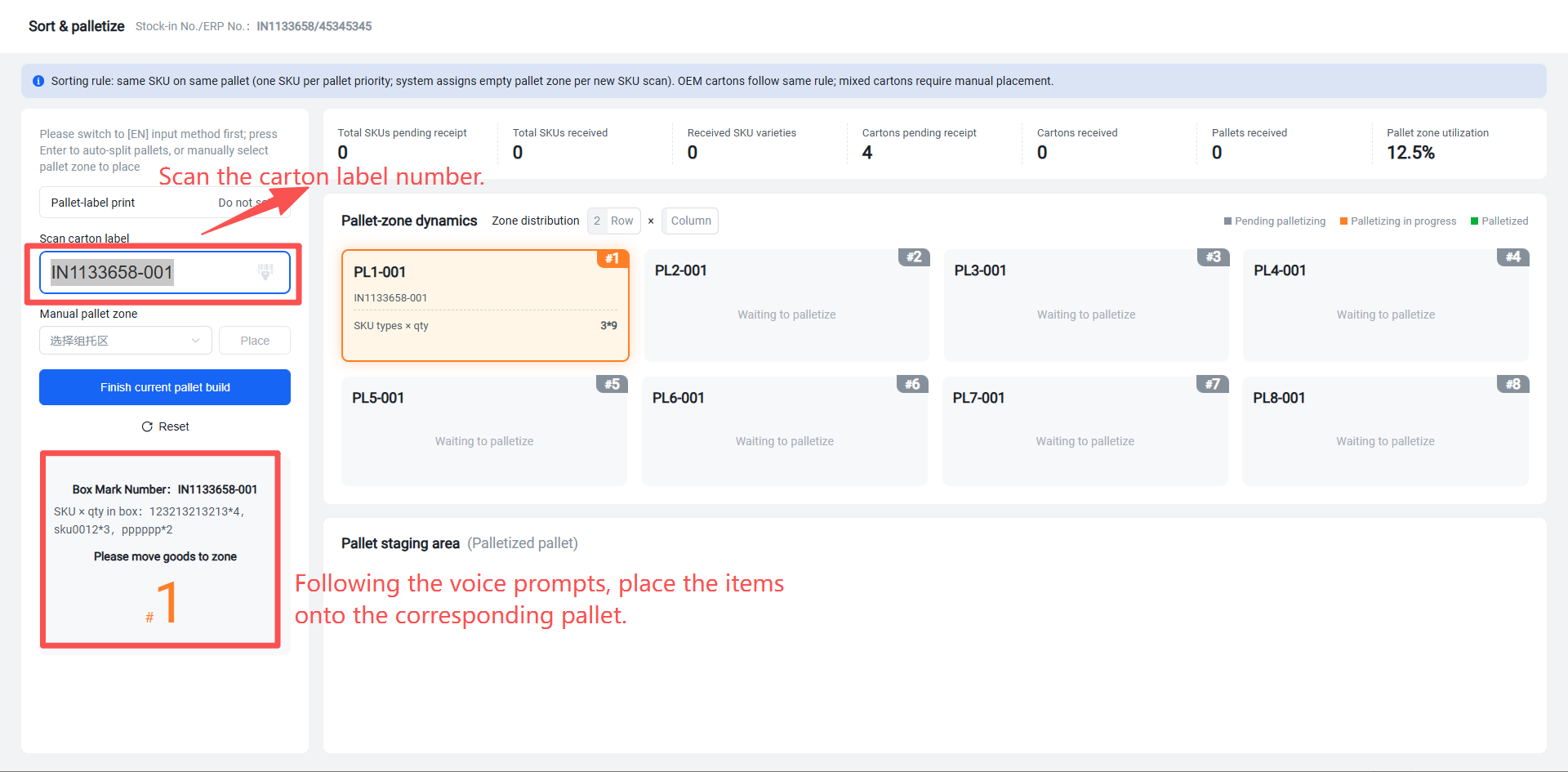
Scan the carton label number. Following the voice prompts, place the carton onto the corresponding pallet.
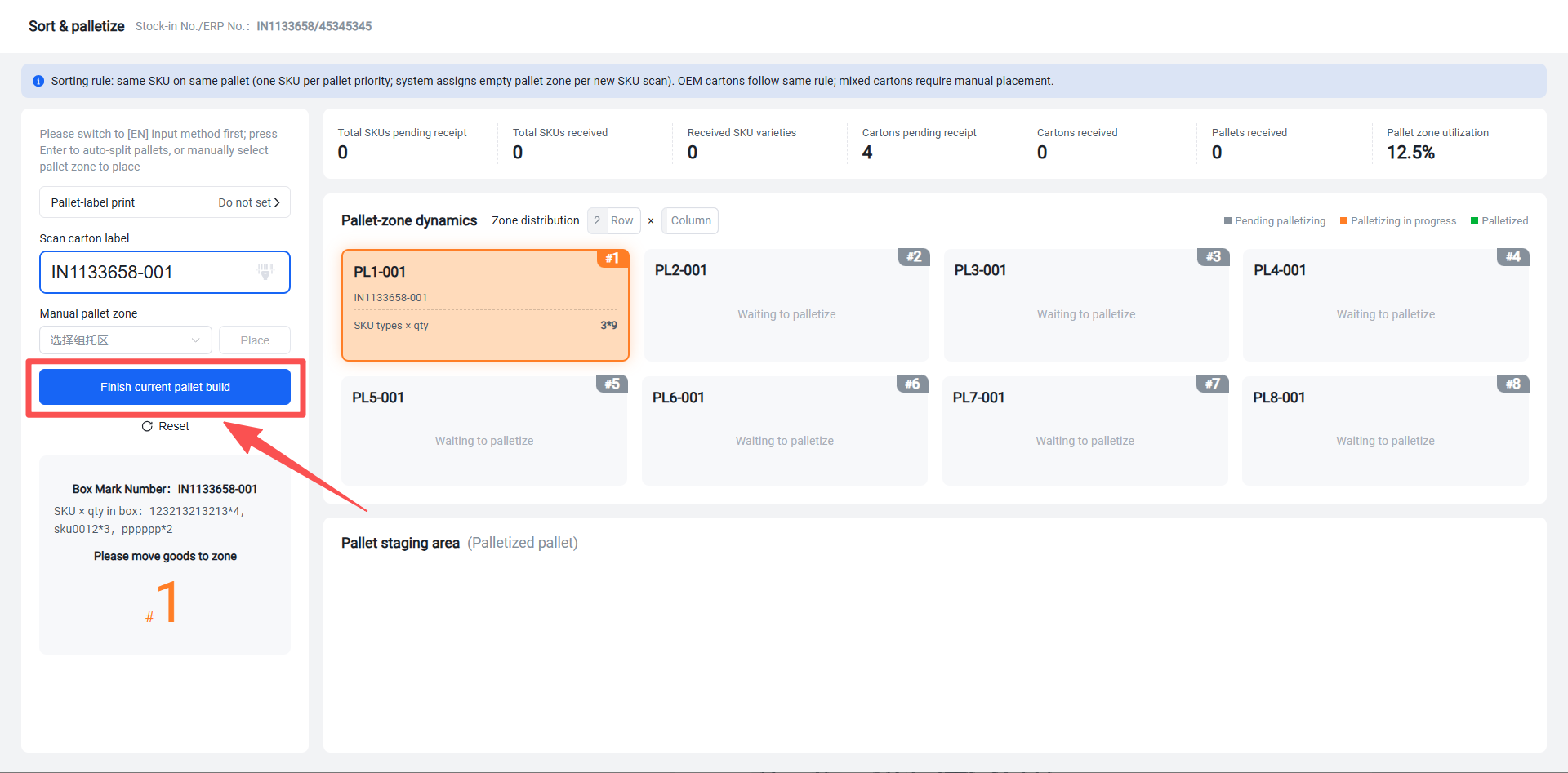
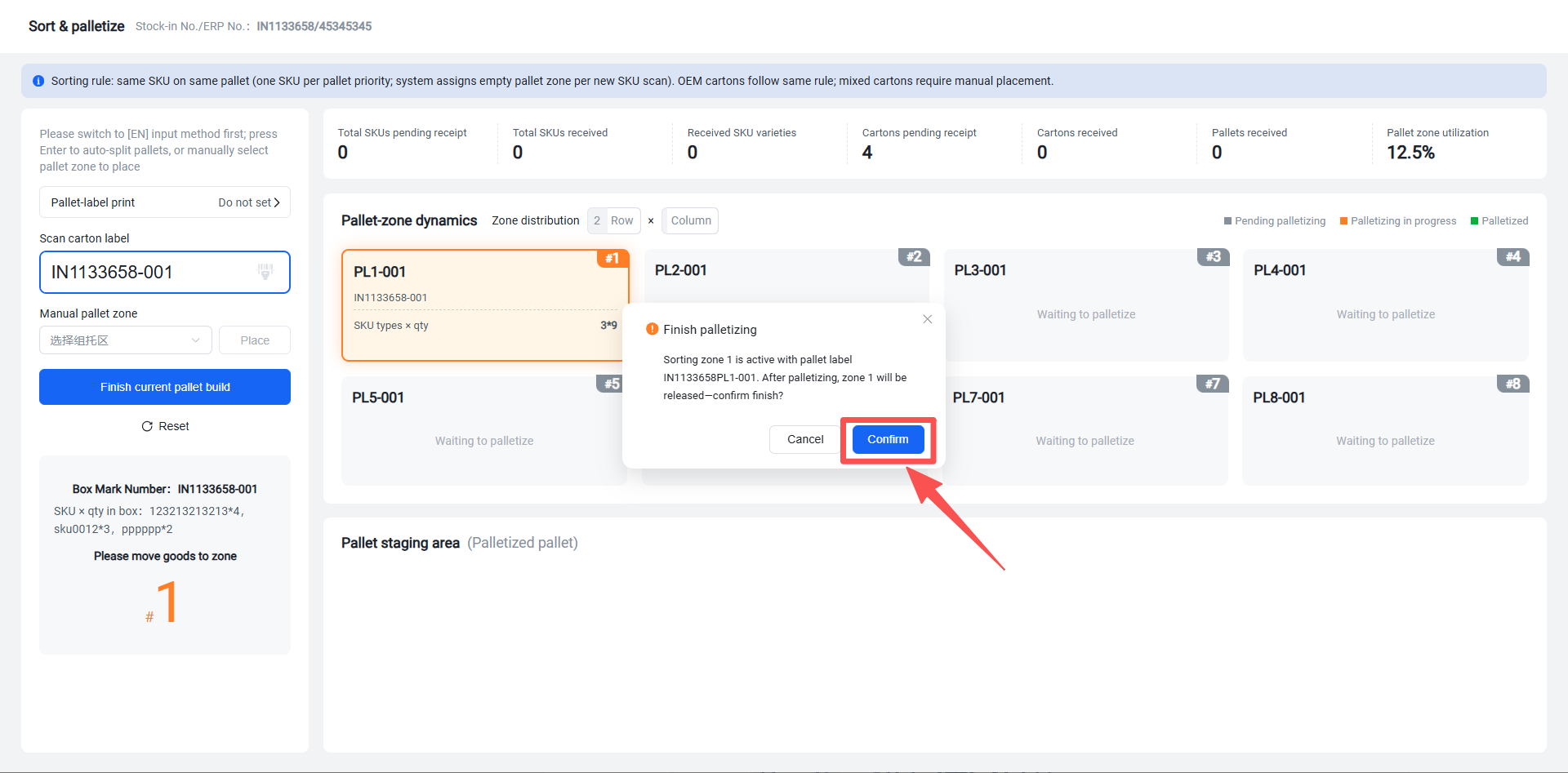
5. Visually determine if the pallet is full. Once full, click "Complete Current Palletizing" , then move the pallet out and transfer it to the "Pending Put-away" staging area. (Completing the palletizing here effectively completes the receiving action.)
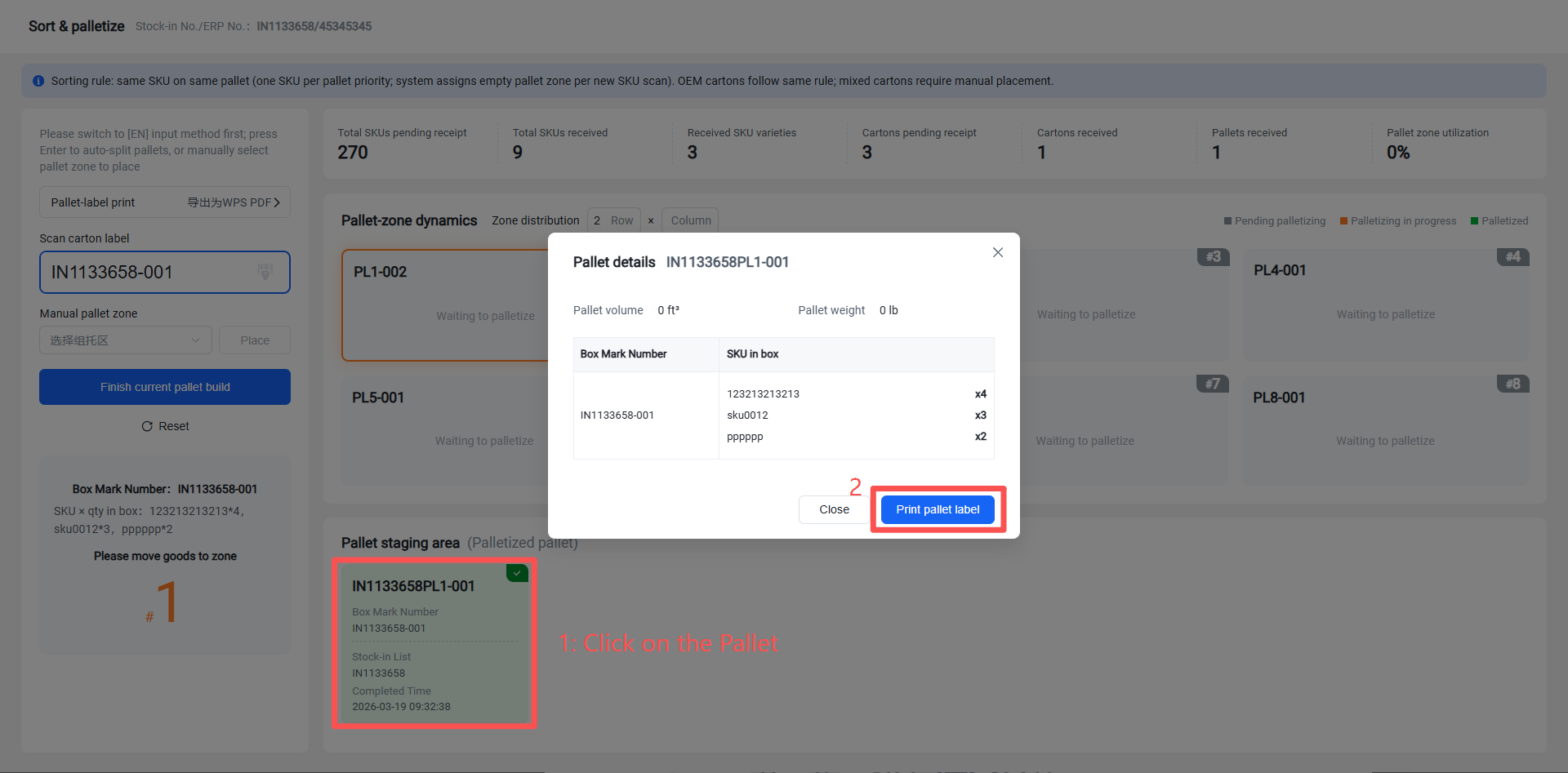
6. Print Pallet Label (If "Print Pallet Label Upon Palletizing Completion" was set earlier, the pallet label will be printed automatically after palletizing is finished.)
7. If multiple receipts are involved, you can continue sorting and palletizing while the inbound status is "In Progress." The final received quantity for the inbound order will be based on the actual quantity received.