Overseas Warehouse Work Order Processing: Complete Process
I. Definition
The warehouse often needs to communicate with OMS operations regarding unconventional tasks (such as warehouse labeling for specific items, inventory checks, cleanups, etc.). Work orders can be used for this communication.
II. Operating Procedure
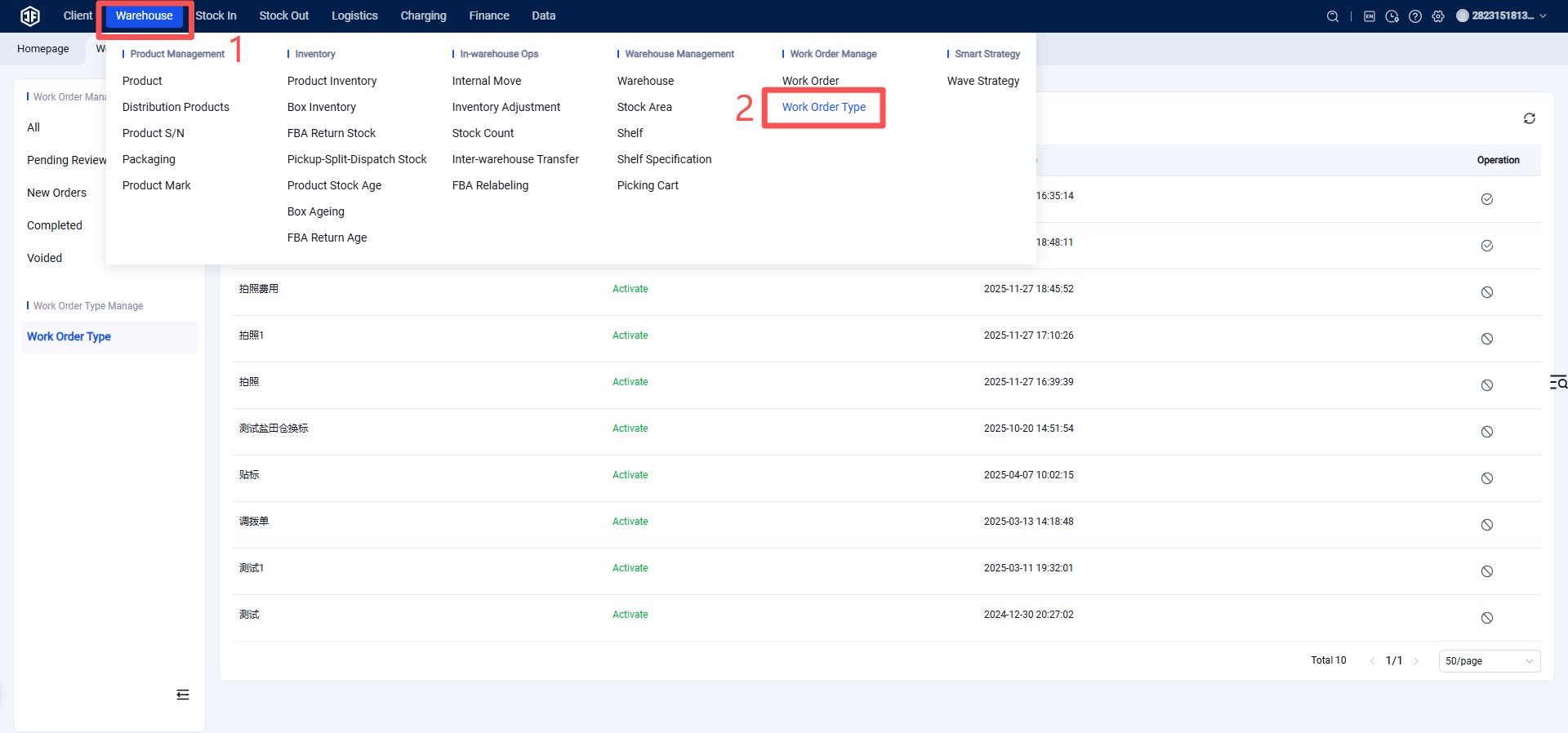
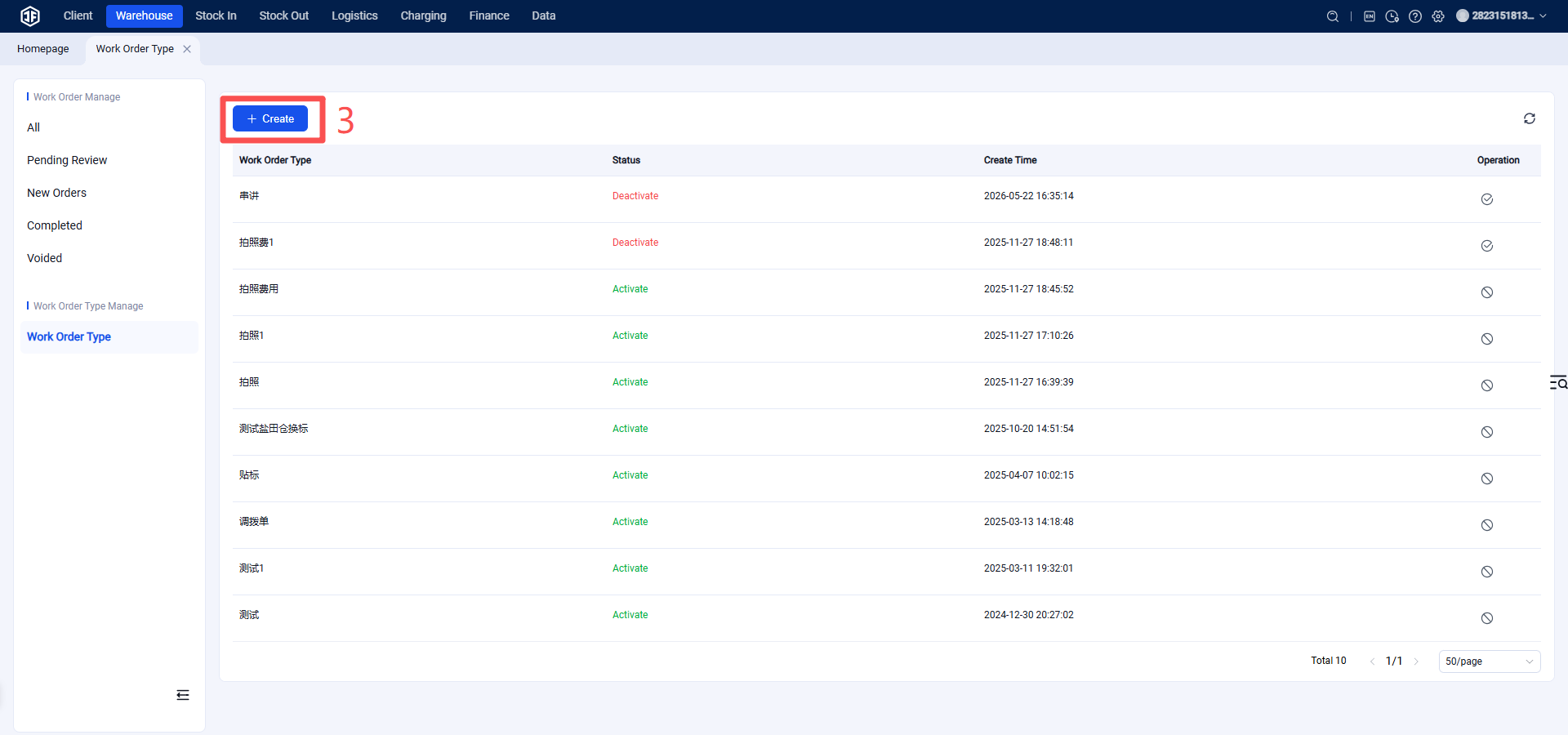
Step 1: Maintain the Types of Work Order Services Supported by the Warehouse in WMS
Location: WMS > Work Orders > Work Order Types
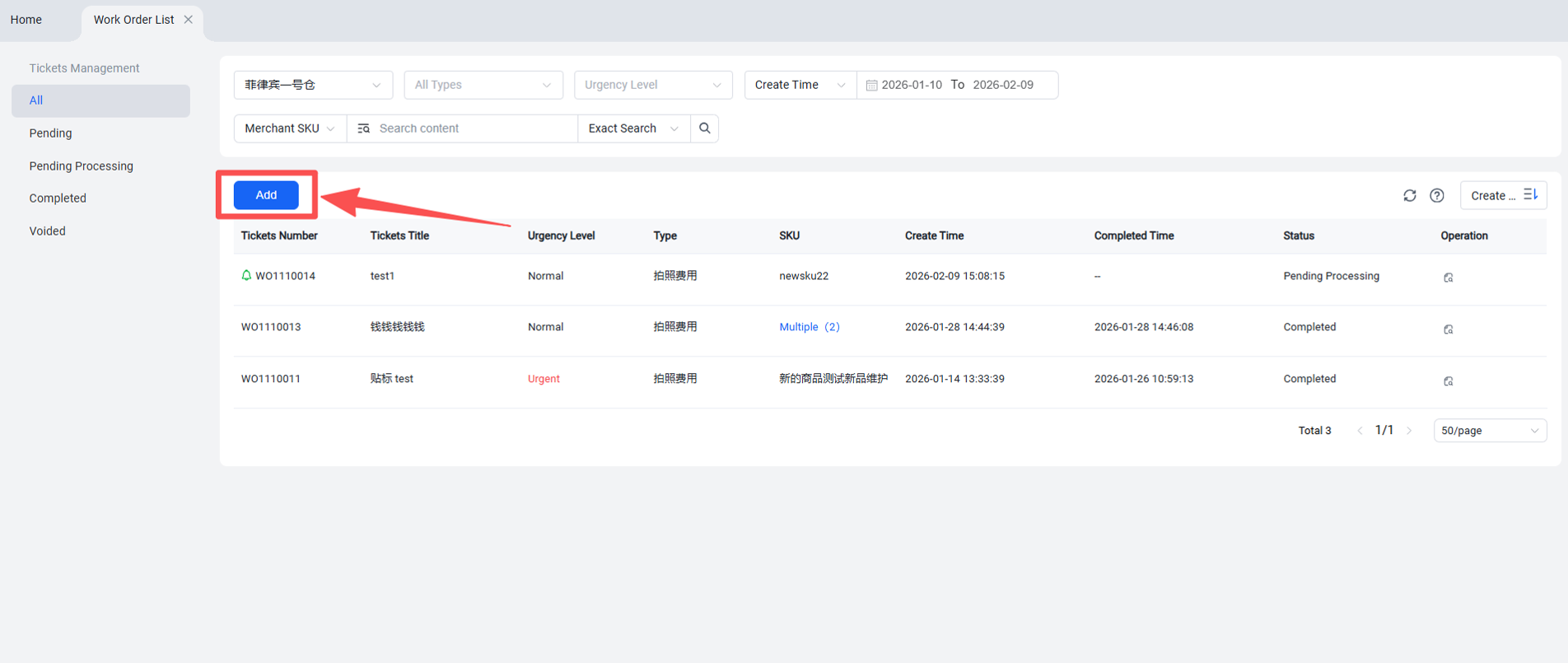
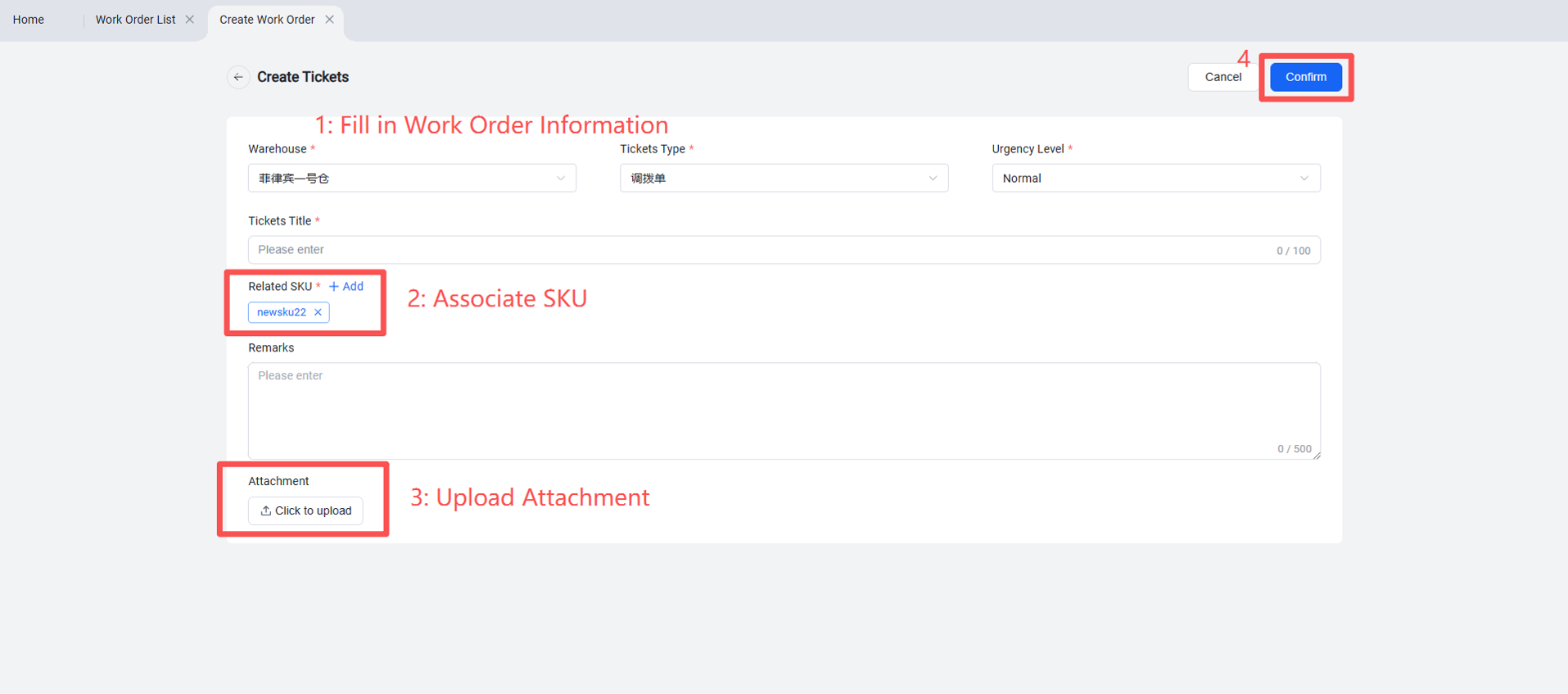
Step 2: Seller Creates a Work Order in OMS
Location: OMS > Work Order Management > Create Work Order
Step 3: Seller Completes Work Order Information in OMS
After the work order is submitted, its status becomes "Pending Review."
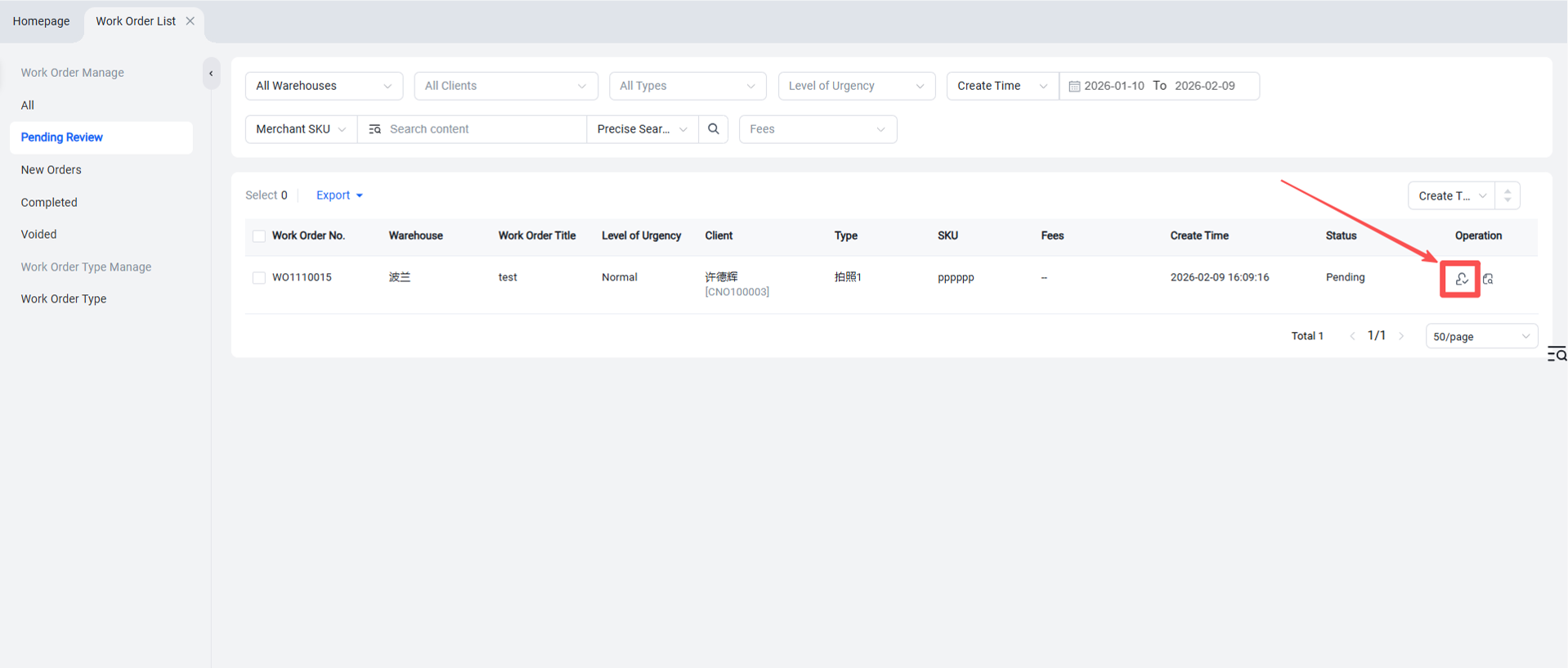
Step 4: WMS Reviews the Work Order
In WMS > Work Order List > Pending Review, click to review the work order.
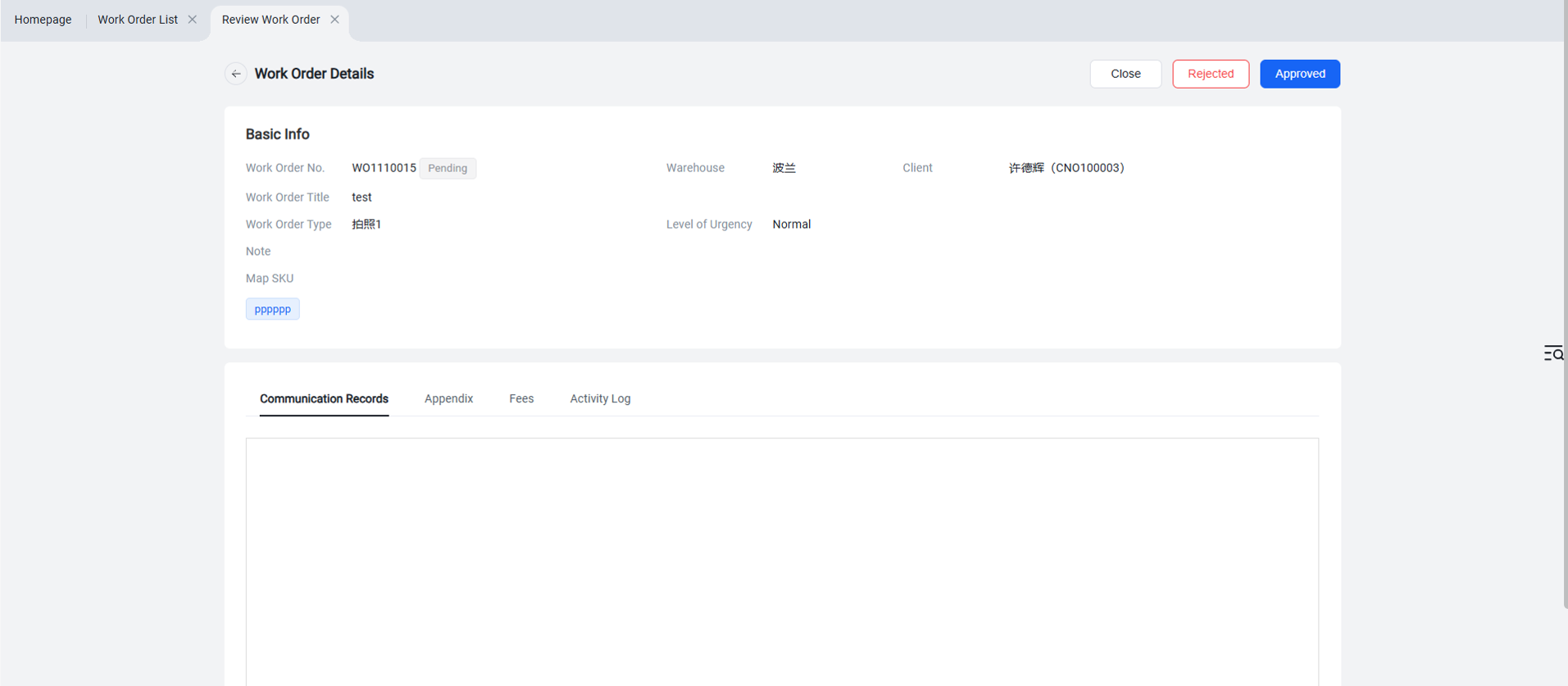
When reviewing a work order, you can view its details, upload/download attachments, and send messages to communicate with the client's OMS. Based on the actual situation, you can then choose to Approve or Reject the review. Upon approval, the work order status changes to Pending Processing.
Step 5: WMS Processes the Work Order
In WMS > Work Order List > Pending Processing, click to process the work order.
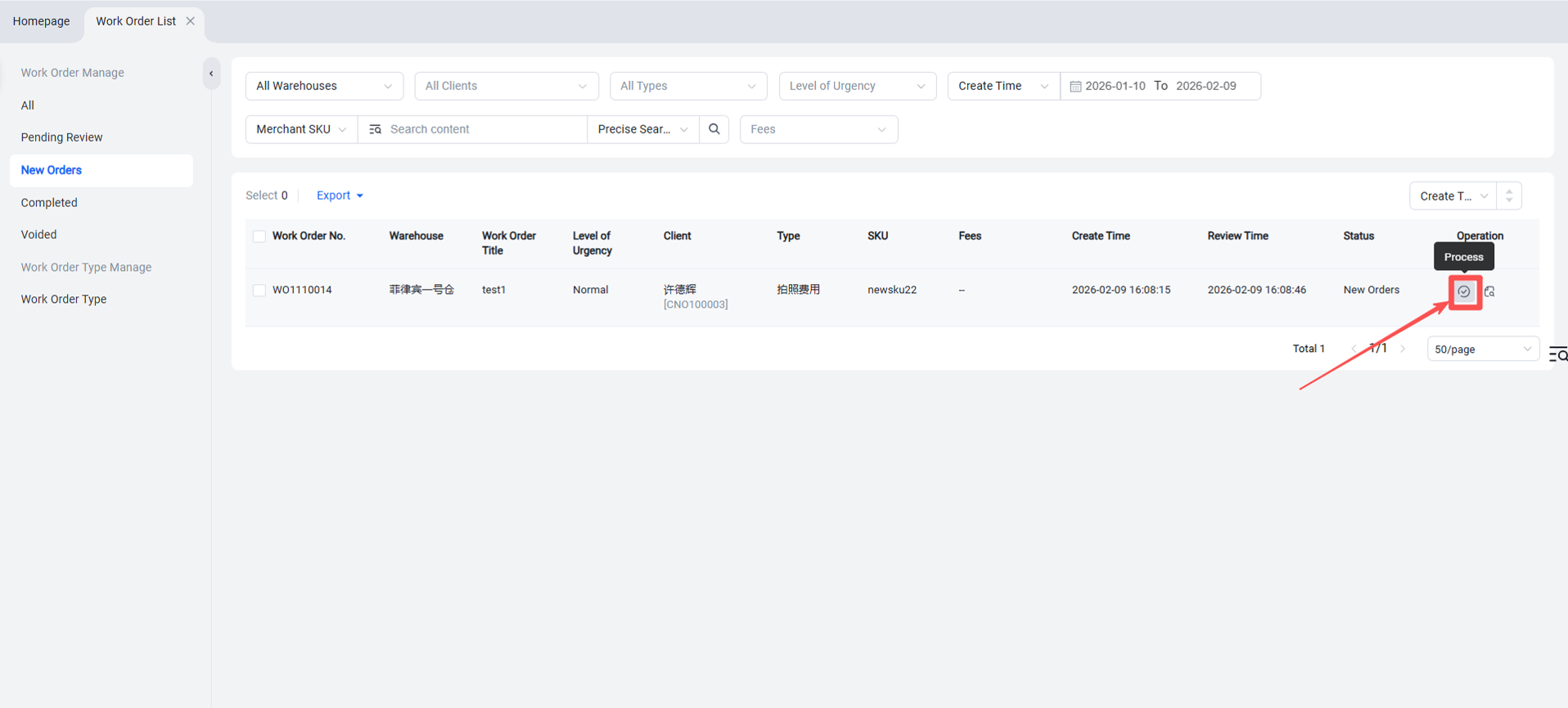
While processing the work order, you can continue communicating with the OMS within the work order details, such as by uploading attachments, etc.
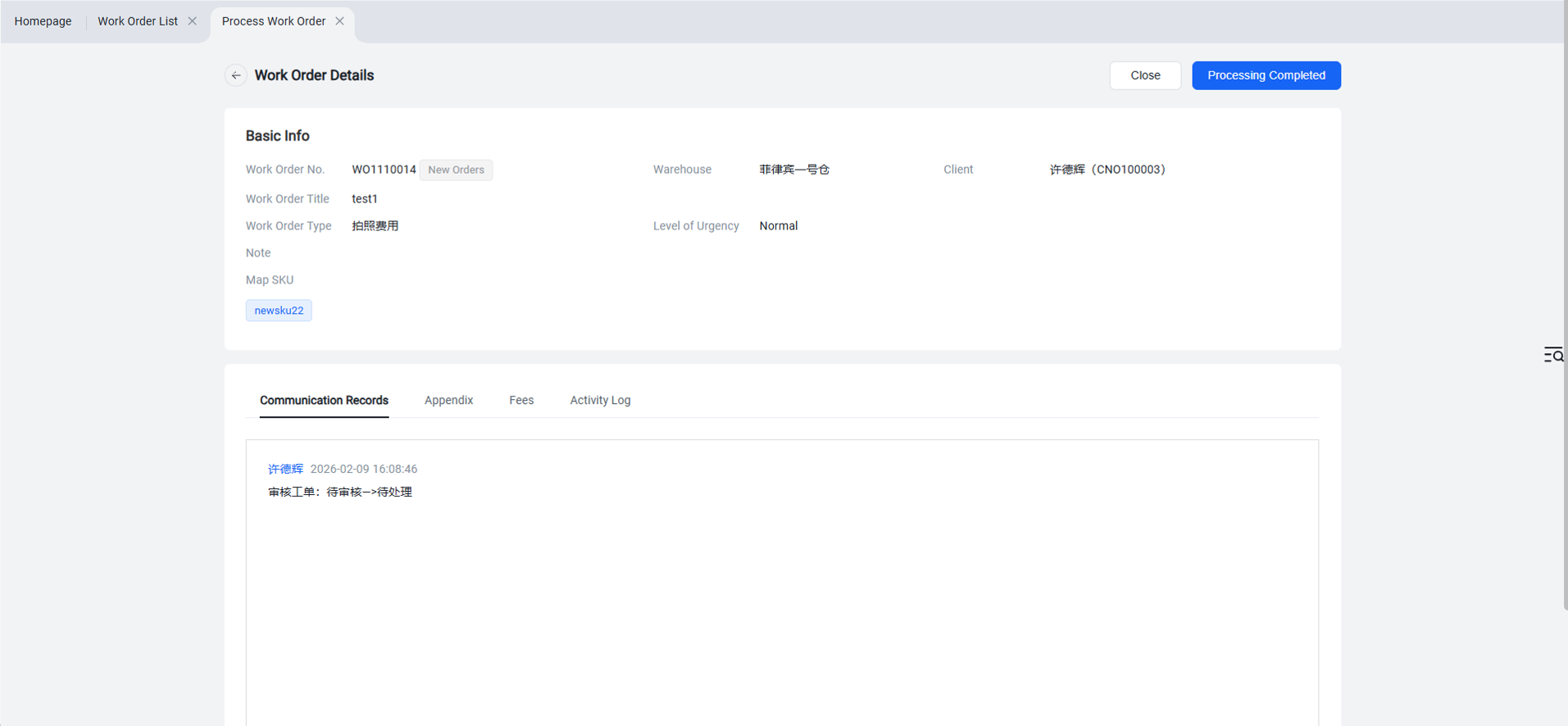
After processing is completed, the work order status changes to "Completed."
Step 6: Work Order Billing
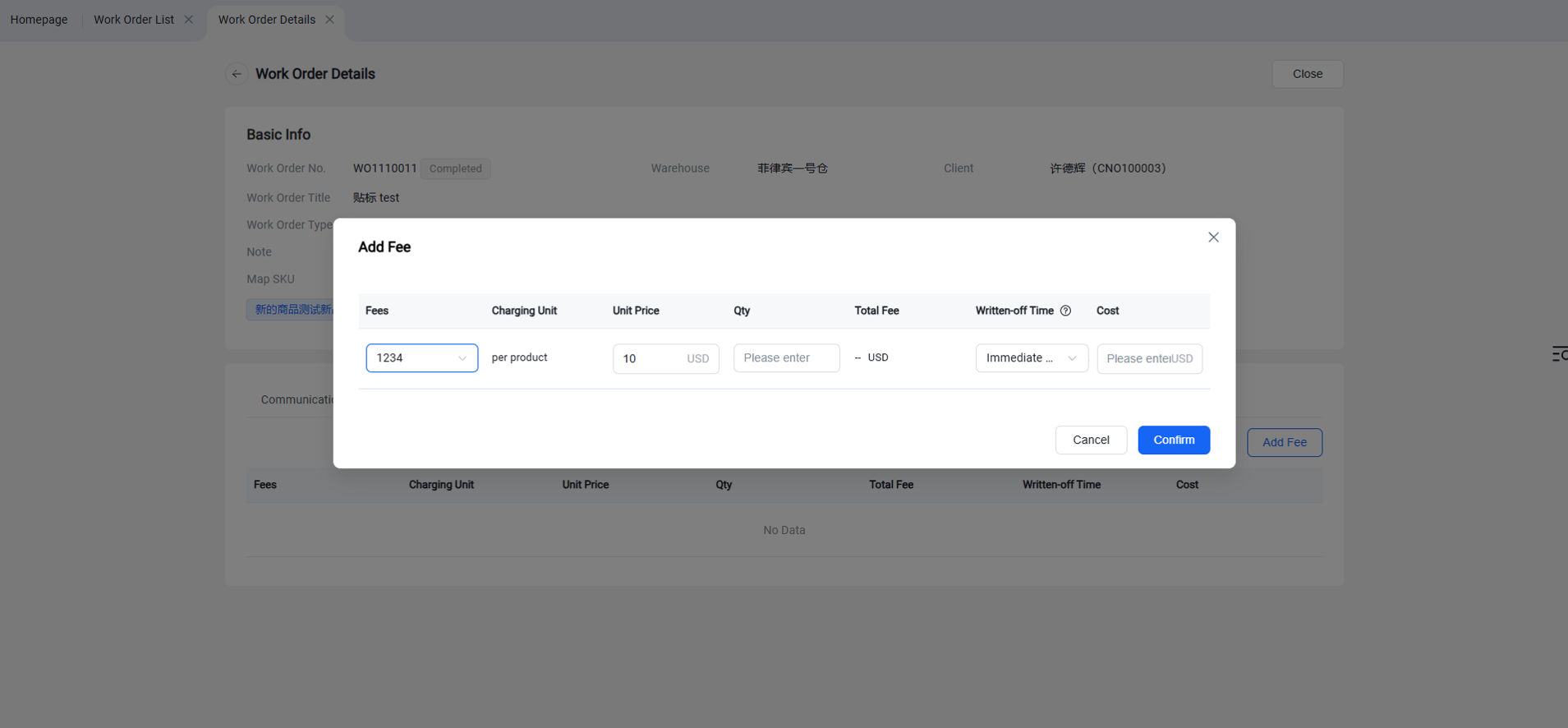
Location: WMS > Work Order Details > Fees > Add Fee
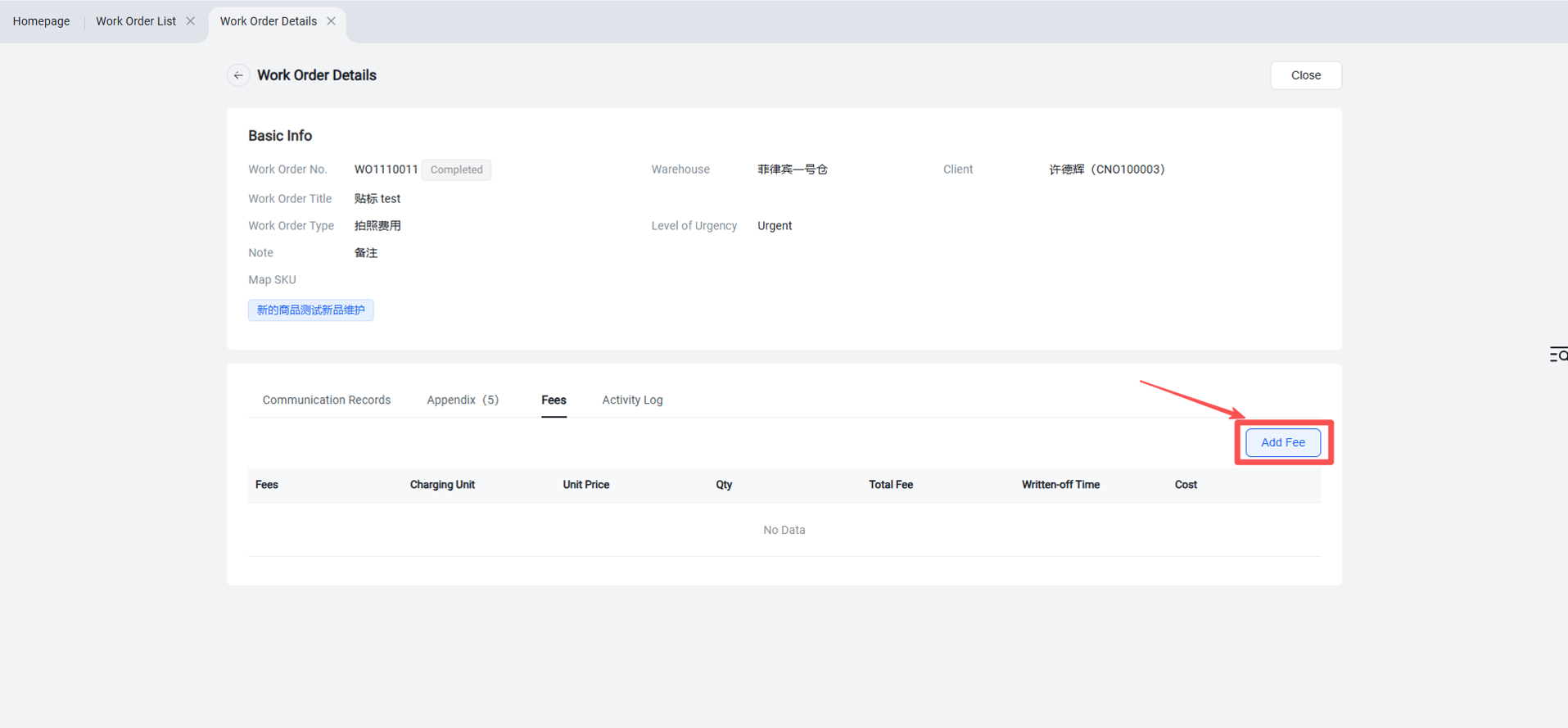
Click "Add Fee" to open a pop-up window. Select the fee item, unit, and quantity.
Note: Fee item options are created in: WMS > Fees > Operational Fees > Value-Added Service Fees.