Printer Settings and Shipping Label Printing Methods
I. Definition
Configure different types of printers based on cross-border e-commerce business scenarios to streamline order processing and shipping label printing, improve order processing efficiency, and ensure smooth business operations.
II. Operational Path
Step 1: Connect the Printer
Purchase a thermal label printer online (price is less important; prioritize printing speed and clear, accurate label information). Connect the printer to a power source and link it to your computer using the printer's built-in USB interface.
Step 2: Install Printer Driver
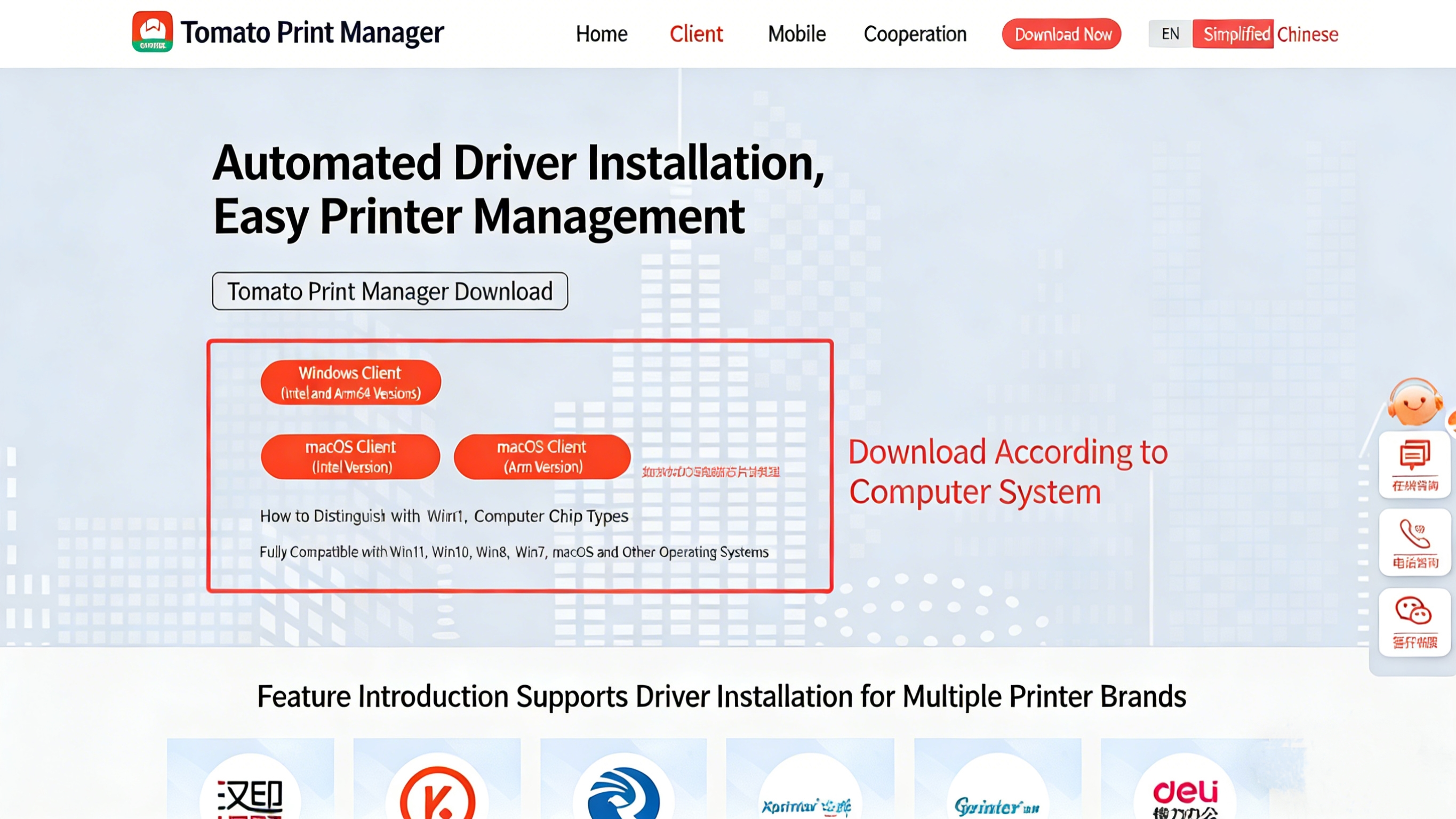
Online searches for printer drivers often lead to paid options, and sometimes downloads are incompatible or contain malware. It is recommended to use the free, direct download and installation option: "Tomato Print Manager". After downloading, double-click the executable file and follow the installation wizard prompts to install Tomato Print Manager step-by-step.
Then, open the software and install the driver with one click.
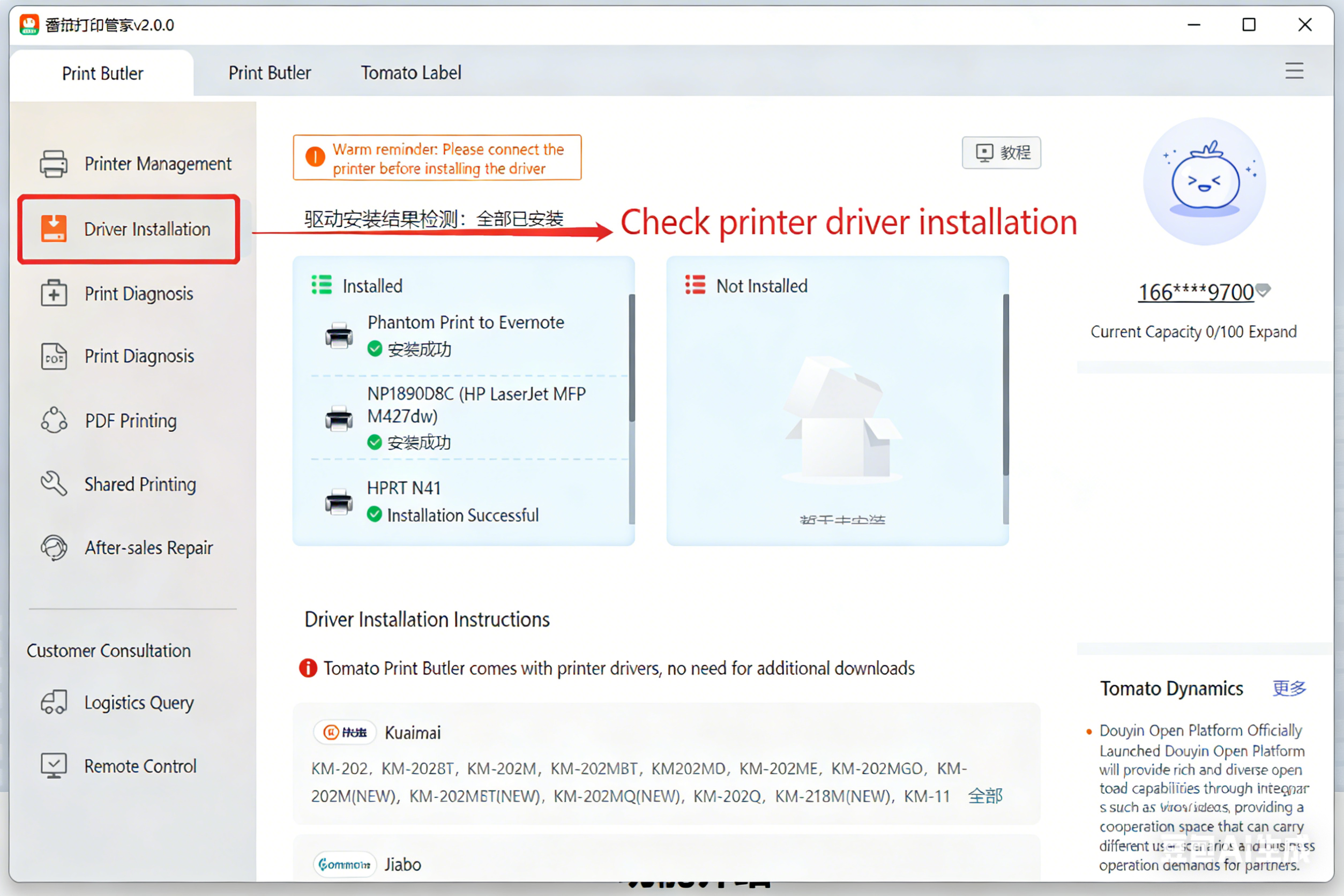
If printing issues occur, you can click Print Diagnosis to locate and fix the problems.
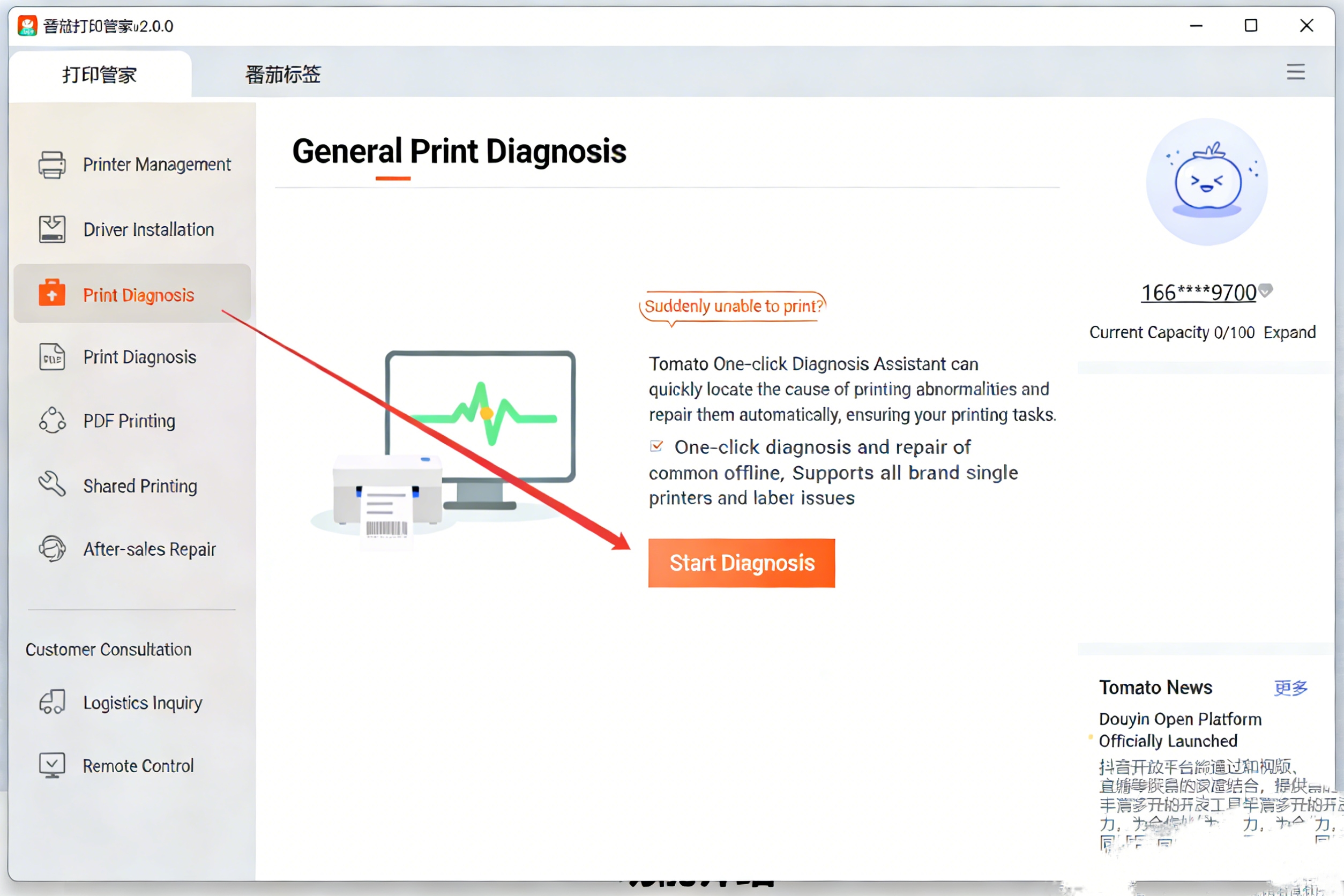
Step 3: Configure Printer Parameters and Options, Test Printer
After completing the printer driver installation, configure the printer parameters.
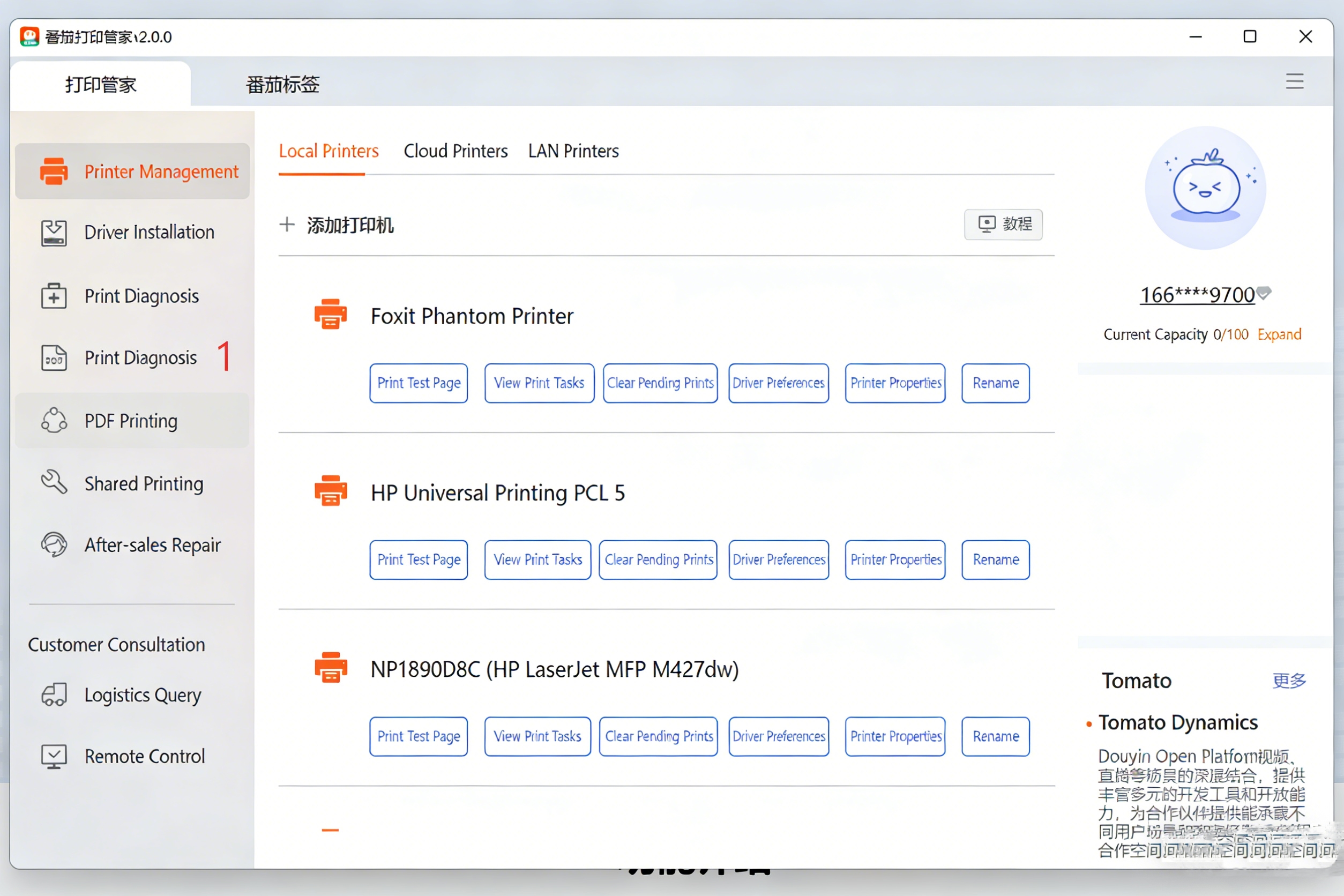
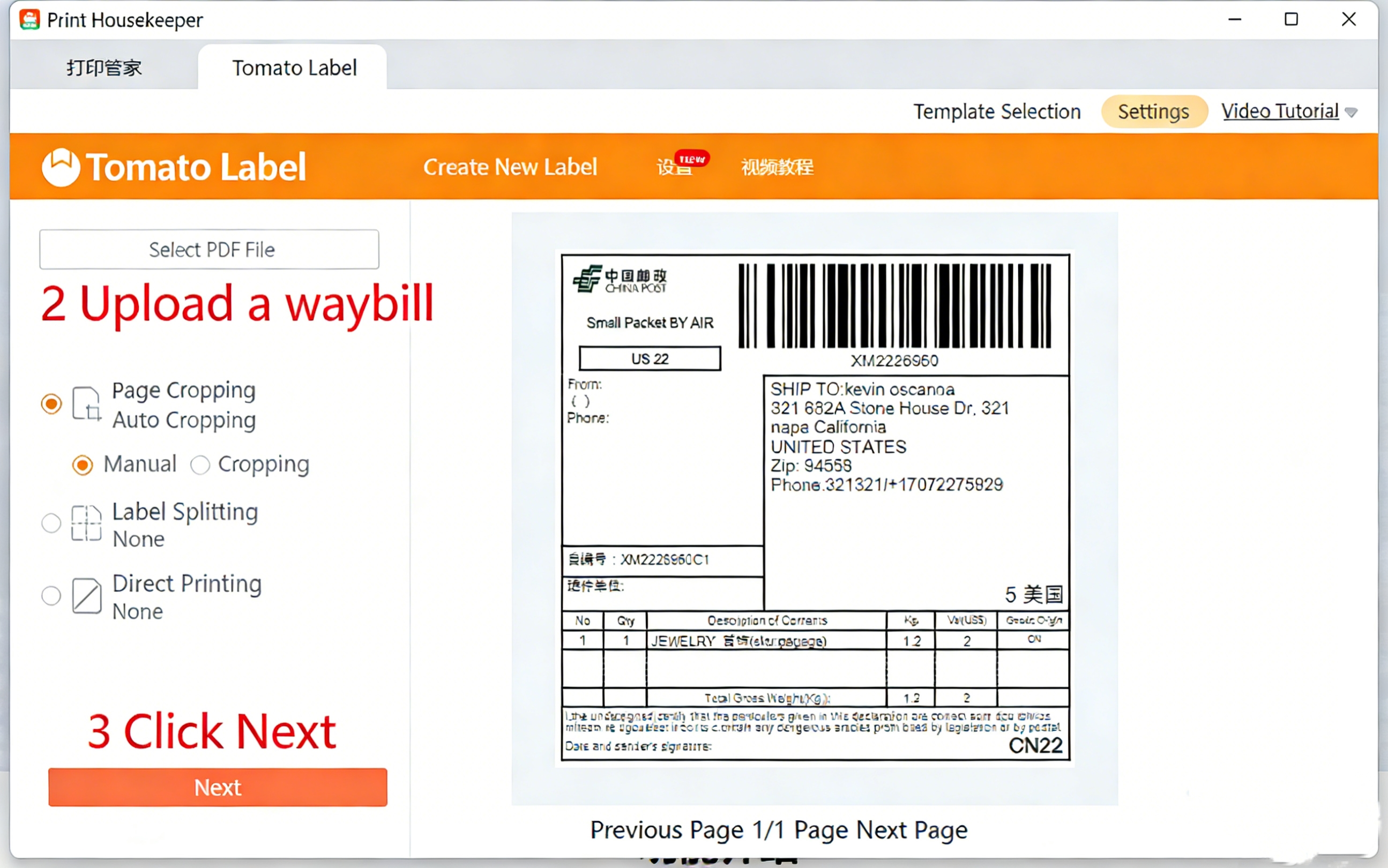
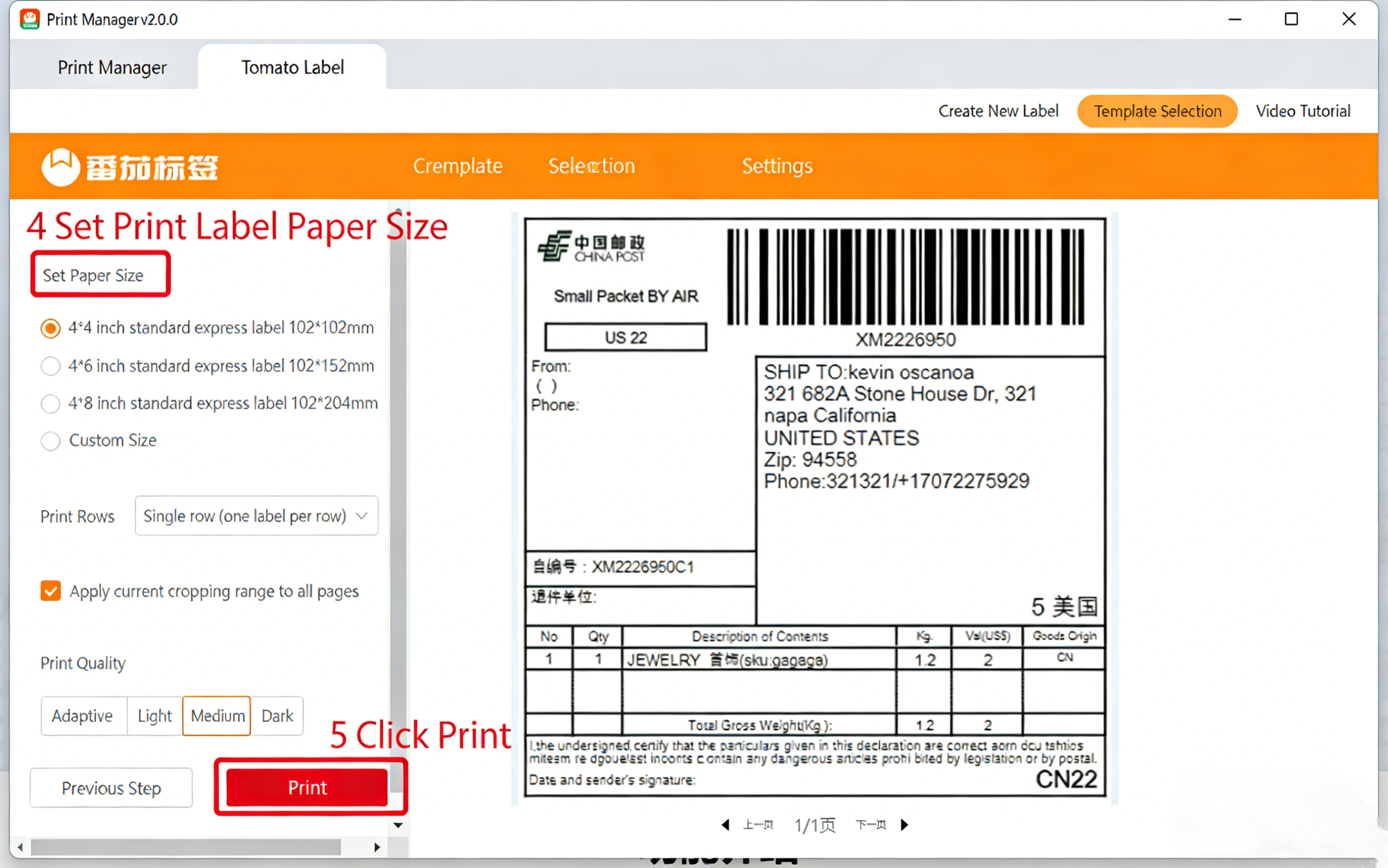
The printer successfully prints a shipping label. Check if the information on the order—such as recipient name, address, contact details, product information, order number—is printed accurately. Also, verify the print quality is clear.
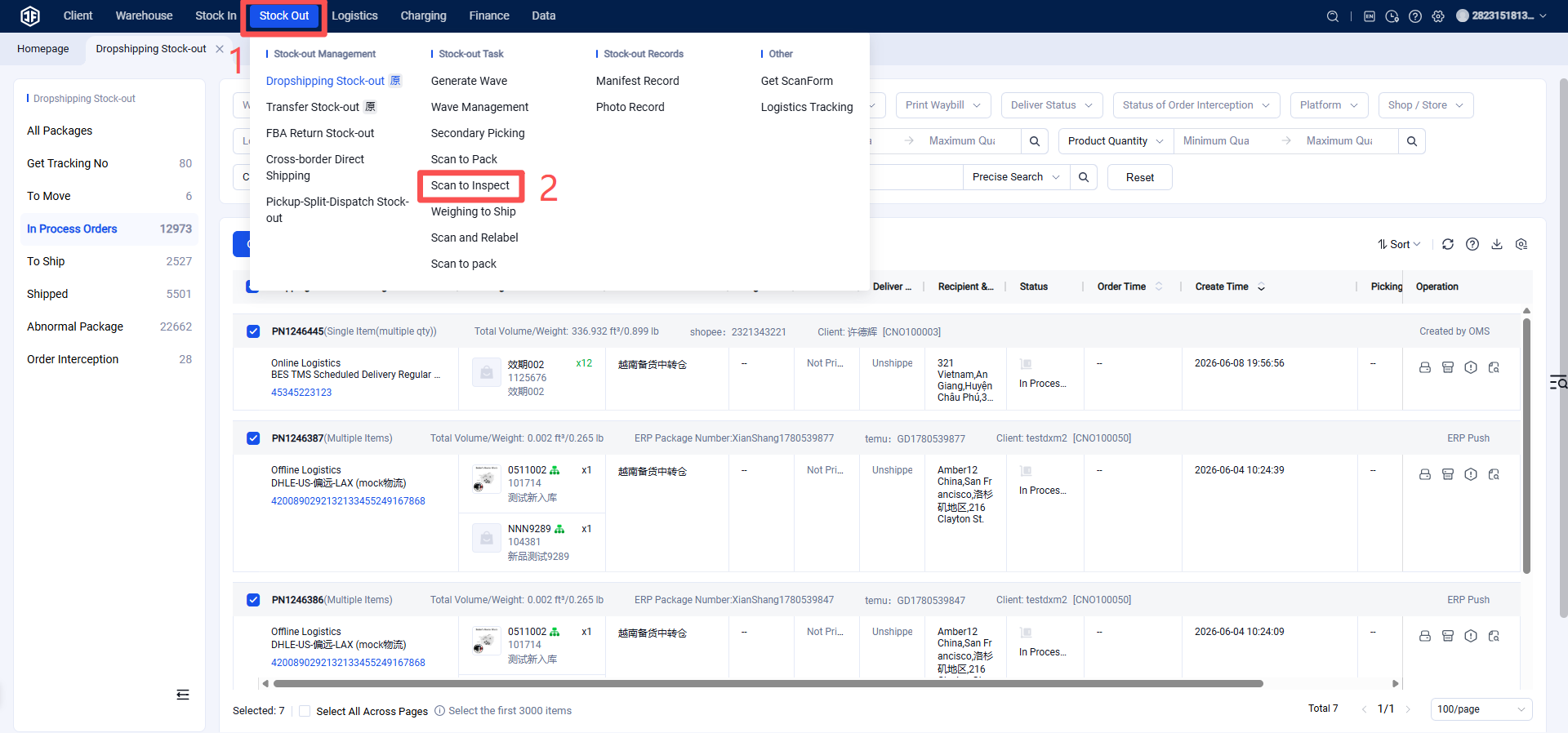
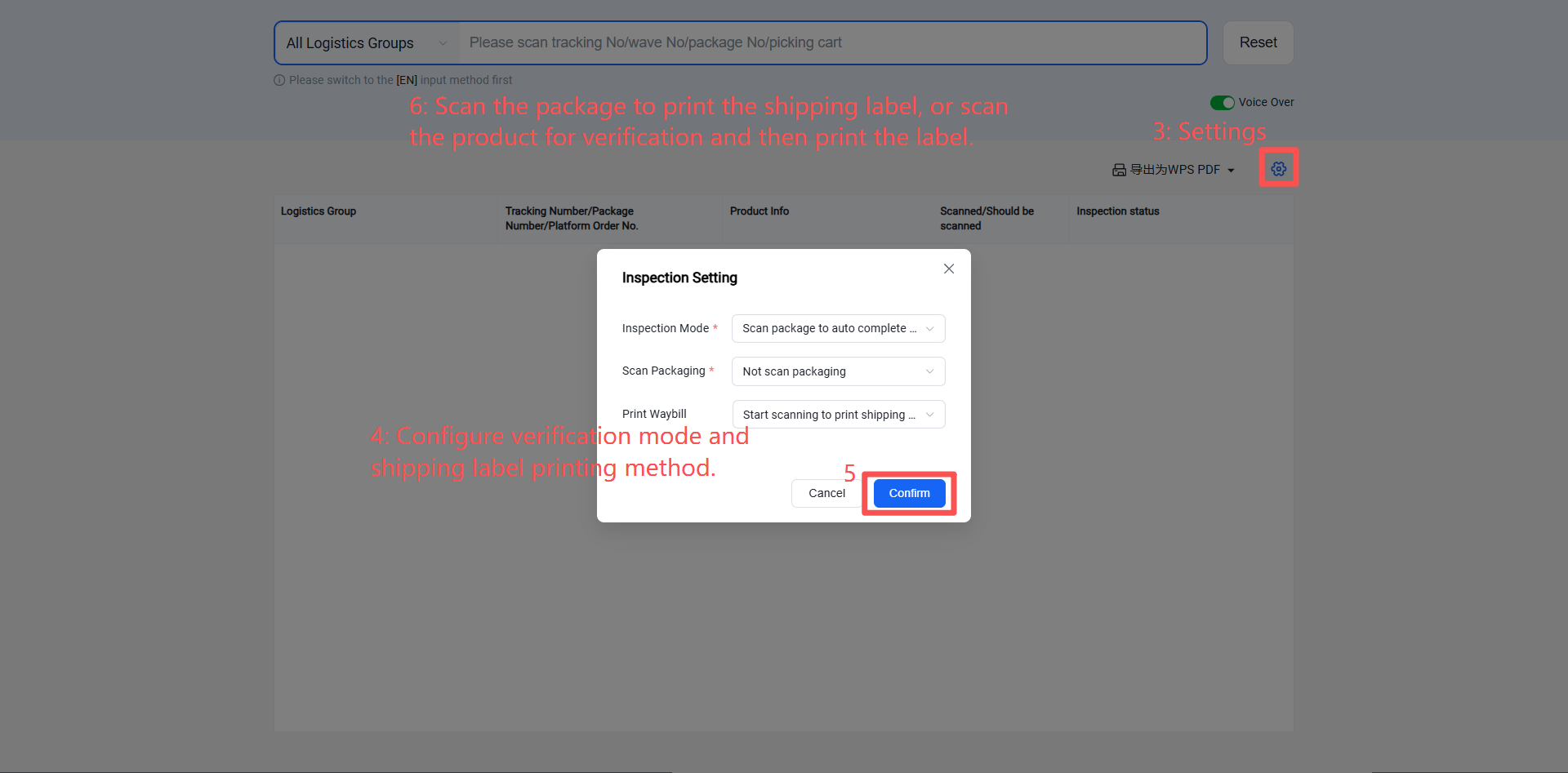
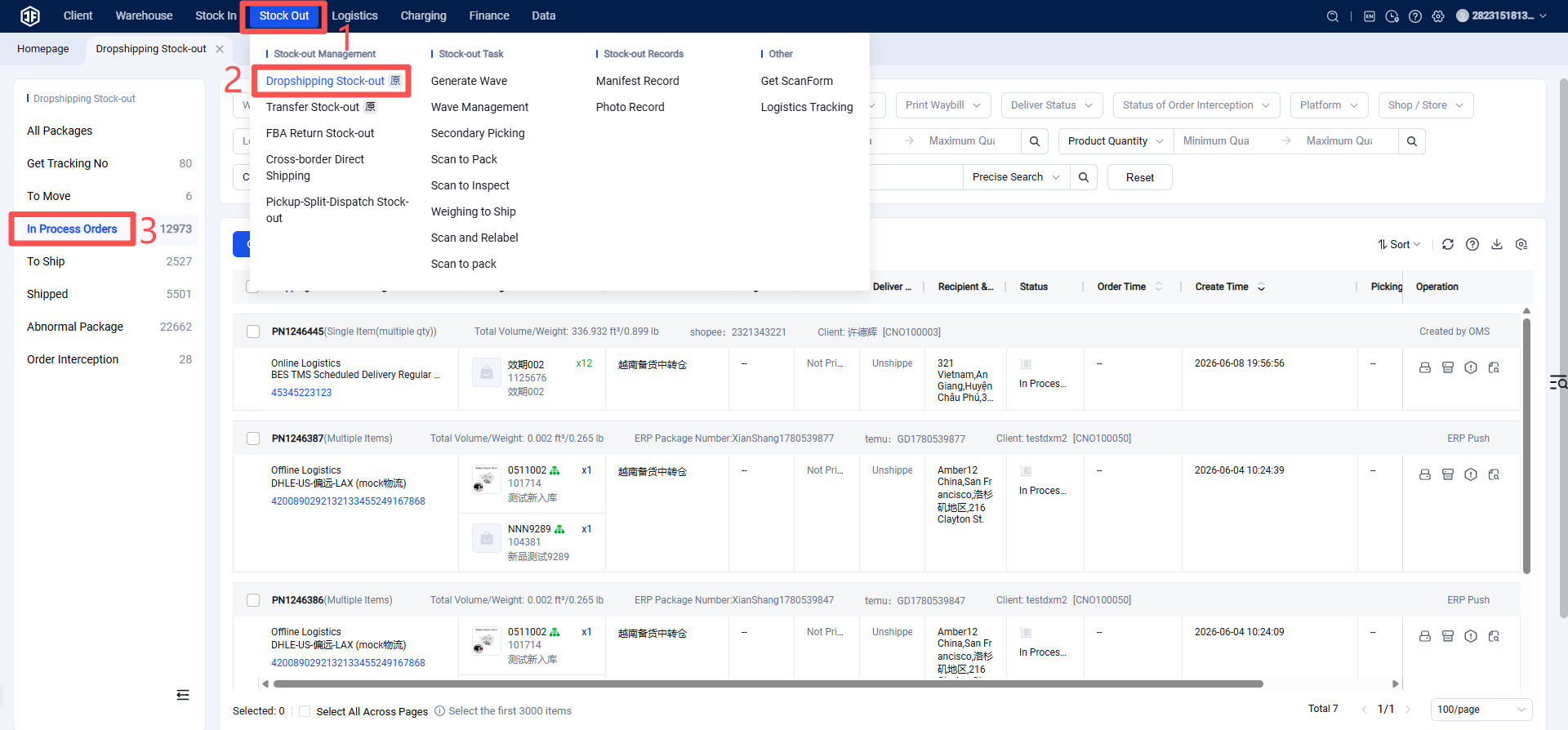
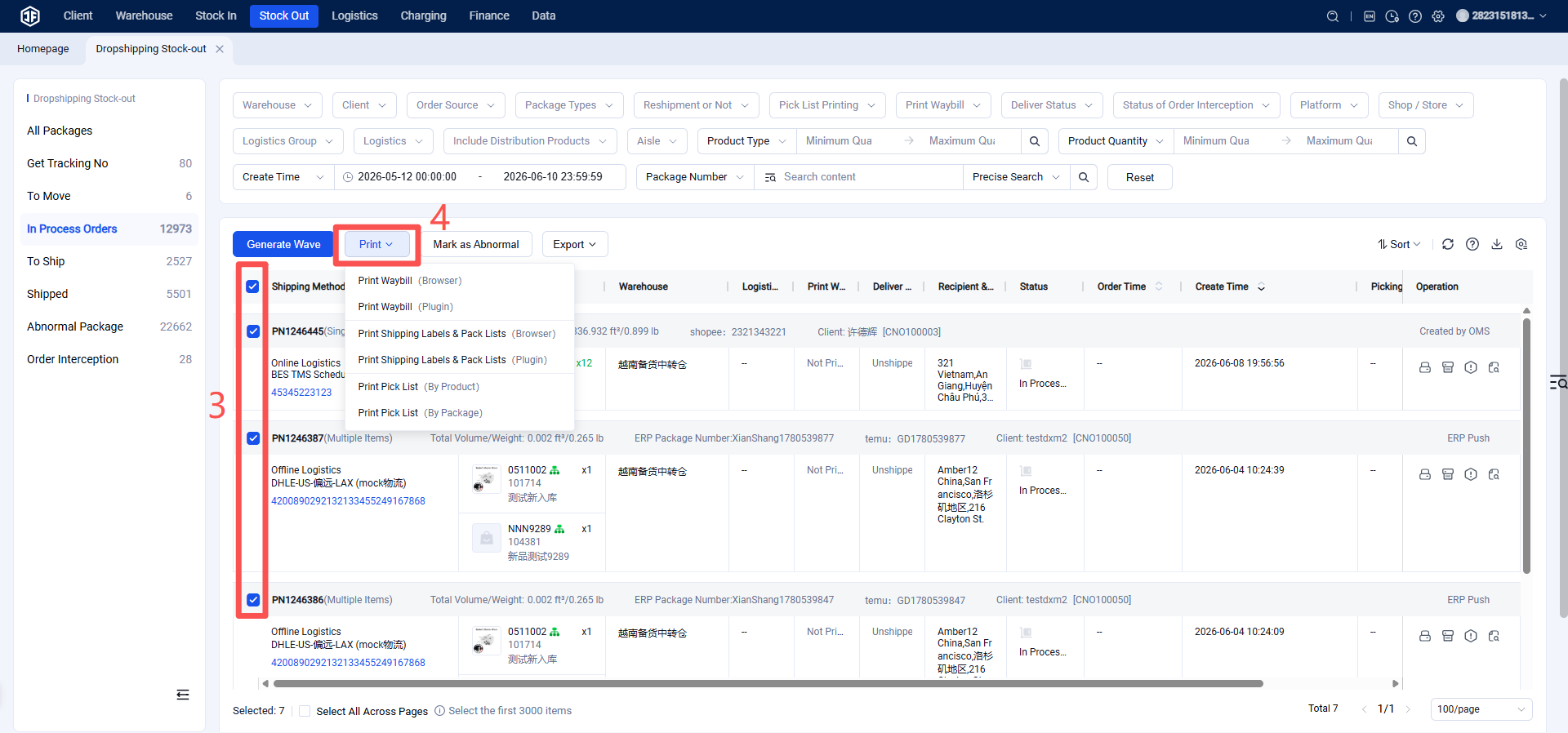
Step 4: Open the Jifeng Overseas Warehouse System and Print Shipping Labels, or Scan for Verification and Auto-Print
Method One: Simplified Order Processing for Direct Label Printing
Method Two: Scan for Verification and Automatically Print Shipping Label