Standard Inbound Process
I. Definition
To avoid time‑consuming manual communication with the warehouse or the risk of the warehouse overlooking shipments, sellers can create inbound orders in the [Seller Portal (OMS)]. Once the goods are shipped, the shipping documents are automatically pushed to the warehouse. Warehouse staff can then clearly identify the owner and products upon arrival, facilitating quick receiving, inspection (QC), and put‑away.
II. Operation Path
Log in to the Warehouse Portal (WMS) > Inbound > Inbound Order Management > View inbound order information from sellers > Upon arrival, confirm receipt manually or via scanning.
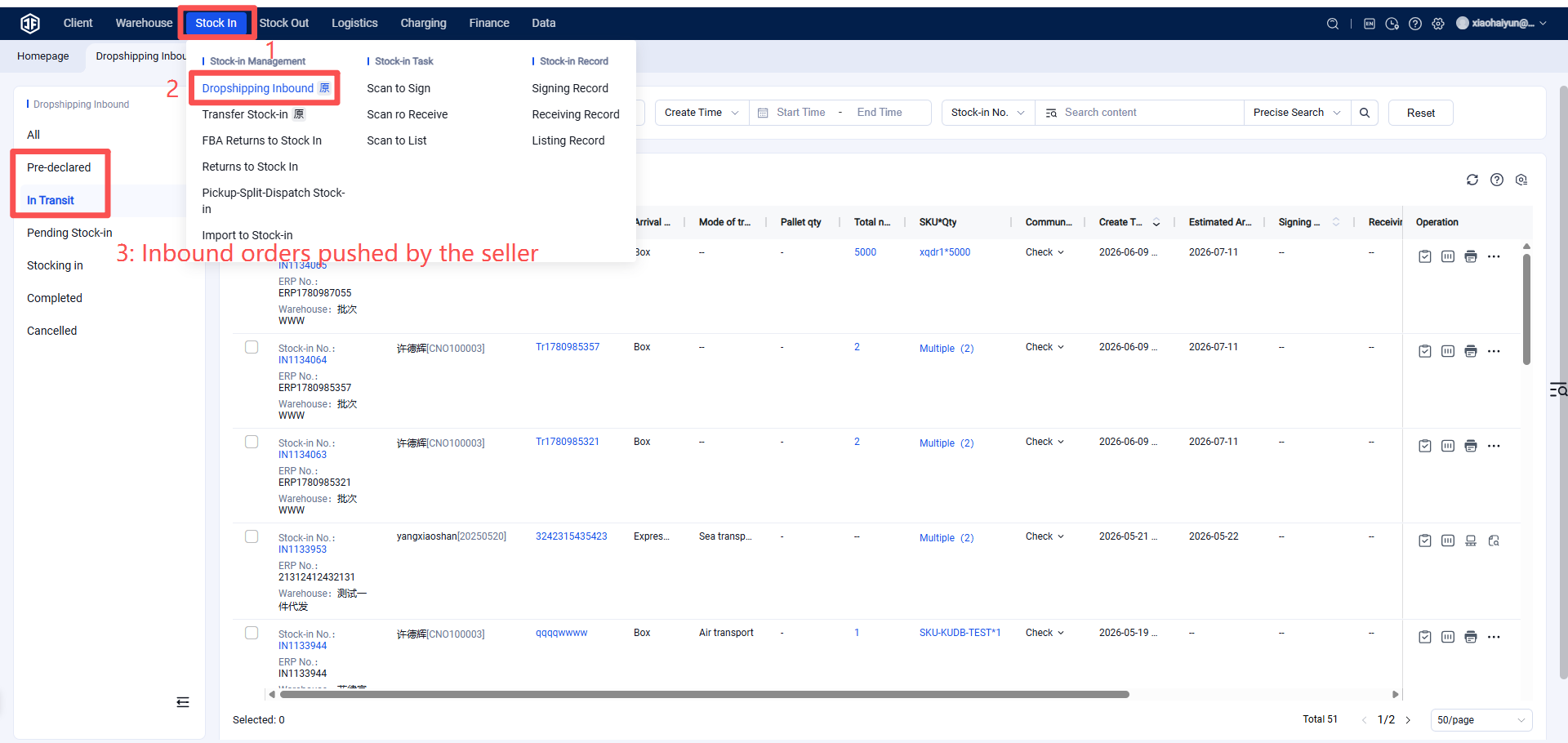
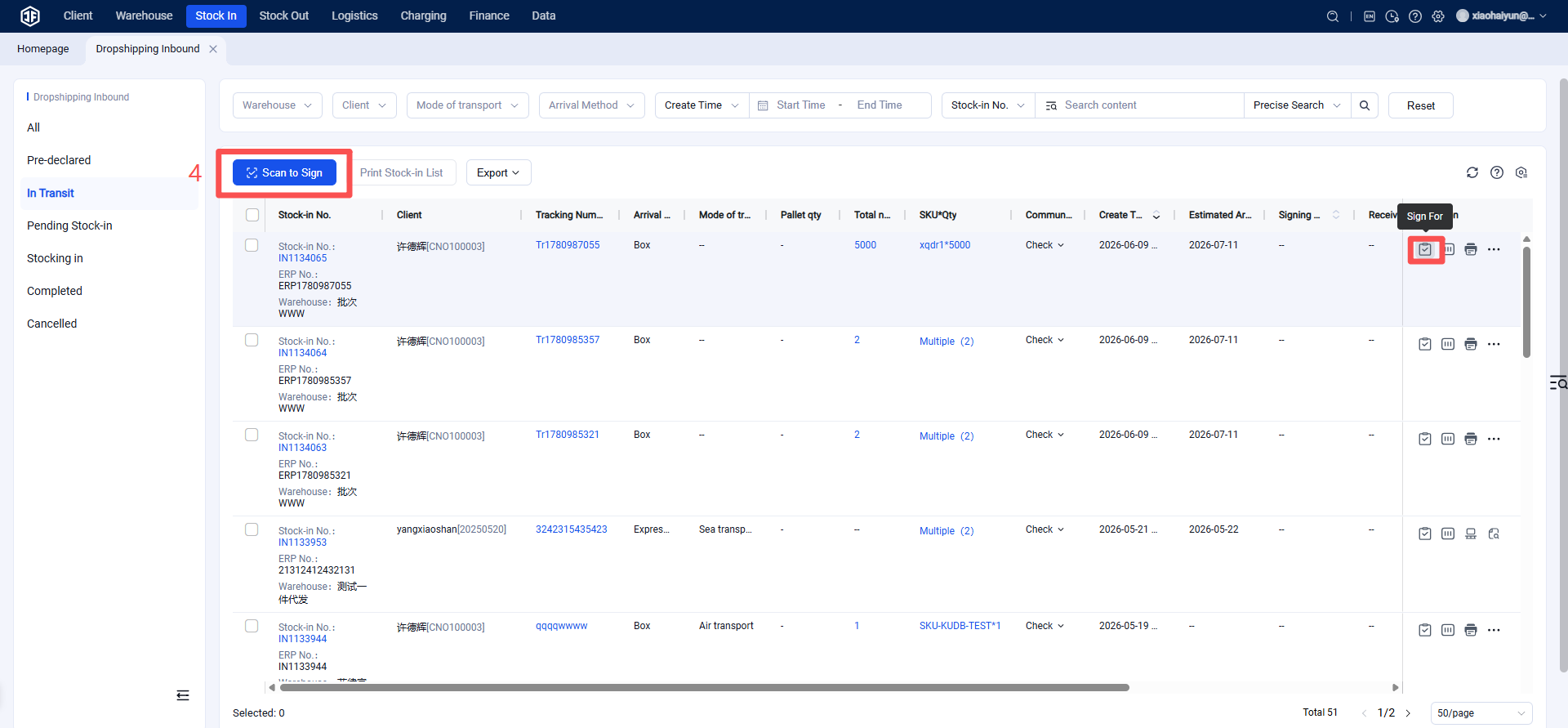
After scanning for receiving, the document status becomes "Pending Inbound."
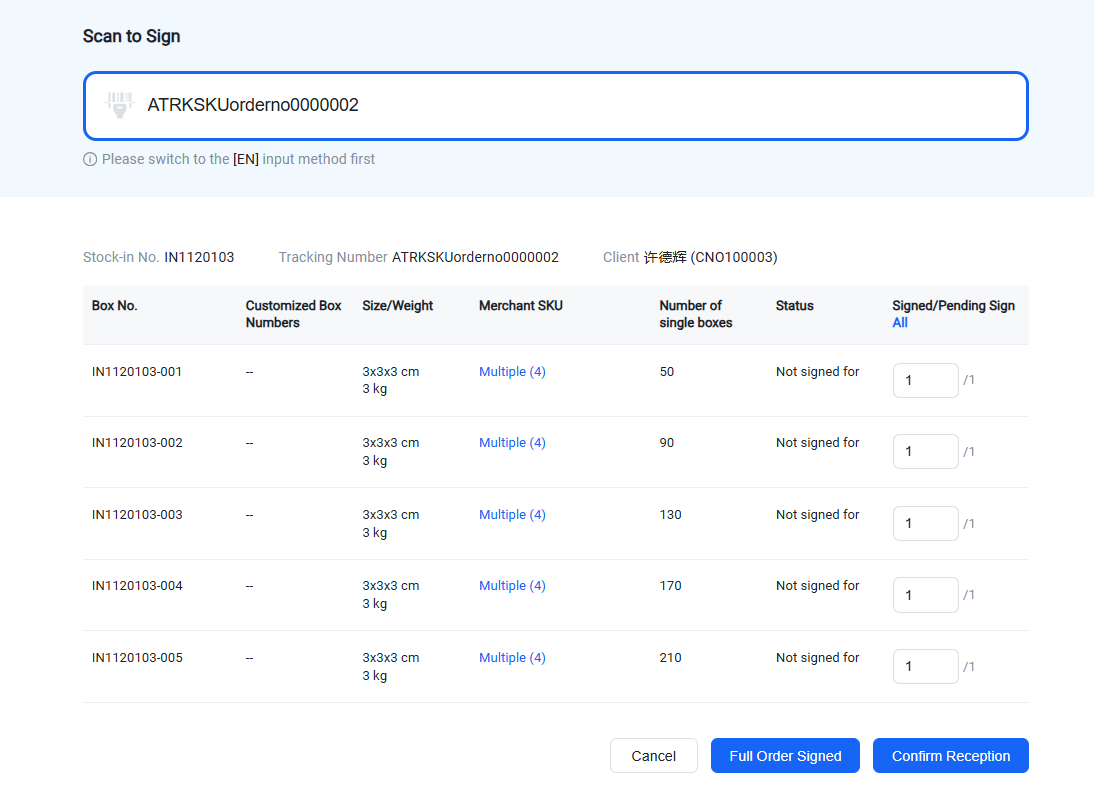
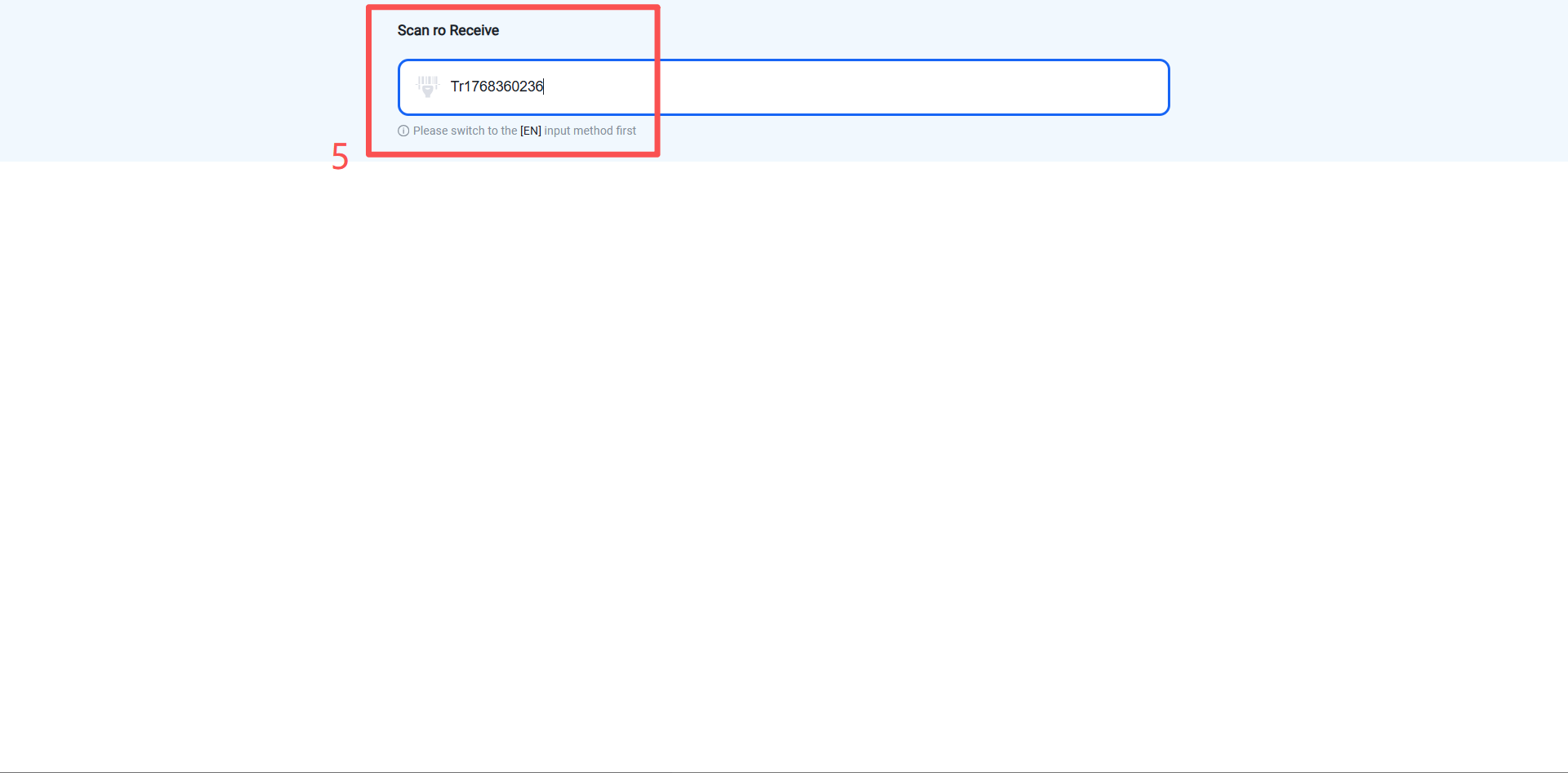
Receiving: On the inbound order list page, click the "Receive" action for the target inbound order, or scan the inbound order number, ERP order number, or tracking number to receive.
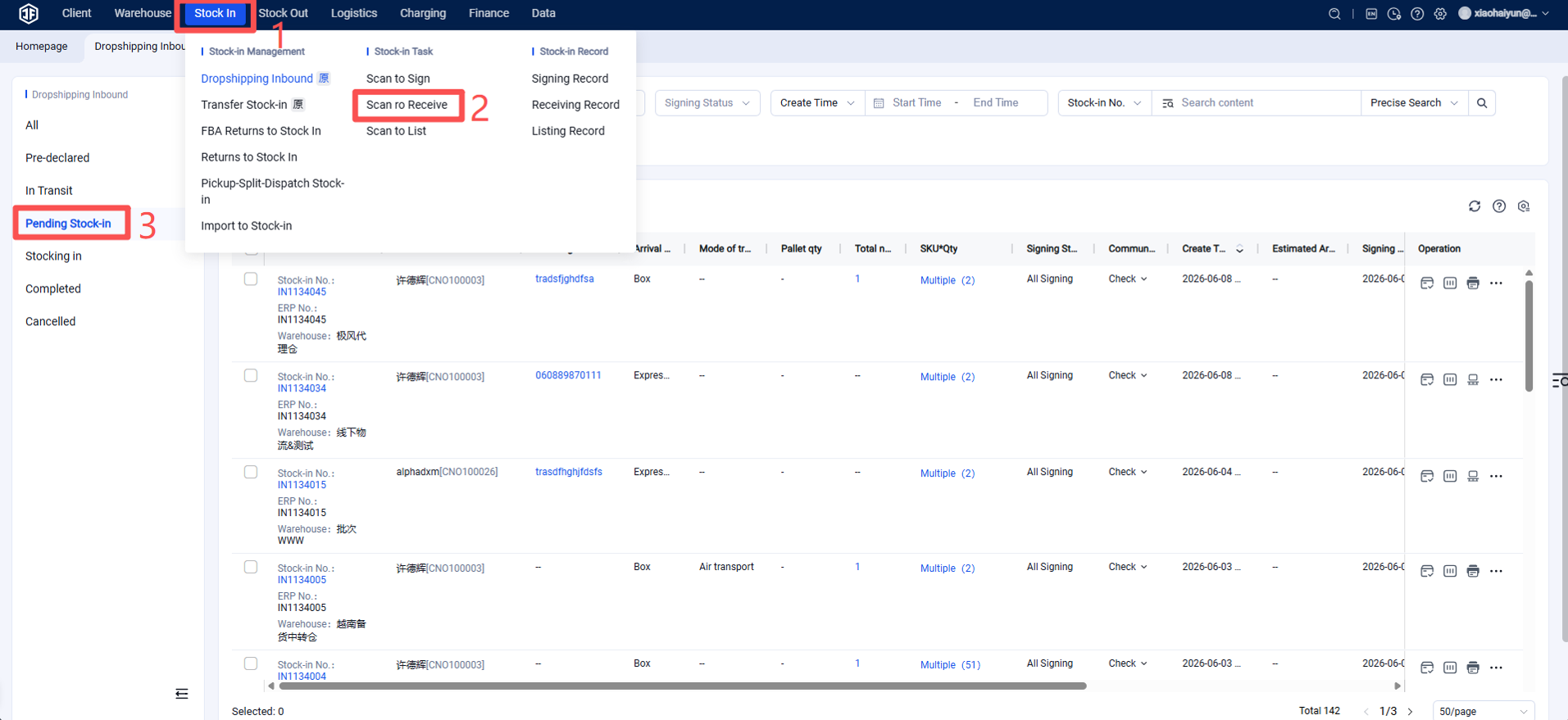
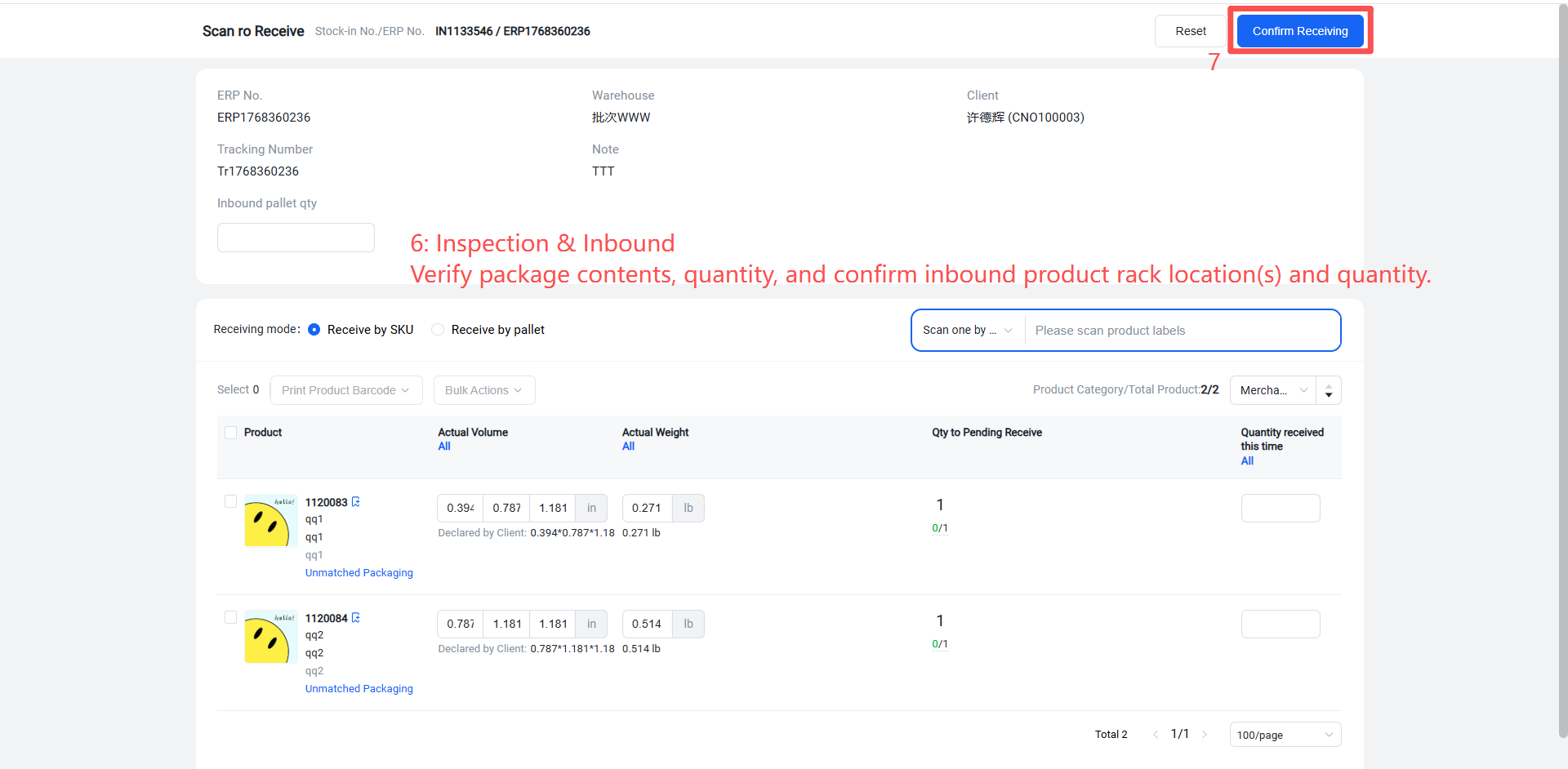
Log in to the Warehouse Portal (WMS) > Inbound > Scan to Receive > Standard Inbound > Pending Inbound > Scan >> Confirm arrived product quantity and rack location > Save and submit.
Note:
When the owner pushes an inbound order from the ERP, the WMS obtains an inbound order with the status "Forecasted."
If the owner fills in the tracking number in the ERP, the inbound order status changes to "In Transit."
After the warehouse scans for receiving, the inbound order status becomes "Pending Inbound."
While the warehouse is performing receiving and put‑away operations, the inbound order status is "Inbound Processing."
When all products in the inbound order have been put away, or the warehouse manually forces completion, the inbound order status is set to "Completed."